
Inleiding
The GUSGU G7 Wireless Gaming Controller is a versatile and high-performance device designed for an immersive gaming experience across multiple platforms. Featuring an interactive screen for easy configuration, Hall Effect joysticks and triggers for precision, and dual-mode connectivity, this controller is built for serious gamers.
Sleutel kenmerke
- Interactive Screen & Programmable Buttons: Configure settings directly on the controller's display. Four programmable back buttons allow for custom shortcuts and macros.
- Hall-effek-joysticks en snellers: Experience drift-free precision with Hall sensing technology. Customizable dead zones and dual-stage trigger locks enhance control.
- 6-Axis Gyroscope & Asymmetric Motors: Enjoy precise motion control for aiming and steering, complemented by realistic 4-level vibration feedback for immersive gameplay.
- Dubbelmodus-konnektiwiteit: Wissel naatloos tussen Bluetooth 5.1, 2.4GHz draadloos en USB-C bedrade verbindings.
- Lang batterylewe: The 1000mAh battery provides up to 18 hours of gameplay on a single charge.
- Precise 8-Way D-Pad & Conductive Silicone Buttons: Designed for accurate control and comfortable, quiet presses during long gaming sessions.
- 3.5 mm koptelefoonaansluiting: Supports game audio output when the controller is connected via USB cable to Switch or PS4.
Opstelgids
Pakketinhoud:
- GUSGU G7 Wireless Gaming Controller
- USB-C Charging/Wired Cable
- 2.4GHz draadlose dongle
- Gebruikershandleiding
Aanvanklike heffing:
Before first use, fully charge the controller using the provided USB-C cable. Connect the USB-C end to the controller and the USB-A end to a compatible power source (e.g., computer USB port, USB wall adapter). The interactive screen will indicate charging status.
Skakel aan/af:
Om aan te skakel, druk die H knoppie. Om af te skakel, druk en hou die H button for 3 seconds until the screen turns off.
Koppel die beheerder:
The GUSGU G7 supports multiple connection modes:
1. 2.4GHz Wireless Connection (Recommended for PC):
- Insert the 2.4GHz wireless dongle into an available USB port on your PC or compatible device.
- Skakel die beheerder aan.
- On the controller's interactive screen, navigate to Modus en kies Dongle. The controller will automatically pair with the dongle.

Image: GUSGU G7 Controller displaying the 2.4GHz wireless connection mode on its interactive screen, with the wireless dongle shown.
2. Bluetooth 5.1 Connection (for iOS, Android, Switch, PS4):
- Skakel die beheerder aan.
- On the controller's interactive screen, navigate to Modus and select the desired platform (e.g., Android, iOS, Skakel oor, PS4).
- Enable Bluetooth on your device (phone, tablet, Switch console, PS4).
- Soek vir "GUSGU G7" in the Bluetooth device list and select it to pair.

Image: GUSGU G7 Controller with various compatible devices like PC, mobile, and consoles displayed around it.
3. USB-C Wired Connection:
- Connect the USB-C cable to the controller and the other end to your PC or compatible console.
- Die beheerder sal outomaties oorskakel na bedrade modus.

Image: Close-up of the GUSGU G7 Controller, highlighting its USB-C port for wired connection and charging.
Bedryfsinstruksies
Interactive Screen Navigation:
Druk en hou die H button for 3 seconds to access the main menu on the interactive screen. Use the joysticks or D-pad to navigate through options and the A/B buttons for confirmation/back.

Image: GUSGU G7 Controller displaying the interactive display screen with various settings menus, emphasizing ease of use without external apps.
Programmable Back Buttons (M1-M4):
The four back buttons (M1, M2, M3, M4) can be programmed to perform single actions or complex macros. Access the Program option in the interactive screen menu to set up custom commands.

Image: The underside of the GUSGU G7 Controller, highlighting the programmable macro buttons (M1, M2, N1, N2) for custom commands.
Adjusting Joystick Dead Zones:
To eliminate stick drift and fine-tune precision, use the interactive screen to adjust joystick dead zones from 0-50% via the Doodsone instelling.

Image: Diagram illustrating the adjustable dead zone feature of the GUSGU G7's Hall Effect joysticks, showing precision control.
Twee-Stage Trigger Locks:
The Hall Effect triggers feature dual-stage locks. Use the physical switches on the underside of the controller to toggle between rapid short-press firing and full-press precision control, adapting to different game genres.

Image: Visual representation of the GUSGU G7's Hall Effect two-stage triggers, demonstrating their use in different gaming scenarios.
Vibrasie terugvoer:
The asymmetric dual motors provide four adjustable levels of vibration feedback. Adjust the intensity via the Vibrasie setting on the interactive screen to suit your preference.

Beeld: Intern view of the GUSGU G7 Controller showing the asymmetric motors and illustrating the four levels of vibration feedback.
6-As Giroskoop:
The built-in 6-axis gyroscope enables precise motion control for aiming, steering, and action gameplay. This feature is automatically active when supported by the game.
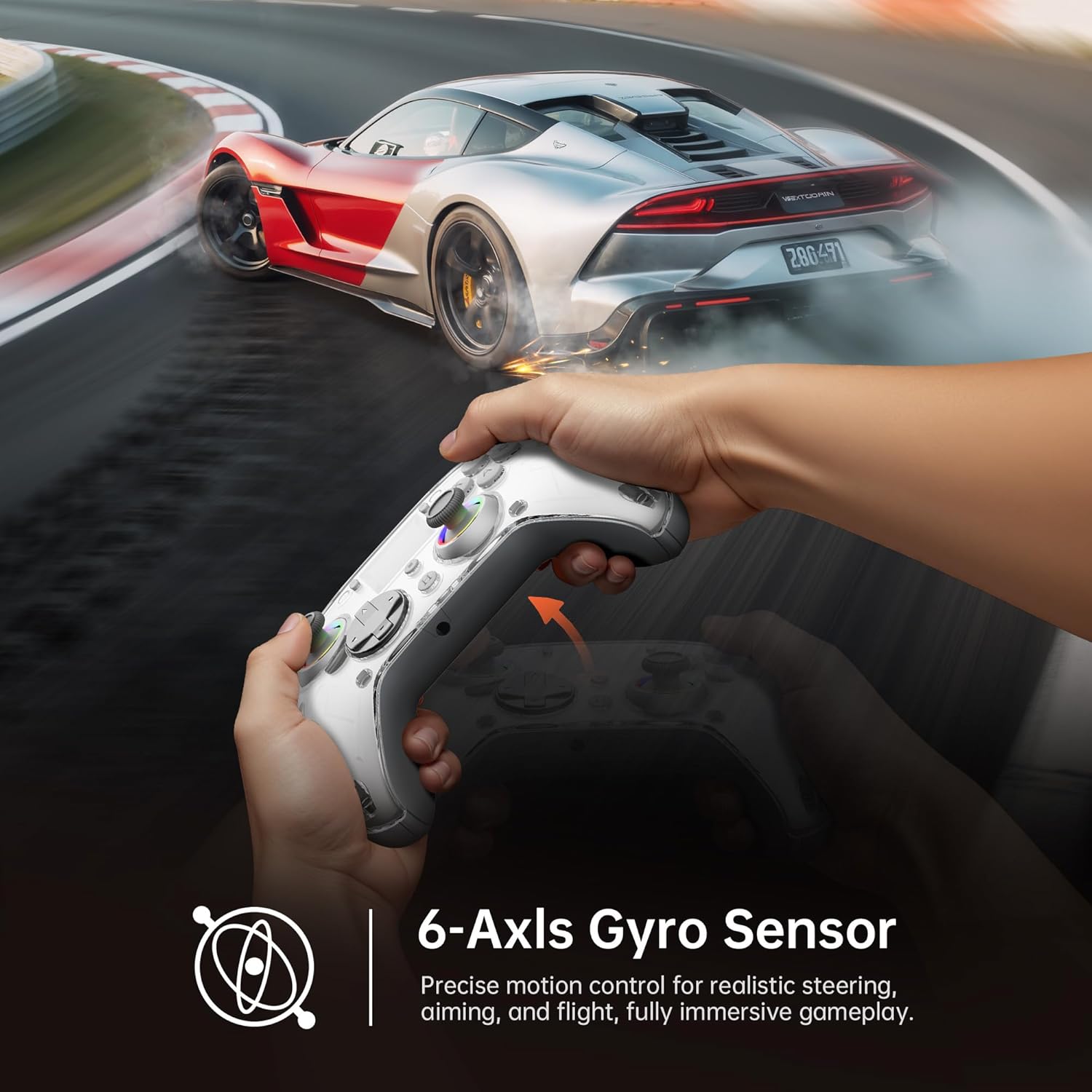
Image: Diagram illustrating the 6-Axis Gyro Sensor in the GUSGU G7 Controller, showing its application in precise motion control for gaming.
Changing Button Layouts:
Switch between Xbox and Switch button layouts (A/B/X/Y mapping) via the Uitleg setting on the interactive screen to match your preferred gaming style or console.
Headphone Jack Usage:
The 3.5mm headphone jack supports game audio output when the controller is connected via USB cable to a Nintendo Switch or PlayStation 4. Audio output is not supported on PC or mobile phones through this jack.
Amptelike produkvideo:
Video: Amptelike produkvideovertoningasing the GUSGU G7 Wireless Gaming Controller's features and functionality.
Onderhoud
- Hou die beheerder skoon deur dit met 'n sagte, droë lap af te vee.
- Vermy die blootstelling van die beheerder aan uiterste temperature, humiditeit of direkte sonlig.
- Do not disassemble the controller, as this will void the warranty.
- Berg die beheerder op 'n koel, droë plek wanneer dit nie gebruik word nie.
Probleemoplossing
Beheerder koppel nie:
- Maak seker dat die beheerder volledig gelaai is.
- Verify the correct connection mode is selected on the interactive screen (2.4GHz, Bluetooth, or Wired).
- Vir Bluetooth, maak seker dat jou toestel se Bluetooth geaktiveer is en dat die beheerder in paringsmodus is.
- Try restarting both the controller and the device you are connecting to.
- If using 2.4GHz, ensure the dongle is securely inserted and recognized by your device.
Stick Drift or Input Issues:
- Calibrate the joysticks and triggers via the Kalibrasie option in the interactive screen menu.
- Adjust the joystick dead zones using the Doodsone instelling.
Vibrasie werk nie:
- Gaan die Vibrasie setting on the interactive screen and ensure it's not set to 0%.
- Ensure the game you are playing supports vibration feedback.
Spesifikasies
| Kenmerk | Detail |
|---|---|
| Modelnommer | GUSGU G7 |
| Konnektiwiteit | Bluetooth 5.1, 2.4GHz draadloos, USB-C bedraad |
| Stemmingskoers | 1000Hz (Wired/2.4GHz) |
| Joysticks en snellers | Saal-effek |
| Battery kapasiteit | 1000mAh (Up to 18 hours gameplay) |
| Gyroskoop | 6-as |
| Vibrasie | Asymmetric Dual Motors (4 levels) |
| Verenigbaarheid | PC (Windows 10+), iOS (14.0+), Android (9.0+), Nintendo Switch, PS4, Tesla Arcade (Not compatible with Xbox or PS5) |
| Gewig | 15.5 onse |
| Vervaardiger | Shenzhen Wojiayoupin Technology Co., Ltd. |
Waarborg en Ondersteuning
For warranty information, technical support, or customer service inquiries, please refer to the contact details provided on the product packaging or visit the official GUSGU webwebwerf.