
1. Inleiding
This manual provides essential instructions for setting up, operating, and maintaining your CONSUMER CELLULAR Iris Connect smartphone. The Iris Connect is designed for reliable performance, featuring a 6.5-inch display, 32GB of storage, and running on Android 13. Please read this manual thoroughly to ensure proper use and to maximize your device's capabilities.
2. Wat is in die boks
Upon unboxing your CONSUMER CELLULAR Iris Connect, verify that all the following items are included:
- CONSUMER CELLULAR Iris Connect Smartphone
- USB kabel
- Vinnige Begingids
3. Toestel oorview
Familiarize yourself with the physical components of your Iris Connect smartphone.

Figuur 3.1: Voor en agter view of the Iris Connect smartphone, highlighting its sleek design and camera placement.

Figuur 3.2: Voorkant view of the Iris Connect, showcasing the 6.5-inch display and front-facing camera.
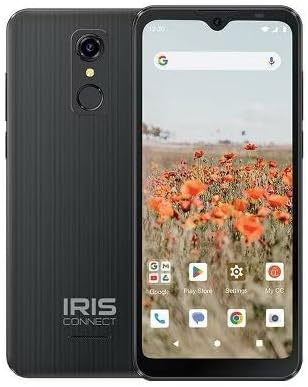
Figuur 3.3: Terug view of the Iris Connect, showing the main camera, flash, and fingerprint sensor.
Sleutelkomponente:
- 6.5-duim skerm: High Definition+ screen for clear visuals.
- Voorkamera (8MP): Geleë bo-aan die skerm vir selfies en video-oproepe.
- Hoofkamera (13MP): Located on the rear, for high-resolution photos and videos.
- Vingerafdruk-skandeerder: Integrated on the rear for secure unlocking.
- Kragknoppie: Typically on the right side, used to turn the device on/off or wake/sleep the screen.
- Volume knoppies: Adjacent to the power button, for adjusting audio levels.
- USB-C-poort: Aan die onderkant, vir laai en data-oordrag.
- 3.5 mm oudio-aansluiting: Vir die koppeling van koptelefoon.
4. Opstelling
4.1. SIM-kaart en MicroSD-kaart insit
- Vind die SIM-laai aan die kant van jou toestel.
- Insert the SIM ejector tool (not included, use a thin paperclip) into the small hole next to the tray and press gently until the tray pops out.
- Plaas jou Nano-SIM-kaart(e) in die aangewese gleuwe met die goue kontakte na onder.
- If desired, insert a microSD card (up to 256GB) into its dedicated slot for expanded storage.
- Plaas die skinkbord versigtig terug in die toestel totdat dit vasklik.
4.2. Aanvanklike Aanskakeling en Opstellingsassistent
- Druk en hou die Kragknoppie totdat die skerm brand.
- Volg die instruksies op die skerm om jou taal te kies, aan 'n Wi-Fi-netwerk te koppel en jou Google-rekening op te stel.
- You may be prompted to transfer data from an old device or set up security features like the fingerprint scanner.
4.3. Laai die toestel
Before first use, it is recommended to fully charge your device. The Iris Connect features a 3500 mAh battery with an approximate charging time of 2.5 hours.
- Koppel die USB-kabel aan die USB-C-poort onderaan jou foon.
- Connect the other end of the USB cable to a compatible power adapter (not included) and plug it into a wall outlet.
- Die laai-aanwyser sal op die skerm verskyn.
5. Bedryfsinstruksies
5.1. Basiese navigasie
- Raak: Tik op 'n ikoon om 'n toepassing oop te maak of 'n item te kies.
- Swiep: Sleep jou vinger oor die skerm om te blaai of tussen skerms te navigeer.
- Knyp: Gebruik twee vingers om in of uit te zoem op foto's en web bladsye.
- Tuisskerm: Die sentrale spilpunt vir jou programme en widgets.
- App-laai: Vee op vanaf die tuisskerm om toegang tot alle geïnstalleerde toepassings te kry.
5.2. Oproepe maak
- Tik die Telefoon ikoon op jou tuisskerm of toepassinglaai.
- Voer die telefoonnommer in met behulp van die sleutelbord of kies 'n kontak uit jou adresboek.
- Tik die Bel knoppie om die oproep te begin.
5.3. Stuur boodskappe
- Maak die oop Boodskappe app.
- Tik die Begin klets or Nuwe boodskap ikoon.
- Voer die ontvanger se nommer in of kies uit kontakte, en tik dan jou boodskap.
- Tik die Stuur knoppie.
5.4. Koppel aan Wi-Fi
- Gaan na Instellings > Netwerk en internet > Internet.
- Wi-Fi wissel On.
- Kies jou verlangde Wi-Fi-netwerk uit die lys en voer die wagwoord in indien gevra.
5.5. Bluetooth-koppeling
- Gaan na Instellings > Gekoppelde toestelle > Verbindingsvoorkeure > Bluetooth.
- Wissel Bluetooth On.
- Kies Koppel nuwe toestel and choose your desired device from the list. Follow any on-screen prompts to complete pairing.
5.6. Kameragebruik
The Iris Connect features a 13MP main camera and an 8MP front-facing camera.
- Maak die oop Kamera app.
- Tik die Sluiter knoppie om 'n foto te neem.
- Switch between photo and video modes, or front and rear cameras, using the on-screen icons.
5.7. Vingerafdrukskandeerder
To set up the fingerprint scanner for secure unlocking:
- Gaan na Instellings > Sekuriteit en privaatheid > Toestel ontsluit > Vingerafdruk.
- Volg die instruksies op die skerm om jou vingerafdruk(e) te registreer.
6. Onderhoud
6.1. Maak die toestel skoon
To keep your device clean and functional:
- Gebruik 'n sagte, pluisvrye lap om die skerm en liggaam af te vee.
- Vermy die gebruik van harde chemikalieë, skuurmiddels of aërosolspuitmiddels.
- Maak seker dat poorte vry van stof en puin is.
6.2. Batteryversorging
To optimize your battery life (up to 26 hours of use):
- Vermy uiterste temperature.
- Moenie die toestel vir lang tye laat laai nadat dit vol is nie.
- Adjust screen brightness and close unused apps to conserve power.
6.3. Sagteware-opdaterings
Regularly check for software updates to ensure your device has the latest features and security patches:
- Gaan na Instellings > Stelsel > Stelselopdatering.
- Volg die instruksies op die skerm om enige beskikbare opdaterings af te laai en te installeer.
7. Probleemoplossing
This section addresses common issues you might encounter with your Iris Connect smartphone.
- Toestel word nie aangeskakel nie: Maak seker dat die battery gelaai is. Koppel die laaier aan en wag 'n paar minute voordat jy weer probeer aanskakel.
- Geen netwerksein: Check if your SIM card is correctly inserted. Verify that Airplane Mode is off (swipe down from the top of the screen to check quick settings). Contact your service provider if the issue persists.
- Programme wat vasval of vries: Try restarting the app. If the issue continues, restart the phone. You may also clear the app's cache or data via Instellings > Toepassings > [Programnaam] > Berging en kasgeheue.
- Stadige werkverrigting: Close unused apps, clear cache, or consider uninstalling rarely used applications to free up storage.
- Unable to connect to Wi-Fi/Bluetooth: Ensure Wi-Fi/Bluetooth is enabled in settings. Try forgetting the network/device and reconnecting. Restart your phone and the router/Bluetooth device.
- Forgot screen lock password/pattern: If you have a Google account linked, you might be able to reset it. Otherwise, a factory reset may be necessary (this will erase all data).
For more complex issues, please refer to the official CONSUMER CELLULAR support resources or contact their customer service.
8. Spesifikasies
Detailed technical specifications for the CONSUMER CELLULAR Iris Connect smartphone (Model: SH4650).
| Kenmerk | Spesifikasie |
|---|---|
| Model Naam | Iris Connect |
| Modelnommer | SH4650 |
| Bedryfstelsel | Android 13.0 |
| Vertoon grootte | 6.5 duim |
| Vertoon resolusie | 1440 x 810 |
| SVE Model | Snapdragon 710 |
| SVE-spoed | 2 GHz |
| RAM Geheue Geïnstalleerde Grootte | 3 GB |
| Interne berging | 32 GB |
| Uitbreidbare berging | Tot 256 GB via microSD |
| Hoofkamera | 13 MP |
| Voorste kamera | 8 MP |
| Battery kapasiteit | 3500 miljoenamp Ure |
| Batterykraggradering | 3600 (likely Wh or similar unit, as mAh is 3500) |
| Laai tyd | 2.5 ure |
| Konnektiwiteit | 4G LTE, Bluetooth, Wi-Fi |
| Spesiale kenmerke | Dual Camera, Expandable Storage, Fingerprint Scanner, Long Battery Life |
| Klankaansluiting | 3.5 millimeter |
| Afmetings | 8 x 6 x 3 duim |
| Item gewig | 6.5 onse |
9. Waarborg en Ondersteuning
For information regarding your product's warranty, please refer to the warranty card included with your purchase or visit the official CONSUMER CELLULAR website. For technical assistance, troubleshooting beyond this manual, or customer service inquiries, please contact CONSUMER CELLULAR support directly.
CONSUMER CELLULAR Official Webwebwerf: www.consumercellular.com