
Inleiding
Thank you for choosing the Kiwi KAP 6730 Air Purifier. This manual provides essential information for the safe and efficient use of your device. Please read it thoroughly before operation and retain it for future reference.
The Kiwi KAP 6730 is designed to improve indoor air quality using advanced filtration technology, including a medical-grade H13 HEPA filter, to capture various airborne particles and odors.
Belangrike veiligheidsinstruksies
Volg altyd basiese veiligheidsmaatreëls wanneer u elektriese toestelle gebruik om die risiko van brand, elektriese skok en beserings te verminder.
- Lees alle instruksies voordat u die toestel gebruik.
- Maak seker dat die kragtoevoer ooreenstem met die voltage gespesifiseer op die toesteletiket.
- Moenie die toestel met 'n beskadigde koord of prop gebruik nie.
- Hou die kragsnoer weg van verhitte oppervlaktes.
- Moenie die toestel, koord of prop in water of ander vloeistowwe dompel nie.
- Ontkoppel die lugsuiweraar voordat u skoonmaak of enige onderhoud uitvoer.
- Moenie luginlate of -uitlate blokkeer nie.
- Hierdie toestel is slegs vir binnenshuise gebruik.
- Hou buite bereik van kinders.
Produk verbyview
The Kiwi KAP 6730 Air Purifier features a compact design with an intuitive control panel and multi-stage filtrasiestelsel.

Prent: Top view of the Kiwi KAP 6730 Air Purifier, highlighting the circular control panel with various function icons including power, fan speed, timer, and Wi-Fi connectivity. The top grille for air output is also visible.

Prent: An exploded diagram of the Kiwi KAP 6730 Air Purifier, illustrating its internal components. The image shows the outer casing, the fan assembly, and the cylindrical multi-layer filter system, with arrows indicating airflow and the capture of dust and pet hair by different filter stages.
Sleutel kenmerke:
- Medical-grade H13 HEPA filter for effective air purification.
- Multi-stage filtrasiestelsel.
- Intuitive control panel.
- Kompakte en liggewig ontwerp.
- Smart connectivity (Wi-Fi enabled).
Opstelling
Uitpak
- Verwyder die lugsuiweraar versigtig uit sy verpakking.
- Remove all packaging materials, including any protective films or bags.
- Kontroleer vir enige skade tydens vervoer. Indien beskadig, moenie dit gebruik nie en kontak kliëntediens.
Filter Installation (if not pre-installed)
The air purifier comes with a multi-layer filter. Ensure it is properly installed before first use.
- Draai die lugsuiweraar onderstebo.
- Draai die basisdeksel antikloksgewys om dit te ontsluit en te verwyder.
- Verwyder die plastiekverpakking uit die filter.
- Insert the filter into the air purifier, ensuring it sits securely.
- Replace the base cover and twist clockwise to lock it into place.
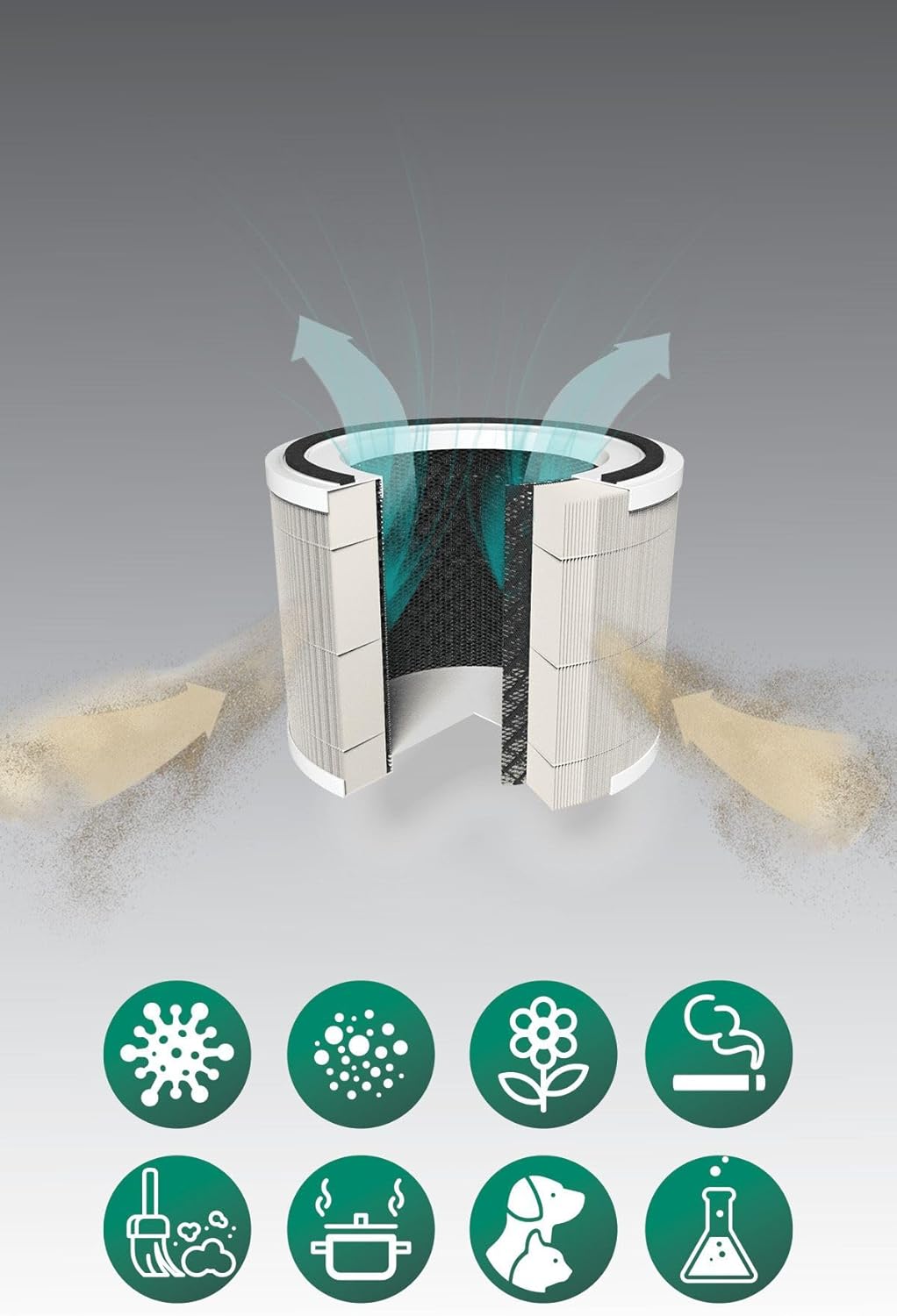
Prent: A cutaway diagram illustrating the multi-layer filter system of the Kiwi KAP 6730 Air Purifier. Arrows show air entering and exiting the filter. Below the filter, icons represent various airborne pollutants that the system is designed to filter, including bacteria, dust, pollen, smoke, pet dander, cooking odors, and chemical fumes.
Plasing
- Plaas die lugreiniger op 'n vaste, egalige oppervlak.
- Ensure there is at least 15-30 cm (6-12 inches) of space around all sides for optimal airflow.
- Avoid placing near heat sources, direct sunlight, or in damp omgewings.
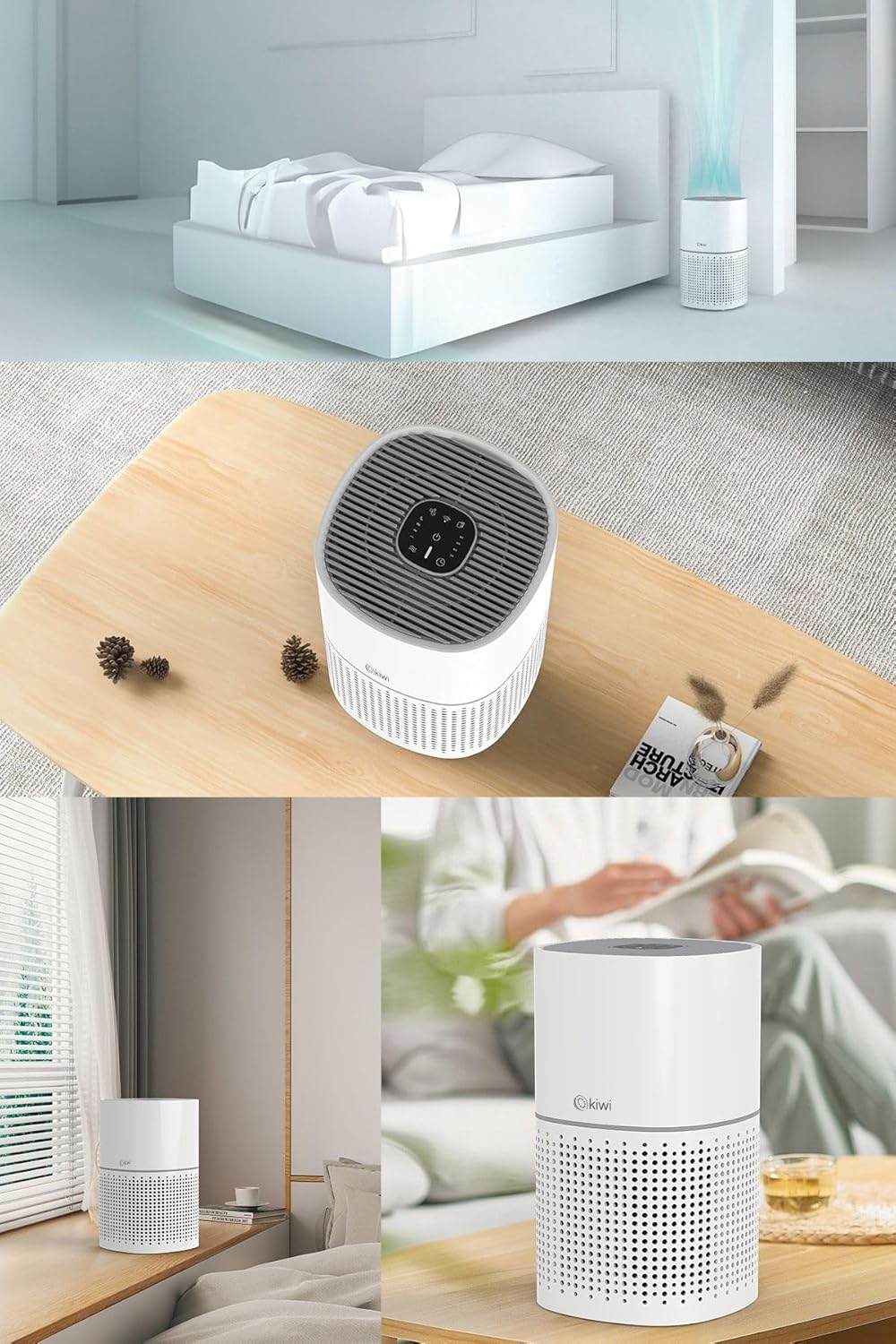
Prent: A collage of images showing the Kiwi KAP 6730 Air Purifier in different home environments. It is depicted on a bedside table in a bedroom, on a wooden table in a living area, and on a windowsill, demonstrating its compact size and versatility for placement.
Kragverbinding
Steek die kragsnoer in 'n geskikte elektriese aansluiting.
Operasie
Beheerpaneel funksies
Die beheerpaneel is bo-op die lugsuiweraar geleë.
Prent: 'n Gedetailleerde view of the circular control panel on the top of the Kiwi KAP 6730 Air Purifier. Icons for power, fan speed, timer settings (1H, 2H, 4H, 8H), sleep mode, and Wi-Fi connectivity are clearly visible, along with an indicator light.
- Kragknoppie (⏻): Druk om die lugsuiweraar AAN of AF te skakel.
- Waaierspoedknoppie (💨): Druk om deur verskillende waaiersnelhede te blaai (bv. Laag, Medium, Hoog, Outomaties).
- Timer-knoppie (⏱): Set the operating time (e.g., 1 hour, 2 hours, 4 hours, 8 hours). The unit will automatically turn off after the set time.
- Slaapmodus-knoppie (🌙): Activates sleep mode, reducing fan speed and dimming indicator lights for quiet operation.
- Wi-Fi Button (📶): Press and hold to activate Wi-Fi pairing mode for smart control via a mobile application.
- Filter Reset Indicator: Illuminates when the filter needs replacement. Press and hold after filter replacement to reset.
Smart Control (App)
The Kiwi KAP 6730 can be controlled via a dedicated mobile application. Follow the app's instructions for pairing and remote control.

Prent: The Kiwi KAP 6730 Air Purifier positioned in a room, with a hand holding a smartphone in the foreground. The smartphone screen displays a mobile application interface, indicating that the air purifier can be controlled remotely via a smart app, showing air quality readings and control options.
Onderhoud
Gereelde onderhoud verseker optimale werkverrigting en verleng die lewensduur van jou lugsuiweraar.
Skoonmaak van die buitekant
- Ontkoppel altyd die lugsuiweraar voordat dit skoongemaak word.
- Vee die buite-oppervlaktes af met 'n sagte, damp lap.
- Moenie skuurmiddels, wasse of oplosmiddels gebruik nie.
- Maak seker dat geen water die binnekant van die toestel binnedring nie.
Filter vervanging
The filter life depends on air quality and usage. The filter replacement indicator will illuminate when a new filter is needed (typically every 6-12 months).
- Ontkoppel die lugreiniger.
- Draai die lugsuiweraar onderstebo.
- Draai die basisdeksel antikloksgewys om dit te ontsluit en te verwyder.
- Verwyder die ou filter en gooi dit behoorlik weg.
- Unpack the new filter and insert it into the air purifier.
- Replace the base cover and twist clockwise to lock it into place.
- Plug in the air purifier. Press and hold the Filter Reset button (often the Wi-Fi or a dedicated filter icon) for 3-5 seconds until the indicator light turns off.
Let wel: Only use genuine Kiwi replacement filters to ensure proper performance and maintain warranty validity.
Probleemoplossing
| Probleem | Moontlike oorsaak | Oplossing |
|---|---|---|
| Lugsuiweraar skakel nie aan nie. | Nie ingeprop nie; Kragtoevoer wanfunksioneer; Aan/uit-knoppie nie gedruk nie. | Ensure the power cord is securely plugged in. Try a different outlet. Press the power button firmly. |
| Reduced airflow or purification efficiency. | Blocked air inlets/outlets; Dirty filter; Filter packaging not removed. | Check for obstructions and clear them. Replace the filter if the indicator is on or if it appears dirty. Ensure all filter packaging is removed. |
| Ongewone geraas. | Filter not installed correctly; Foreign object inside; Unit not on a level surface. | Check filter installation. Unplug and inspect for foreign objects. Place on a stable, level surface. |
| Filter replacement indicator remains on after changing filter. | Filterherstel nie uitgevoer nie. | Press and hold the Filter Reset button for 3-5 seconds until the light turns off. |
| Kan nie aan Wi-Fi/toepassing koppel nie. | Incorrect Wi-Fi password; Router too far; App not updated; Wi-Fi pairing mode not activated. | Ensure correct password. Move unit closer to router. Update app. Press and hold Wi-Fi button to activate pairing mode. Consult app instructions. |
Spesifikasies
| Kenmerk | Detail |
|---|---|
| Model | KAP-6730 |
| Handelsmerk | KIWI |
| Kleur | Wit |
| Soort filtrasie | H13 HEPA Filter (Medical Grade) |
| Kragbron | Elektries bedraad |
| Produk Gewig | 2 Kilogram |
| Konnektiwiteit | Wi-Fi (Smart App Control) |
| Afmetings (ongeveer) | Kompakte ontwerp |
Waarborg en Ondersteuning
For warranty information and customer support, please refer to the warranty card included with your product or visit the official KIWI webwebwerf.
You can also contact customer service for assistance with troubleshooting or replacement parts.
KIWI Official Webwebwerf: www.kiwi.com.tr (Let wel: Hierdie is 'n plekhouer URL, please refer to your product documentation for the correct support webwebwerf.)