
1. Inleiding
This manual provides comprehensive instructions for the REVODATA I706-2-P-HS82 4K 8MP POE Mini IP Security Camera. Please read this manual thoroughly before installation and operation to ensure proper use and to maximize the camera's performance. Keep this manual for future reference.
The REVODATA I706-2-P-HS82 is a compact 4K (8MP) Power over Ethernet (POE) IP camera designed for indoor security surveillance. It features a 3.7mm pinhole lens, H.265/H.264 video compression, motion detection, and remote viewing capabilities via a mobile application or web koppelvlak.

Image 1.1: REVODATA 8MP POE Mini IP Camera overview, highlighting 8MP resolution, POE connection, H.265/H.264 support, 170° FOV (Note: Product description states 75° FOV, please refer to specifications), P2P, and Detection Alarm features.
2. Pakketinhoud
Verifieer dat al die items wat hieronder gelys word in u pakket ingesluit is. Indien enige items ontbreek of beskadig is, kontak asseblief u kleinhandelaar.
- 1 x REVODATA I706-2-P-HS82 4K 8MP POE Mini IP Security Camera
- 1 x handleiding
- 1 x Skroefstel vir montering

Image 2.1: Visual representation of the camera, user manual, and screw set included in the package. Also shows camera dimensions and port details.
3. Produkkenmerke
- 8MP HD-resolusie: Equipped with a 1/2.7-inch 8.0-pixel CMOS sensor, providing 3840x2160P resolution at 20 frames per second for clear and detailed images.
- POE and DC Power Support: Features a built-in POE module supporting 48V 802.3af POE for simplified wiring. An auxiliary power interface allows for standard 12V 2A power supply for non-POE setups.
- Mini 3.7mm Lens Design: Compact camera with a 3.7mm lens offering a 75° viewing angle, suitable for discreet placement in small areas.
- H.265/H.264 Dual Encoding: Supports both H.265 and H.264 compression formats, optimizing storage space and bandwidth usage. H.265 requires approximately half the bandwidth and storage compared to H.264 for the same image quality.
- Bewegingsopsporing: Integrated motion detection function triggers alarms and can be configured to record only when motion is detected, further saving storage.
- P2P Cloud Function & Remote View: Access live and recorded surveillance footage remotely via a mobile app (iOS, Android) or VMS software for Windows computers.
- Web Koppelvlakondersteuning: Compatible with IE6.0 and later browsers for configuration and live viewing.
- Duursame konstruksie: Features a metal shell for enhanced durability.

Image 3.1: Illustrates the difference between 4K (8MP) and 2MP resolution, showing enhanced detail with 8MP.
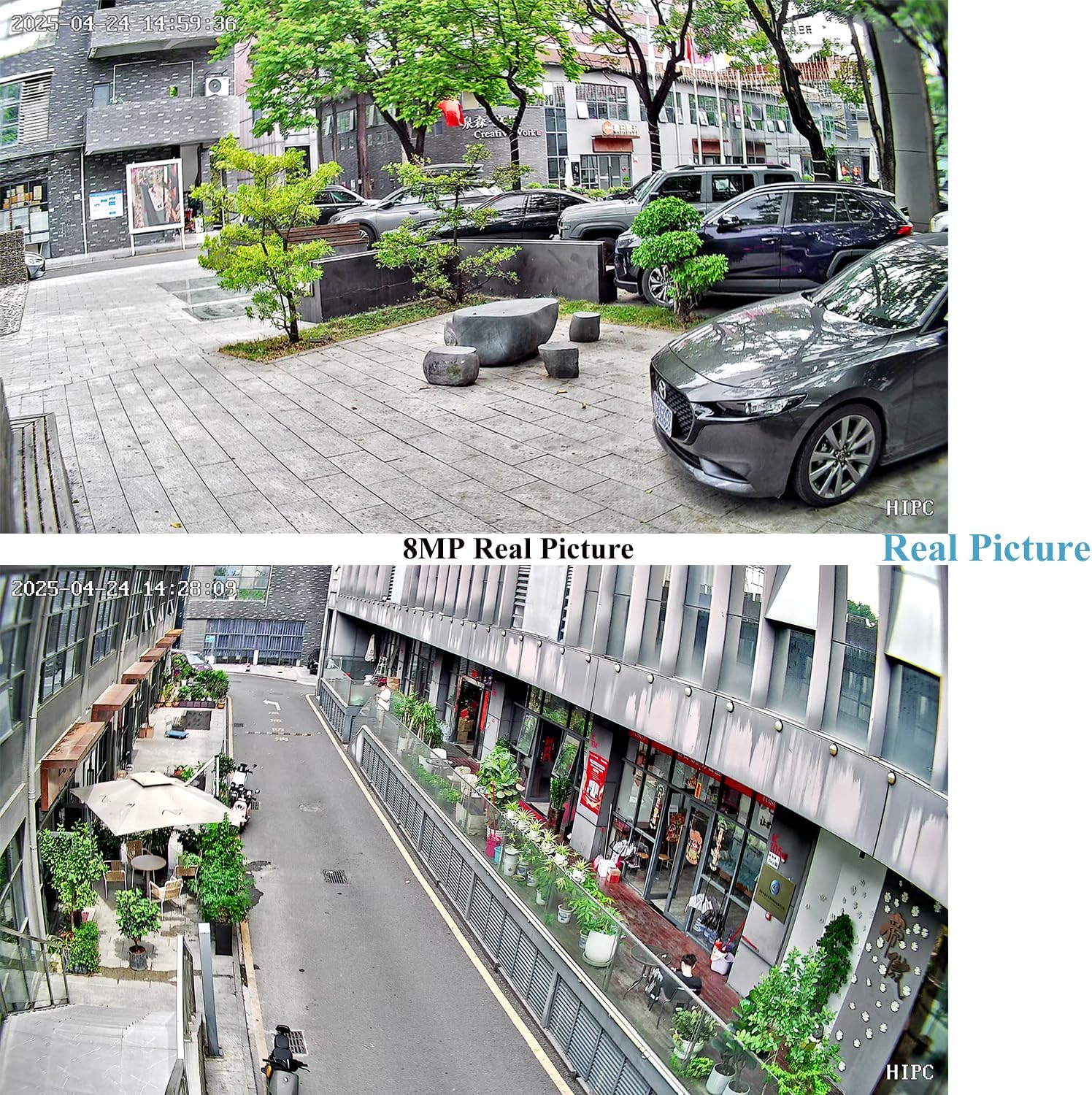
Image 3.2: Displays real-world 8MP image quality from the camera in an outdoor setting.

Image 3.3: Highlights POE cable connection and the benefits of H.265/H.264 dual encoding, including reduced bandwidth and storage requirements.
4. Opstelling
4.1 Aanskakeling van die kamera
Die kamera kan op twee maniere aangedryf word:
- Power over Ethernet (POE): Connect the camera to an 802.3AF standard 48V POE switch using an Ethernet cable. This provides both power and data connectivity.
- GS-krag: Use a standard 12V 2A power adapter (not included) and connect it to the auxiliary power interface.
4.2 Connecting to VMS Software, Web Interface, and Mobile App
The camera supports remote viewing and configuration through VMS software on a PC, a web browser, or a dedicated mobile application. The following video demonstrates the connection process for these platforms.
Video 4.1: This video demonstrates how to connect the REVODATA IP camera to VMS software, access its web interface via a browser, and set up remote viewing through a smartphone application. It covers initial login credentials and device discovery.
4.2.1 VMS Software Setup
- Install the VMS software on your Windows computer.
- Launch the VMS software. The default username is admin en die verstekwagwoord is admin.
- Navigate to the Device Manager section.
- Perform an IP search to discover the camera on your local network.
- Add the discovered camera to your device list.
- Once added, you can access the live view and configure camera settings through the VMS interface.
4.2.2 Web Opstelling van koppelvlak
- Obtain the camera's IP address from the VMS software or your network router.
- Maak oop a web browser (e.g., Internet Explorer) and enter the camera's IP address in the address bar.
- Voer die standaard gebruikersnaam in admin en verstek wagwoord 123456 om aan te meld.
- Jy kan nou view the live feed and access various configuration options, including video settings, network settings, and alarm management.
4.2.3 Mobile Application Setup
- Download and install the recommended mobile application (e.g., Linklemo) from your smartphone's app store (iOS or Android).
- Registreer vir 'n rekening en meld aan.
- Tap the "Add Device" or "+" icon to add a new camera.
- Select the appropriate camera type (e.g., Box Camera (RJ-45)).
- Follow the on-screen prompts to connect the camera, ensuring it is powered on and connected to the same network as your phone.
- Once the device is detected, add it and set a desired name.
- Jy kan nou view the live feed, access playback, and manage settings directly from your smartphone.

Image 4.2: Illustrates the compact size of the camera and its P2P cloud function, enabling remote viewing via mobile phone or computer.

Image 4.3: Shows the interface of the mobile application and VMS software for live viewing en bestuur.
5. Operasie
5.1 Lewendig View en Terugspeel
After successful setup, you can access the live video feed from your camera through the VMS software, web interface, or mobile application. These platforms also allow you to review opgeneem footage.
5.2 Bewegingsopsporing en alarms
The camera features a motion detection function that can trigger alerts. When motion is detected, the system can send notifications to your mobile phone or email, and initiate recording.

Image 5.1: Depicts the motion detection alarm feature, showing a mobile phone notification upon human movement detection.
To configure motion detection settings:
- Access the camera's configuration settings via the VMS software or web koppelvlak.
- Locate the "Alarm Manager" or "Motion Detect" section.
- Aktiveer bewegingsopsporing en pas sensitiwiteitsvlakke aan soos nodig.
- Set up recording schedules and notification preferences (e.g., email alerts, push notifications to app).
6. Onderhoud
Regular maintenance helps ensure the longevity and optimal performance of your security camera.
- Skoonmaak: Gently clean the camera lens with a soft, dry cloth to remove dust or smudges. Avoid using harsh chemicals.
- Firmware -opdaterings: Kontroleer die vervaardiger se gereeld website for firmware updates. Keeping the firmware updated can improve performance, add new features, and enhance security.
- Omgewingstoestande: Ensure the camera operates within its specified temperature and humidity ranges (-25°C to 60°C, 10% to 90% humidity).
- Kabelbestuur: Ensure all cables are securely connected and protected from damage.
7. Probleemoplossing
If you encounter issues with your REVODATA I706-2-P-HS82 camera, refer to the following common troubleshooting tips:
- Geen krag: Verify that the POE switch is providing power or that the 12V 2A DC adapter is correctly connected and functional.
- Geen video/vanlyn:
- Kontroleer netwerkkabelverbindings.
- Ensure the camera's IP address is correct and not conflicting with other devices on the network.
- Confirm that your NVR or viewing software supports 8MP and H.265. If not, you may need to adjust the camera's settings to 1080P (2MP) and H.264.
- Restart the camera and your network equipment (router/POE switch).
- Swak beeldkwaliteit:
- Maak die kameralens skoon.
- Check network bandwidth; insufficient bandwidth can affect streaming quality.
- Ensure the camera's resolution and encoding settings are appropriate for your viewing device and network.
- Bewegingsopsporing werk nie:
- Verify that motion detection is enabled in the camera's settings.
- Adjust the sensitivity level.
- Check the alarm schedule to ensure it is active during desired times.
- Cannot Connect to Mobile App: Ensure your smartphone and camera are on the same network during initial setup. Verify correct login credentials for the app.
If the problem persists, please contact REVODATA customer support for further assistance.
8. Spesifikasies
| Kenmerk | Spesifikasie |
|---|---|
| Model Naam | I706-2-P-HS82 |
| Resolusie | 3840 x 2160P (8MP) |
| Sensor | 1/2.7 inch CMOS (Hi3516CV610+GC8613) |
| Minimum Lighting | 0.005Lux @ (F1.2, AGC AAN) |
| Sluiterspoed | 1/25 sec - 1/100,000 sec |
| Raamtempo | 8MP/20fps |
| Kompressieformaat | H.264 / H.265 |
| Output Compression Rate | 128 Kbps ~ 8Mbps |
| Lens | 3.7 mm lens |
| Lens Mount Tipe | M12 |
| Viewing Hoek | 75° |
| Berging | NVR or PC (No Cloud Storage support via app) |
| IP-adres | Dynamic (default) / Static |
| Intelligente alarm | Motion detection, email alarm |
| Ondersteunde protokolle | HTTP, TCP/IP, RTSP, RTP, UPNP, SMTP, DHCP, DDNS, DNS, FTP, NTP |
| Inkomende protokol | Standard NVR ONVIF port (Port: 80) |
| Algemene funksies | Dual stream, password protection, video fade out |
| Ethernet | 10M/100M Mbit/s Ethernet (RJ-45) |
| Bedryfstemperatuur | -25°C ~ 60°C |
| Werkende humiditeit | 10% ~ 90% |
| Kragtoevoermodus | POE (802.3af) or DC 12V 2A |
| Afmetings (cm) | 5.7 x 4.4 x 3.9 cm |
| Gewig | 0.2 kg |
| Omhulselmateriaal | Metaal |
| Binne/buiteluggebruik | Binneshuise |
| Versoenbare toestelle | Android, iOS, Windows |
9. Waarborg en Ondersteuning
For warranty information and technical support, please refer to the documentation provided with your purchase or visit the official REVODATA webwebwerf. Bewaar u bewys van aankoop vir enige waarborgeise.
If you require assistance with installation, configuration, or troubleshooting beyond the scope of this manual, please contact REVODATA customer service.