
1. Inleiding
This manual provides detailed instructions for the setup, operation, and maintenance of your Transformers GK01 Wireless Mechanical Keyboard. The GK01 is a versatile keyboard featuring tri-mode connectivity (Bluetooth 5.0, 2.4GHz wireless, and USB-C wired), a 101-key layout, RGB backlighting, and hot-swappable switches for a customizable typing experience.

Figure 1.1: Transformers GK01 Wireless Mechanical Keyboard.
2. Pakketinhoud
Verifieer asseblief dat al die items wat hieronder gelys word, in u pakket ingesluit is:
- Transformers GK01 Wireless Mechanical Keyboard
- USB-C na USB-A-kabel
- 2.4GHz Draadlose USB-dongel
- 2-in-1 sleutelkap en skakelaartrekker
- Gebruikershandleiding (hierdie dokument)
- Onderdeleskakelaars (2 stukke)
- Sleutelbord omslag
3. Opstelling en verbinding
3.1. Tri-Mode Connection Overview
The GK01 keyboard supports three connection modes: USB-C wired, 2.4GHz wireless, and Bluetooth 5.0. You can connect to up to five devices simultaneously and switch between them seamlessly.

Figure 3.1: Tri-Mode Connection Capabilities.
3.2. USB-C Bedrade Verbinding
- Vind die USB-C-poort op die sleutelbord.
- Connect one end of the provided USB-C cable to the keyboard.
- Connect the other end of the USB-C cable to an available USB-A port on your computer.
- Die sleutelbord sal outomaties herken word en gereed wees vir gebruik.
3.3. 2.4GHz Draadlose Verbinding
- Locate the 2.4GHz wireless USB dongle.
- Plug the dongle into an available USB-A port on your computer.
- On the keyboard, ensure the mode switch (usually on the side or back) is set to 2.4GHz mode.
- Die sleutelbord behoort outomaties te koppel. Indien nie, druk Fn + R om paring te begin.

Figure 3.2: USB-C Port and 2.4GHz Dongle Location.
3.4. Bluetooth 5.0-verbinding
The keyboard supports connecting to up to three Bluetooth devices (BT1, BT2, BT3).
- On the keyboard, set the mode switch to Bluetooth mode.
- Om paringsmodus vir 'n spesifieke Bluetooth-kanaal te betree, druk en hou Fn + Q (vir BT1), Fn + W. (vir BT2), of Fn + E (for BT3) for 3-5 seconds until the indicator light flashes rapidly.
- On your device (PC, tablet, smartphone), open Bluetooth settings and search for new devices.
- Select "Transformers GK01" from the list of available devices.
- Once connected, the indicator light on the keyboard will stop flashing.
- Om tussen gepaarde Bluetooth-toestelle te wissel, druk eenvoudig Fn + Q, Fn + W., of Fn + E.
4. Basiese werking
4.1. Keyboard Layout and Anti-Ghosting
The GK01 features a 101-key layout, providing a full set of keys including a numeric keypad. All keys are equipped with anti-ghosting technology, ensuring that every keystroke is registered accurately, even when multiple keys are pressed simultaneously.
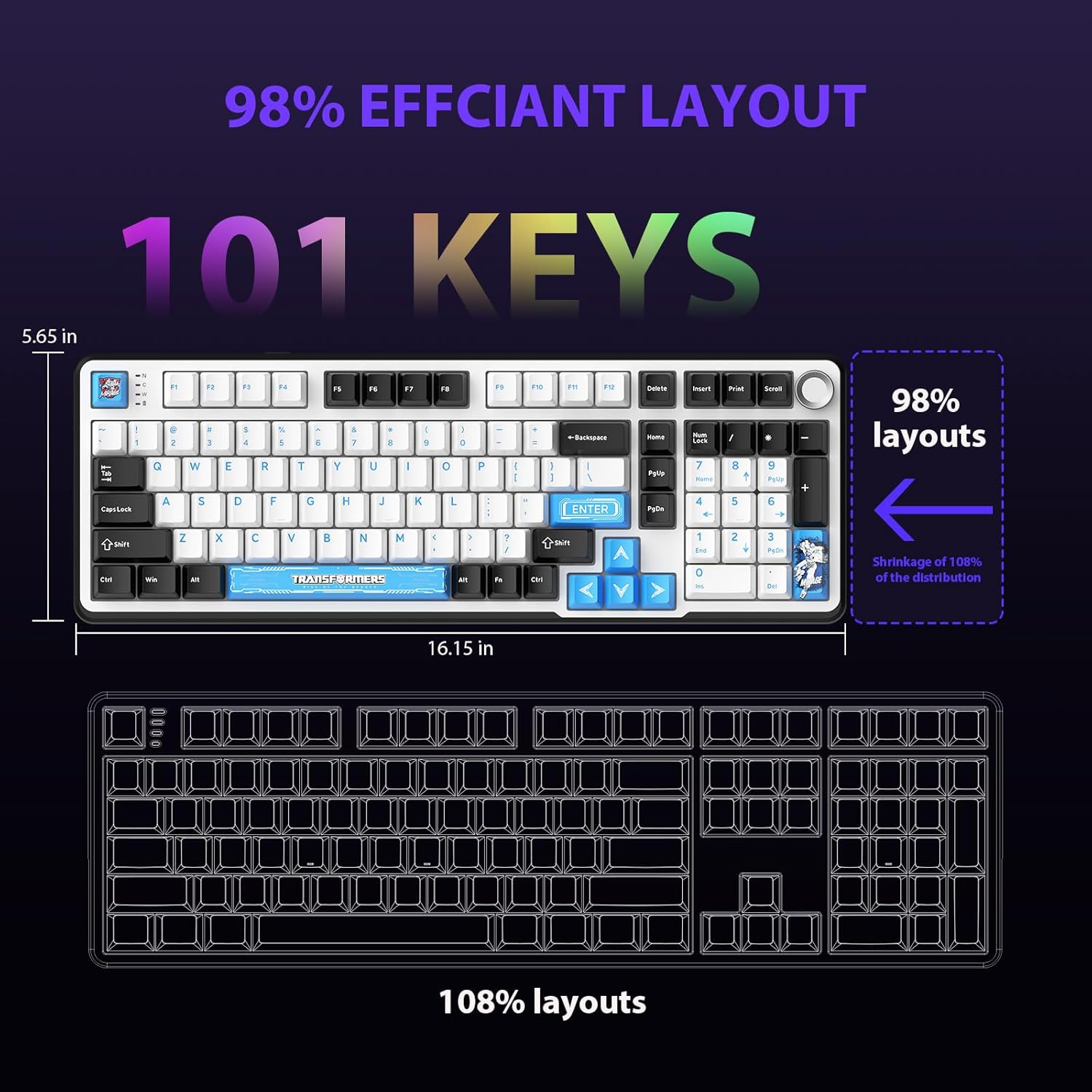
Figure 4.1: 101-Key Layout.
4.2. Multimedia Control Knob
The dedicated knob located on the top right of the keyboard provides convenient multimedia control:
- Draai kloksgewys: Verhoog volume.
- Draai teen die kloksgewys: Verminder volume.
- Druk af: Demp/Ontdemp klank.
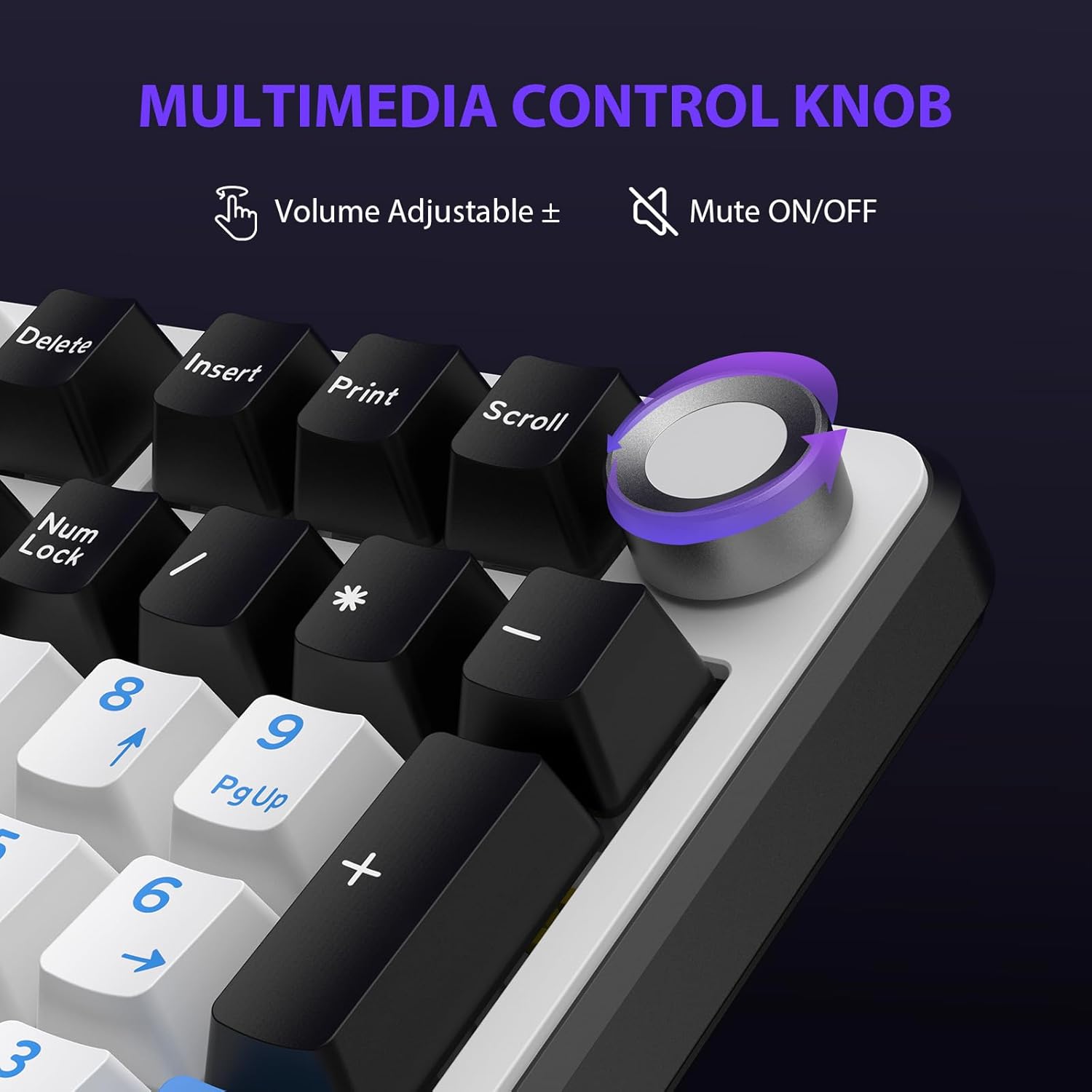
Figure 4.2: Multimedia Control Knob.
4.3. RGB-agterligbeheer
The GK01 keyboard features 16.8 million color RGB backlighting with various effects.
- Fn + [Right Arrow]: Adjust 5 brightness levels.
- Fn + [Left Arrow]: Adjust 5 speed levels for dynamic effects.
- Fn + [Voeg in]: Switch between 20 different backlight modes.
- Fn + [Voer in]: Switch color order within certain modes.
- Fn + [X]: Turn off light / activate power-saving mode.
- Fn + [Backspace]: Switch color order within certain modes.

Figure 4.3: RGB Backlight Controls.
5. Gevorderde kenmerke
5.1. Warm-omruilbare skakelaars
The GK01 keyboard is equipped with pre-lubricated Cybertron linear switches and supports solder-free hot-swapping. This allows you to easily replace switches with compatible 3-pin or 5-pin mechanical switches without soldering.
Om 'n skakelaar te vervang:
- Using the provided 2-in-1 keycap and switch puller, gently remove the keycap from the desired switch.
- Insert the switch puller onto the switch, ensuring it grips the top and bottom clips of the switch.
- Trek die skakelaar liggies reguit op om dit van die PCB te verwyder.
- Rig die penne van die nuwe skakelaar met die gate op die PCB. Maak seker dat die penne reguit is om buiging te voorkom.
- Druk die nuwe skakelaar stewig in plek totdat dit klik.
- Sit die sleuteldop weer vas.

Figure 5.1: Hot-Swappable Switch Replacement.
5.2. Programmeerbare sagteware
The GK01 supports custom software for advanced customization, including key remapping, macro creation, and detailed RGB lighting effects.
- The software is compatible only with the Windows operating system.
- The keyboard must be connected via USB-C wired mode to use the software.
- For driver download, please visit the official Transformers Keyboard website or refer to the link provided in the product packaging.
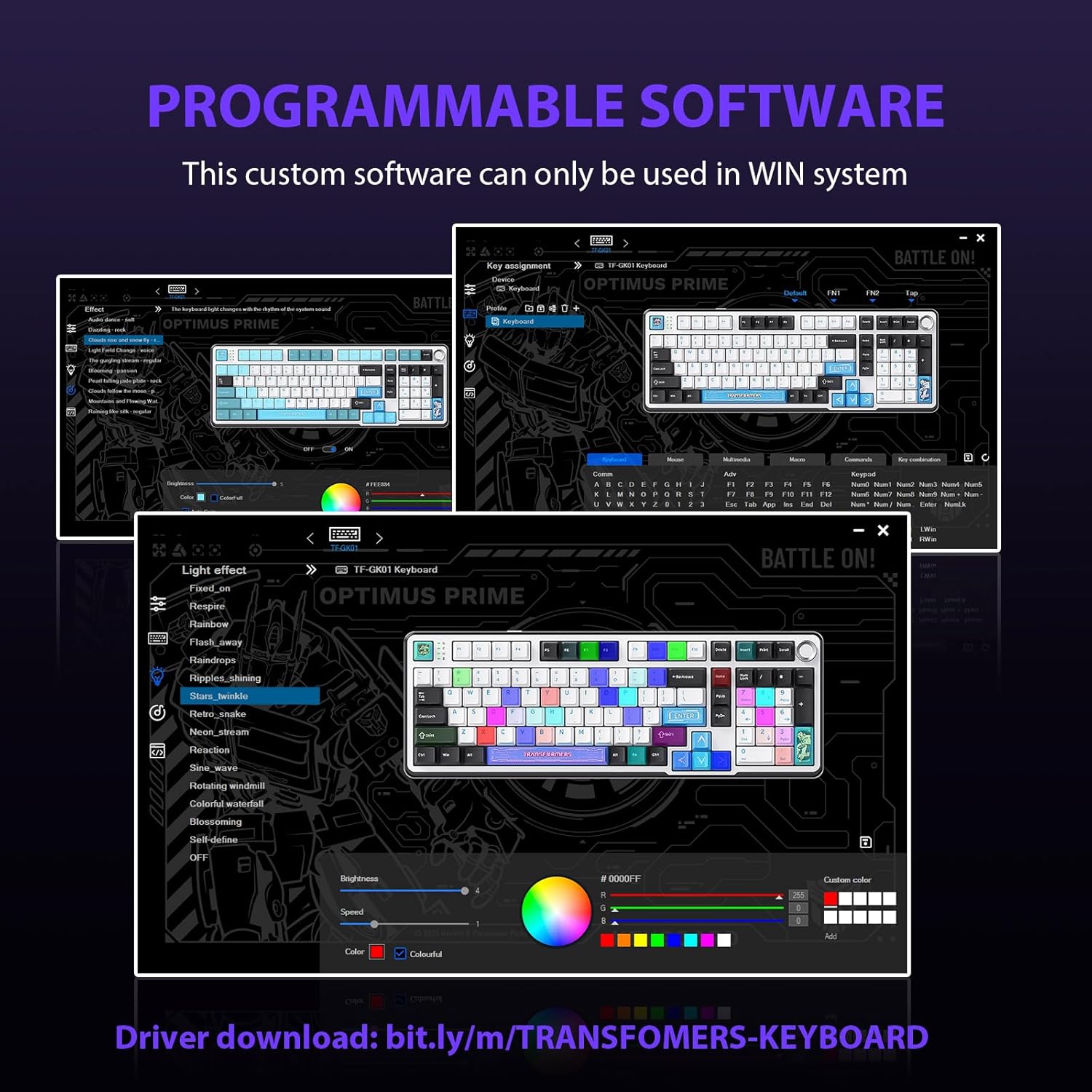
Figure 5.2: Programmable Software Interface.
5.3. Gasket Mounted Structure
The keyboard features a five-layer sound-absorbing and shock-absorbing gasket mounted structure. This design effectively reduces hollow noise and provides a softer, more consistent typing feel by isolating the plate from the case.
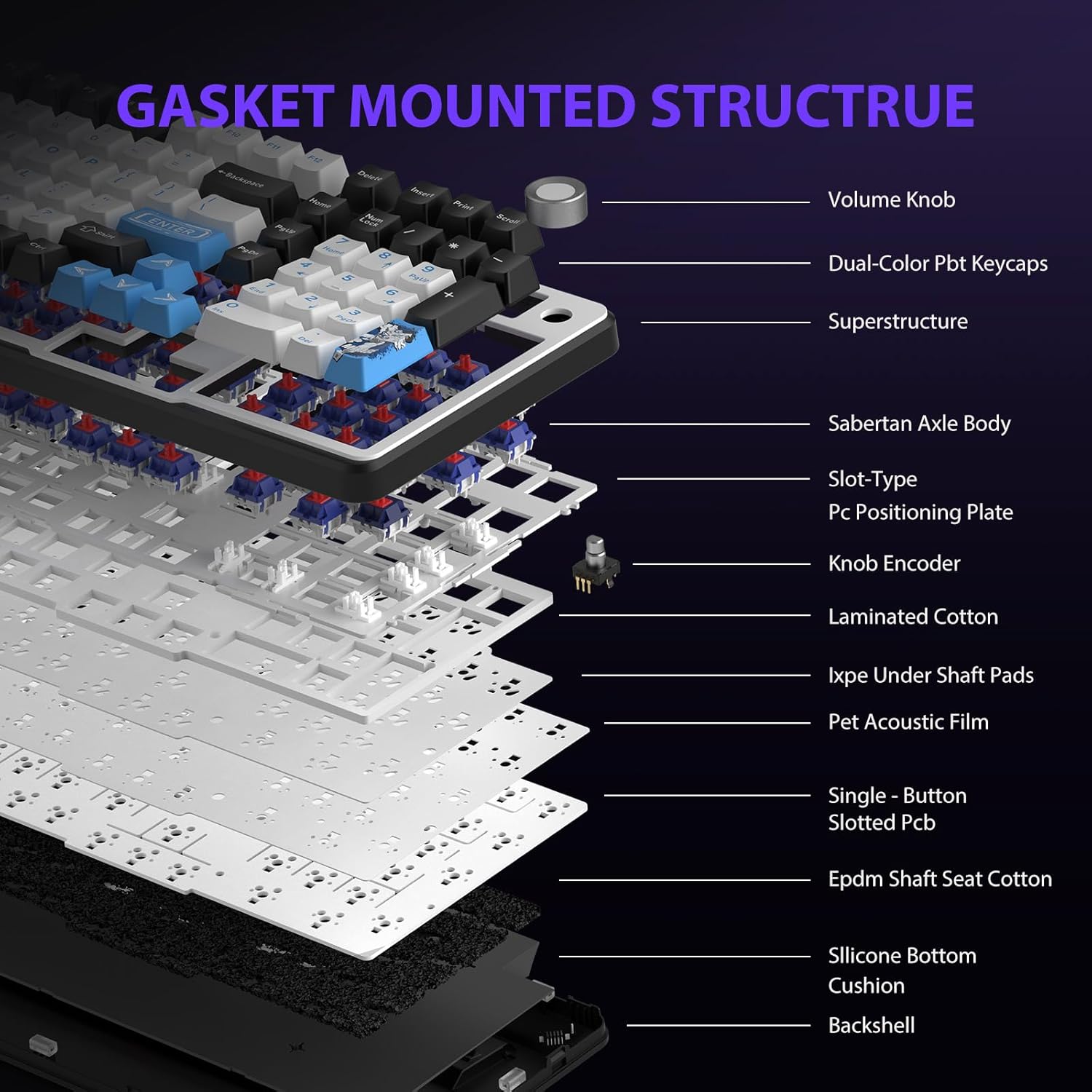
Figure 5.3: Gasket Mounted Structure Components.
6. Batterybestuur
The GK01 keyboard is equipped with a 4000mAh rechargeable battery.
- Laai: Connect the keyboard to a USB power source using the provided USB-C cable. The indicator light will show charging status.
- Batterylewe: A fully charged battery provides extended usage time. Actual battery life may vary based on usage patterns and RGB lighting intensity.
- Krag besparing: The keyboard will enter a power-saving sleep mode after a period of inactivity to conserve battery. Press any key to wake it up.
7. Onderhoud
7.1. Skoonmaak van die sleutelbord
- Ontkoppel die sleutelbord van alle kragbronne voordat u dit skoonmaak.
- Gebruik 'n sagte, pluisvrye lap effens dampmet water of 'n sagte skoonmaakoplossing afgevee om die sleutelkappe en onderstel af te vee.
- Vir stof en puin tussen die sleutelbordkappe, gebruik saamgeperste lug of 'n klein borseltjie.
- Vermy die gebruik van harde chemikalieë of skuurmateriaal.
7.2. Keycap and Switch Care
- The PBT keycaps are designed for durability and fade resistance.
- Refer to Section 5.1 for instructions on safely removing and replacing keycaps and switches.
- Ensure the keyboard feet are clean and free of debris for stable placement.

Figure 7.1: Adjustable Keyboard Feet.
8. Probleemoplossing
| Probleem | Moontlike oorsaak | Oplossing |
|---|---|---|
| Sleutelbord reageer nie in draadlose modus nie. | Lae battery, verkeerde modus gekies, dongle nie gekoppel nie, Bluetooth nie gekoppel nie. | Charge the keyboard. Ensure the mode switch is set correctly (2.4GHz or BT). Re-insert the 2.4GHz dongle. Re-pair Bluetooth connection. Try wired mode to confirm keyboard functionality. |
| Sleutels registreer nie of dubbeltik nie. | Loose switch, software issue, debris under keycap. | Ensure switches are fully seated. Clean under keycaps. If using programmable software, ensure it's updated or try resetting keyboard settings. |
| RGB backlight not working or stuck. | Backlight turned off, software conflict. | Druk Fn + X to toggle backlight. Check programmable software settings. |
| Kan nie via Bluetooth koppel nie. | Sleutelbord nie in paringsmodus nie, toestel Bluetooth af, steuring. | Ensure keyboard is in Bluetooth pairing mode (Fn + Q/W/E long press). Ensure device Bluetooth is on and discoverable. Move closer to the device. |
9. Spesifikasies
| Kenmerk | Detail |
|---|---|
| Modelnommer | TF-GK01 |
| Konnektiwiteit | Bluetooth 5.0, 2.4GHz draadloos, USB-C bedraad |
| Tipe sleutelbord | Meganies |
| Uitleg | 101 Sleutels (Volgrootte) |
| Skakelaars | Pre-lubed Cybertron Linear Switches, Hot-Swappable (3-pin/5-pin compatible) |
| Sleutels | Heat-sublimated PBT |
| Agterlig | RGB (16.8 Million Colors, 20 modes, music rhythm effects via driver) |
| Battery kapasiteit | 4000mAh |
| Produk afmetings | 16.15 x 5.65 x 1.63 duim (41.02 x 14.35 x 4.14 cm) |
| Item gewig | 2.24 pond (1.02 kg) |
| Versoenbare toestelle | Skootrekenaar, rekenaar, slimfoon, tablet |
| Spesiale kenmerke | Anti-Ghosting (all keys), Multimedia Control Knob, Programmable Keys (via software), Rechargeable |
10. Waarborg en Ondersteuning
For information regarding warranty coverage, technical support, or service inquiries, please refer to the warranty card included with your product or visit the official Transformers Keyboard webwebwerf.
Vervaardiger: Transformators