
Inleiding
This manual provides essential instructions for setting up, operating, maintaining, and troubleshooting your HP OMEN Gaming Laptop xf0100AX, which comes bundled with the HyperX Cloud Stinger 2 PC Gaming Wired Over-Ear Headset and the HyperX Pulsefire Haste 2 Wireless Gaming Mouse. Please read this manual thoroughly to ensure optimal performance and longevity of your products.
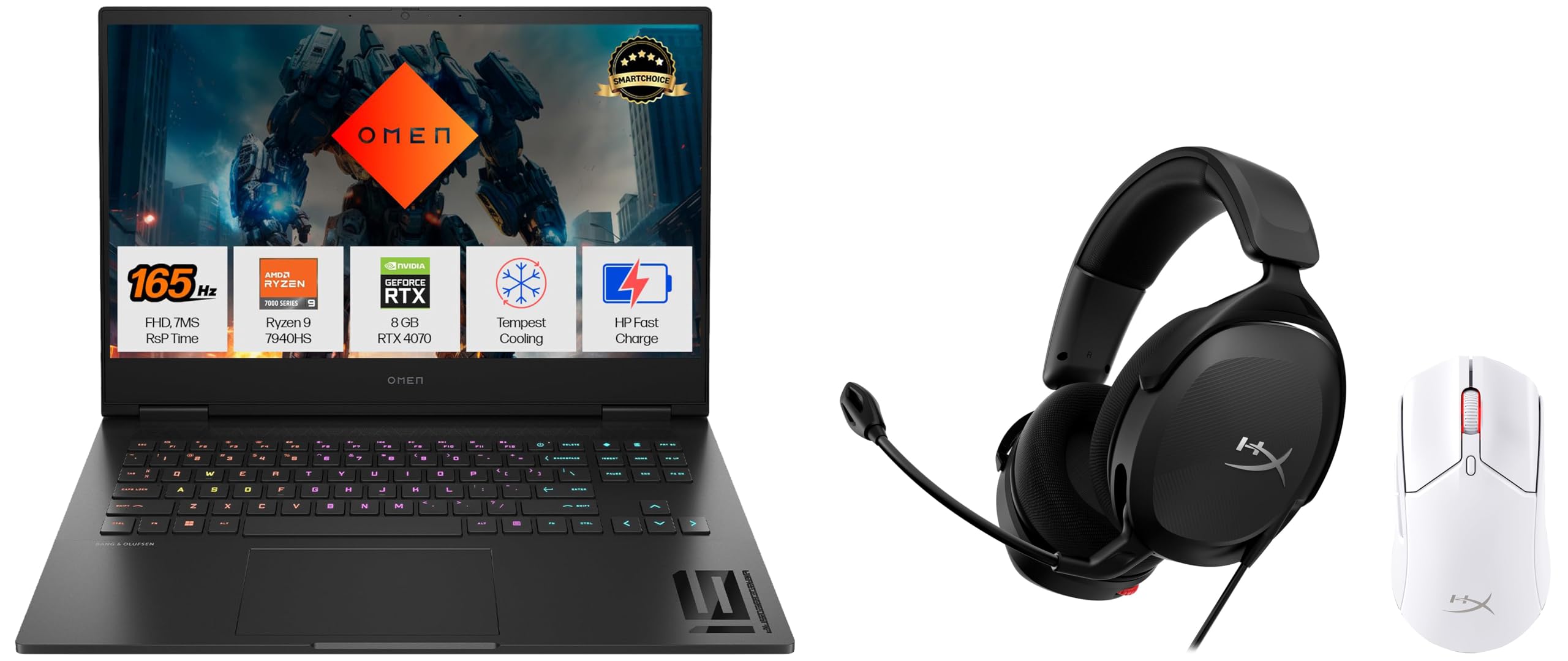
Image: The HP OMEN Gaming Laptop xf0100AX, accompanied by the HyperX Cloud Stinger 2 headset and HyperX Pulsefire Haste 2 mouse, showcasing the complete gaming bundle.
1. Opstelling
1.1 HP OMEN Gaming Laptop xf0100AX
- Kragverbinding: Koppel die kragadapter aan die skootrekenaar se kragpoort en dan aan 'n elektriese aansluiting.
- Aanvanklike opstart: Open the laptop lid and press the power button. The system will guide you through the initial Windows setup process. Follow the on-screen instructions to configure your operating system, network, and user account.
- Opdaterings: After initial setup, connect to the internet and check for Windows updates and HP OMEN Gaming Hub updates to ensure all drivers and software are current.
1.2 HyperX Cloud Stinger 2 PC Gaming Wired Over-Ear Headset
- Koppel aan skootrekenaar: Plug the 3.5mm audio jack of the headset into the combined audio/microphone port on your HP OMEN laptop.
- DTS Headphone:X Spatial Audio Activation: Locate the activation code provided with your headset. Visit the official DTS website or follow instructions in the headset's quick start guide to activate your 2-year DTS Headphone:X Spatial Audio license. This enhances 3D audio spatialization.
- Mikrofoonopstelling: Ensure the microphone is positioned correctly near your mouth for clear communication.
1.3 HyperX Pulsefire Haste 2 Wireless Gaming Mouse
- USB-ontvanger: Plug the wireless USB receiver into an available USB port on your HP OMEN laptop.
- Krag aan: Turn on the mouse using the power switch located on its underside. The mouse should automatically connect to the receiver.
- Laai: For initial use, ensure the mouse is fully charged using the provided USB-C cable. Connect the cable to the mouse and a USB port on your laptop or a USB wall adapter.
2. Bedryfsinstruksies
2.1 HP OMEN Gaming Laptop xf0100AX
- OMEN-speletjiesentrum: Utilize the pre-installed OMEN Gaming Hub software to monitor system performance, customize RGB lighting, manage network booster settings, and optimize game performance.
- Verkoelingstelsel: The OMEN Tempest Cooling technology actively manages heat. Ensure vents are unobstructed for optimal airflow, especially during intensive gaming sessions.
- Vertoon: The laptop features a 1920 x 1080 pixel display. Adjust brightness and display settings via Windows settings or OMEN Gaming Hub.
2.2 HyperX Cloud Stinger 2 Headset
- Volumebeheer: Adjust audio volume using the integrated volume slider on the headset's ear cup or through your laptop's sound settings.
- Mikrofoondemp: To mute the microphone, simply swivel it upwards and out of the way. Swiveling it back down will unmute it.
- Oudio-ervaring: The 40mm directional drivers provide enhanced bass. Ensure DTS Headphone:X is active for spatial audio benefits in supported games.
2.3 HyperX Pulsefire Haste 2 Wireless Gaming Mouse
- DPI-instellings: Use the DPI button on the mouse (if available) or the HyperX NGENUITY software to cycle through preset DPI levels or customize your sensitivity. The mouse features a Precision HyperX 26K Sensor.
- Programmeerbare knoppies: Customize button functions using the HyperX NGENUITY software for macros or specific in-game actions.
- Batterylewe: The mouse offers up to 100 hours of battery life. Monitor battery status via HyperX NGENUITY software and recharge when necessary.
3. Onderhoud
3.1 Algemene Skoonmaak
- Skootrekenaar: Gebruik 'n sagte, pluisvrye lap effens dampened with water or a screen cleaner to clean the display. For the keyboard and chassis, use a soft brush or compressed air to remove dust and debris.
- Koptelefoon: Wipe ear cups and headband with a soft, dry cloth. Avoid harsh chemicals.
- Muis: Clean the mouse surface and sensor with a soft, dry cloth. Use compressed air for crevices.
3.2 Sagteware-onderhoud
- Bestuurderopdaterings: Regularly check for updated graphics drivers (NVIDIA), chipset drivers (AMD), and other system drivers through HP Support Assistant or the respective manufacturer webwerwe.
- Bedryfstelselopdaterings: Keep your Windows operating system updated to ensure security and performance.
- HyperX Software: Update HyperX NGENUITY software for your mouse and headset to access the latest features and performance improvements.
3.3 Batterysorg
- Laptop Battery: To prolong battery life, avoid consistently discharging the battery completely or keeping it at 100% charge for extended periods. Store the laptop in a cool, dry place.
- Muisbattery: Recharge the HyperX Pulsefire Haste 2 mouse when the battery indicator is low. Avoid overcharging for prolonged periods.
4. Probleemoplossing
4.1 HP OMEN Gaming Laptop
- Geen krag: Maak seker dat die kragadapter stewig aan beide die skootrekenaar en 'n werkende elektriese aansluiting gekoppel is. Probeer 'n ander aansluiting.
- Vertoon kwessies: If the screen is blank, try connecting an external monitor via HDMI to check if the laptop is outputting video. Update graphics drivers.
- Prestasievertraging: Check OMEN Gaming Hub for resource-intensive background processes. Ensure cooling vents are clear. Update drivers.
4.2 HyperX Cloud Stinger 2 Headset
- Geen klank/mikrofoon werk nie: Verify the 3.5mm jack is fully inserted. Check laptop sound settings to ensure the headset is selected as the default playback and recording device. Ensure the microphone is not muted (swiveled up).
- Verwronge klank: Check audio drivers. Ensure volume levels are not set too high, causing clipping.
4.3 HyperX Pulsefire Haste 2 Wireless Gaming Mouse
- Muis reageer nie: Ensure the mouse is powered on and charged. Verify the USB receiver is securely plugged into a working USB port. Try a different USB port. Re-pair the mouse if necessary (refer to HyperX documentation).
- Laggy Movement: Ensure the mouse sensor is clean. Check for wireless interference. Update HyperX NGENUITY software.
5. Spesifikasies
| Kenmerk | Spesifikasie |
|---|---|
| Handelsmerk | HP |
| Model Naam | HP OMEN Gaming Laptop |
| Modelnommer | xf0100AX |
| SVE Model | Ryzen 9 7940HS (8 Cores) |
| RAM Geheue Geïnstalleerde Grootte | 16 GB DDR5 RAM |
| Hardeskyfgrootte | 1000 GB SSD |
| Grafiese kaart | NVIDIA GeForce RTX 4070 (8 GB Toegewyde) |
| Bedryfstelsel | Vensters |
| Maksimum skermresolusie | 1920 x 1080 piksels |
| Spesiale kenmerke | DTS Headphone:X Spatial Audio, Enhanced Bass Headset, Precise Gaming Mouse |
| Battery Life (Mouse) | Tot 100 ure |
| Konnektiwiteit | Ethernet, HDMI, USB, 802.11ax Wireless |
| Webkameravermoë | Yes (1080p) |
6. Waarborg en Ondersteuning
6.1 Waarborginligting
Your HP OMEN Gaming Laptop and HyperX peripherals are covered by a limited warranty. The specific terms and duration of the warranty may vary by region and product. Please refer to the warranty card included with your product packaging or visit the official HP support webwebwerf vir gedetailleerde waarborginligting.
6.2 Tegniese Ondersteuning
For technical assistance, troubleshooting, or service requests, please contact HP Customer Support. You can find contact information, including phone numbers and online support resources, on the official HP webwebwerf:
- HP Ondersteuning Webwebwerf: support.hp.com
- Have your product model number (xf0100AX) and serial number ready when contacting support.