
Inleiding
Thank you for choosing the NOVOO 12-in-1 USB-C Docking Station. This manual provides essential information for setting up, operating, and maintaining your device. This docking station is designed to expand the connectivity of your USB-C enabled laptop, offering multiple ports for displays, data transfer, and power delivery.
Produk verbyview
The NOVOO 12-in-1 USB-C Docking Station is a versatile hub that provides extensive connectivity options through a single USB-C connection to your host device. It features a comprehensive array of ports to enhance your productivity and expand your workspace.

Image: NOVOO 12-in-1 USB-C Docking Station showing all available ports and their functions.
Sleutel kenmerke:
- 12-in-1-konnektiwiteit: Includes 2 x 4K HDMI, 1 x VGA, 3 x USB-A 3.0 (5Gbps), 1 x USB-C 3.0 Data, 2 x USB-A 2.0, 1 x SD Card Reader, 1 x TF Card Reader, and 1 x 100W Power Delivery (PD) charging port.
- Ondersteuning vir drievoudige skerms: Connect up to three external displays. Windows supports Extend Mode (4K@30Hz + 1080P with two monitors; 1080P@60Hz with three monitors). macOS supports Mirror Mode only. HDMI 1 supports up to 4K@60Hz when used alone. Requires a DP1.4 laptop and monitor for optimal performance.
- Hoëspoed data-oordrag: USB-A 3.0 and USB-C 3.0 ports offer 5Gbps data transfer. USB-A 2.0 ports provide 480Mbps.
- 100W kraglewering: The PD port supports up to 100W input for stable power supply and up to 85W USB-C output for fast charging compatible laptops and devices. Note: The PD charging port is compatible only with devices that support the PD protocol.
- SD/TF kaartleser: Easily access files from SD and Micro SD cards with simultaneous reading support.
- Draagbare ontwerp: Compact and lightweight with a 30cm (11.8 inches) extension cable for flexible use, ideal for travel and various workspaces.
Opstelling
Follow these steps to set up your NOVOO 12-in-1 USB-C Docking Station:
- Verify Laptop Compatibility: Ensure your laptop's USB-C port supports Data, Power Delivery, and DisplayPort Alt Mode for full functionality. Refer to the diagram below for port capabilities.
- Koppel aan skootrekenaar: Steek die geïntegreerde USB-C-kabel van die dokstasie in 'n beskikbare USB-C-poort op jou skootrekenaar.
- Koppel krag (opsioneel maar aanbeveel): For best performance and to charge your laptop, connect your laptop's power adapter (65W+ recommended) to the 100W PD USB-C input port on the docking station.
- Koppel eksterne skerms: Use HDMI or VGA cables to connect your monitors to the corresponding ports on the docking station.
- Koppel randapparatuur: Plug in your USB devices (keyboard, mouse, external drives, etc.) into the available USB-A or USB-C data ports. Insert SD or TF cards into the card reader slots as needed.

Image: USB-C port compatibility guide for various functions including data, power delivery, and display output.
Opstel video:
Video: Official NOVOO video demonstrating the setup and features of the 12-in-1 USB-C Docking Station.
Bedryfsinstruksies
Vertoonkonfigurasie:
The docking station supports various display configurations depending on your operating system and laptop's DisplayPort (DP) version.

Beeld: Bvample of a multi-screen display setup using the docking station.
- Windows-stelsels: Supports both Mirror Mode (duplicate displays) and Extend Mode (separate displays). You can achieve up to three extended displays.
- macOS-stelsels: Supports Mirror Mode (duplicate displays) across all external monitors. Extend Mode is not supported for multiple external displays; all external displays will mirror each other.
Windows Display Resolution:
| Koppelvlakprotokol | Modus | HDMI1 | HDMI2 | VGA |
|---|---|---|---|---|
| DP1.4 | Enkel vertoon | 4K@60Hz | 4K@30Hz | 1080P @ 60Hz |
| Dubbele skerm | 4K@30Hz | 1080P @ 60Hz | - | |
| Drievoudige vertoning | 1080P @ 60Hz | 1080P @ 60Hz | 1080P @ 60Hz | |
| DP1.2 | Enkel vertoon | 4K@30Hz | 4K@30Hz | 1080P @ 60Hz |
| Dubbele skerm | 1080P @ 60Hz | - | 1080P @ 60Hz | |
| Drievoudige vertoning | 1080P @ 60Hz | 1080P @ 60Hz | 640*480 by 30Hz |
macOS Display Resolution:
| Koppelvlakprotokol | Modus | HDMI1 | HDMI2 | VGA |
|---|---|---|---|---|
| DP1.4 | Enkel vertoon | 4K@60Hz | 4K@30Hz | 1080P @ 60Hz |
| Dubbele skerm | 4K@30Hz | - | 1080P @ 60Hz | |
| Drievoudige vertoning | 1080P @ 60Hz | 1080P @ 60Hz | 1080P @ 60Hz | |
| DP1.2 | Enkel vertoon | 4K@30Hz | 4K@30Hz | 1080P @ 60Hz |
| Dubbele skerm | 4K@30Hz | - | 1080P @ 60Hz | |
| Drievoudige vertoning | 1080P @ 60Hz | 1080P @ 60Hz | 640*480 by 30Hz |
Kraglewering (PD) Laai:
The dedicated USB-C PD port allows you to charge your laptop while using the docking station. Connect your laptop's original power adapter (or a compatible 65W+ USB-C PD charger) to this port. The docking station will pass through up to 85W of power to your laptop, reserving 15W for its own operation.

Image: Diagram illustrating 100W PD input and 85W output for laptop charging.
Data Transfer and Card Reader:
Utilize the USB-A 3.0, USB-C 3.0, and USB-A 2.0 ports for connecting various peripherals and transferring data. The SD and TF card slots enable quick access to memory card content.
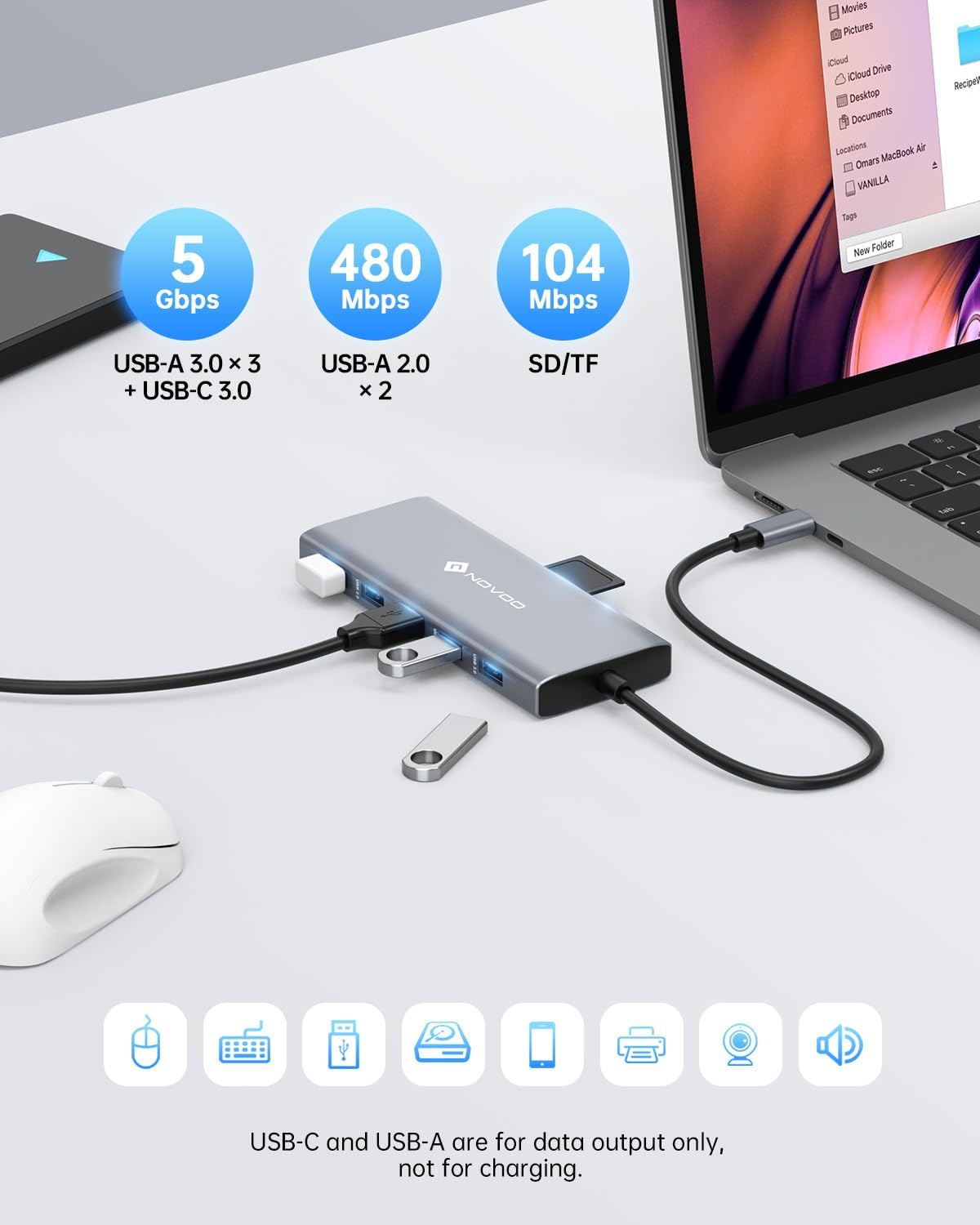
Image: High-speed data transfer capabilities with USB 3.0 and SD/TF card reader.
Spesifikasies
| Kenmerk | Detail |
|---|---|
| Produk afmetings | 1.85 x 0.57 x 5.16 duim |
| Item gewig | 4.6 onse |
| Modelnommer | NHM12S-MH12 |
| Handelsmerk | NOVOO |
| Kleur | Grys |
| Hardeware-koppelvlak | USB Tipe C |
| Spesiale kenmerk | Fast Charging, Portable |
| Versoenbare toestelle | MacBook Pro, Dell, HP, Surface (any USB-C laptop supporting DP Alt Mode and PD) |
Probleemoplossing
- Geen skermuitvoer:
- Maak seker dat jou skootrekenaar se USB-C-poort DisplayPort Alt-modus ondersteun.
- Kontroleer alle kabelverbindings (USB-C na skootrekenaar, HDMI/VGA na monitors).
- Verify monitor input settings are correct (e.g., HDMI 1, HDMI 2, VGA).
- For Windows, check display settings (Display Settings > Multiple Displays) to detect and configure monitors.
- For macOS, remember only Mirror Mode is supported for multiple external displays.
- Stadige data-oordrag:
- Ensure you are using USB 3.0 ports for high-speed devices. USB 2.0 ports offer slower speeds.
- The performance of the connected device (e.g., external hard drive) can also affect transfer speeds.
- Skootrekenaar laai nie:
- Confirm your laptop supports Power Delivery (PD) via its USB-C port.
- Ensure your power adapter is connected to the docking station's PD port and is 65W or higher.
- Kontroleer of die kragadapter self korrek funksioneer.
- Intermitterende verbindings:
- Maak seker dat alle kabels stewig verbind is.
- Avoid excessive bending or strain on the docking station's integrated USB-C cable.
- Try connecting the docking station to a different USB-C port on your laptop if available.
Onderhoud
To ensure the longevity and optimal performance of your NOVOO 12-in-1 USB-C Docking Station, follow these maintenance guidelines:
- Skoonmaak: Use a soft, dry cloth to wipe the surface of the docking station. Avoid using liquid cleaners or abrasive materials, which can damage the finish or internal components.
- Berging: Wanneer dit nie gebruik word nie, bêre die dokstasie op 'n koel, droë plek weg van direkte sonlig en uiterste temperature.
- Hantering: Avoid dropping or subjecting the device to strong impacts. Do not pull on the integrated USB-C cable forcefully.
- Ventilasie: Ensure the docking station has adequate airflow to prevent overheating, especially during prolonged use with multiple connected devices and displays.
Waarborg en Ondersteuning
NOVOO products are designed for reliability and performance. For warranty information, technical support, or any inquiries regarding your 12-in-1 USB-C Docking Station, please refer to the official NOVOO webwebwerf of kontak hul kliëntediens direk. Bewaar u aankoopbewys vir waarborgeise.
Vervaardiger: NOVOO