
1. Inleiding
Hierdie handleiding verskaf noodsaaklike inligting vir die opstelling, werking, onderhoud en probleemoplossing van u ViewSonic IFP55G1 55-inch 4K UHD ViewBoard Interactive Display. Please read this manual thoroughly before using the product to ensure proper and safe operation.
Die ViewSonic IFP55G1 is a 55-inch 4K Ultra HD (3840x2160p) interactive display designed for educational and business environments. It features multi-point touch recognition, an OPS slot for external PCs, 10W dual speakers, and versatile connectivity options including HDMI, VGA, USB Hub, and USB-C inputs. Its OS-free design allows flexibility with various computing solutions.
Sleutel kenmerke:
- Ultra HD Resolution: 55 Inch 4K Ultra HD (3840x2160p) interactive display for crisp visuals.
- Advanced Multi-Touch: Allows multiple users to write and interact simultaneously with fingers and passive pens.
- Buigsame verbinding: Equipped with a powerful quad-core processor and versatile ports including HDMI, VGA, RJ45, and USB.
- OS-Free Design: Provides enhanced security and flexibility to integrate with your preferred operating system via external PC or OPS device.
- Write-Away Technology: Enables instant writing with the stylus without extended setup.
2. Wat is in die boks
Verify that all items listed below are included in your package. If any items are missing or damaged, please contact your dealer immediately.
- ViewSonic IFP55G1 Interactive Display
- 3m USB 2.0 touch cable x 1
- Touch pen (Passive pen) x 2 (VB-PEN-002)
- 3 m kragkabel
- HDMI 2.0 cable 3m x 1
- Vinnige Begingids + Voldoeningsverklaring
- RS232 -adapter
- Screw (wall mount 4)
- Kameraplaat
- Remote control with AAA battery (Optional)
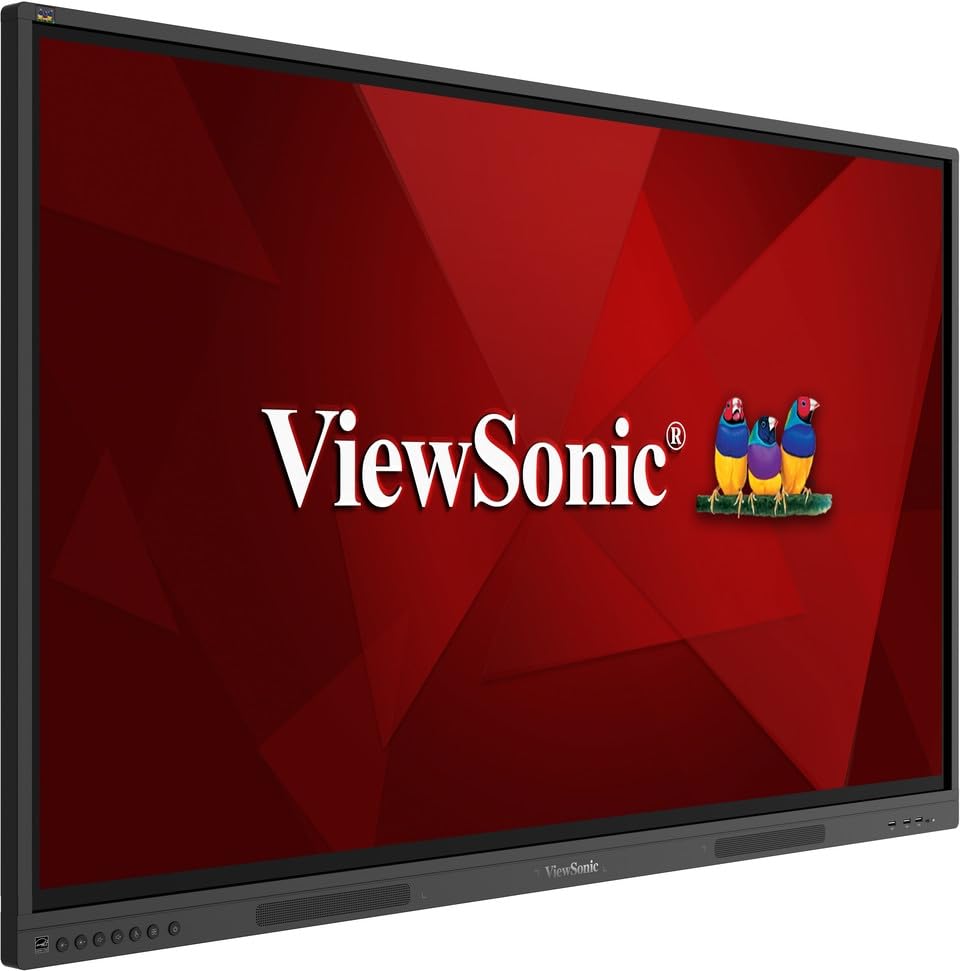
Prent: ViewSonic IFP55G1 55-inch ViewBoard Interactive Display, front view.
3. Opstelinstruksies
3.1 Montering van die skerm
The IFP55G1 can be wall-mounted or installed on a compatible mobile cart (sold separately). Ensure the mounting solution supports the display's weight (approximately 59.3 lbs / 26.9 kg) and dimensions (3.37 x 49.7 x 30.3 inches).
- For wall mounting, use the provided wall mount screws and ensure the wall structure is robust enough.
- Follow the instructions provided with your specific wall mount or mobile cart.
3.2 Aansluiting van randapparatuur
The display offers various ports for connecting external devices. Refer to the image below for port locations.

Beeld: Sykant view van die ViewSonic IFP55G1 interactive display showing various input ports including HDMI, VGA, and USB.
- Kragverbinding: Connect the 3m power cable to the display and a grounded power outlet.
- Video Input: Connect your external PC or media player to the display using an HDMI 2.0 cable (provided), VGA cable, or USB-C cable. The display has 3 HDMI ports, 1 VGA port, and USB-C connectivity.
- Raakfunksionaliteit: For interactive touch features with an external PC, connect the 3m USB 2.0 touch cable from the display's USB-B (Touch) port to a USB-A port on your PC.
- OPS-gleuf: If using an optional ViewSonic Slot-in PC (OPS device), insert it into the dedicated OPS slot on the rear of the display. This provides an integrated computing solution.
- Netwerk: Koppel 'n Ethernet-kabel aan die RJ45-poort vir bedrade netwerktoegang.
- USB-toestelle: Use the available USB-A ports to connect USB drives, keyboards, mice, or other peripherals.

Beeld: Die ViewSonic IFP55G1 display demonstrating connectivity with various external devices, including laptops and mini PCs, highlighting its 'Bring Your Own Devices' capability.
4. Bedryfsinstruksies
4.1 Aan-/afskakel
- Krag aan: Press the power button located on the display's front or side panel, or use the remote control. The display will power on and show the input source.
- Skakel af: Press the power button again. A confirmation message may appear; select 'Power Off'. For complete power disconnection, unplug the power cable.
4.2 Kies van Invoerbron
Use the 'Source' button on the display or remote control to cycle through available input sources (HDMI 1, HDMI 2, HDMI 3, VGA, USB-C, OPS).
4.3 Gebruik van aanraakfunksionaliteit
Once the USB touch cable is connected to your external PC, the display will function as a multi-touch input device. You can use your fingers or the provided passive pens for interaction.
- Vingeraanraking: Use gestures similar to a tablet or smartphone for navigation, zooming, and drawing.
- Passive Pens: The two included passive pens (VB-PEN-002) allow for precise writing and drawing on the screen. The display's Write-Away technology enables instant use of the pens.

Image: A group of individuals collaborating around a ViewSonic IFP55G1 interactive display in a modern meeting room, demonstrating its multi-touch capabilities for instantaneous collaboration.
4.4 Oudiobeheer
The display features integrated 10W dual speakers. Adjust volume using the remote control or the buttons on the display panel.
5. Onderhoud
5.1 Skoonmaak van die skerm
- Skerm: Vee die skerm liggies af met 'n sagte, pluisvrye lap. Vir hardnekkige merke, vee liggiesampen the cloth with water or a non-abrasive, ammonia-free screen cleaner. Do not spray cleaner directly onto the screen.
- Casing: Vee die casinmet 'n sagte, droë lap. Vermy die gebruik van harde chemikalieë of skuurmiddels.
5.2 Algemene sorg
- Vermy die plasing van swaar voorwerpe op die skerm.
- Do not block ventilation openings on the rear of the display.
- Hou die skerm weg van direkte sonlig, hittebronne en oormatige vog.
6. Probleemoplossing
As jy probleme ondervind met jou ViewSonic IFP55G1, refer to the following common problems and solutions.
6.1 No Display / Black Screen
- Ensure the power cable is securely connected to both the display and a working power outlet.
- Verify that the display is powered on (power indicator light should be active).
- Check that the video cable (HDMI, VGA, USB-C) is securely connected to both the display and the source device (PC, OPS).
- Select the correct input source using the 'Source' button on the display or remote control.
- Ensure the source device (PC, OPS) is powered on and outputting a video signal.
6.2 Touch Functionality Not Working
- Confirm the USB touch cable is securely connected from the display's USB-B (Touch) port to a USB-A port on your external PC.
- Ensure your external PC's operating system has the necessary drivers installed for touch input.
- Restart both the display and the connected PC.
6.3 Geen klank nie
- Check the volume level on the display and the connected source device.
- Ensure the audio output from your source device is routed correctly to the display (e.g., via HDMI).
- If using an external audio system, ensure it is properly connected and powered on.
7. Spesifikasies
Hieronder is die tegniese spesifikasies vir die ViewSonic IFP55G1 interactive display.
| Kenmerk | Spesifikasie |
|---|---|
| Handelsmerk | ViewSoniese |
| Model Naam | IFP55G1 |
| Skerm grootte | 55 duim |
| Maksimum vertoonresolusie | 3840x2160 piksels (4K UHD) |
| Inheemse resolusie | 3840 x 2160 |
| Tipe vertoon | LCD |
| Aspekverhouding | 16:9 |
| Mens-koppelvlak-invoer | Raakskerm |
| Verbindingstegnologie | Ethernet, HDMI, USB Type C, VGA |
| Total Number of HDMI Ports | 3 |
| Totale USB-poorte | 9 |
| Video-uitset-koppelvlak | DisplayPort |
| Oudio-uitset | Integrated 10W Dual Speakers |
| Itemafmetings (LxBxH) | 3.37 x 49.7 x 30.3 duim |
| Item gewig | 59.3 pond |
| Kleur | Swart |
| Spesiale kenmerke | All-in-one USB port, Anti Glare Display, Light Sensor, Speakers, Touchscreen |
| Versoenbare toestelle | Lessenaar, Skootrekenaar |
| UPC | 766907024654 |
8. Waarborg en Ondersteuning
8.1 Waarborginligting
Die ViewSonic IFP55G1 interactive display comes with an industry-leading 3-jaar beperkte waarborg on parts, labor, and backlight. Onsite warranty service may also be available. Please refer to the warranty card included in your package or visit the official ViewSoniese website for detailed terms and conditions, and information on optional warranty extensions.
8.2 Kliëntediens
Vir tegniese bystand, produknavrae of waarborgeise, kontak asseblief ViewSonic's award-winning customer service team. Contact information can be found on the official ViewSoniese webwebwerf of in die Vinnige Begingids wat saam met jou produk voorsien word.