
1. Inleiding
This manual provides detailed instructions for the installation, operation, and maintenance of your Olafus 2K QHD Outdoor Flood Light Camera. This device is designed to enhance your home security with advanced features including 2K QHD video, 360° panoramic view, motion detection alerts, two-way audio, and powerful adjustable floodlights. Please read this manual thoroughly before use and retain it for future reference.
2. Veiligheidsinligting
- Maak seker dat die kragtoevoer afgeskakel is voor installasie of onderhoud om elektriese skok te voorkom.
- Installasie moet deur 'n gekwalifiseerde elektrisiën of in ooreenstemming met plaaslike elektriese kodes uitgevoer word.
- Moenie probeer om die toestel uitmekaar te haal of te wysig nie. Dit kan die waarborg ongeldig maak en veiligheidsrisiko's inhou.
- Hou die toestel weg van vlambare of plofbare materiale.
- Operate the device within the specified temperature range of -20°C to 50°C (-4°F to 122°F).
- This product is waterproof (IP65 rated) but should not be submerged in water.
3. Pakketinhoud
Verifieer dat alle komponente in die pakket teenwoordig is:
- Olafus Flood Light Camera (Model 3-LBC65M)
- Montagebeugel
- Machine Screws (various sizes)
- Lang masjien skroef
- Expansion Rubber Plugs
- Draadmoere
- Silikoon pakking
- EVA Gasket
- Gebruikershandleiding

Figure 3.1: Product dimensions and included accessories for installation.
4. Produk verbyview
The Olafus Flood Light Camera combines a high-resolution security camera with powerful, adjustable floodlights. Key features include:
- 2K QHD-video: Vang duidelike en gedetailleerde beelde vastage.
- 360° Panoramies View: Offers a 340° horizontal and 120° vertical rotation range for comprehensive coverage.
- Smart Auto-Tracking: Automatically tracks moving subjects within its field of view.
- Verbeterde Kleur Nagvisie: Provides vivid images even in low-light conditions.
- Gevorderde bewegingsopsporing: 180° PIR motion sensor triggers instant mobile notifications.
- Tweerigting-klank: Maak kommunikasie intyds deur die kamera moontlik.
- 55W Adjustable Lighting: Three independently adjustable heads (5500 lumens) controlled via the app.
- Buigsame berging: Supports secure cloud storage and local Micro SD card storage (up to 128GB).
- Dual Wi-Fi Connectivity: Compatible with both 2.4G and 5G Wi-Fi networks.
- Weerbestande ontwerp: IP65-gegradeer vir buiteluggebruik in verskeie weersomstandighede.

Figuur 4.1: oorview of the Olafus 4MP Floodlight Camera's features.
5. Opstelling
5.1 Installasie
The floodlight camera is designed for wall mounting. Refer to the 'Product Size' diagram in Section 3 for dimensions and wiring details. Professional installation is recommended for electrical wiring.
- Choose a suitable outdoor location for mounting, ensuring a stable surface and access to power.
- Secure the mounting bracket to the wall using the provided screws and expansion plugs.
- Connect the Live Wire (L), Neutral Wire (N), and Ground Wire (N) from your electrical supply to the camera's corresponding wires using the wire nuts. Ensure connections are secure and insulated.
- Heg die kamera-eenheid aan die monteerbeugel vas.

Figure 5.1: Installation steps for the floodlight camera.
5.2 App-aflaai en -verbinding
The Olafus Flood Light Camera operates with the Smart Life APP. Ensure your smartphone is connected to a 2.4GHz or 5GHz Wi-Fi network.
- Download the "Smart Life" APP from the App Store (iOS) or Google Play (Android), or scan the QR code provided in the product packaging.
- Registreer of meld aan by jou Smart Life-rekening.
- Power on the floodlight camera.
- In the Smart Life APP, tap "Add Device" or the "+" icon.
- Follow the on-screen instructions to connect the camera to your Wi-Fi network. You may need to scan a QR code displayed on your phone with the camera.
- Once connected, the camera will appear in your device list.
5.3 Slimhuis-integrasie (Alexa/Google Assistent)
The camera can be integrated with Amazon Alexa and Google Assistant for voice control and live view on compatible devices.
Video 5.3.1: Instructions on how to connect the Smart Life camera with Amazon Alexa.
Video 5.3.2: Detailed guide on connecting the camera with Alexa for voice commands and live viewing.
To connect with Amazon Alexa:
- Ensure your Alexa device, phone, and floodlight camera are on the same Wi-Fi network.
- Open the Smart Life App, click "Me" (bottom right), then "Alexa" under "Third-Party Services".
- Click "Link to Amazon Alexa". This will redirect you to the Alexa App.
- In the Alexa App, click "Link" to enable the Smart Life skill.
- Once successfully linked, click "Done".
- Alternatively, open the Amazon Alexa App, click "More" (bottom right), then "Skills & Games".
- Soek vir "Smart Life" and click on it.
- Click "ENABLE TO USE". This will redirect you to the Smart Life App.
- After clicking "Agree and link," you will be redirected back to the Amazon Alexa app.
- Click "Next" to discover devices. Once found, select the connected device and click "Next" to complete the setup.
You can now use voice commands like: "Alexa, show me the Security Camera" or "Alexa, turn on/off the Security Camera."

Figure 5.3: Voice control with Amazon Alexa for live camera feed.
6. Bedryfsinstruksies
6.1 Lewendig View en Opname
Access the live feed of your camera through the Smart Life APP. The camera provides 2K QHD resolution for clear images. You can switch between full-color night vision and infrared night vision modes.

Figure 6.1: Demonstrates 2K QHD Color Night Vision and Infrared Night Vision.

Figure 6.2: Illustrates the superior 2K QHD image quality.

Figure 6.3: Different night vision modes available.
6.2 Bewegingsopsporing en waarskuwings
The camera features a 180° PIR motion sensor. When motion is detected, you will receive instant mobile notifications. The smart auto-tracking feature ensures that moving subjects remain in focus.
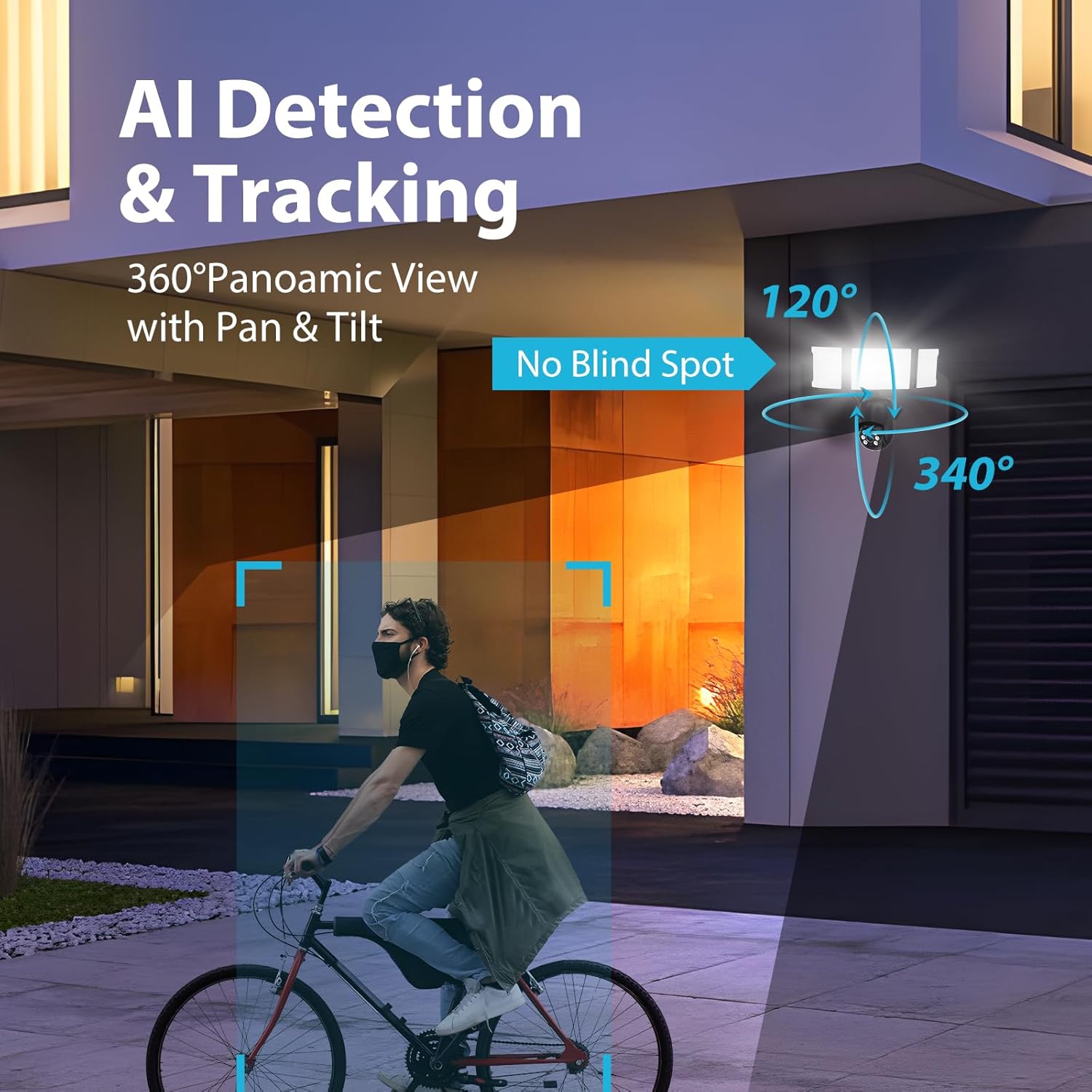
Figure 6.4: AI Detection & Tracking with panoramic view.

Figure 6.5: Motion detection alarm and mobile notification.

Figure 6.6: AI Lock and Tracking in action.

Figure 6.7: Motion detection triggering floodlights and notifications.
6.3 Tweerigting-klank
Utilize the built-in microphone and speaker for two-way communication. This allows you to speak to visitors or deter unwanted guests directly through the app.

Figure 6.8: Two-way audio for communication and deterrence.

Figure 6.9: Real-time two-way audio communication.
6.4 Beligtingbeheer
The 55W floodlights (5500 lumens) can be adjusted for brightness and scheduled via the Smart Life APP. The three light heads are independently adjustable.

Figure 6.10: Adjustable lighting features and coverage.

Figure 6.11: Scheduling options for floodlight activation.
6.5 Storage Options and Playback
The camera supports both cloud storage and local storage via a Micro SD card (up to 128GB, not included). You can review non-stop recordings or event-triggered recordings.

Figure 6.12: Video playback interface and storage options.

Figure 6.13: Cloud and Micro SD card storage for recorded footage.
7. Onderhoud
Regular maintenance ensures optimal performance and longevity of your floodlight camera.
- Skoonmaak: Gently wipe the camera lens and floodlight surfaces with a soft, damp lap. Vermy skuurmiddels of oplosmiddels.
- Firmware -opdaterings: Periodically check the Smart Life APP for available firmware updates to ensure your device has the latest features and security enhancements.
- Omgewingstoestande: The camera is IP65 waterproof, suitable for temperatures between -20°C and 50°C. Ensure proper drainage around the installation area to prevent water accumulation.

Figure 7.1: IP65 Waterproof rating and operating temperature range.
8. Probleemoplossing
If you encounter issues with your Olafus Flood Light Camera, refer to the following common problems and solutions:
- Kamera koppel nie aan Wi-Fi nie:
- Ensure your Wi-Fi network is 2.4GHz or 5GHz and stable.
- Verifieer dat die Wi-Fi-wagwoord korrek is.
- Beweeg die kamera nader aan die Wi-Fi-router om seinsterkte te verbeter.
- Herbegin die kamera en jou router.
- Lights not turning off automatically:
- Check the light schedule and motion detection settings in the Smart Life APP.
- Ensure the motion sensor is not obstructed and its sensitivity is set appropriately.
- Swak videokwaliteit:
- Maak die kameralens skoon.
- Ensure a strong Wi-Fi connection for optimal streaming.
- Check the resolution settings in the Smart Life APP.
- Geen bewegingsopsporingswaarskuwings nie:
- Verify motion detection is enabled in the Smart Life APP.
- Check the detection zone and sensitivity settings.
- Ensure app notifications are enabled on your smartphone.
9. Spesifikasies
| Kenmerk | Spesifikasie |
|---|---|
| Modelnommer | 3-LBC65M |
| Binne/buiteluggebruik | Buitelug |
| Video-opname-resolusie | 2K (4 MP Effective) |
| Viewing Hoek | 360 Degrees (340° horizontal, 120° vertical) |
| Kragbron | Elektries met koord |
| Verbindingsprotokol | Wi-Fi (2.4G & 5G compatible) |
| Tipe beheerder | Amazon Alexa, Toepassing |
| Montage tipe | Muurmontering |
| Wattage | 55 watts (5500 lumens) |
| Materiaal | Aluminium |
| Waterweerstandvlak | Waterdig (IP65) |
| Bedryfstemperatuur | -20°C tot 50°C (-4°F tot 122°F) |
| Tipe flitsgeheue | Mikro SD (tot 128 GB) |
| Produk afmetings | 9.5 x 5.7 x 10.7 duim |
| Item gewig | 2.93 pond |
10. Waarborg en Ondersteuning
Olafus provides a standard manufacturer's warranty for this product. For specific warranty details, please refer to the warranty card included in your package or contact Olafus customer support. If you require technical assistance or have questions not covered in this manual, please visit the official Olafus webwebwerf of kontak hul kliëntediensspan.
Vervaardiger: Olafus