
1. Inleiding
Thank you for choosing the EvoFox Deathray V2 Gaming Keyboard and Mouse Combo. This manual will guide you through the setup, operation, and maintenance of your new gaming peripherals. Designed for precision and comfort, this combo enhances your gaming and productivity experience.

Image: The EvoFox Deathray V2 Gaming Keyboard and Mouse Combo, showcasing both devices connected via their braided cables.
2. Pakketinhoud
- EvoFox Deathray V2 Gaming Keyboard
- EvoFox Deathray V2 Gaming Mouse
- Gebruikershandleiding (hierdie dokument)
3. Opstelinstruksies
- Koppel die sleutelbord: Plug the USB connector of the EvoFox Deathray V2 Keyboard into an available USB port on your computer.
- Koppel die muis: Plug the USB connector of the EvoFox Deathray V2 Mouse into another available USB port on your computer.
- Bestuurder installasie: Jou bedryfstelsel behoort outomaties die nodige drywers op te spoor en te installeer. Geen bykomende sagteware-installasie is gewoonlik nodig vir basiese funksionaliteit nie.
- Plasing: Place the keyboard and mouse on a flat, stable surface for optimal performance.
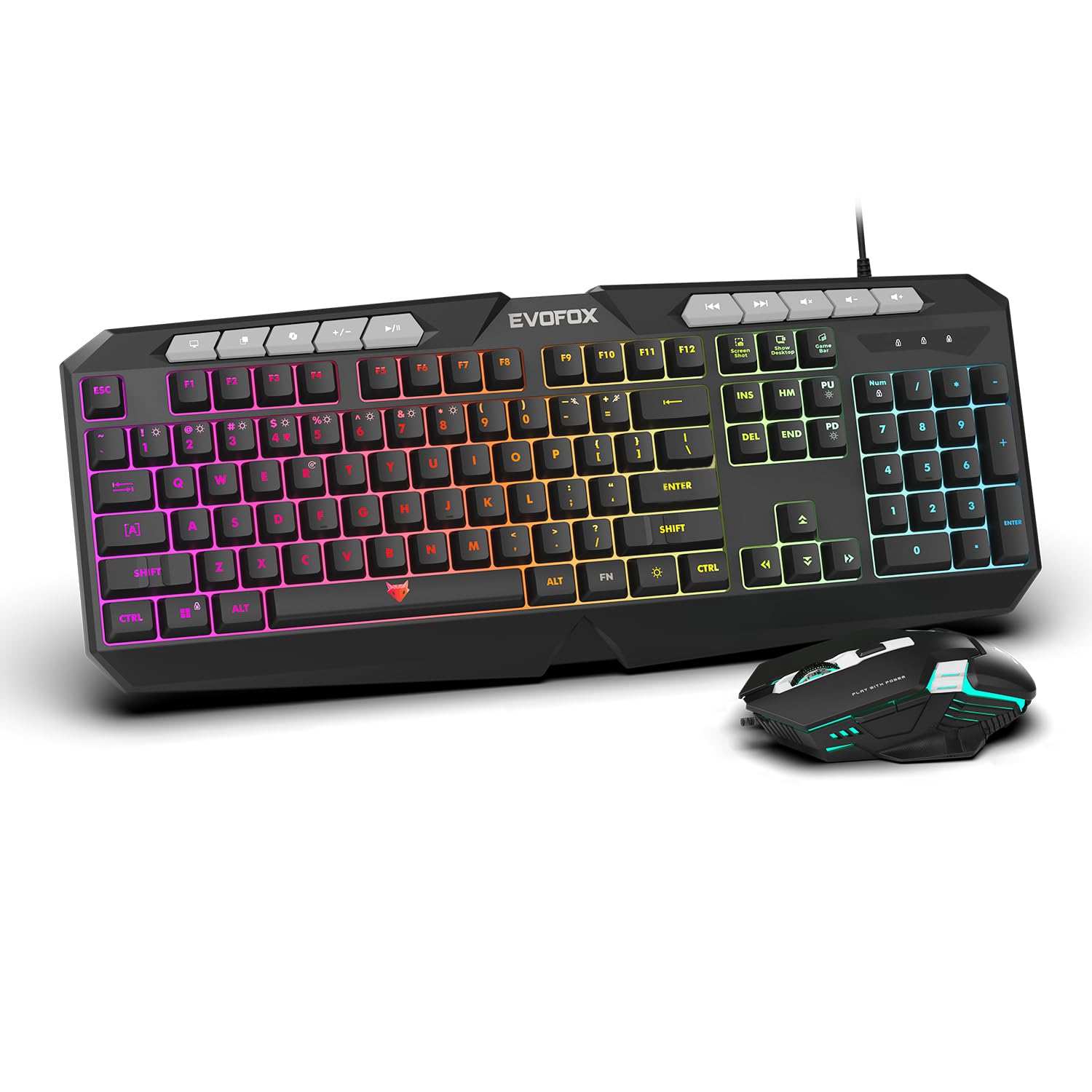
Beeld: 'n Nabyskoot view of the EvoFox Deathray V2 Keyboard and Mouse, illustrating their wired connection readiness.
4. Bediening van die sleutelbord
4.1. Basiese funksies
The EvoFox Deathray V2 Keyboard features a full-size layout with standard QWERTY keys, a numeric keypad, and function keys (F1-F12).
4.2. Multimediasleutels
Dedicated multimedia keys are located above the function keys for quick access to media controls:
- Volume op/af/demp: Beheer klankvlakke.
- Speel/Pouseer, Vorige/Volgende Liedjie: Manage media playback.
4.3. Special Function Keys
The keyboard includes special shortcut keys for enhanced productivity and gaming:
- Skermskoot: Neem 'n skermkiekie van jou skerm vas.
- Wys lessenaar: Minimizes all open windows to show the desktop.
- Xbox Game Bar: Opens the Xbox Game Bar for gaming features.
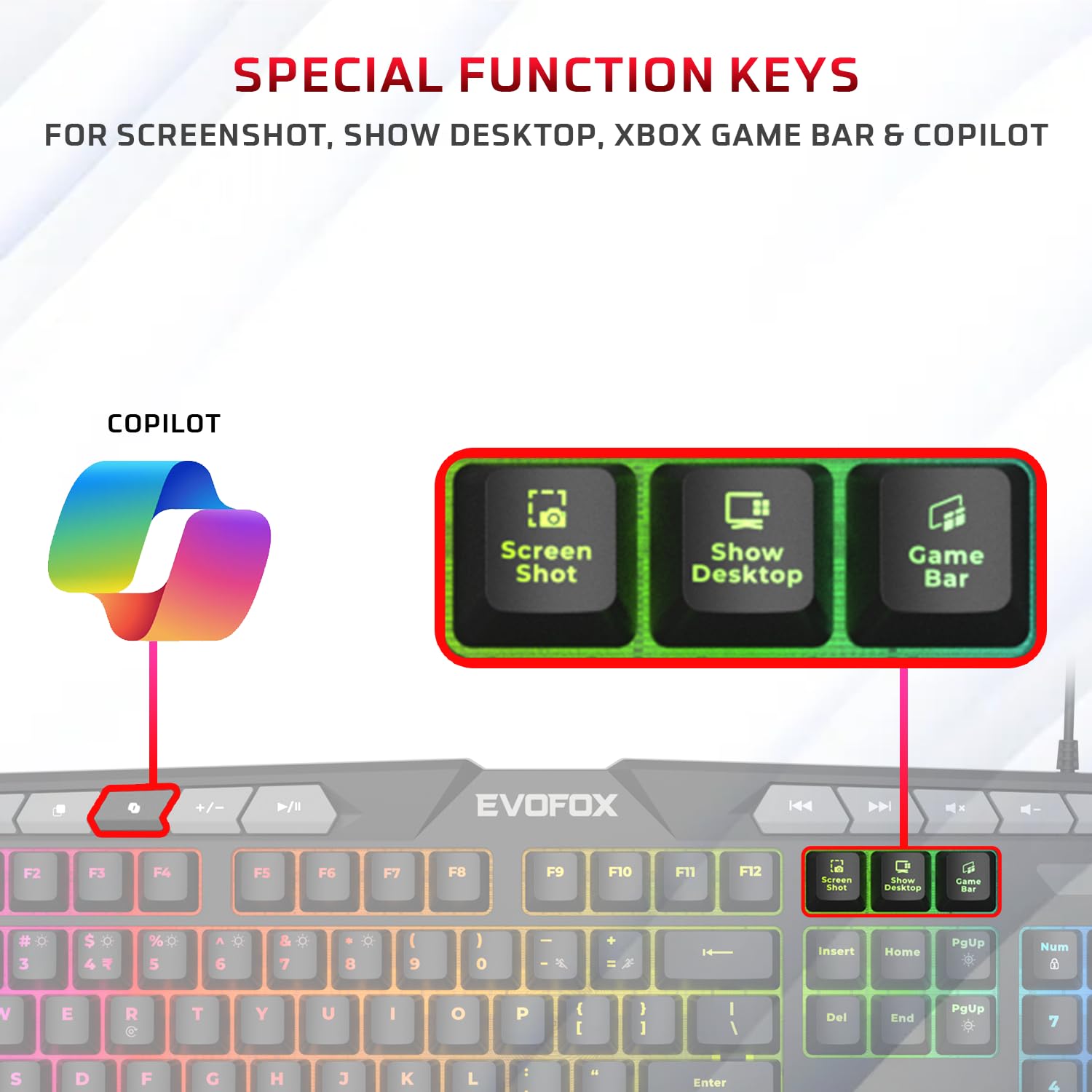
Beeld: 'n Gedetailleerde view of the EvoFox Deathray V2 Keyboard highlighting the dedicated Screenshot, Show Desktop, and Game Bar keys.
4.4. Anti-spooksleutels
The keyboard features 19 anti-ghosting keys, ensuring that multiple simultaneous key presses are registered accurately, which is crucial for gaming.

Image: The EvoFox Deathray V2 Keyboard, visually indicating the 19 anti-ghosting key zones for precise input.
5. Bediening van die muis
5.1. Knoppies en funksies
The EvoFox Deathray V2 Mouse features 6 buttons for versatile control:
- Links klik
- Regs klik
- Rolwiel (Klikbaar)
- DPI-aanpassingsknoppie
- Vorentoe-knoppie
- Terug-knoppie
5.2. DPI-aanpassing
The mouse offers adjustable DPI (Dots Per Inch) settings to change cursor sensitivity. Press the DPI button located behind the scroll wheel to cycle through the available DPI levels:
- 1200 DPI
- 1800 DPI
- 2400 DPI
- 3600 DPI
Each DPI level may be indicated by a specific LED light pattern or color change on the mouse.

Image: The EvoFox Deathray V2 Mouse, illustrating its ergonomic design and the DPI adjustment button.

Image: A close-up of the EvoFox Deathray V2 Mouse, highlighting its 6-button design, rugged braided cable, and magnetic ring for data transmission.
6. Lighting Customization
6.1. Keyboard RGB Backlighting
The EvoFox Deathray V2 Keyboard features 6-zone RGB backlighting with multiple lighting modes. Use the dedicated lighting control keys (often marked with a light bulb icon or specific function key combinations) to cycle through different effects and adjust brightness.
- 8 beligtingsmodusse: Cycle through various preset lighting effects.
- Pasgemaakte Beligting: Some modes may allow for custom color assignments or patterns.

Image: The EvoFox Deathray V2 Keyboard displaying its vibrant 6-zone customizable RGB backlighting.
6.2. Mouse LED Lighting
The EvoFox Deathray V2 Mouse features 7-color LED lighting, often with a breathing effect, which changes automatically. There are typically no user-adjustable settings for the mouse lighting beyond its default cycling pattern.

Image: The EvoFox Deathray V2 Mouse illuminated with its 7-color rainbow LED lighting, featuring a breathing effect.
7. Onderhoud
Proper maintenance ensures the longevity and optimal performance of your EvoFox Deathray V2 combo.
- Skoonmaak: Use a soft, dry cloth to wipe down the keyboard and mouse. For stubborn dirt, a slightly damp 'n Lap kan gebruik word, en verseker dat geen vloeistof die toestelle binnedring nie. Vermy harde chemikalieë of skuurmiddels.
- Stofverwydering: Gebruik saamgeperste lug om stof en puin tussen die sleutelbord se sleutels en rondom die muissensor te verwyder.
- Kabelversorging: Avoid sharp bends or excessive pulling on the braided cables to prevent damage.
- Berging: Wanneer dit nie vir lang tye gebruik word nie, bêre die toestelle in 'n skoon, droë omgewing weg van direkte sonlig en uiterste temperature.

Image: A close-up of the EvoFox Deathray V2 Keyboard, highlighting its durable design with a 1.8m braided cable and soft membrane keys.
8. Probleemoplossing
| Probleem | Moontlike oorsaak | Oplossing |
|---|---|---|
| Sleutelbord/muis reageer nie | Los USB-verbinding, foutiewe USB-poort, drywerprobleem. |
|
| Sleutels registreer nie of spook nie | Software conflict, physical obstruction, hardware issue. |
|
| Muiswyser wisselvallig of beweeg nie | Dirty sensor, unsuitable surface, faulty sensor. |
|
| RGB-beligting werk nie | Lighting mode off, brightness too low, software issue. |
|
9. Spesifikasies
| Kenmerk | Detail |
|---|---|
| Produk Model | V2 - 2 in 1 |
| Konnektiwiteit | Bedraad USB |
| Tipe sleutelbord | Membrane, Full-Size |
| Sleutelbord agtergrondbeligting | 6-Zone RGB with 8 modes |
| Anti-spookbeeld | 19 Sleutels |
| Muisknoppies | 6 Buttons (Left, Right, Scroll Click, DPI, Forward, Backward) |
| Muis DPI-instellings | 1200 / 1800 / 2400 / 3600 DPI |
| Muisbeligting | 7-Color LED Lighting (Breathing Effect) |
| Kabel tipe | Braided Cable (1.8m for keyboard) |
| Mouse Switches | Huano switches, rated for 10 million clicks |
| Produk Afmetings (Sleutelbord) | 50 x 18 x 4 cm |
| Item gewig | 800 g |
| Land van oorsprong | China |
10. Waarborg en Ondersteuning
EvoFox products are designed for durability and performance. For warranty information, technical support, or service inquiries, please refer to the official EvoFox webwebwerf of kontak hul kliëntediens direk.
Vervaardiger: Allied Electronics & Magnetics Private Limited
Adres: C-64/4, Okhla Phase - 2, New Delhi - 110020, India
Behou asseblief jou aankoopbewys vir waarborgeise.
11. Veiligheidsinligting
- Do not expose the devices to liquid or excessive moisture.
- Vermy uiterste temperature.
- Moenie probeer om die toestelle self uitmekaar te haal of te herstel nie. Dit sal die waarborg ongeldig maak.
- Hou buite bereik van kinders.