
1. Inleiding
The Fanvil V66-Pro is a professional IP phone designed for modern business communication. It features a 7-inch adjustable touch screen, supports 20 SIP lines, and includes built-in 2.4G/5G Wi-Fi (Wi-Fi 6) and a wireless Bluetooth handset. This manual provides detailed instructions for the proper installation, configuration, and operation of your Fanvil V66-Pro IP Phone.
2. Pakketinhoud
Verifieer dat alle items in u pakket teenwoordig is. Indien enige item ontbreek of beskadig is, kontak u verskaffer onmiddellik.
- Fanvil V66-Pro IP Phone Unit
- Draadlose Bluetooth-toestel
- Telefoonkoord
- Ethernet kabel
- Kragadapter
- Lessenaar staander
- Vinnige installasiegids
3. Fisiese Oorview
Familiarize yourself with the components of your Fanvil V66-Pro IP Phone.
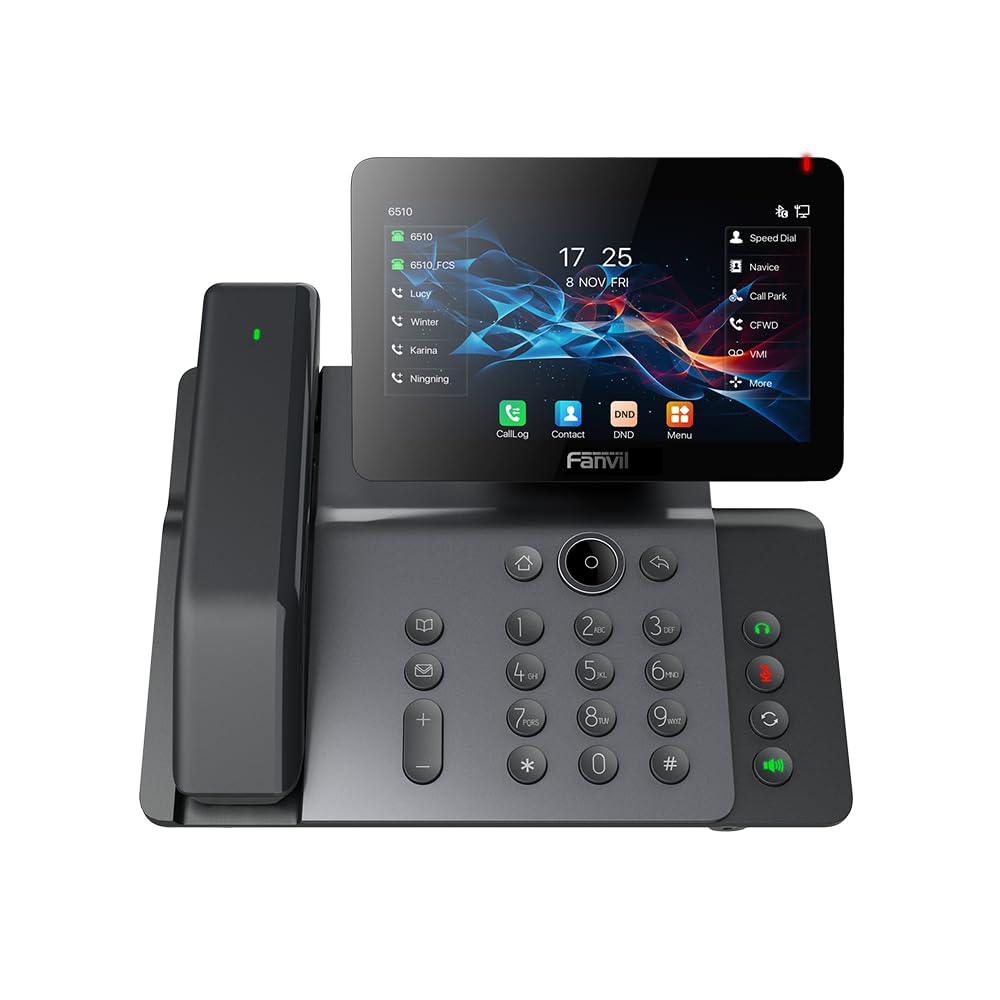
Figure 3.1: Fanvil V66-Pro IP Phone with its wireless Bluetooth handset shown separately.
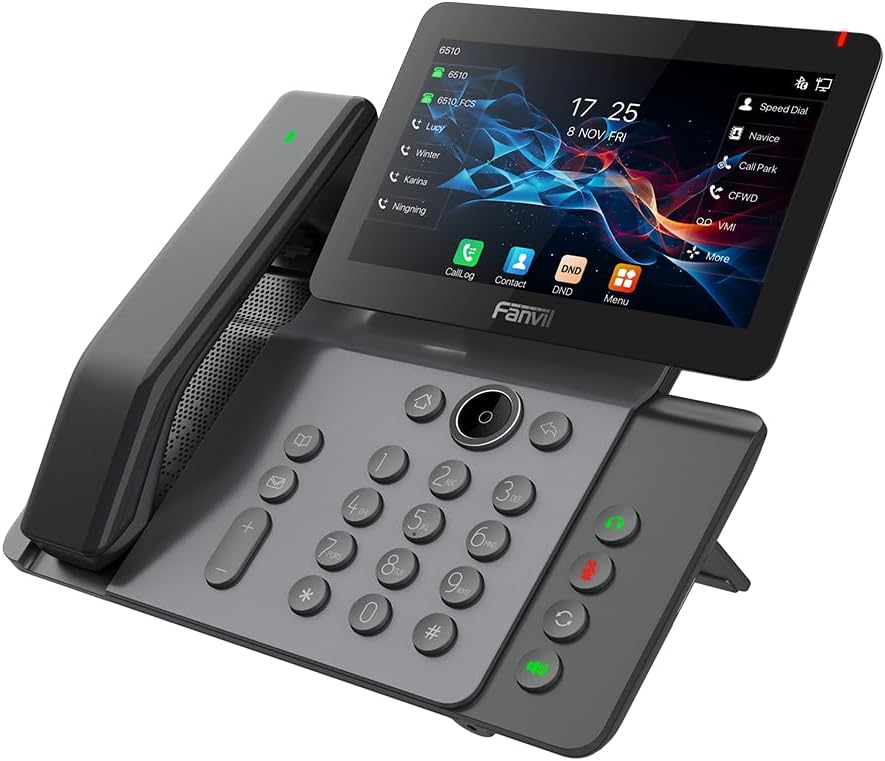
Figuur 3.2: Voorkant view of the Fanvil V66-Pro IP Phone with the handset attached to the main unit.
3.1 Sleutelkomponente
- Adjustable Touch Screen: 7-inch color display for navigation and information.
- klavier: Standard numeric and function keys for dialing and control.
- Wireless Bluetooth Handset: For cordless communication.
- Luidspreker: Integrated speaker and microphone for hands-free calls.
- Funksie sleutels: Dedicated buttons for common features like message, hold, transfer, and conference.
- Poorte: Ethernet ports (LAN/PC), Power port, USB port, Headset port.
4. Opstelling
4.1 Montering van die foon
- Attach the desk stand to the main phone unit.
- Connect the coiled handset cord to the main unit and the wired handset (if using a wired handset). For the wireless Bluetooth handset, ensure it is placed on the charging cradle.
4.2 Verbinding met netwerk en krag
- Netwerk konneksie: Connect one end of the Ethernet cable to the LAN port on the back of the phone and the other end to your network switch or router. If connecting a PC, use the PC port on the phone.
- Kragverbinding: Connect the power adapter to the power port on the phone and then plug it into an electrical outlet. The phone will automatically power on.
4.3 Initial Boot-Up and Configuration
Upon first power-up, the phone will display a boot-up sequence. Once complete, it will attempt to obtain network settings via DHCP. If your network requires static IP configuration or specific SIP server details, these can be configured via the phone's menu or a web interface. Consult your network administrator for specific settings.
5. Bedryfsinstruksies
5.1 Maak en ontvang oproepe
- Om 'n oproep te maak: Pick up the handset, press the speakerphone button, or press a line key. Dial the number and press the Dial soft key or #.
- Om 'n oproep te beantwoord: Pick up the handset, press the speakerphone button, or press the Answer soft key.
- Om 'n oproep te beëindig: Hang up the handset, press the speakerphone button again, or press the End Call soft key.
5.2 Gebruik van die raakskerm
The 7-inch touch screen allows for intuitive navigation. Tap icons to access features like Call Log, Contacts, DND (Do Not Disturb), and Menu. Swipe gestures may be supported for additional screens or options.
5.3 Basiese oproepkenmerke
- Hou vas: Druk tydens die oproep op Hou vas soft key. Press it again to resume the call.
- oordra: Druk tydens die oproep op Oordrag soft key. Dial the number to transfer to, then press the Oordrag soft key again (blind transfer) or wait for the party to answer and then press Oordrag (bygewoonde oordrag).
- Konferensie: Druk tydens die oproep op Konferensie soft key. Dial the second party's number and wait for them to answer. Press the Konferensie sagte sleutel weer om by al die partye aan te sluit.
5.4 Wi-Fi and Bluetooth Setup
- Wi-Fi: Navigate to the phone's menu, select 'Settings' > 'Wi-Fi'. Enable Wi-Fi, scan for available networks, select your network, and enter the password if required.
- Bluetooth: Navigate to the phone's menu, select 'Settings' > 'Bluetooth'. Enable Bluetooth. For the wireless handset, ensure it is charged and in pairing mode. Select the handset from the discovered devices list to pair.
6. Onderhoud
6.1 Die skoonmaak van die toestel
Use a soft, dry cloth to clean the phone's surface and screen. Avoid using liquid cleaners or abrasive materials, as they may damage the device. For stubborn marks, a slightly damp cloth with water may be used, ensuring no moisture enters openings.
6.2 Sagteware-opdaterings
Periodically check for firmware updates to ensure optimal performance and access to new features. Updates can typically be performed via the phone's web interface or through your service provider's provisioning system. Consult your network administrator or service provider for guidance on updates.
7. Probleemoplossing
7.1 Geen kiestoon nie
- Check all cable connections (Ethernet, power, handset).
- Ensure the phone is powered on and the screen is active.
- Verifieer netwerkverbinding.
- Contact your service provider to confirm SIP registration status.
7.2 Cannot Connect to Network
- Ensure the Ethernet cable is securely connected to the LAN port and your network.
- Check if your network switch or router is functioning correctly.
- If using Wi-Fi, verify the correct network is selected and the password is entered accurately.
- Herbegin die foon en jou netwerktoerusting.
7.3 Vertoon kwessies
- If the screen is blank, ensure the phone is powered on.
- Adjust screen brightness settings in the phone's menu.
- Herbegin die foon.
8. Spesifikasies
| Kenmerk | Detail |
|---|---|
| Produk afmetings | 9 x 7 x 5.6 duim |
| Item gewig | 3.3 pond |
| ASIN | B0DYKWF779 |
| Vervaardiger | Fanvil |
| Kleur | swart |
| Telefoon tipe | vaste |
| Materiaal | Metaal, plastiek |
| Kragbron | Elektries met koord |
| Tipe antwoordstelsel | Digitaal |
| Versoenbare toestelle | VoIP Services, Traditional Phone Networks |
| Konferensieoproepvermoë | Basies |
| Meerlynige bewerking | Multi-lyn-operasie |
9. Waarborginligting
Fanvil products are typically covered by a limited manufacturer's warranty. The specific terms and duration of the warranty may vary by region and retailer. Please refer to the warranty card included with your product or visit the official Fanvil website for detailed warranty information. Keep your purchase receipt as proof of purchase for warranty claims.
10. Ondersteuning
For technical assistance, product inquiries, or further support, please contact your vendor or visit the official Fanvil support webwebwerf:
Fanvil Amptelik Webwebwerf: www.fanvil.com
You may find FAQs, firmware downloads, and additional documentation on their support pages.