
1. Inleiding
The Delton F75 Foldable Bluetooth Keyboard with Touchpad is designed for portability and convenience, offering a full-sized typing experience in a compact form factor. This manual provides detailed instructions for setting up, operating, and maintaining your keyboard to ensure optimal performance across various devices.
2. Pakketinhoud
Kontroleer asseblief die pakket vir die volgende items:
- 1 x Delton F75 Foldable Bluetooth Keyboard with Touchpad
- 1 x USB-C laaikabel
- 1 x Gebruikershandleiding (hierdie dokument)
3. Produk verbyview
Familiarize yourself with the key components of your Delton F75 keyboard.
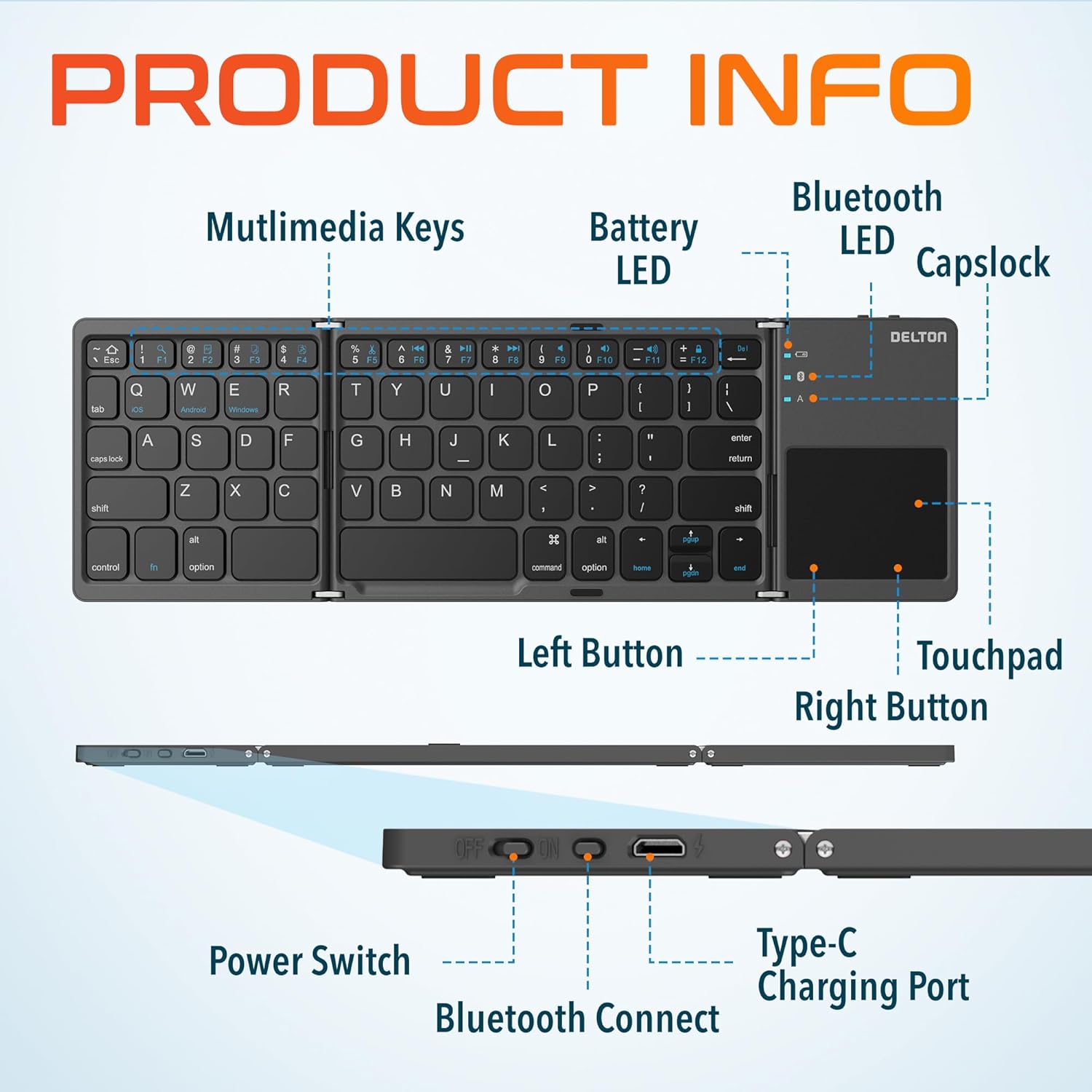
Image: Diagram showing multimedia keys, battery LED, Bluetooth LED, Capslock, Left/Right Touchpad Buttons, Touchpad, Power Switch, Bluetooth Connect button, and Type-C Charging Port.
- Multimedia sleutels: Access various functions like volume control, media playback, and more.
- Battery-LED: Dui batterystatus aan.
- Bluetooth-LED: Dui Bluetooth-verbindingstatus aan.
- Capslock Indicator: Shows when Caps Lock is active.
- Raakblad: For navigation and gesture control.
- Left/Right Touchpad Buttons: Function as mouse clicks.
- Krag skakelaar: Skakel die sleutelbord aan of af.
- Bluetooth Connect-knoppie: Begin Bluetooth-paringsmodus.
- Tipe C-laaipoort: For recharging the keyboard's internal battery.
4. Opstelling en verbinding
4.1 Aanvanklike laai
Before first use, fully charge the keyboard. Connect the provided USB-C charging cable to the keyboard's Type-C port and the other end to a USB power source (e.g., computer, wall adapter). The Battery LED will indicate charging status.
4.2 Aan-/afskakel
To power on the keyboard, slide the Power Switch to the "ON" position. To power off, slide it to the "OFF" position.
4.3 Bluetooth -koppeling
- Unfold the keyboard completely. This action often automatically powers on the device.
- Druk die Bluetooth Connect-knoppie (usually indicated by a Bluetooth icon) to enter pairing mode. The Bluetooth LED will blink, indicating it is discoverable.
- On your device (PC, laptop, tablet, smartphone), go to Bluetooth settings.
- Soek vir available Bluetooth devices and select "Delton F75" (or similar name).
- Follow any on-screen prompts to complete the pairing process. The Bluetooth LED will stop blinking and remain solid once connected.
The keyboard supports seamless integration across Windows, macOS, iOS, and Android operating systems.

Image: Visual representation of the Delton F75 keyboard's compatibility with various tablets, phones, and laptops/PCs, including iPad, Galaxy Tab, iPhone, Galaxy, Google Pixel, OnePlus, iMac, Macbook, Dell, and HP, and operating systems like Windows, macOS, and iOS.
5. Bedryfsinstruksies
5.1 Typing
The Delton F75 features an optimized key layout and scissor switch keys for comfortable and precise typing. The quiet keys minimize disturbance, making it suitable for various environments.
5.2 Gebruik van die raakpaneel
The integrated touchpad supports full gesture functions, eliminating the need for an additional mouse. It includes left and right-click buttons for standard mouse operations.

Image: Close-up of the Delton F75 keyboard's sensitive touchpad, highlighting its gesture control capabilities with a finger touching the pad.
Refer to your device's operating system documentation for specific touchpad gestures supported.
5.3 Multimedia sleutels
The keyboard includes dedicated multimedia keys. These keys often require pressing the Fn (Function) key simultaneously with the desired multimedia key to activate their secondary functions (e.g., volume up/down, play/pause).
6. Laai en batterylewe
The Delton F75 keyboard is equipped with a rechargeable battery that provides up to 50 hours of continuous use on a single charge. When the battery is low, the Battery LED will indicate this status. Connect the keyboard to a power source using the USB-C cable for recharging.
7. Onderhoud
- Hou die sleutelbord skoon deur dit met 'n sagte, droë lap af te vee.
- Vermy die blootstelling van die sleutelbord aan uiterste temperature, humiditeit of direkte sonlig.
- Moenie harde chemikalieë of skuurmiddels gebruik nie.
- Store the keyboard in its folded, compact state when not in use to protect the keys and touchpad.
8. Probleemoplossing
- Sleutelbord koppel nie via Bluetooth nie: Ensure the keyboard is charged and powered on. Make sure Bluetooth is enabled on your device and the keyboard is in pairing mode (Bluetooth LED blinking). Try unpairing and re-pairing the device.
- Sleutels reageer nie: Check if the keyboard is powered on and connected. Ensure the battery is not depleted.
- Aanraakpaneel werk nie: Verify the keyboard is connected. Some devices may require specific settings for external touchpads.
- Onderbroke verbinding: Ensure there are no obstructions between the keyboard and your device. Move closer to your device. Avoid strong electromagnetic interference.
- Typing lag: This can sometimes be due to interference or a low battery. Try recharging the keyboard or moving closer to your device.
9. Spesifikasies
| Kenmerk | Spesifikasie |
|---|---|
| Modelnommer | F75 |
| Produkafmetings (Ongevou) | 11.9 x 6 x 0.7 duim (L x B x H) |
| Item gewig | 8.4 onse |
| Verbindingstegnologie | Bluetooth |
| Versoenbare toestelle | Laptop, PC, Tablet, Smartphone (Windows, macOS, iOS, Android) |
| Sleutelbordbeskrywing | Ergonomic, Scissor Switch Keys |
| Spesiale kenmerke | Foldable, Portable, Touchpad, Rechargeable, Hotkeys and Media Keys, Lightweight, Compact |
| Batterylewe | Tot 50 uur se deurlopende gebruik |
| Laaipoort | Tipe-C |
| Materiaal | Plastiek en metaal |
| Kleur | Swart |
10. Waarborg en Ondersteuning
For warranty information or technical support, please refer to the documentation included with your purchase or visit the official Delton webwebwerf. Bewaar u bewys van aankoop vir waarborgeise.