
1. Belangrike veiligheidsinstruksies
Lees en verstaan asseblief alle veiligheidsinstruksies voordat u hierdie produk gebruik. Versuim om hierdie instruksies te volg, kan lei tot elektriese skok, brand of ernstige besering.
- Moenie die maksimum laaikapasiteit van 15 oorskry nie Amps / 1875 Watt.
- Hierdie produk is slegs vir binnenshuise gebruik ontwerp. Moenie aan vog of uiterste temperature blootstel nie.
- Moenie die toestel uitmekaar haal of wysig nie. Verwys alle diens na gekwalifiseerde personeel.
- Hou buite bereik van kinders.
- Ensure the power strip is fully plugged into a grounded outlet.
- Avoid using extension cords with the power strip.
- Unplug the power strip from the wall outlet before cleaning.
2. Produk verbyview
The XENON Matter Smart Power Outlet is a versatile power strip designed for modern smart homes. It features multiple AC outlets, USB-A ports, and a 20W USB-C port, all controllable via Matter-compatible smart home platforms.
Sleutel kenmerke:
- Multi-versoenbaarheid: Works with Matter-certified platforms including Apple Home, Amazon Alexa, Google Home, and SmartThings.
- Afstandbeheer: Manage 4 AC outlets individually or as a group via your mobile app from anywhere.
- Timer and Scheduler: Automate connected devices with custom schedules for energy saving and device protection.
- 20W USB-C kraglewering: Fast charging for phones, tablets, and laptops, plus additional USB-A ports.
- Safety-First Design: Fire-resistant materials, built-in overload, and surge protection.
Product Diagram and Dimensions:
The XENON Matter Smart Power Outlet features 4 AC outlets, 3 USB-A ports, and 1 USB-C port. The main power button also serves as a status indicator.
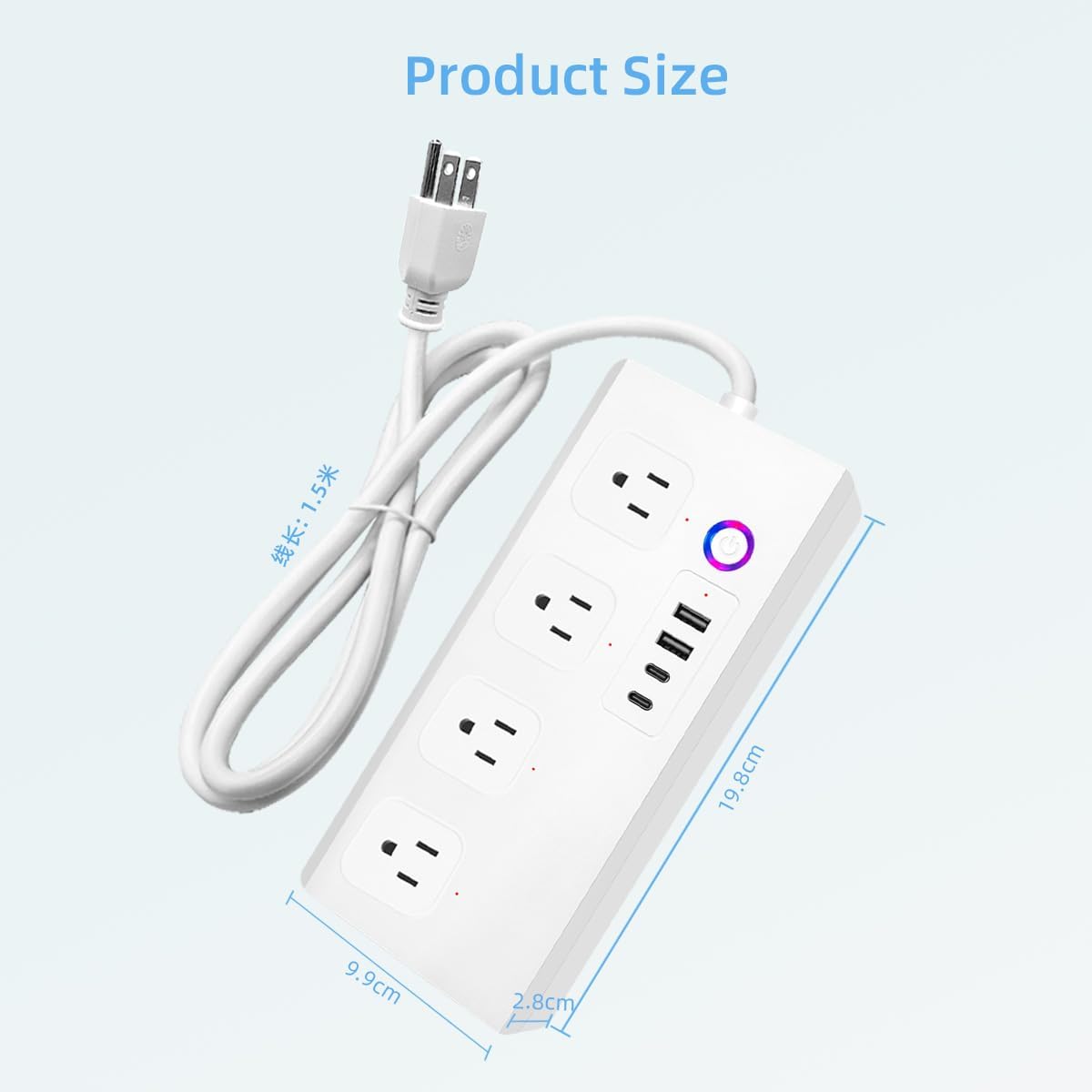
Image: XENON Matter Smart Power Outlet showing its physical dimensions. The power strip measures approximately 19.8 cm in length, 9.9 cm in width, and 2.8 cm in height. The power cord is 1.5 meters long.
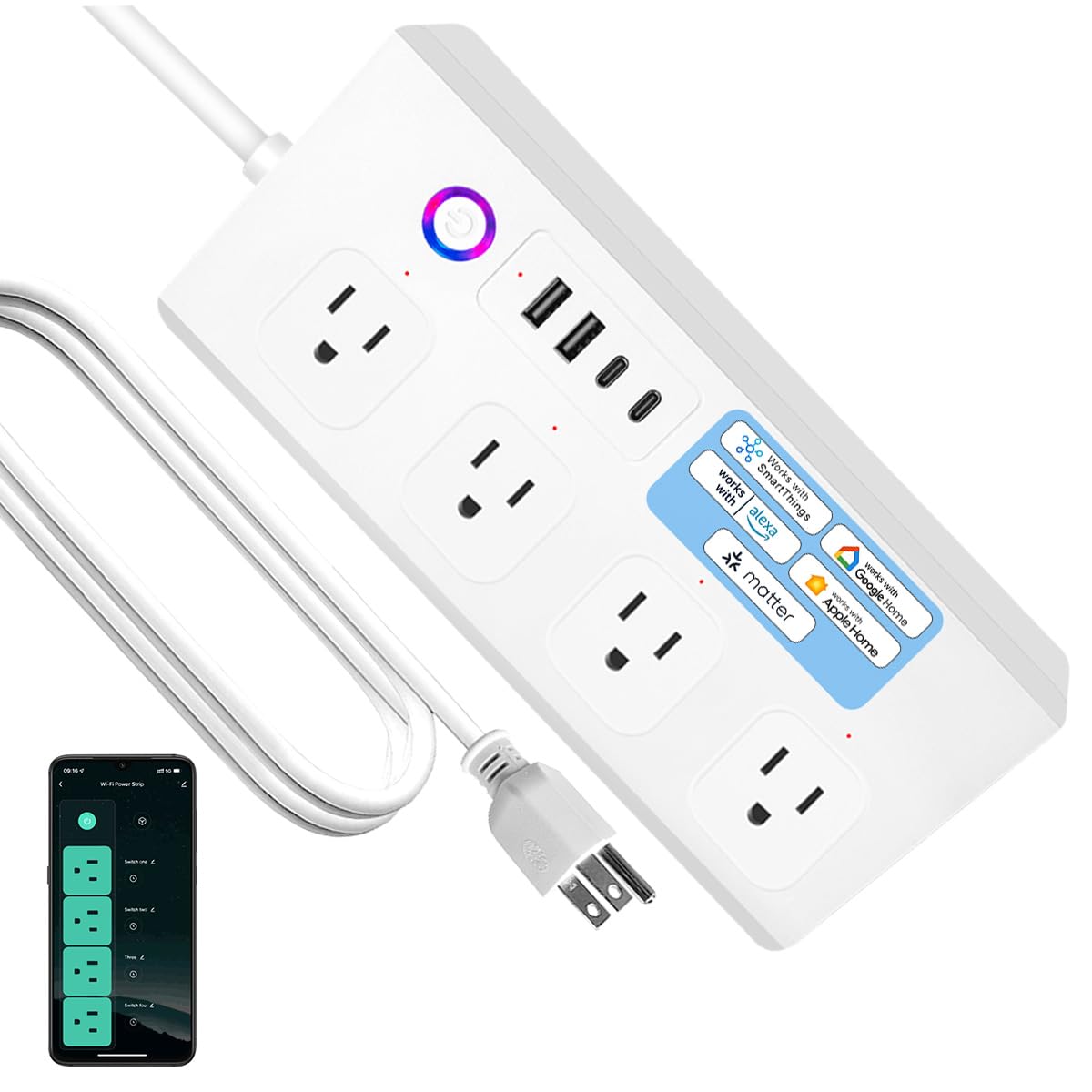
Beeld: Voorkant view of the XENON Matter Smart Power Outlet, highlighting the four AC outlets, USB ports, and the main power button with an LED indicator.
3. Opstelling
3.1 Fisiese installasie
- Unpack the XENON Matter Smart Power Outlet from its packaging.
- Place the power strip on a stable, flat surface, away from heat sources or moisture.
- Plug the power strip's cord into a standard 120V AC grounded wall outlet. The LED indicator on the power strip should light up.
3.2 Materieparing
The XENON Matter Smart Power Outlet uses Matter for easy integration with your smart home ecosystem. You will need a Matter controller (e.g., Apple HomePod Mini, Amazon Echo, Google Nest Hub) and a compatible smartphone app.
- Ensure your Matter controller is set up and connected to your home's 2.4 GHz Wi-Fi network. (Note: 5.0 GHz Wi-Fi is not supported for initial setup.)
- Open your preferred Matter-compatible smart home app (e.g., Apple Home, Alexa app, Google Home app).
- Select the option to 'Add Device' or 'Add Accessory'.
- Scan the Matter QR code located on the power strip or its packaging. If scanning fails, you may enter the manual code provided.
- Follow the on-screen prompts in the app to complete the pairing process. This typically involves confirming the device and assigning it to a room.

Image: Screenshot illustrating the easy setup process by scanning the Matter QR code using a smartphone app. It also indicates compatibility with 2.4 GHz Wi-Fi and incompatibility with 5.0 GHz Wi-Fi.
3.3 Integrating with Smart Home Platforms
Once paired via Matter, your XENON Smart Power Outlet can be controlled by various smart home platforms.
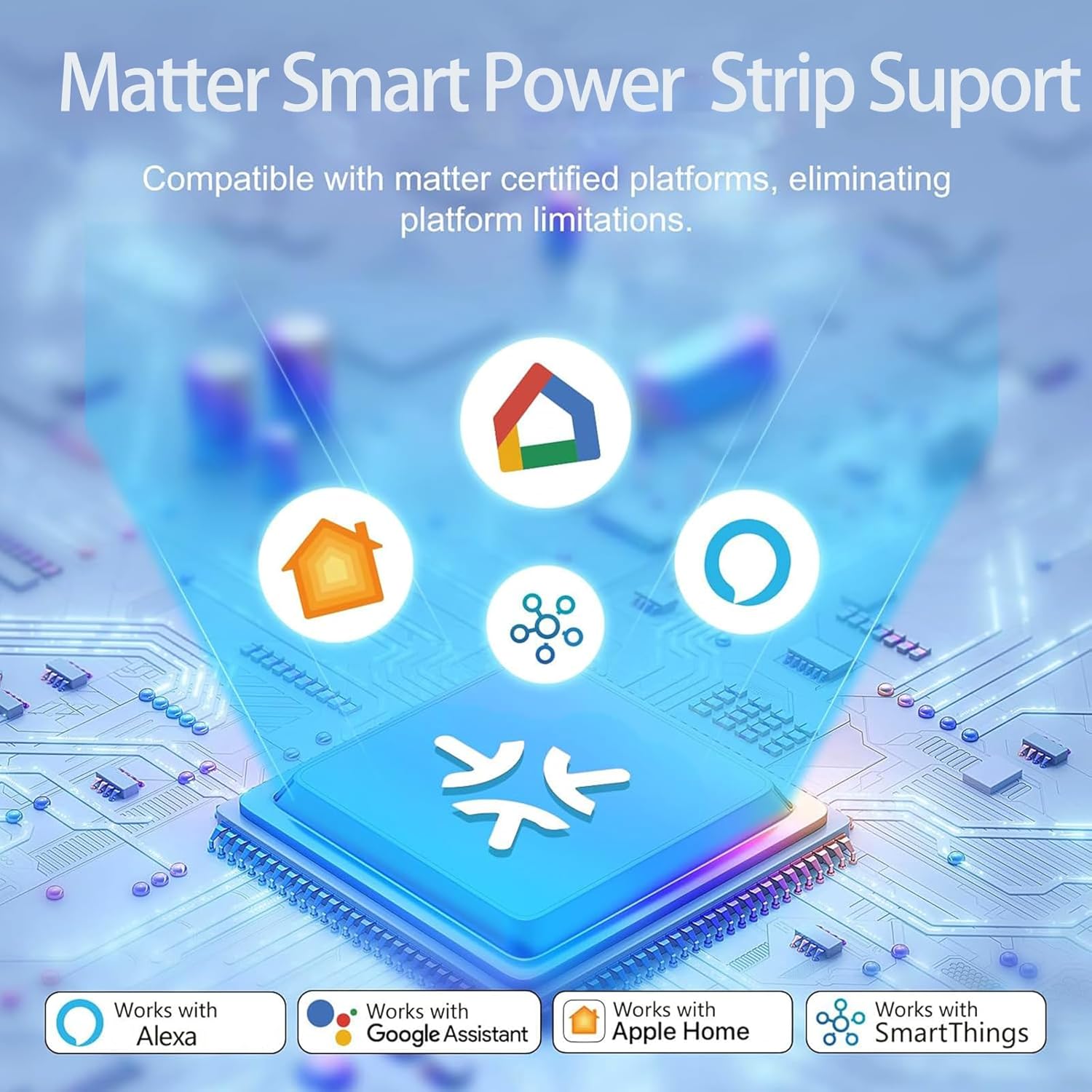
Image: Diagram showing the XENON Matter Smart Power Strip's compatibility with certified platforms like Apple Home, Amazon Alexa, Google Home, and SmartThings, eliminating platform limitations. For more information on Matter, visit csa-iot.org/all-solutions/matter/.
- Apple Tuisblad: After scanning the Matter code, the device will appear in the Apple Home app. You can then add it to rooms, create automations, and control it via Siri.
- Amazon Alexa: Ensure your Alexa device is Matter-enabled. Once paired, you can discover the device in the Alexa app and control it with voice commands.
- Google Tuis: With a Google Nest Hub or other Matter controller, the device will be discoverable in the Google Home app for voice control and routines.
- SmartThings: Integrate the power strip into your SmartThings ecosystem for advanced automations and control.
4. Operasie
4.1 Afstandbeheer via mobiele toepassing
Once connected, you can control the power strip from your smartphone or tablet using your chosen smart home app.

Image: An illustration of remote control capabilities, showing a hand holding a smartphone displaying an app interface to control individual switches (Switch 1, Switch 2, Switch 3, Switch 4) of the smart power strip. Icons for surge protection, individual control, voice control, setting schedules, timer mode, and share access are also visible.
- Individuele uitlaatbeheer: Each of the 4 AC outlets can be turned ON or OFF independently through the app.
- Groepbeheer: You can also turn all AC outlets ON or OFF simultaneously.
- Statusmonitering: The app displays the real-time ON/OFF status of each outlet.
4.2 Timer and Scheduling
Set up custom schedules and timers to automate your devices:
- Skedules: Program specific times for outlets to turn ON or OFF daily or on selected days of the week. This is ideal for lights, coffee makers, or charging devices.
- Aftellers: Use countdown timers to automatically turn off devices after a set duration.
4.3 Stembeheer
Control your XENON Smart Power Outlet using voice commands with compatible smart assistants.

Image: A person in a wheelchair using voice commands to control a fan connected to the smart power strip via an Amazon Echo device. The text bubble shows "Alexa, turn off the fan" and the response "ok".
- Alexa: Say, "Alexa, turn on [device name]" or "Alexa, turn off [device name]."
- Google Assistent: Say, "Hey Google, turn on [device name]" or "Haai Google, skakel [toestelnaam] af."
- Siri (Apple Home): Say, "Hey Siri, turn on [device name]" or "Hey Siri, turn off [device name]."
4.4 USB-laai
The power strip includes multiple USB ports for charging your mobile devices.
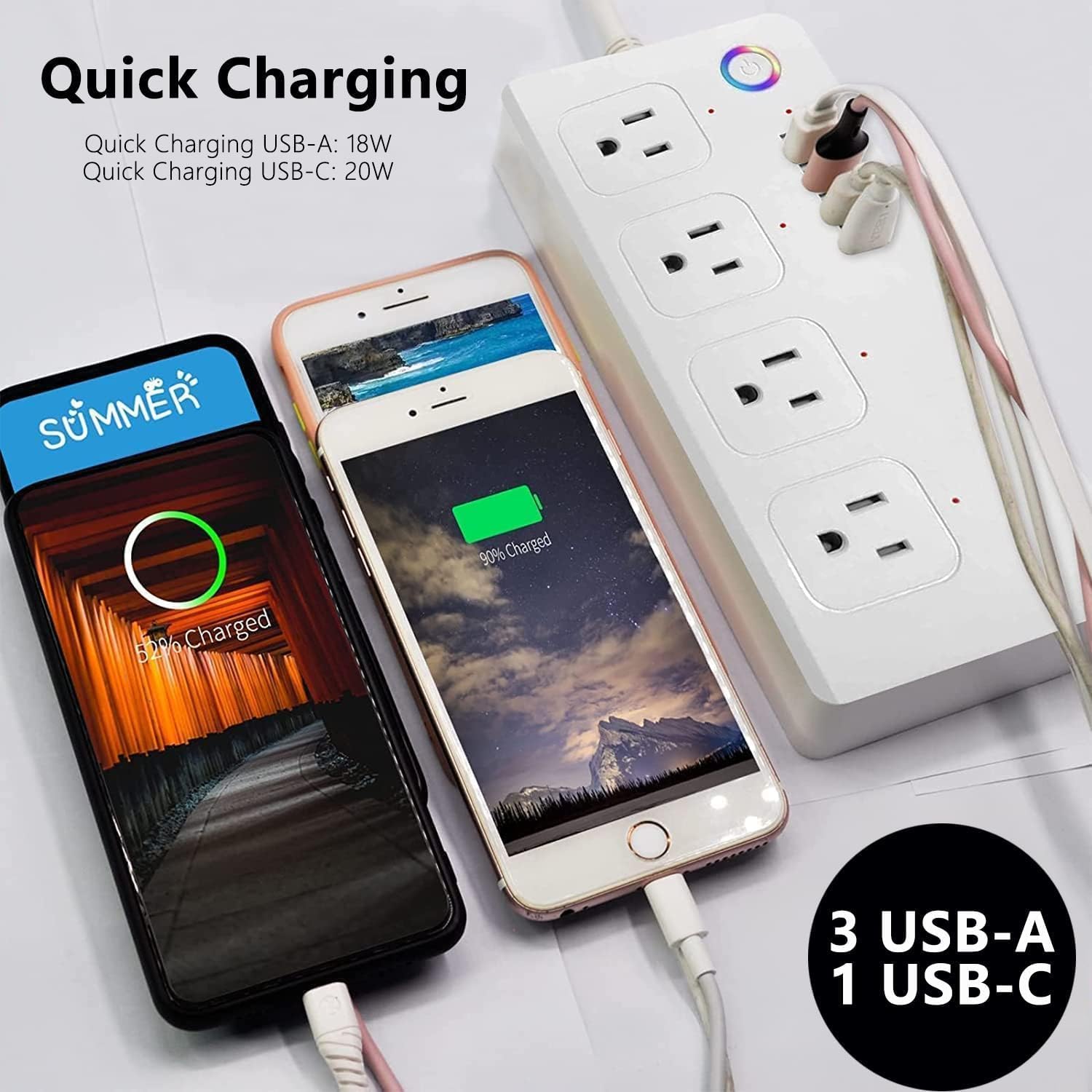
Image: Two smartphones connected to the XENON Smart Power Outlet's USB ports, illustrating quick charging capabilities. The power strip provides Quick Charging USB-A (18W) and USB-C (20W).
- USB-C-poort: Provides 20W fast charging for compatible devices like smartphones, tablets, and laptops.
- USB-A-poorte: Offers standard charging for various USB-powered devices.
4.5 Sharing Device Control
You can share control of your XENON Smart Power Outlet with family members or friends through your smart home app.

Image: A family looking at a smartphone screen, which displays options for sharing control of home appliances. This feature allows multiple users to manage the smart power strip remotely.
- Access the 'Share Device' or 'Family Sharing' option within your smart home app.
- Invite other users by their email or account ID associated with the smart home platform.
- Shared users will gain remote control capabilities over the power strip.
5. Onderhoud
- Skoonmaak: Disconnect the power strip from the wall outlet before cleaning. Use a dry, soft cloth to wipe the surface. Do not use liquid cleaners or sprays.
- Berging: When not in use for extended periods, unplug the power strip and store it in a cool, dry place.
- Inspeksie: Periodically inspect the power cord and housing for any signs of damage. If damaged, discontinue use and contact support.
6. Probleemoplossing
- Toestel reageer nie:
- Ensure the power strip is plugged in and receiving power (LED indicator is ON).
- Check your Wi-Fi connection. The power strip requires a stable 2.4 GHz Wi-Fi network.
- Verify your Matter controller (e.g., smart speaker/hub) is online and functioning correctly.
- Try unplugging the power strip from the wall outlet for 10 seconds, then plug it back in to perform a soft reset.
- If the issue persists, attempt to re-pair the device through your smart home app.
- Kan nie aan Wi-Fi koppel nie:
- Confirm your Wi-Fi network is 2.4 GHz. The device does not support 5.0 GHz Wi-Fi.
- Maak seker dat jou Wi-Fi-wagwoord korrek is.
- Move the power strip closer to your Wi-Fi router or Matter controller.
- Herbegin jou Wi-Fi-router.
- Oorladingsbeskerming geaktiveer:
- If the power strip suddenly turns off, it may be due to an overload. Unplug some devices and press the reset button (if available) or unplug and replug the power strip.
- Verseker die totale wattagDie e van gekoppelde toestelle oorskry nie 1875W nie.
7. Spesifikasies
| Handelsmerk | XENON |
| Model | Matter Smart Power Outlet |
| Kleur | Wit |
| Totale kragpunte | 8 (4 AC Outlets, 3 USB-A, 1 USB-C) |
| AC Voltage | 120 Volt |
| Maksimum stroom | 15 Amps |
| USB-C-uitset | 20W vinnige laai |
| Kragprop tipe | Type A - 2 pin (North American) |
| Versoenbare toestelle | Smartphone, Tablet, Laptop, Lamp, Coffee Maker, Charger, Smart Home Device |
| Slimhuisversoenbaarheid | Matter, Apple Home, Amazon Alexa, Google Home, SmartThings |
| Omhulselmateriaal | Acrylonitrile Butadiene Styrene, Aluminum, Copper |
8. Waarborg en Ondersteuning
XENON products are designed for reliability and performance. This product comes with a standard manufacturer's warranty against defects in materials and workmanship. For specific warranty details, please refer to the warranty card included with your purchase or visit the official XENON webwebwerf.
If you encounter any issues or have questions regarding your XENON Matter Smart Power Outlet, please contact XENON customer support for assistance. Contact information can typically be found on the product packaging or the brand's official webwebwerf.