
1. Inleiding
This manual provides comprehensive instructions for the setup, operation, maintenance, and troubleshooting of your Radxa E20C Mini PC. Please read this manual thoroughly before using the device to ensure proper functionality and to maximize its lifespan.
The Radxa E20C is a compact and powerful single-board computer designed for various applications, from home computing projects to industrial use. It features a robust RK3528A quad-core CPU, dual Gigabit Ethernet ports, and 4K video decoding capabilities, all housed within a durable CNC-machined aluminum alloy case.
2. Produk verbyview
2.1 Sleutelkenmerke
- Verwerker: RK3528A Quad-Core CPU for efficient performance.
- Netwerk: Dual Gigabit Ethernet ports for flexible connectivity.
- Multimedia: Supports 4K video decoding for high-resolution output.
- Konstruksie: CNC-machined aluminum alloy case with integrated heat dissipation.
- Verenigbaarheid: Supports multiple operating systems.
- Geheue: 2 GB LPDDR3 RAM.
- Berging: 16GB onboard storage.
2.2 Pakketinhoud
- Radxa E20C Board Body
- (Additional accessories may be sold separately)
2.3 Toesteluitleg
Familiarize yourself with the various ports and indicators on your Radxa E20C Mini PC.
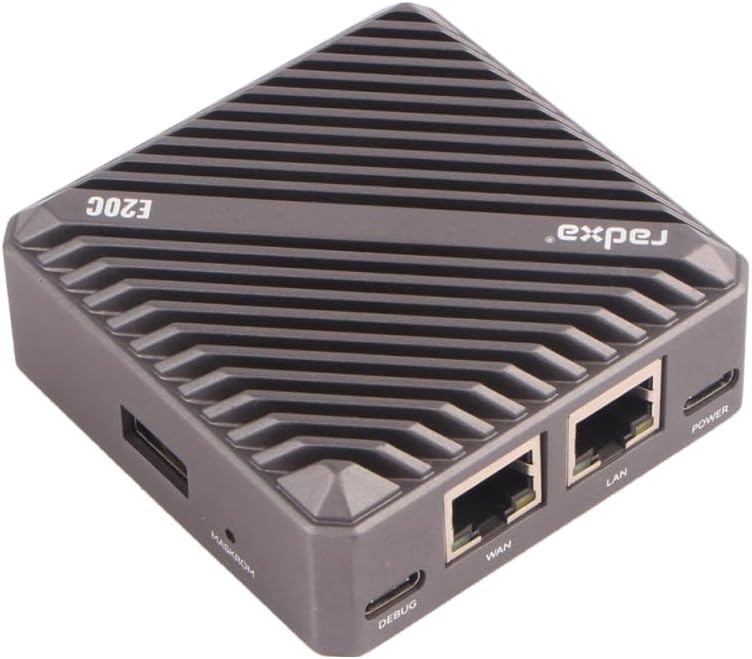
Figuur 1: Van onder na onder view of the Radxa E20C Mini PC, showcasing its compact design and ribbed aluminum casing for heat dissipation. The "radxa" logo and "E20C" model name are visible on the top surface.
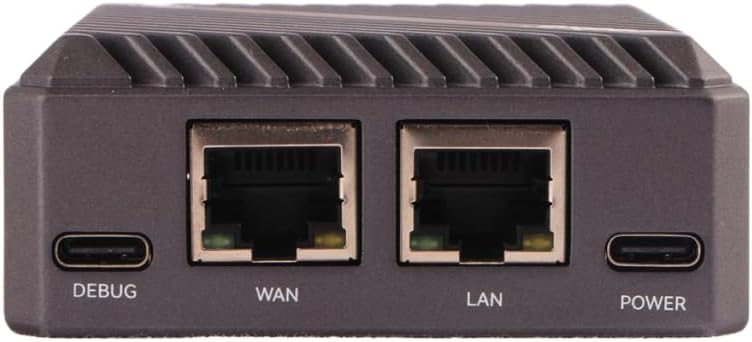
Figuur 2: Rear panel of the Radxa E20C, featuring the DEBUG USB-C port, WAN Gigabit Ethernet port, LAN Gigabit Ethernet port, and POWER USB-C port. These ports provide essential connectivity for debugging, network access, and power supply.

Figuur 3: Front panel of the Radxa E20C, showing three indicator LEDs labeled SYS, WAN, and LAN, along with a microSD card slot for expandable storage or operating system installation.
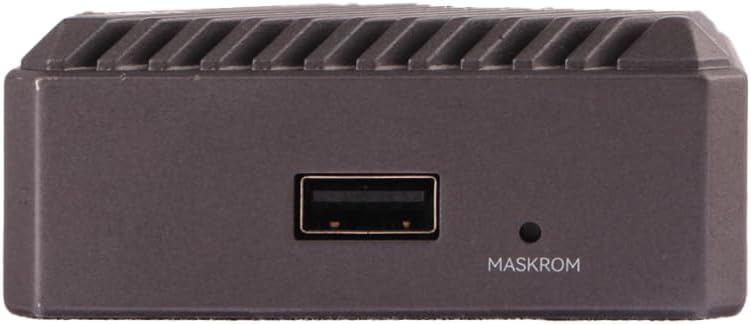
Figuur 4: Kant view of the Radxa E20C, featuring a standard USB-A port and a small button labeled MASKROM, used for system recovery or flashing firmware.
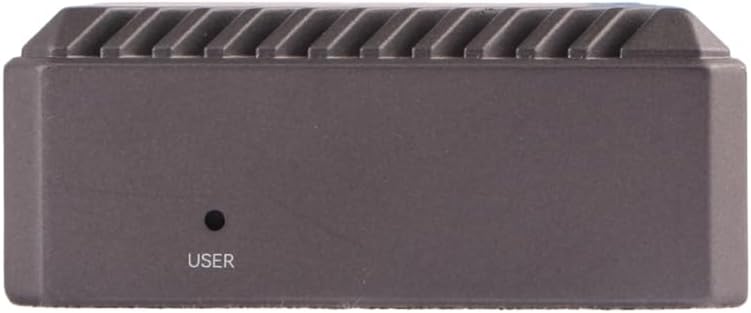
Figuur 5: Teenoorkant view of the Radxa E20C, showing a single button labeled USER, which can be programmed for various functions depending on the operating system and application.
3. Opstelgids
3.1 Aanvanklike opstart
- Koppel krag: Connect a compatible 5V USB-C power adapter to the "POWER" port on the rear of the device (refer to Figure 2).
- Netwerk konneksie: For wired network access, connect an Ethernet cable from your router or network switch to either the "WAN" or "LAN" Gigabit Ethernet port (refer to Figure 2).
- Perifere verbinding: If using a USB keyboard, mouse, or other peripherals, connect them to the available USB-A port (refer to Figure 4).
- Bedryfstelsel: Ensure a compatible operating system is installed on the internal storage or a microSD card inserted into the front slot (refer to Figure 3). For first-time setup, you may need to flash an OS image. Refer to the official Radxa documentation for detailed OS installation instructions.
- Krag aan: The device should power on automatically once connected to power. Observe the SYS, WAN, and LAN indicator LEDs on the front panel (refer to Figure 3) for status.
For detailed operating system installation and configuration, please visit the official Radxa documentation webwebwerf: wiki.radxa.com
3.2 Operating System Installation (Advanced)
The Radxa E20C supports various operating systems, including Debian. To install or re-install an operating system:
- Download the desired OS image from the official Radxa webwebwerf.
- Use a suitable imaging tool (e.g., Etcher) to write the image to a microSD card or directly to the internal eMMC storage.
- Insert the prepared microSD card into the slot on the front panel.
- Follow the specific instructions provided with the OS image for first-boot configuration.
4. Bedryfsinstruksies
4.1 Basiese werking
- Krag aan/af: The device powers on when connected to a power source. To safely shut down, use the operating system's shutdown function. Disconnecting power without proper shutdown may lead to data corruption.
- Netwerkgebruik: The dual Gigabit Ethernet ports allow for high-speed network connections. Configure network settings within your chosen operating system.
- USB-randapparatuur: Connect USB devices such as storage drives, keyboards, or mice to the USB-A port.
- System Status Indicators:
- SYS LED: Indicates system activity.
- WAN LED: Indicates activity on the WAN Ethernet port.
- LAN LED: Indicates activity on the LAN Ethernet port.
4.2 Gevorderde funksies
- MASKROM Button: This button (refer to Figure 4) is typically used for entering Maskrom mode, which is essential for low-level firmware flashing or recovery operations. Consult Radxa's developer documentation before using this feature.
- USER Button: The USER button (refer to Figure 5) is programmable and its function depends on the operating system and user configuration. It can be used for custom scripts or actions.
- Ontfouting: The DEBUG USB-C port (refer to Figure 2) provides a serial console interface for debugging purposes. A USB-to-serial adapter may be required.
5. Onderhoud
- Skoonmaak: Gebruik 'n sagte, droë lap om die buitekant van die toestel skoon te maak. Vermy vloeibare skoonmaakmiddels of skuurmiddels.
- Ventilasie: Ensure the device is placed in a well-ventilated area. Do not block the heat dissipation fins on the aluminum case.
- Firmware -opdaterings: Regularly check the official Radxa website for firmware and operating system updates to ensure optimal performance and security.
- Data-rugsteun: Periodically back up important data stored on the device to prevent data loss.
- Omgewingstoestande: Gebruik die toestel binne die aanbevole temperatuur- en humiditeitsreekse om skade te voorkom.
6. Probleemoplossing
| Probleem | Moontlike oorsaak | Oplossing |
|---|---|---|
| Toestel skakel nie aan nie. | No power supply, faulty power adapter, or incorrect power port. | Ensure the USB-C power adapter is connected to the "POWER" port and is functioning correctly. Try a different power adapter if available. |
| Geen netwerkkonnektiwiteit nie. | Ethernet cable not connected, faulty cable, or incorrect network configuration. | Verify Ethernet cables are securely connected to the WAN/LAN ports. Check network settings within the operating system. Test with a different Ethernet cable. |
| Die bedryfstelsel begin nie. | Corrupted OS image, improperly flashed microSD card, or incorrect boot order. | Re-flash the OS image to the microSD card or internal storage. Ensure the image is compatible with the Radxa E20C. Consult Radxa's documentation for boot troubleshooting. |
| Toestel reageer nie meer nie. | Software issue, overheating, or power instability. | Perform a hard reboot by disconnecting and reconnecting power (as a last resort). Ensure adequate ventilation. Check for OS updates. |
If problems persist, please refer to the official Radxa support resources or community forums for further assistance.
7. Spesifikasies
| Kenmerk | Detail |
|---|---|
| Verwerker | Rockchip RK3528A Quad-Core ARM Cortex-A53 (2 GHz) |
| RAM | 2 GB LPDDR3 |
| Berging | 16GB eMMC (onboard), MicroSD card slot |
| Netwerk | 2x Gigabit Ethernet ports (WAN, LAN) |
| Video-uitset | 4K video decoding support (specific output port not detailed in input, assuming internal processing) |
| USB-poorte | 1x USB-A, 1x USB-C (DEBUG), 1x USB-C (POWER) |
| Ondersteuning van bedryfstelsels | Debian, multiple other OS options |
| Afmetings (LxBxH) | 3.5 x 3.5 x 0.5 duim (8.9 x 8.9 x 1.3 cm) |
| Gewig | 12 onse (340 gram) |
| Materiaal van die saak | CNC aluminiumlegering |
8. Waarborg en Ondersteuning
8.1 Waarborginligting
Specific warranty terms for the Radxa E20C Mini PC are provided by the manufacturer, Radxa. Please refer to the warranty card included with your product or visit the official Radxa website for detailed warranty policies and registration information.
Protection plans may be available for purchase separately. Check with your retailer for options such as 2-Year or 3-Year Protection Plans.
8.2 Tegniese Ondersteuning
For technical assistance, software downloads, and community support, please visit the official Radxa resources:
- Amptelik Webwebwerf: www.radxa.com
- Wiki/Dokumentasie: wiki.radxa.com
- Gemeenskapsforum: Gaan die amptelike na website for links to community forums where you can find peer support and additional resources.
When contacting support, please have your product model (Radxa E20C) and any relevant error messages or symptoms ready.