

Image: The COLORROOM K10 Android 14 Tablet, showcasing its design and included protective case.
Inleiding
This manual provides essential instructions for setting up, operating, maintaining, and troubleshooting your COLORROOM K10 Android 14 Tablet. Please read this guide thoroughly to ensure proper use and to maximize your tablet's performance and longevity. The K10 features an 11-inch IPS display, an octa-core processor, 12GB RAM, 128GB internal storage expandable up to 1TB, an 8000mAh battery with 18W PD fast charging, dual-band WiFi6, Bluetooth 5.0, GPS, and FM Radio.
Wat is in die boks
Nadat u die boks uitgepak het, maak seker dat al die items wat hieronder gelys word, teenwoordig is:
- COLORROOM Android 14 Tablet
- USB kabel
- Kragadapter
- Shock-proof Case
Opstelling
1. Laai die tablet
Before first use, fully charge the tablet. Connect the provided USB cable to the tablet's charging port and the power adapter, then plug the adapter into a wall outlet. The tablet supports 18W PD fast charging. A full charge typically takes several hours.
2. Skakel aan/af
- Om aan te skakel: Press and hold the Power button until the COLORROOM logo appears.
- Om af te skakel: Druk en hou die aan/af-knoppie in, en kies dan "Skakel af" uit die opsies.
- Om weer te begin: Druk en hou die aan/af-knoppie ingedruk en kies dan "Herbegin" uit die opsies.
3. Aanvanklike Opstelling Wizard
Volg die instruksies op die skerm om die aanvanklike opstelling te voltooi, wat insluit die keuse van jou taal, die verbinding met 'n Wi-Fi-netwerk en die aanmelding met jou Google-rekening.
4. Koppel aan Wi-Fi
- Gaan na Instellings > Netwerk en internet > Wi-Fi.
- Wi-Fi wissel On.
- Kies jou verlangde netwerk uit die lys.
- Voer die wagwoord in indien gevra, en tik dan Koppel. The tablet supports dual-band WiFi (2.4/5GHz) for stable connections.
5. Uitbreiding van berging
The tablet supports up to 1TB expandable storage via a microSD card (not included). Locate the microSD card slot, insert the card gently until it clicks into place, and follow any on-screen prompts to format it if necessary.
6. Installing the Protective Case
Carefully align the tablet with the provided shock-proof case and gently press it into place, ensuring all ports and buttons are accessible and the tablet is securely fitted.
Bedryfsinstruksies
1. Basiese navigasie
- Raak: Tik op 'n ikoon om 'n toepassing oop te maak of 'n item te kies.
- Swiep: Sleep jou vinger oor die skerm om te blaai of tussen skerms te navigeer.
- Knyp: Gebruik twee vingers om in of uit te zoem op beelde en web bladsye.
- Tuisknoppie: Keer terug na die tuisskerm.
- Terug-knoppie: Keer terug na die vorige skerm.
- Onlangse programme-knoppie: Displays recently opened applications.
2. Multitasking
The tablet's octa-core processor and 12GB RAM allow for efficient multitasking. You can run multiple applications simultaneously. Use the recent apps button to switch between open applications or use split-screen mode for two apps side-by-side.
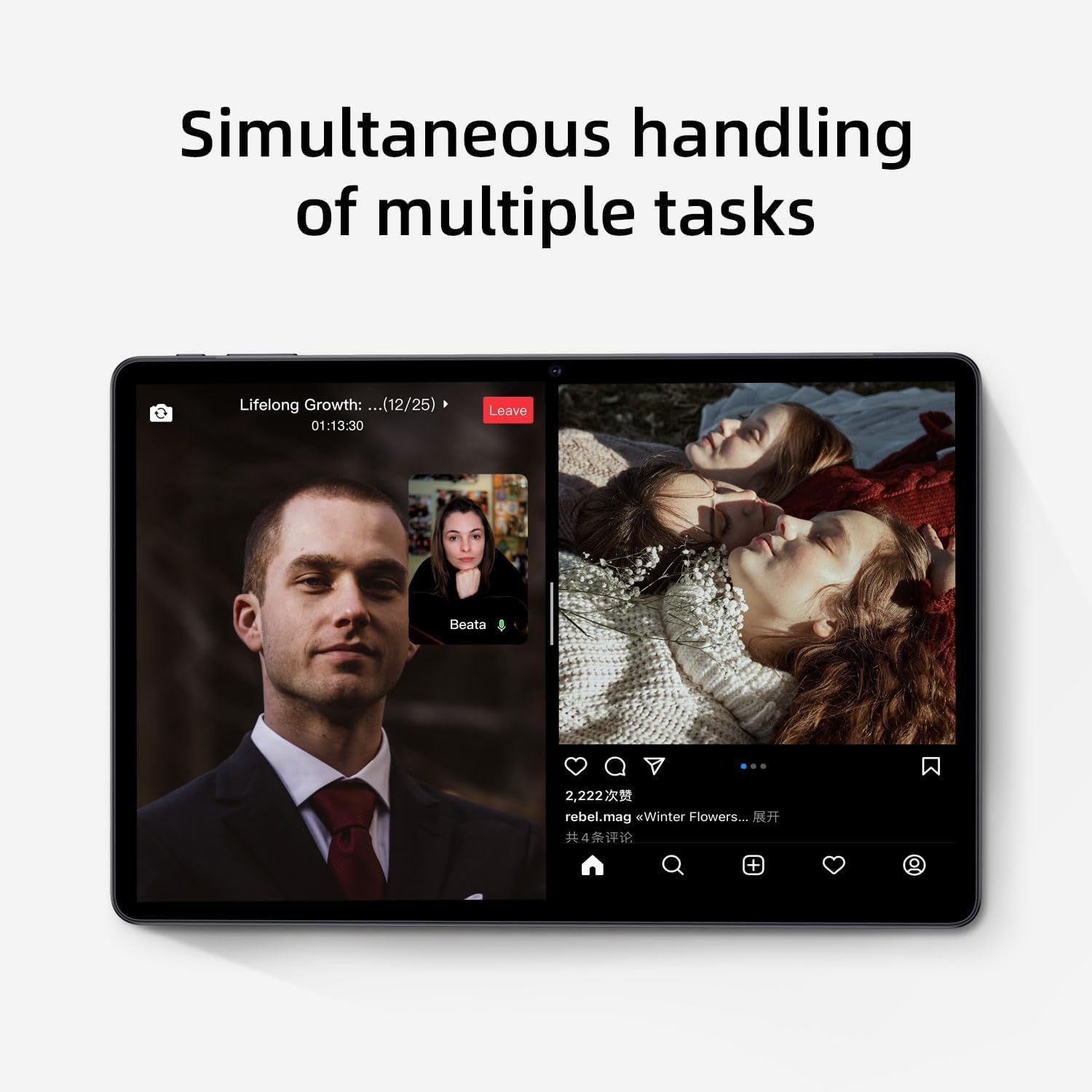
Image: The tablet screen showing two applications running simultaneously in split-screen mode, illustrating its multitasking feature.
3. Mediaterugspeel
The 11-inch IPS display with 1920x1200 resolution provides clear and vibrant visuals for streaming videos, viewing photos, and playing games. Use pre-installed media players or download your preferred apps from the Google Play Store.
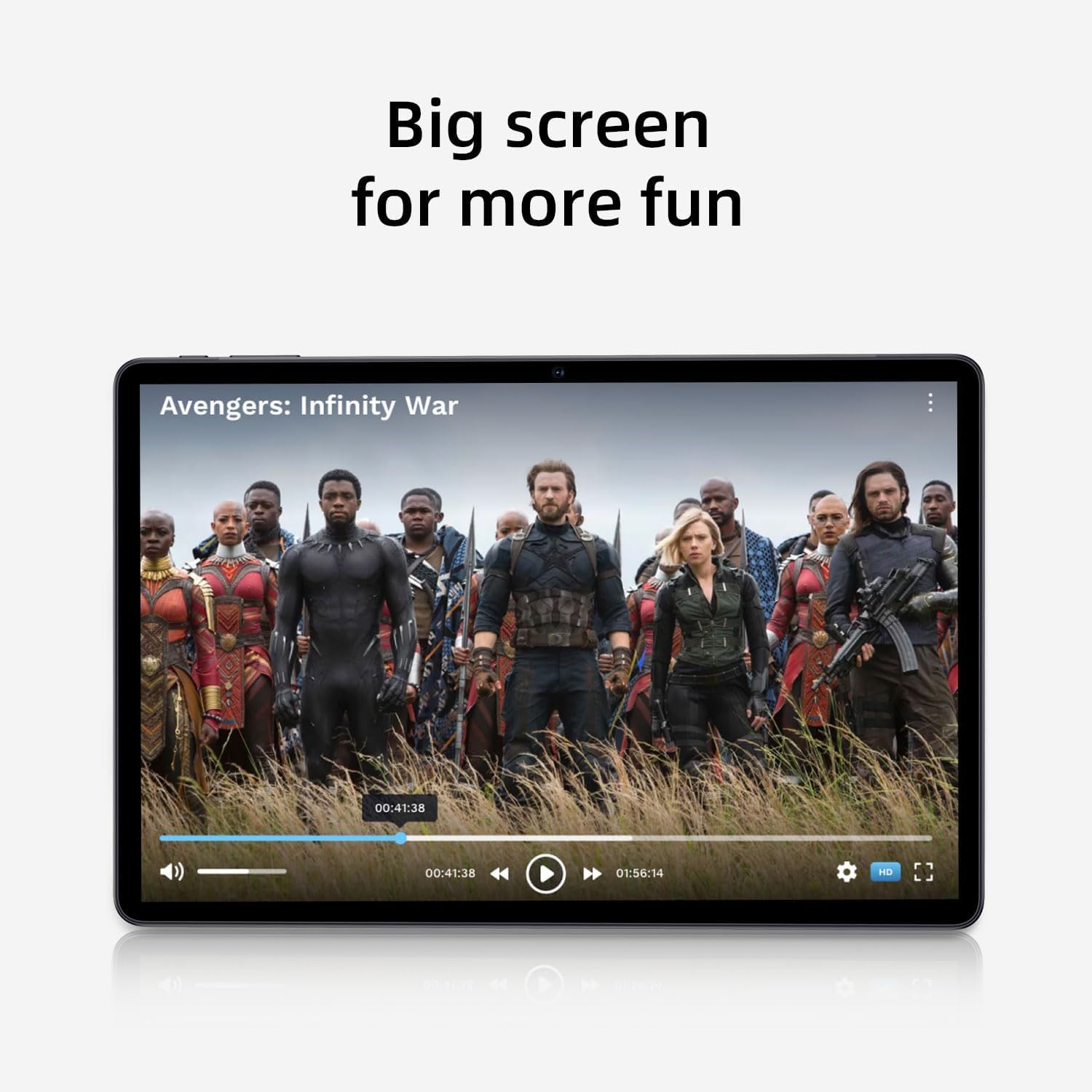
Image: The tablet screen showing a video playing, highlighting the display quality for entertainment.
4. Gebruik van GPS
The tablet includes built-in GPS functionality. To use navigation apps, ensure location services are enabled in Instellings > Ligging. Download a navigation app from the Google Play Store for turn-by-turn directions.
5. Using FM Radio
To use the FM Radio, connect wired headphones (not included) to the tablet's audio jack. The headphones act as an antenna. Open the pre-installed FM Radio app and scan for available stations.
6. Bluetooth-verbinding
To pair Bluetooth devices (e.g., headphones, speakers):
- Gaan na Instellings > Gekoppelde toestelle > Verbindingsvoorkeure > Bluetooth.
- Wissel Bluetooth On.
- Maak seker dat jou Bluetooth-toestel in paringsmodus is.
- Select your device from the list of available devices and follow any on-screen prompts to complete pairing.
7. Kameragebruik
Open the Camera app from the home screen or app drawer. Tap the shutter button to take photos or switch to video mode to record videos. Adjust settings like flash, timer, and camera mode within the app interface.
Onderhoud
1. Skoonmaak van die tablet
Gebruik 'n sagte, pluisvrye lap om die skerm en liggaam van die tablet skoon te maak. Vir hardnekkige vlekke, vee dit effens af.ampMaak die lap skoon met water of 'n skermskoonmaakoplossing. Vermy harde chemikalieë of skuurmiddels.
2. Batteryversorging
- Vermy uiterste temperature, aangesien dit die batterylewe kan verminder.
- Moenie die battery gereeld heeltemal laat leegloop nie.
- Use the provided charger for optimal charging.
- The 8000mAh battery provides extended usage; however, proper care ensures long-term performance.

Image: A visual representation of the tablet's 8000mAh battery capacity, emphasizing its long-lasting power.
3. Sagteware-opdaterings
Kontroleer gereeld vir stelselopdaterings om te verseker dat jou tablet die nuutste kenmerke en sekuriteitsopdaterings het. Gaan na Instellings > Stelsel > Stelselopdatering.
4. Bergingbestuur
Periodiek herview jou geïnstalleerde programme en files. Deïnstalleer ongebruikte programme en verwyder onnodige files to free up the 128GB internal storage. Utilize the 1TB expandable storage for large media files.
Probleemoplossing
Tablet skakel nie aan nie
- Maak seker dat die tablet voldoende gelaai is. Koppel dit aan die kragadapter en wag 'n paar minute voordat jy probeer om dit aan te skakel.
- Druk en hou die aan/af-knoppie vir ten minste 10-15 sekondes in om 'n geforseerde herbegin uit te voer.
Wi-Fi-verbindingskwessies
- Herbegin jou Wi-Fi-router en die tablet.
- Vergeet die netwerk in Wi-Fi-instellings en koppel weer aan.
- Maak seker dat jy binne die bereik van die Wi-Fi-sein is.
Stadige prestasie
- Maak ongebruikte toepassings wat in die agtergrond loop toe.
- Vee kasdata uit vir programme wat gereeld gebruik word.
- Soek vir en installeer enige beskikbare stelselopdaterings.
- Consider performing a factory reset as a last resort (back up your data first). Go to Instellings > Stelsel > Stel opsies terug > Vee alle data uit (fabriekterugstelling).
Raakskerm reageer nie
- Herbegin die tablet.
- Maak seker dat die skerm skoon en vry van puin of vog is.
Spesifikasies

Image: The tablet shown with its physical dimensions, including screen size and overall device measurements.
| Model Naam | K10 |
| Bedryfstelsel | Android 14 |
| Verwerker | Octa-core (Unisoc) |
| RAM | 12 GB |
| Interne berging | 128 GB |
| Uitbreidbare berging | Tot 1 TB (microSD) |
| Skerm grootte | 11 duim |
| Skermresolusie | 1920x1200 IPS |
| Battery kapasiteit | 8000mAh |
| Laai | 18W PD Vinnige Lading |
| Wi-Fi | Dual-band (2.4/5GHz) 802.11ac |
| Bluetooth | Bluetooth 5.0 |
| GPS | Ja |
| FM Radio | Ja |
| Item gewig | 2.33 pond |
| Produk afmetings | 10.1 x 3.5 x 0.35 duim |
Waarborg inligting
This COLORROOM K10 Tablet is covered by a standard manufacturer's warranty. The specific terms and duration of the warranty may vary by region. Please retain your proof of purchase for warranty claims. For detailed warranty information, including coverage and how to make a claim, please refer to the warranty card included with your product or visit the official COLORROOM webwebwerf.
Ondersteuning
For further assistance, technical support, or to inquire about service, please visit the COLORROOM official support webwebwerf of kontak hul kliëntediensafdeling. Kontakbesonderhede kan tipies op die vervaardiger se webwerf gevind word. webwebwerf of op die verpakkingsmateriaal.