
1. Inleiding
This manual provides essential information for the safe and efficient use of your AT&T Cingular Flex 2 Smart Flip Phone (Model 6723D). Please read these instructions carefully before operating your device to ensure optimal performance and longevity.
The Cingular Flex 2 is a compact flip phone designed for reliable communication. It features a vibrant display, a built-in camera for capturing moments, and 4GB of internal storage for essential files and applications. The device operates on KaiOS, offering a streamlined user experience.
2. Wat is in die boks
Verifieer dat alle items in u produkpakket teenwoordig is:
- AT&T Cingular Flex 2 Smart Flip Phone
- Kragadapter
- Litiumioonbattery (vooraf geïnstalleer of apart)
3. Toestel oorview
Familiarize yourself with the physical components of your AT&T Cingular Flex 2 phone.
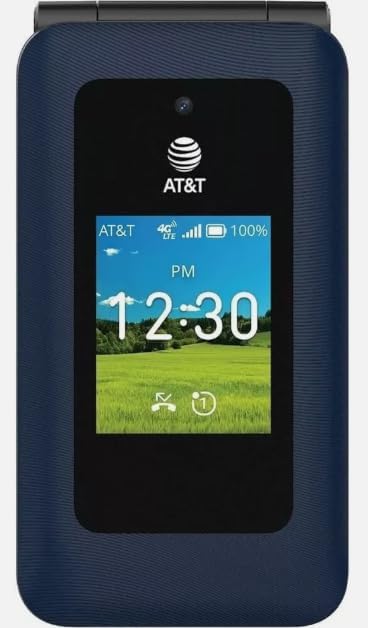
Figuur 3.1: Voorkant view of the AT&T Cingular Flex 2 Smart Flip Phone, showing the main display with time, network signal, and battery indicator.

Figuur 3.2: Agter view of the AT&T Cingular Flex 2 Smart Flip Phone, highlighting the textured back cover and the speaker grille at the top.
Sleutelkomponente:
- Eksterne vertoning: Shows notifications, time, and caller ID when closed.
- Hoofskerm: Internal screen for navigation and content.
- klavier: Numeric and navigation buttons for input.
- Kamera: Located on the device for capturing photos and videos.
- Volume knoppies: Pas klankvlakke aan.
- Power/End Call Button: Turns the device on/off and ends calls.
- Laaipoort: Om die kragadapter aan te sluit.
4. Opstelling
4.1. Die SIM-kaart en battery insit
- Maak seker dat die foon afgeskakel is.
- Verwyder die agterkant van die foon versigtig.
- If the battery is installed, remove it by gently lifting it from the notch.
- Locate the SIM card slot, typically beneath the battery compartment. Insert your SIM card with the gold contacts facing down and the notched corner aligned correctly.
- Insert the battery, ensuring the contacts align with those in the phone.
- Plaas die agterste deksel terug totdat dit stewig in plek klik.
4.2. Laai die toestel
- Connect the power adapter to the charging port on your phone.
- Steek die kragadapter in 'n standaard elektriese aansluiting.
- Allow the phone to charge completely before initial use. The battery indicator on the screen will show charging status.
4.3. Skakel aan/af
- Om aan te skakel: Druk en hou die Aan/Aan/Beëindig Oproep-knoppie in totdat die skerm verlig.
- Om af te skakel: Druk en hou die Aan/Aan/Beëindig Oproep-knoppie in, en kies dan 'Skakel Af' uit die opsies op die skerm.
5. Bediening van jou foon
5.1. Basiese navigasie
The Cingular Flex 2 uses a physical keypad for navigation. Use the directional pad (D-pad) to move between menu items and the center button to select. The left and right soft keys perform actions indicated on the screen above them.
5.2. Maak en Ontvang Oproepe
- Om 'n oproep te maak: Enter the phone number using the keypad and press the Call button (usually the green button).
- Om 'n oproep te beantwoord: When the phone rings, press the Call button.
- Om 'n oproep te beëindig: Press the Power/End Call button (usually the red button).
5.3. Stuur en ontvang van boodskappe
Navigeer na die 'Boodskappe'-toepassing vanaf die hoofkieslys.
- To Send a New Message: Select 'New Message', enter the recipient's number or select from contacts, then type your message using the keypad.
- Note on Multimedia Messaging: Sending photos via text message may not be consistently supported. Receiving multimedia messages can also be intermittent.
- Voice to Text: This device does not support voice-to-text input for messaging.
5.4. Kameragebruik
The phone includes a built-in camera. You can access it via the main menu or by pressing the dedicated camera shortcut button on the side of the device.
- Fotos neem: Open the camera app, frame your shot, and press the center button or camera button to capture.
- Video's opneem: Switch to video mode within the camera app and press the record button.
5.5. Internet and Applications
The Cingular Flex 2 runs on KaiOS. Access the KaiOS store for additional applications. Pre-installed apps include YouTube and a feature-reduced version of Google Maps. Be aware that some utility apps downloaded from the store may display advertisements.
6. Onderhoud
6.1. Batteryversorging
- Vermy om die battery aan uiterste temperature bloot te stel.
- Charge the battery using only the provided power adapter.
- Unplug the charger once the battery is fully charged to conserve energy.
6.2. Skoonmaak van jou toestel
Use a soft, dry, lint-free cloth to clean the phone's screen and body. Avoid using harsh chemicals or abrasive materials.
6.3. Sagteware-opdaterings
Periodically check for software updates in the phone's settings menu to ensure your device has the latest features and security enhancements.
7. Probleemoplossing
If you encounter issues with your Cingular Flex 2, refer to the following common problems and solutions:
| Probleem | Moontlike Oplossing |
|---|---|
| Slow interface or app loading | Close unused applications. Restart the phone. Consider uninstalling less frequently used apps to free up resources. |
| Operating System crashes | Restart the device. Ensure the software is up to date. If persistent, a factory reset may be necessary (back up data first). |
| Wi-Fi or network connectivity issues | Toggle Wi-Fi/Mobile Data off and on. Restart the phone. Check router or network settings. Ensure notifications for network disconnections are managed in settings to avoid excessive alerts. |
| Keyboard input errors (e.g., double key strokes) | Ensure you are pressing keys firmly and deliberately. If the issue persists, contact customer support. |
| Cannot send photos via text message | This is a known limitation for some devices. Try alternative methods for sharing images if available, or reduce image size if an option. |
| Swak batterylewe | Reduce screen brightness. Close background apps. Limit use of power-intensive features like GPS. Ensure the battery is fully charged. |
7.1. Fabrieksterugstelling
'n Fabrieksherstel sal alle data van jou foon uitvee en dit na sy oorspronklike fabrieksinstellings herstel. Dit kan aanhoudende sagtewareprobleme oplos. Back up all important data before performing a factory reset. Consult your phone's settings menu for the 'Reset' or 'Erase all data' option.
8. Spesifikasies
Detailed technical specifications for the AT&T Cingular Flex 2 Smart Flip Phone (Model 6723D):
| Kenmerk | Spesifikasie |
|---|---|
| Model Naam | Cingular Flex 2 |
| Item Modelnommer | 6723D |
| Handelsmerk | AT&T |
| Bedryfstelsel | KaiOS |
| Geheue berging kapasiteit | 4 GB |
| RAM Geheue Geïnstalleerde Grootte | 512 MB |
| SVE Model | Mediatek Dimensity 1100 |
| Resolusie | 720 x 1520 |
| Verbindingstegnologie | 4G LTE |
| Sellulêre Tegnologie | 4G |
| Draadlose draer | Ontsluit |
| GPS | Waar |
| Vormfaktor | Flip |
| Kleur | Classic Navy |
| Battery kapasiteit | 1400 miljoenamp Ure |
| Batterykraggradering | 2800 Amp Ure |
| Item gewig | 7.4 onse (0.21 kilogram) |
| Pakket afmetings | 4.69 x 2.91 x 2.13 duim |
| Vervaardiger | AT&T |
| Datum Eerste Beskikbaar | 11 Februarie 2025 |
9. Waarborg en Ondersteuning
For warranty information, please refer to the documentation provided with your purchase or visit the official AT&T support website. If you require technical assistance or have questions not covered in this manual, please contact AT&T customer support.
Jy kan bykomende ondersteuningsbronne en kontakbesonderhede vind op die AT&T Store on Amazon.