
reMarkable Paper Pro
An In-Depth Guide for reMarkable Paper Pro
A Comprehensive Manual for Harnessing the Power of Your ReMarkable Paper Pro
Introduction to reMarkable Paper Pro
The reMarkable Paper Pro is a cutting-edge digital paper tablet designed to enhance productivity and creativity. This device offers a unique paper-like writing experience, combining the tactile feel of traditional paper with the versatility of a digital platform. Its development focused on providing a distraction-free environment for note-taking, reading, and sketching, setting it apart from conventional tablets.
This manual serves as your comprehensive guide to understanding and utilizing all the features of your reMarkable Paper Pro, from initial setup to advanced functionalities.

Image: Front cover of the reMarkable Paper Pro user guide. The image displays the reMarkable Paper Pro device with a handwritten "Project Milestones" note on its screen, alongside a smaller, darker reMarkable device. The title "An In-Depth Guide for reMarkable Paper Pro" is prominently displayed at the top.
Opstelling en aanvanklike konfigurasie
Before you begin using your reMarkable Paper Pro, it is essential to complete the initial setup process. This section guides you through connecting your device and configuring basic settings.
1. Device Activation and Account Creation
- Krag aan: Press and hold the power button until the reMarkable logo appears.
- Taalkeuse: Volg die aanwysings op die skerm om jou voorkeurtaal te kies.
- Wi-Fi-verbinding: Connect your device to a stable Wi-Fi network. This is crucial for updates and cloud synchronization.
- Create reMarkable Account: You will be prompted to create or log in to your reMarkable account. This account is necessary for cloud services and device management.
2. Sekuriteitskenmerke
Protect your data by setting up a passcode for your device.
- Navigeer na Instellings > Sekuriteit.
- Kies Stel Wagkode and follow the instructions to create a secure four-digit passcode.
3. Managing Connect Subscription
The Connect service enables seamless integration with cloud services, allowing for document synchronization across devices and unlimited cloud storage. You can manage your subscription directly from your reMarkable account online.
- Besoek my.remarkable.com op a web blaaier.
- Log in with your reMarkable account credentials.
- Toegang tot die Intekening afdeling tot view or modify your Connect plan.
Operating Your reMarkable Paper Pro
This section details the core functionalities and advanced features of your reMarkable Paper Pro, helping you maximize its potential for note-taking, reading, and organization.
Basic Navigation and Writing Tools
- Gebaarnavigasie:
- Swipe from left edge: Gaan terug na vorige skerm.
- Tik: Select items or open menus.
- Knyp om in te zoem: Pas aan view in documents.
- Skryfgereedskap:
The toolbar provides various writing instruments:
- Pen: Standard writing tool with various tips (ballpoint, fine-liner, marker, pencil).
- Highlighter: For emphasizing text.
- Uitveër: Remove strokes or areas.
- Selection Tool: Move, resize, or copy content.
- Pasmaak instellings: Access device settings via the menu to adjust display, battery, storage, and more.
Notebooks and Organization
- Creating Notebooks: From the home screen, tap the 'New Notebook' icon to start a new blank notebook. Choose from various templates.
- Met behulp van Tags: Organize your notes efficiently by adding tags. Tik die tag icon within a notebook or document to assign relevant keywords.
- Converting Handwritten Notes to Text: Select the desired handwritten text using the selection tool, then tap the 'Convert to Text' option. The device will process and convert your handwriting into editable text.
Advanced Features and Integrations
- Syncing with Mobile and Desktop Apps: Install the reMarkable app on your smartphone or computer to seamlessly sync documents and notes across all your devices.
- File oordra: Easily transfer PDF, EPUB, and other supported files to your reMarkable Paper Pro via the desktop app or the web koppelvlak (my.remarkable.com).
- Cloud Integrations: Utilize integrations with services like Google Drive, Dropbox, and Microsoft OneDrive to access and save documents directly from your reMarkable device.
- Customizing Ebook Settings: When reading EPUB files, adjust font size, line spacing, and margins for a personalized reading experience.
- Using Layers: For complex sketches or notes, utilize the layers feature to organize different elements of your work, allowing for easier editing and manipulation.
Onderhoud en versorging
Proper maintenance ensures the longevity and optimal performance of your reMarkable Paper Pro.
- Skoonmaak van die skerm: Gebruik 'n sagte, pluisvrye lap effens dampened with water. Avoid harsh chemicals or abrasive materials.
- Stylus Nibs: The Marker's nibs wear down over time. Replace them when they become too short or feel rough to maintain the paper-like writing experience. Replacement nibs are available from reMarkable.
- Sagteware-opdaterings: Regularly check for and install software updates to ensure you have the latest features and security enhancements. Updates are typically downloaded automatically when connected to Wi-Fi.
- Berging: Store your device in a protective sleeve or cover to prevent scratches and damage. Avoid exposing it to extreme temperatures or direct sunlight.
Opsporing van algemene probleme
This section addresses common problems you might encounter with your reMarkable Paper Pro and provides solutions.
- Toestel reageer nie: If the device is frozen, perform a hard reset by holding the power button for about 15 seconds until the device restarts.
- Sinkroniseringskwessies: Ensure your device is connected to Wi-Fi and your reMarkable Connect subscription is active. Check the reMarkable app on your other devices for sync status.
- Marker Not Writing: Check if the Marker nib is worn out and needs replacement. Ensure the Marker is properly charged if it's a reMarkable Marker Plus.
- Battery dreineer vinnig: Reduce screen brightness, disable Wi-Fi when not needed, and ensure no background processes are consuming excessive power.
- Software Recovery: In rare cases of software corruption, you may need to perform a factory reset. Waarskuwing: Dit sal alle data op jou toestel uitvee. Back up your notes to the cloud before proceeding. Instructions for factory reset can be found in the device settings under "About" or "Storage".
Spesifikasies
Key technical specifications for the reMarkable Paper Pro.
| ASIN | B0DVGZ9TKT |
| Uitgewer | Onafhanklik gepubliseer |
| Publikasiedatum | 29 Januarie 2025 |
| Taal | Engels |
| Druklengte | 147 bladsye |
| ISBN-13 | 979-8308786634 |
| Item gewig | 9.9 onse |
| Afmetings | 6 x 0.34 x 9 duim |
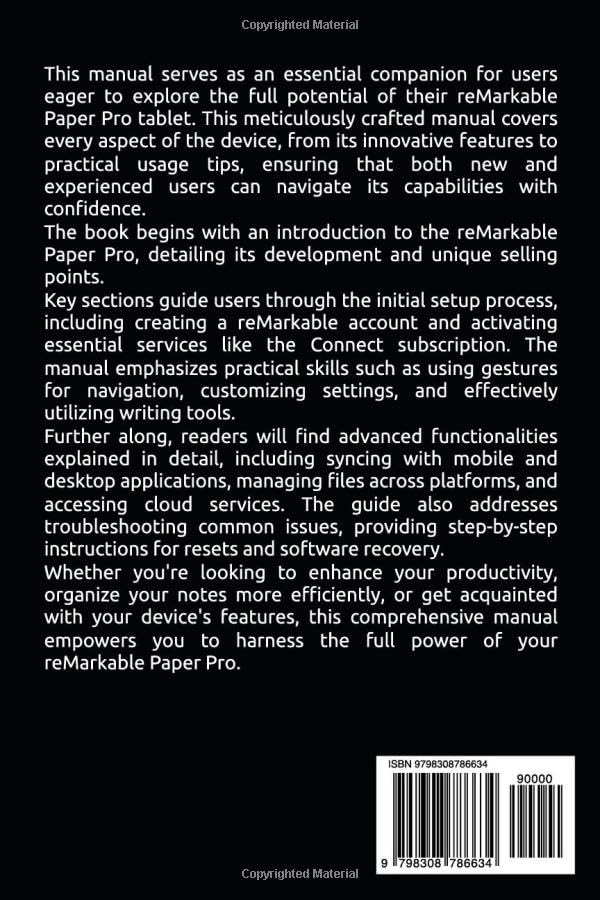
Image: Back cover of the reMarkable Paper Pro user guide. The image features a barcode with the ISBN 979-8308786634 and text indicating "Copyrighted Material".
Waarborg en Ondersteuning
Information regarding warranty coverage and customer support for the reMarkable Paper Pro is typically provided by the manufacturer, reMarkable. Please refer to the official reMarkable website or the documentation included with your device for the most current warranty terms and support contact details.
For direct support, visit the official reMarkable support page: support.remarkable.com
Ask a question about this manual
Ask about setup, troubleshooting, compatibility, parts, safety, or missing instructions. Manuals+ will review the question and use this page’s manual context to help answer it.