
Gravity C26
Gravity C26 Smartwatch User Manual
Model: C26
Inleiding
Welcome to the Gravity C26 Smartwatch user manual. This guide provides detailed instructions on how to set up, operate, and maintain your new smartwatch. The Gravity C26 features a 1.96-inch AMOLED display, Bluetooth calling, over 100 sports modes, comprehensive health monitoring, and an AI voice assistant. Its robust design ensures durability for various environments.
Pakketinhoud
Merk asseblief die blokkie vir die volgende items:
- Gravity C26 Smartwatch
- Laai kabel
- Gebruikershandleiding (hierdie dokument)
Produk verbyview
Familiarize yourself with the components and key features of your Gravity C26 Smartwatch.

Prent: Voorkant view of the Gravity C26 Smartwatch, showcasing its square AMOLED display, two side buttons labeled "POWER" and "SPORT", and a durable black strap.
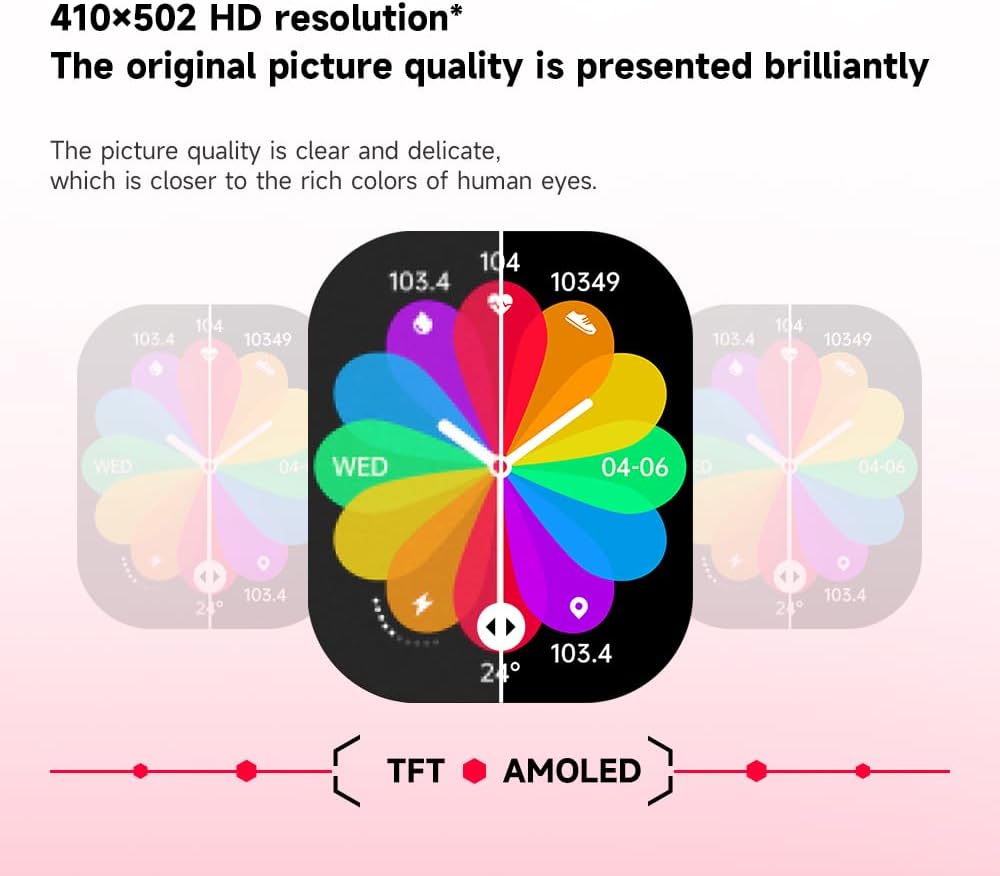
Prent: Illustration demonstrating the superior visual quality of the 410x502 HD AMOLED display compared to a TFT screen, highlighting vibrant colors and clarity.

Prent: Close-up view of the 1.96-inch AMOLED screen, emphasizing its explosion-proof and drop-proof tempered glass, thermal shock resistance, anti-corrosion, and anti-scratch properties.
Opstelling
1. Laai die slimhorlosie
Before first use, fully charge your Gravity C26 Smartwatch. Connect the magnetic charging cable to the charging points on the back of the watch and plug the USB end into a power adapter (not included) or a computer's USB port.
- 'n Volle lading neem gewoonlik ongeveer 2 uur.
- The watch features a 350mAh battery, providing up to 25 days of standby time.

Prent: Visual representation of the Gravity C26 Smartwatch's 350mAh battery, highlighting intelligent battery life upgrade, over-temperature protection, overvoltage protection, and intelligent optimization of application scenarios.
2. Pairing with Your Smartphone (FitCloudPro App)
To unlock the full potential of your Gravity C26, download and install the FitCloudPro app on your iOS or Android smartphone.
- Laai die toepassing af: Soek vir "FitCloudPro" in the Apple App Store (for iOS) or Google Play Store (for Android), or scan the QR code provided in the watch's quick start guide.
- Skep rekening: Open the FitCloudPro app and follow the on-screen instructions to create an account or log in.
- Aktiveer Bluetooth: Maak seker dat Bluetooth op jou slimfoon geaktiveer is.
- Voeg toestel by: In the FitCloudPro app, navigate to the "Device" or "Add Device" section. The app will search for nearby smartwatches. Select "Gravity C26" from the list.
- Bevestig saambinding: A pairing request will appear on both your phone and the smartwatch. Confirm the pairing on both devices.
- Toestemmings verleen: Laat die nodige toestemmings toe (bv. kennisgewings, ligging, kontakte) sodat die toepassing korrek kan funksioneer.
Once paired, the watch will synchronize data with your phone, and you can customize settings, view health data, and manage notifications through the app.
Bedryfsinstruksies
1. Navigeer die koppelvlak
The Gravity C26 features a touch-sensitive AMOLED display and two physical buttons for navigation.
- Raakskerm: Swipe left/right, up/down to navigate through menus and widgets. Tap to select an option.
- "POWER" Button (Top Right): Druk om die skerm wakker te maak/slaap te maak, keer terug na die horlosieskerm, of druk lank om toegang tot kragopsies te verkry.
- "SPORT" Button (Bottom Right): Press to quickly access the sports modes menu.

Prent: Display of four different menu styles available on the Gravity C26 Smartwatch, including grid views and list views for accessing various functions like settings, dialer, contacts, call records, and voice assistant.
2. Maak en Ontvang Oproepe
Met Bluetooth-oproepe geaktiveer, kan jy oproepe direk vanaf jou pols bestuur.
- Maak 'n oproep: Gaan na die skakelaar of kontaklys op jou horlosie om 'n oproep te begin.
- Ontvang 'n oproep: Wanneer 'n oproep inkom, sal die horlosie die oproeper-ID wys. Tik die groen ikoon om te antwoord of die rooi ikoon om te verwerp.

Prent: Depiction of the Gravity C26 Smartwatch's Bluetooth calling feature showing an incoming call screen and message notifications. Also illustrates the AI voice assistant responding to commands like "How is the weather tomorrow?" and "Call my mom."
3. Using AI Voice Assistant
The built-in AI voice assistant allows for hands-free control. Simply raise your hand to activate the voice assistant and speak your commands.
- Aktivering: Raise your wrist or use a specific gesture/button press (refer to app settings for customization).
- Opdragte: Ask about weather, play music, set alarms, make calls, and more.
4. Tracking Sports Modes
The Gravity C26 supports over 100 sports modes for accurate workout tracking.
- Toegang tot modusse: Press the "SPORT" button or navigate through the menu to find the sports modes.
- Begin 'n oefensessie: Select your desired activity (e.g., running, cycling, walking) and tap to start. The watch will track duration, heart rate, calories burned, and other relevant metrics.
- Ending a Workout: Swipe or press the appropriate button to pause or end the workout. Data will be synced to the FitCloudPro app.

Prent: Illustration showing the Gravity C26 Smartwatch tracking various sports activities such as walking, running, climbing, and cycling, with real-time data display for duration, heart rate, and calories.
5. Health Monitoring (Heart Rate, Sleep)
The smartwatch continuously monitors your health metrics.
- Hartklop: The watch automatically monitors your heart rate throughout the day. You can also initiate a manual measurement from the heart rate widget.
- Slaap dop: Wear the watch to bed for automatic sleep analysis, including sleep stages (deep, light, REM) and duration.
- Hidrasieherinneringe: Set up hydration reminders in the FitCloudPro app to ensure you stay hydrated.
6. Aanpassing van horlosieskerms
Personalize your smartwatch with over 200 cool visual watch faces available through the FitCloudPro app.
- Changing Faces: Open the FitCloudPro app, navigate to the watch face section, and select your preferred design. You can also long-press the watch face on the device to quickly switch between pre-loaded faces.
- Pasgemaakte gesigte: Some watch faces allow for customization with your own photos.

Prent: A collage of various watch faces available for the Gravity C26 Smartwatch, demonstrating the wide range of visual styles and customization options.
Onderhoud
1. Skoonmaak
- Vee die horlosieskerm en -liggaam af met 'n sagte, pluisvrye lap.
- Vir die band, gebruik advertensieamp lap en sagte seep indien nodig, spoel dan deeglik af en droog heeltemal af voor jy dit dra.
- Vermy die gebruik van harde chemikalieë of skuurmateriaal.
2. Waterweerstand
The Gravity C26 is 1 ATM waterproof, meaning it can withstand splashes, rain, and brief immersion in shallow water. It is suitable for daily use and light water activities.
- Do not use the watch for diving, hot showers, or saunas, as steam and hot water can compromise the seals.
- Na blootstelling aan water, veral soutwater, spoel die horlosie met vars water af en droog dit deeglik af.
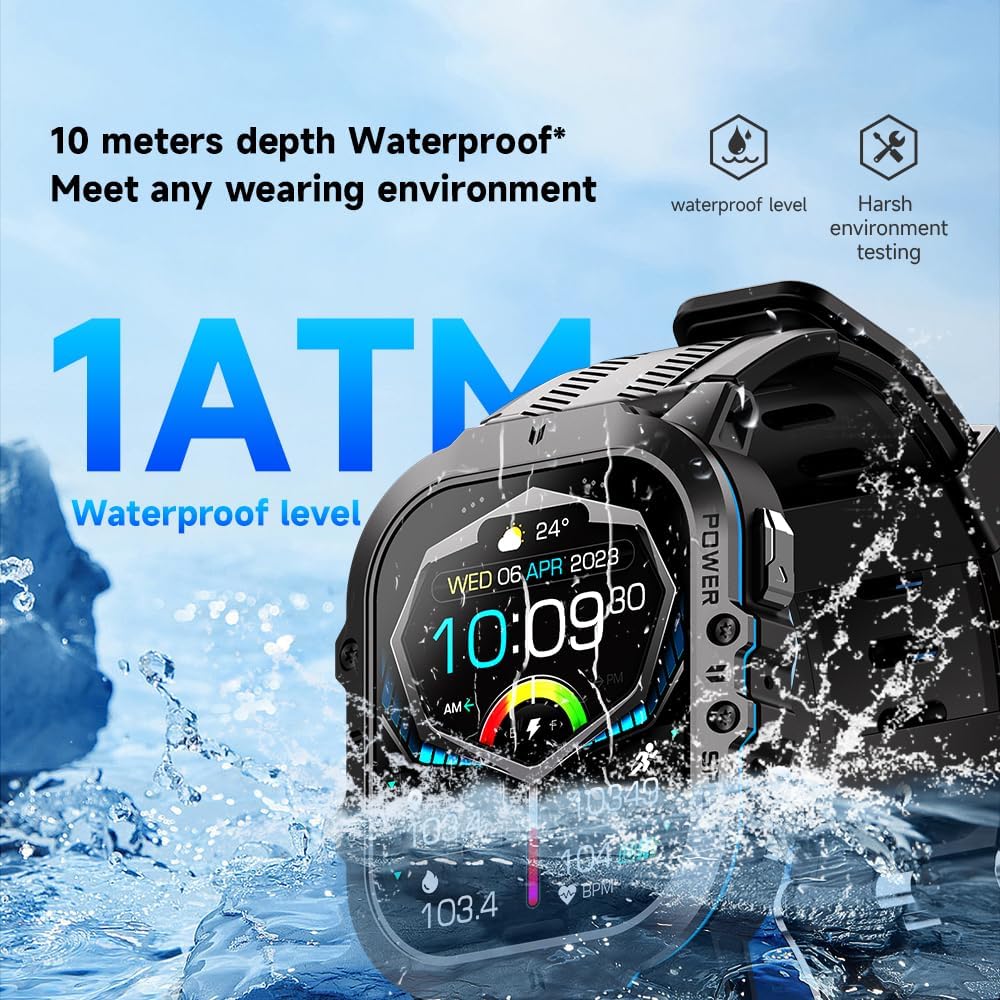
Prent: The Gravity C26 Smartwatch partially submerged in water, illustrating its 1 ATM waterproof rating and ability to meet various wearing environments.
3. Batteryversorging
- Avoid extreme temperatures (below -24°C or above 60°C) as they can affect battery life and performance.
- Laai die horlosie gereeld, selfs al word dit nie gebruik nie, om die battery se gesondheid te handhaaf.
Probleemoplossing
| Probleem | Moontlike Oplossing |
|---|---|
| Horlosie skakel nie aan nie | Maak seker dat die horlosie volledig gelaai is. Koppel dit vir ten minste 30 minute aan die laaikabel en 'n kragbron. |
| Kan nie met slimfoon koppel nie |
|
| Kennisgewings nie ontvang nie |
|
| Onakkurate gesondheidsdata |
|
| Kort batterylewe |
|
Spesifikasies
| Kenmerk | Detail |
|---|---|
| Model | C26 |
| Vertoon | 1.96-inch AMOLED, 410x502 resolution |
| Battery kapasiteit | 350 mAh |
| Bystandtyd | Tot 25 dae |
| Waterweerstand | 1 ATM (suitable for splashes, rain, brief immersion) |
| Konnektiwiteit | Bluetooth |
| Verenigbaarheid | iOS and Android (via FitCloudPro app) |
| Bedryfstemperatuur | -24°C tot 60°C |
| Item gewig | 1 pond |
| Afmetings | 9 x 4 x 1 duim (Pakketafmetings) |
Waarborg en Ondersteuning
For warranty information and technical support, please refer to the official Gravity webwebwerf of kontak u kleinhandelaar. Bewaar u aankoopbewys as bewys van aankoop.
For further assistance, you may also refer to the FitCloudPro app's help section or frequently asked questions.
Ask a question about this manual
Ask about setup, troubleshooting, compatibility, parts, safety, or missing instructions. Manuals+ will review the question and use this page’s manual context to help answer it.