
Inleiding
Thank you for choosing the CRUA 27-inch 4K UHD 144Hz IPS Gaming Monitor. This monitor is designed to deliver an immersive visual experience with its high resolution, fast refresh rate, and vibrant color reproduction. This manual provides essential information for the proper installation, operation, and maintenance of your new monitor. Please read it thoroughly before use and retain it for future reference.
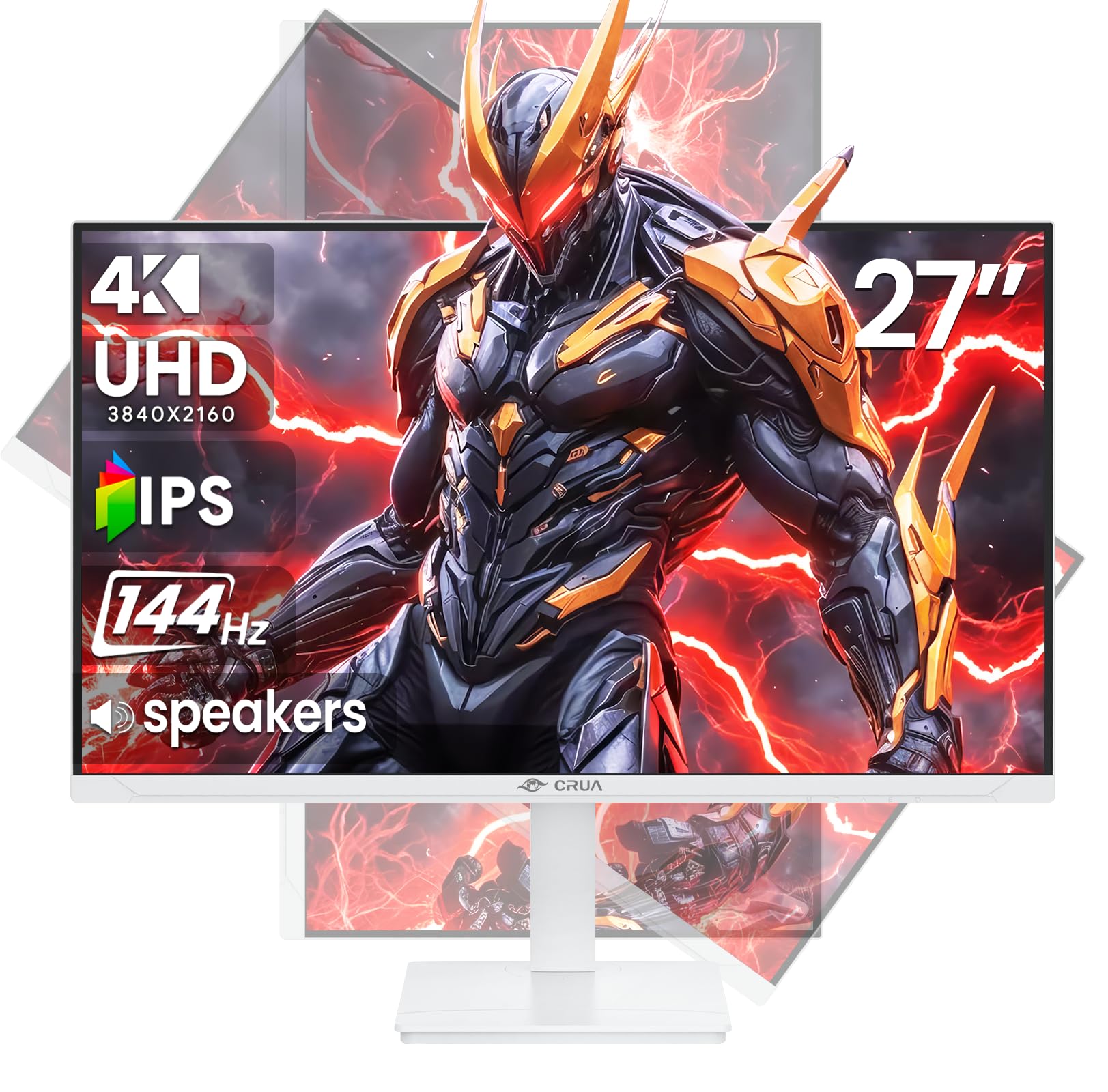
Beeld: Voorkant view of the CRUA 27-inch 4K UHD 144Hz IPS Gaming Monitor.
Wat is in die boks
Kontroleer asseblief die inhoud van u pakket. Indien enige items ontbreek of beskadig is, kontak u kleinhandelaar.
- 27-duim-monitor
- DP kabel
- Base and Support
- Gebruikershandleiding
- Kragtoevoer
Produk Kenmerke
- 27" 4K Display with IPS Panel: Experience ultra-clear visuals with a 3840x2160P resolution.
- 144Hz opdateringsfrekwensie: Enjoy fluid and sharp motion, ideal for competitive gaming and fast-paced content.
- 120% sRGB-kleurakkuraatheid: Delivers rich and accurate tones with 350cd/m² brightness and 1000:1 high-contrast.
- Ingeboude luidsprekers: Provides clear audio for daily use.
- Full Ergonomic Adjustment: Features height, pivot, tilt, and rotation adjustments for optimal viewhoeke.
- Veelvuldige verbindingsopsies: Equipped with 2x HDMI 2.1 and 2x DP 1.4 ports.
- AMD FreeSync-ondersteuning: Synchronizes the monitor's refresh rate with your GPU for tear-free gaming.
- Muur monteerbaar: Supports VESA 75mm x 75mm wall mounts for flexible installation.
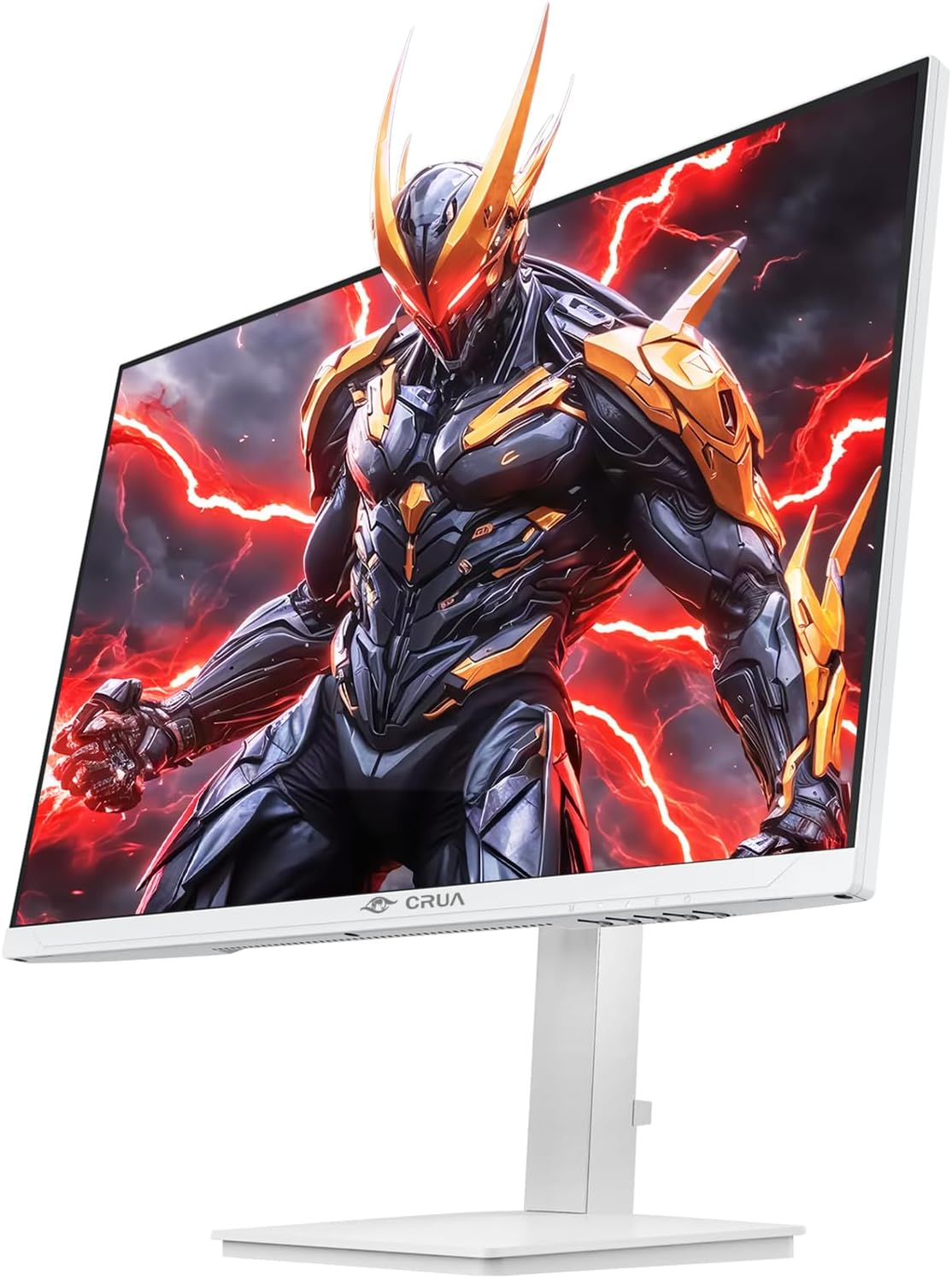
Beeld: Voorkant view of the CRUA 27-inch 4K UHD 144Hz IPS Gaming Monitor displaying a game scene.

Beeld: Agter view of the CRUA 27-inch 4K UHD 144Hz IPS Gaming Monitor showing the stand and RGB lighting.

Beeld: Agter view of the CRUA 27-inch 4K UHD 144Hz IPS Gaming Monitor highlighting the input ports (2x DP 1.4, 2x HDMI 2.1, and 3.5mm Audio Port).

Image: Diagram illustrating the adjustable height (110mm), tilt (-5° to +15°), swivel (±30°), and pivot (90°) features of the CRUA 27-inch 4K UHD 144Hz IPS Gaming Monitor.
Opstel instruksies
1. Montering van die staanplek
- Verwyder die monitor- en staanderkomponente versigtig uit die verpakking.
- Heg die staander se nek aan die monitorpaneel vas. Maak seker dat dit stewig in plek klik of met skroewe vasgemaak is indien voorsien.
- Attach the base to the stand neck, securing it with the thumb screw or other fasteners.
- Plaas die gemonteerde monitor op 'n stabiele, plat oppervlak.
2. Muurbevestiging (Opsioneel)
The monitor supports VESA 75mm x 75mm wall mounts. Remove the stand before attaching a compatible wall mount bracket (not included). Follow the instructions provided with your wall mount.
3. Aansluitkabels
- Krag: Connect the power supply to the monitor's power input and then to a power outlet.
- Video Input: Connect one end of the provided DP cable (or an HDMI cable) to the corresponding port on your computer's graphics card and the other end to a DP 1.4 or HDMI 2.1 port on the monitor.
- Oudio-uitvoer (opsioneel): If using external speakers or headphones, connect them to the 3.5mm audio jack on the monitor.
4. Aanvanklike Aanskakeling
Press the power button on the monitor. The monitor should automatically detect the input signal. If not, you may need to manually select the input source using the OSD menu.
Bedryfsinstruksies
1. Skakel aan/af
Druk die aan/af-knoppie op die monitor om dit aan of af te skakel.
2. OSD-kieslysnavigasie
The On-Screen Display (OSD) menu allows you to adjust various monitor settings. Navigate the menu using the joystick or buttons typically located on the back or bottom of the monitor.
- Druk die joystick/knoppie om die OSD-kieslys oop te maak.
- Move the joystick up/down or use corresponding buttons to navigate through menu options.
- Move the joystick left/right or use corresponding buttons to adjust values or enter sub-menus.
- Press the joystick/button again to confirm selections or exit sub-menus.
3. Invoerbronkeuse
If the monitor does not automatically detect the correct input, open the OSD menu, navigate to "Input Source," and select the active input (e.g., HDMI1, HDMI2, DP1, DP2).
4. Verstelling van skerminstellings
Within the OSD menu, you can customize settings such as:
- Helderheid/kontras: Pas die algehele helderheid en kontrasvlakke aan.
- Kleurinstellings: Verfyn kleurtemperatuur, gamma en individuele RGB-waardes.
- Beeldkwaliteit: Select preset modes (e.g., Standard, Game, Movie) or customize sharpness and dynamic contrast.
- Resolusie en herlaaitempo: Ensure your computer's display settings match the monitor's native 4K UHD (3840x2160P) resolution and 144Hz refresh rate for optimal performance.
- AMD FreeSync: Enable FreeSync in the OSD menu and your graphics card control panel for adaptive synchronization.
5. Klankinstellings
Adjust the volume of the built-in speakers or connected external audio devices through the OSD menu's audio section. You can also mute the audio if desired.
6. Ergonomiese Aanpassings
Verstel die monitor na jou voorkeur viewposisie:
- Hoogte: Stoot of trek die monitor liggies op of af langs die staander.
- Kantel: Kantel die skerm vorentoe of agtertoe.
- Draai: Draai die monitor links of regs op sy basis.
- Spilpunt: Rotate the screen 90 degrees for vertical orientation.
Onderhoud
Maak die skerm skoon
- Skakel altyd die monitor af en trek die kragkabel uit voordat u dit skoonmaak.
- Gebruik 'n sagte, pluisvrye lap liggies dampmet water of 'n gespesialiseerde skermreiniger afgespoel.
- Moenie skoonmaakmiddel direk op die skerm spuit nie.
- Vermy die gebruik van skuurmiddels, alkohol of ammoniak-gebaseerde oplossings, aangesien dit die skermoppervlak kan beskadig.
Algemene Sorg
- Hou die monitor weg van direkte sonlig, hittebronne en oormatige stof.
- Verseker voldoende ventilasie rondom die monitor om oorverhitting te voorkom.
- Moenie swaar voorwerpe op die monitor of sy kabels plaas nie.
- Vermy om die skerm met skerp voorwerpe aan te raak.
Probleemoplossing
| Probleem | Moontlike Oplossing |
|---|---|
| Geen beeld op die skerm nie |
|
| Geen geluid van luidsprekers nie |
|
| Beeldflikkering of vervorming |
|
| Knoppies reageer nie |
|
For further assistance, please refer to the CRUA support webwebwerf of kontak kliëntediens.
Spesifikasies
| Kenmerk | Detail |
|---|---|
| Modelnommer | CR270E |
| Skerm grootte | 27 duim |
| Resolusie | 4K UHD (3840 x 2160 piksels) |
| Herlaaitempo | 144Hz |
| Paneel tipe | IPS |
| Aspekverhouding | 16:9 |
| Kleur Omvang | 120% sRGB |
| Helderheid | 350 Candela (cd/m²) |
| Kontrasverhouding | 1000:1 |
| Konnektiwiteit | 2x DP 1.4, 2x HDMI 2.1, 1x 3.5mm Audio Jack |
| Aanpasbare sinkronisering | AMD FreeSync |
| Ergonomie | Height, Pivot, Tilt, Rotate Adjustable |
| Muurmontering | VESA 75mm x 75mm |
| Ingeboude luidsprekers | Ja |
| Produk afmetings | 2.5 x 24 x 14 duim |
| Item gewig | 11.38 pond |
Waarborg en Ondersteuning
CRUA provides high-quality computer monitors and premium services. For warranty information, technical support, or any questions regarding your monitor, please visit the official CRUA website or contact their customer service team. Details can typically be found on the product packaging or the CRUA brand store on Amazon.
Kontakinligting: Refer to your purchase documentation or the CRUA official webwebwerf vir die mees onlangse ondersteuningskontakbesonderhede.