
Inleiding
This manual provides essential information for the setup, operation, maintenance, and troubleshooting of your Onn 22 inch 1080P 100 Hz FHD LED Monitor. Please read this guide thoroughly before using the product to ensure optimal performance and safety.
The Onn 22 inch FHD LED Monitor is designed for a variety of applications, offering a vivid 1920x1080 resolution, a 100Hz refresh rate, and a 6.5ms response time for efficient performance. Its slim profile and T-shaped base are ideal for saving desk space.
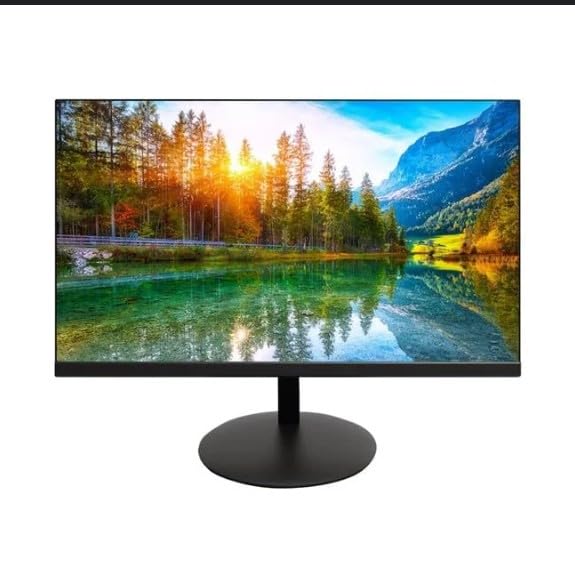
The image shows the Onn 22 inch FHD LED Monitor, highlighting its 100Hz refresh rate and 1080p resolution. The monitor features a slim design and a T-shaped base.
Opstel instruksies
- Uitpak: Carefully remove the monitor and all accessories from the packaging. Ensure all components are present: monitor, T-shaped base, HDMI cable, and power adapter.
- Samestelling van die staander: Attach the T-shaped base to the monitor. The design is screw-less for easy assembly. Ensure it is securely fastened.
- Koppel aan 'n toestel:
The monitor supports both HDMI and VGA inputs. Connect the provided HDMI cable from your computer's HDMI output to the HDMI IN port on the monitor. Alternatively, use a VGA cable for VGA input.

This image displays the rear panel of the Onn monitor, illustrating the available input ports: HDMI IN, VGA IN, and the DC 12V power input. These ports are essential for connecting the monitor to a computer or other devices.
- Kragverbinding: Connect the power adapter to the DC 12V input port on the monitor, then plug the adapter into a power outlet.
- Pas die monitor aan: The monitor is capable of swivel, tilt, rotation, and height adjustment. Adjust the screen to your preferred viewhoek vir ergonomiese gemak.
- Dubbele monitor opstelling: This monitor is suitable for a fully functioning dual monitor setup. Connect a second monitor using the appropriate cables and configure your operating system's display settings.
Bedryfsinstruksies
- Krag aan/af: Press the power button, usually located on the bottom or back of the monitor, to turn it on or off.
- Invoerkeuse: If the monitor does not automatically detect the input source, use the On-Screen Display (OSD) menu buttons to manually select between HDMI and VGA inputs.
- OSD-kieslysnavigasie: Use the physical buttons on the monitor (typically on the back or bottom edge) to navigate the OSD menu. This allows you to adjust settings such as brightness, contrast, color temperature, and input source.
- Resolusie en Verversingstempo: The monitor supports a native resolution of 1920x1080 at a 100Hz refresh rate. Ensure your computer's display settings are configured to these specifications for the best visual experience.
- Aanpasbare sinkronisering: The monitor features Adaptive Sync for gaming, which helps to reduce screen tearing and stuttering. Ensure this feature is enabled in your graphics card settings if supported.
Onderhoud
- Skoonmaak van die skerm: Vee die skerm liggies af met 'n sagte, pluisvrye lap. Vir hardnekkige merke, vee liggiesampen the cloth with water or a non-abrasive, monitor-specific cleaning solution. Avoid spraying liquids directly onto the screen.
- Maak die C skoonasing: Gebruik 'n sagte, droë lap om die monitor skoon te maakasing. Do not use strong detergents or solvents, as they may damage the finish.
- Ventilasie: Maak seker dat die monitor se ventilasie-openinge nie geblokkeer is om oorverhitting te voorkom nie.
- Berging: Wanneer dit nie vir lang tye gebruik word nie, bêre die monitor op 'n koel, droë plek, weg van direkte sonlig en uiterste temperature.
Probleemoplossing
- Geen krag:
- Kyk of die kragkabel stewig aan beide die monitor en die kragaansluiting gekoppel is.
- Verifieer dat die kragpunt reg funksioneer.
- Geen sein:
- Ensure the video cable (HDMI or VGA) is firmly connected to both the monitor and the computer.
- Kies die korrekte invoerbron deur die monitor se OSD-kieslys te gebruik.
- Kontroleer of jou rekenaar aangeskakel is en nie in slaapmodus is nie.
- Flickering Screen or Poor Image Quality:
- Kontroleer die videokabel vir skade of los verbindings.
- Adjust the resolution and refresh rate settings on your computer to match the monitor's specifications (1920x1080, 100Hz).
- Stel die monitorinstellings terug na die fabrieksverstellings via die OSD-kieslys.
- Knoppies reageer nie:
- Unplug the monitor from the power outlet, wait for 30 seconds, and then plug it back in.
If problems persist, please refer to the support information provided in the "Support and Warranty" section.
Spesifikasies
| Handelsmerk | Onn |
| Modelnommer | 100140681 |
| Model Naam | OTTO |
| Skerm grootte | 21.5 duim |
| Tipe vertoon | LED, LCD |
| Resolusie | 1920 x 1080 (FHD 1080p) |
| Herlaaitempo | 100 Hz |
| Reaksie Tyd | 6.5 millisekondes |
| Hardeware-koppelvlak | HDMI, VGA |
| Spesiale kenmerke | Hoogte verstelling |
| Viewing Hoek | 160 grade |
| Aspekverhouding | 16:9 |
| Produk afmetings | 49.2 x 20 x 37.2 cm; 3.24 kg |
Ondersteuning en waarborg
For technical support, product inquiries, or warranty information, please visit the official Onn support webwebwerf of kontak hul kliëntediens.
- Amptelike ondersteuning Webwebwerf: onnsupport.ca
- Waarborg: Specific warranty details may vary by region and purchase date. Please refer to the documentation included with your product or visit the support webwebwerf vir die mees onlangse waarborginligting.