
Inleiding
Thank you for choosing the johgee Smart WiFi Water Timer. This device is designed to automate your garden watering, providing convenience and efficient water management. With its 2-zone independent control and WiFi connectivity via a dedicated hub, you can manage your irrigation schedules from anywhere using your smartphone or voice commands. Please read this manual carefully to ensure proper installation, operation, and maintenance of your water timer.
Veiligheidsinligting
- Maak seker dat alle verbindings styf is om lekkasies te voorkom.
- Do not immerse the water timer or WiFi hub in water. The water timer is IP55 waterproof, but the hub is not.
- Use only the specified battery type (2xAA) for the water timer.
- Keep the WiFi hub in a dry, indoor location within range of your home WiFi network.
- Moenie probeer om die toestel self uitmekaar te haal of te herstel nie. Kontak kliëntediens vir bystand.
- Protect the device from freezing temperatures. Remove batteries and store indoors during winter.
Pakketinhoud
- 1 x johgee Smart WiFi Water Timer (2 Outlets)
- 1 x WiFi Hub (Gateway)
- 1 x Gebruikershandleiding
- Additional O-rings and fittings
Produk verbyview
The johgee Smart WiFi Water Timer consists of a main timer unit with two independent outlets and a WiFi hub that connects the timer to your home network for remote control. The timer features a clear display and intuitive controls for manual operation, while the hub enables smart features via the Smart Life app.
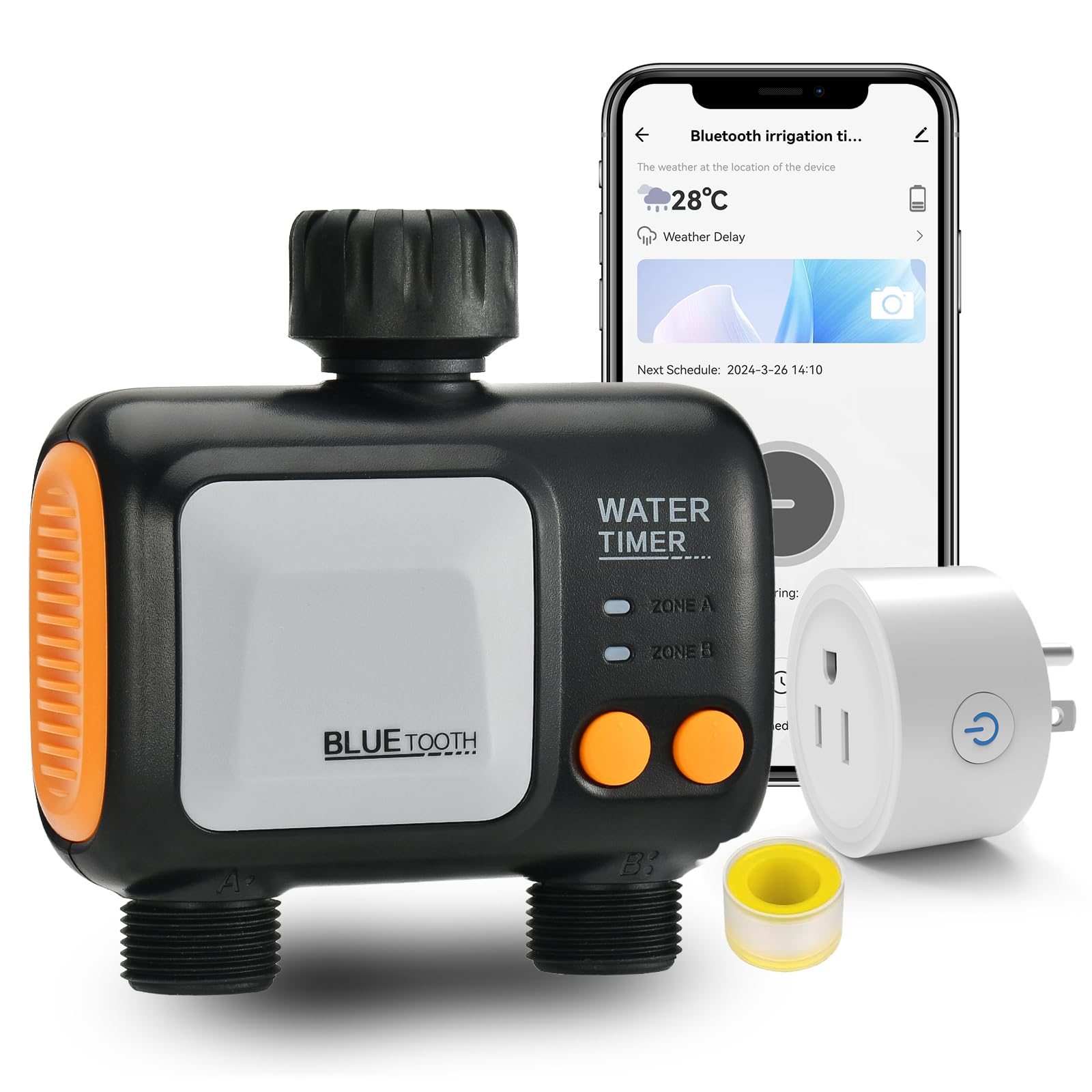
Image: johgee Smart WiFi Water Timer with WiFi Hub and smartphone app interface.
Sleutel kenmerke:
- APP-afstandbeheer: Manage watering schedules from anywhere via the Smart Life app (Android or iOS).
- Two Independent Watering Systems: 2 outlets work independently, allowing separate schedules for each zone.
- Two Irrigation Modes: Timed irrigation mode (up to 5 procedures per outlet) and spray mode (flexible runtime and interval).
- Reënvertragingsfunksie: Automatic weather detection or manual delay (24, 48, or 72 hours).
- Slim stembeheer: Compatible with Alexa and Google Assistant for convenient voice commands.
- Uitbreidbare stelsel: Add multiple WiFi sprinkler timers (up to 4 recommended) to one gateway.
- Waterdig en duursaam: IP55 waterdigte gradering vir buite gebruik.
- Irrigation Recording: Track watering history within the app.
Opstelling
1. Install Batteries in Water Timer
Open the battery compartment on the back of the water timer. Insert 2 AA batteries, ensuring correct polarity. Close the compartment securely.

Image: Water timer showing battery compartment and O-ring for faucet connection.
2. Connect Water Timer to Faucet
Screw the water timer onto your outdoor faucet. Ensure the included O-ring is properly seated to prevent leaks. Hand-tighten only; do not overtighten. Connect your garden hoses to the two independent outlets at the bottom of the timer.

Image: johgee water timer connected to a faucet with two hoses for different zones.
3. Download and Install the Smart Life App
Soek vir "Smart Life" in your smartphone's app store (App Store for iOS or Google Play Store for Android). Download and install the app. Register for a new account or log in if you already have one.
4. Connect the WiFi Hub (Gateway)
Plug the WiFi Hub into a power outlet indoors, within range of your 2.4 GHz WiFi network. Open the Smart Life app and follow these steps to add the gateway:
- In the app, tap the "+" icon or "Add Device".
- Select "Electrical" > "Socket (Wi-Fi)" or search for "Gateway".
- Follow the on-screen instructions to reset the device (long press the button on the hub until the indicator light flickers).
- Enter your 2.4 GHz WiFi network name and password.
- The app will discover and add the gateway.

Image: Smart Life app screenshots showing steps to pair the irrigation gateway.
Video: Instructions on how to connect the WiFi gateway and then the water timer to the app.
5. Pair Water Timer to Gateway
Once the gateway is connected, you can add the water timer:
- In the Smart Life app, navigate to the gateway's control page.
- Tap "Add devices" or "Associate Bluetooth device".
- On the water timer, long press the timer button until the indicator light flickers, indicating pairing mode.
- The app will discover the Bluetooth Water Timer. Select it to add.
- Once added, the water timer will appear in your device list.
Video: Demonstrates connecting the water timer and associating it with the gateway in the app.
Bedryfsinstruksies
1. App Remote Control and Scheduling
Use the Smart Life app to create and manage watering schedules for each of the two outlets. You can set watering frequency, duration, and start times.
- Open the Smart Life app and select your water timer.
- Navigate to the scheduling section for each zone (Outlet A and Outlet B).
- Set desired start times, watering duration, and frequency (e.g., daily, specific days of the week, odd/even days).
- Save your schedules. The timer will execute them automatically.

Image: Smart Life app interface showing timed irrigation mode settings.
2. Irrigation Modes
The timer supports two primary irrigation modes:
- Timed Irrigation Mode: Allows up to 5 distinct watering procedures per outlet, with adjustable durations. Ideal for regular, scheduled watering.
- Spray Mode (Mist Mode): Offers flexible adjustment of runtime and interval time, suitable for misting or specific plant needs.

Image: Smart Life app showing options for irrigation mode and mist mode.
3. Reënvertragingsfunksie
The rain delay feature prevents unnecessary watering during rainy periods, conserving water.
- Outomatiese reënvertraging: The app can detect local weather conditions and automatically pause watering.
- Handmatige reënvertraging: You can manually set a delay for 24, 48, or 72 hours via the app.
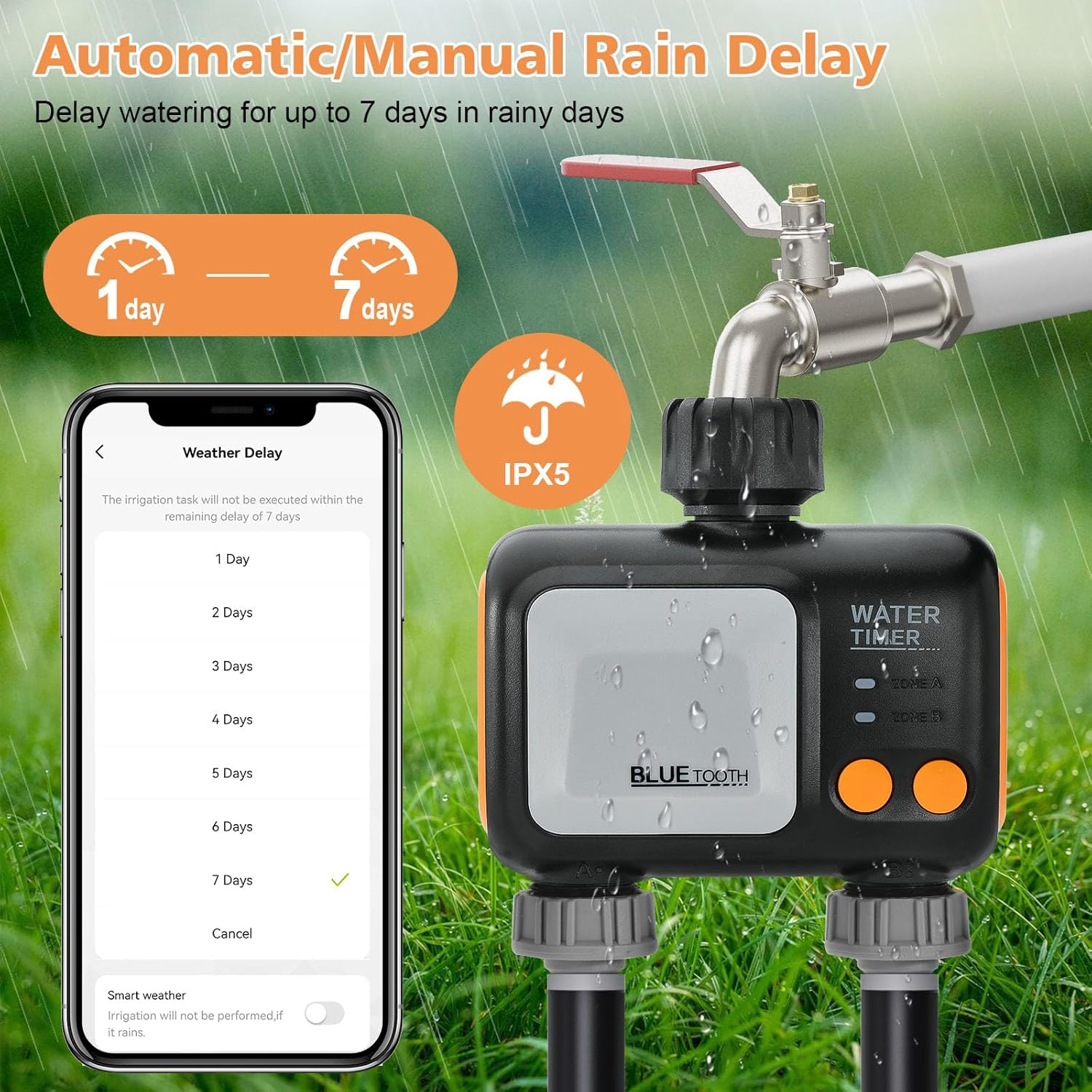
Image: Water timer with app showing rain delay options for 1 to 7 days.
4. Slim stembeheer
Integrate your water timer with Amazon Alexa or Google Assistant for hands-free control.
- Enable the Smart Life skill in your Alexa or Google Home app.
- Link your Smart Life account.
- Use voice commands like "Alexa, open the WiFi water timer" or "Hey Google, turn on the garden hose."

Image: Woman using Alexa to control the water timer, with the timer watering a garden.
5. Expandable Irrigation System
You can add multiple johgee Smart WiFi Water Timers to a single WiFi Hub to expand your irrigation system. It is recommended to add no more than 4 smart water timers per hub for optimal stability.

Image: Diagram showing multiple water timers connected to a single WiFi hub.
6. Handmatige modus
For immediate watering needs, you can manually activate the timer directly on the device or through the app. This allows for flexible, unscheduled watering without affecting your programmed schedules.
Onderhoud
1. Skoonmaak
Wipe the exterior of the water timer with a damp cloth as needed. Do not use harsh chemicals or abrasive cleaners. Ensure the screen and buttons are free from dirt and debris.
2. Battery vervanging
When the battery indicator on the timer or in the app shows low power, replace both AA batteries promptly to ensure continuous operation. Always use fresh, high-quality batteries.
3. Winterisering
Before the first frost or freezing temperatures, disconnect the water timer from the faucet. Remove the batteries and store the timer indoors in a dry, protected area to prevent damage from freezing water.
Probleemoplossing
- Timer not connecting to app: Ensure the WiFi Hub is powered on and connected to a 2.4 GHz WiFi network. Check that the water timer is in pairing mode (flickering indicator light) and within Bluetooth range of the hub.
- Water not flowing: Check that the faucet is fully open. Verify that the timer's schedule is active and that the battery level is sufficient. Ensure hoses are not kinked or blocked.
- Lekkasies van verbindings: Tighten all connections by hand. Check that O-rings are properly seated and not damaged. Replace O-rings if necessary.
- Stembeheer werk nie: Confirm that your Alexa or Google Assistant device is properly linked to your Smart Life account and that the water timer is recognized.
- Timer-skerm is leeg: Vervang die batterye met nuwes.
Spesifikasies
| Kenmerk | Spesifikasie |
|---|---|
| Handelsmerk | johgee |
| Modelnommer | 626-wifi-hub- |
| Kleur | Blou |
| Materiaal | Plastiek |
| Produk afmetings | 4.8" D x 2.2" B x 5" H |
| Item gewig | 0.53 kilogram |
| Aantal instellings | 5 (per outlet) |
| Slimhuisversoenbaarheid | Smart Home Compatible (Alexa, Google Assistant) |
| Waterdigte gradering | IP55 |
Waarborg en Ondersteuning
The johgee Smart WiFi Water Timer comes with a standard manufacturer's warranty. For specific warranty details, technical support, or any questions regarding your product, please refer to the contact information provided on the product packaging or visit the official johgee website. Our customer service team is available to assist you with any issues or inquiries.