
Tera P150
Tera P150 Android 12 Streepkodeskandeerder PDA Gebruikershandleiding
Model: P150
1. Inleiding
This manual provides essential information for the proper setup, operation, and maintenance of your Tera P150 Android 12 Barcode Scanner PDA. Please read this manual thoroughly before using the device to ensure optimal performance and longevity.

Image 1.1: The Tera P150 Android Barcode Scanner PDA, showcasing sy slanke ontwerp en gebruikerskoppelvlak.
2. Opstelling
2.1 Pakketinhoud
Verifieer dat alle items in die pakket teenwoordig is:
- Tera P150 Android Barcode Scanner PDA
- Beskermende saak
- Skermbeskermer
- Handband
- USB kabel
- Herlaaier Adapter
- User Manual (Quick Start Guide)

Image 2.1: All components included in the Tera P150 product package.
2.2 Batteryinstallasie en -laai
- Vind die batterykompartement aan die agterkant van die toestel.
- Insert the 5000 mAh removable battery, ensuring proper alignment of the contacts.
- Bevestig die batterydeksel.
- Connect the USB cable to the device and the charger adapter, then plug into a power outlet.
- Wag ongeveer 3 uur vir 'n volle lading.

Image 2.2: The removable 5000 mAh battery, designed for extended use.
2.3 Aan-/afskakel
Press and hold the power button located on the side of the device until the screen illuminates (for power on) or a power-off menu appears (for power off).
3. Bedryfsinstruksies
3.1 Android 12-bedryfstelsel
The Tera P150 operates on Android 12, offering an intuitive user interface, enhanced performance, and improved privacy controls. Navigate using touch gestures similar to other Android devices.

Image 3.1: The Tera P150 displaying multiple applications, demonstrating seamless multitasking capabilities with Android 12.
3.2 Barcode Scanning with Zebra SE4710
The device integrates a Zebra SE4710 scanner engine for efficient barcode reading. To scan:
- Open the scanning application on the device.
- Rig die skandeerdervenster na die strepieskode.
- Press the dedicated scan button (if available) or trigger the scan via the on-screen interface.
- Ensure the red laser or illumination covers the entire barcode for accurate capture.

Image 3.2: A user operating the Tera P150 to scan barcodes in a warehouse environment, highlighting the integrated Zebra SE4710 scanner.
3.3 Raakskermwerking
The 5.5-inch full touch screen supports operation with gloves and wet hands, enhancing usability in various work conditions. The display offers a resolution of 1440 x 720 pixels.
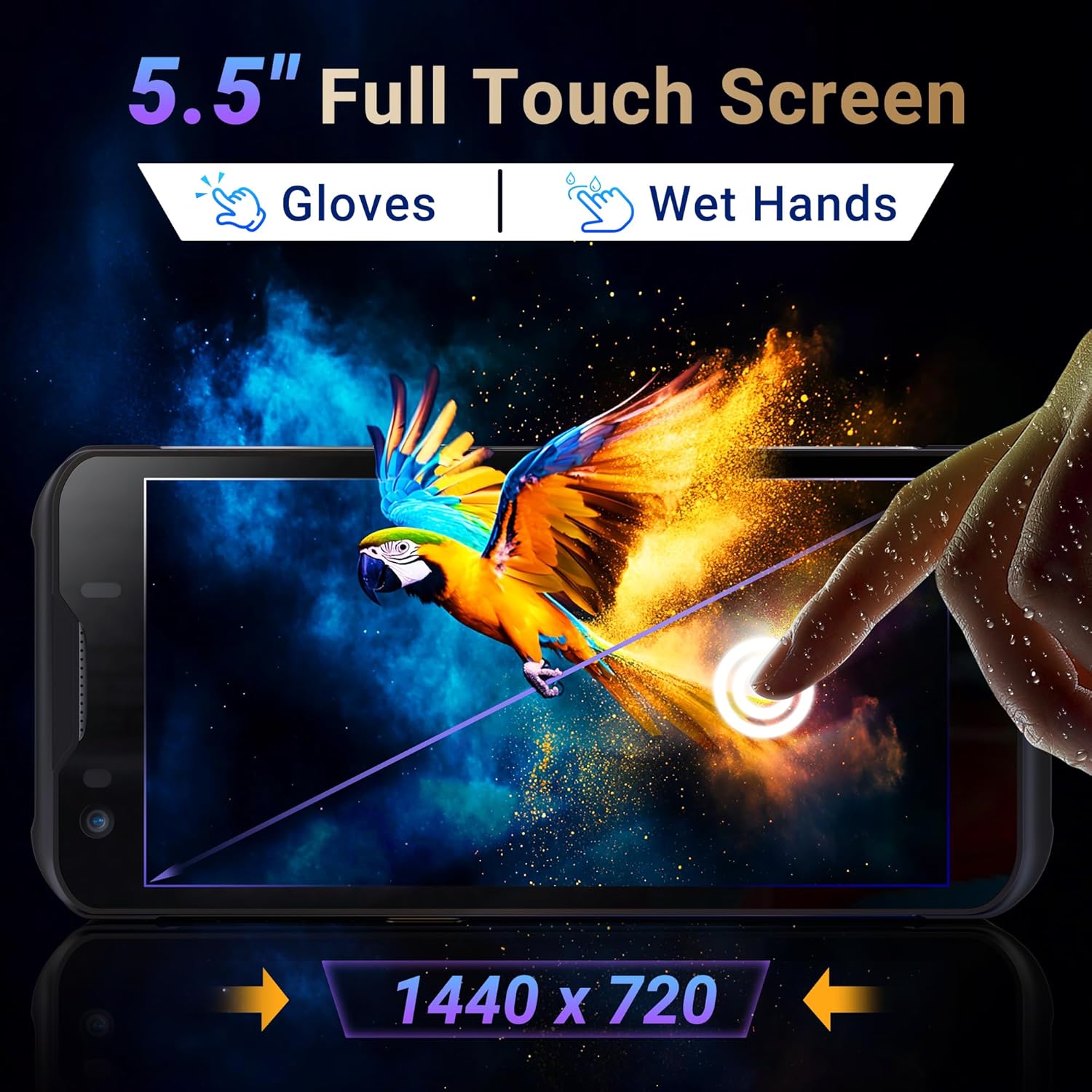
Image 3.3: The Tera P150's 5.5-inch full touch screen, illustrating its responsiveness and clarity.
3.4-kamera-funksionaliteit
The device is equipped with a 13.0 MP rear camera and a 5.0 MP front camera for documentation and communication purposes.

Beeld 3.4: Nabyskoot view of the Tera P150, highlighting the 13.0 MP rear camera and 5.0 MP front camera.
4. Onderhoud
4.1 Rugged Design and IP67 Rating
The Tera P150 features an IP67 rating, indicating resistance to dust and water ingress. It is also designed to withstand drops from up to 4.9 feet (1.5 meters), making it suitable for demanding environments.
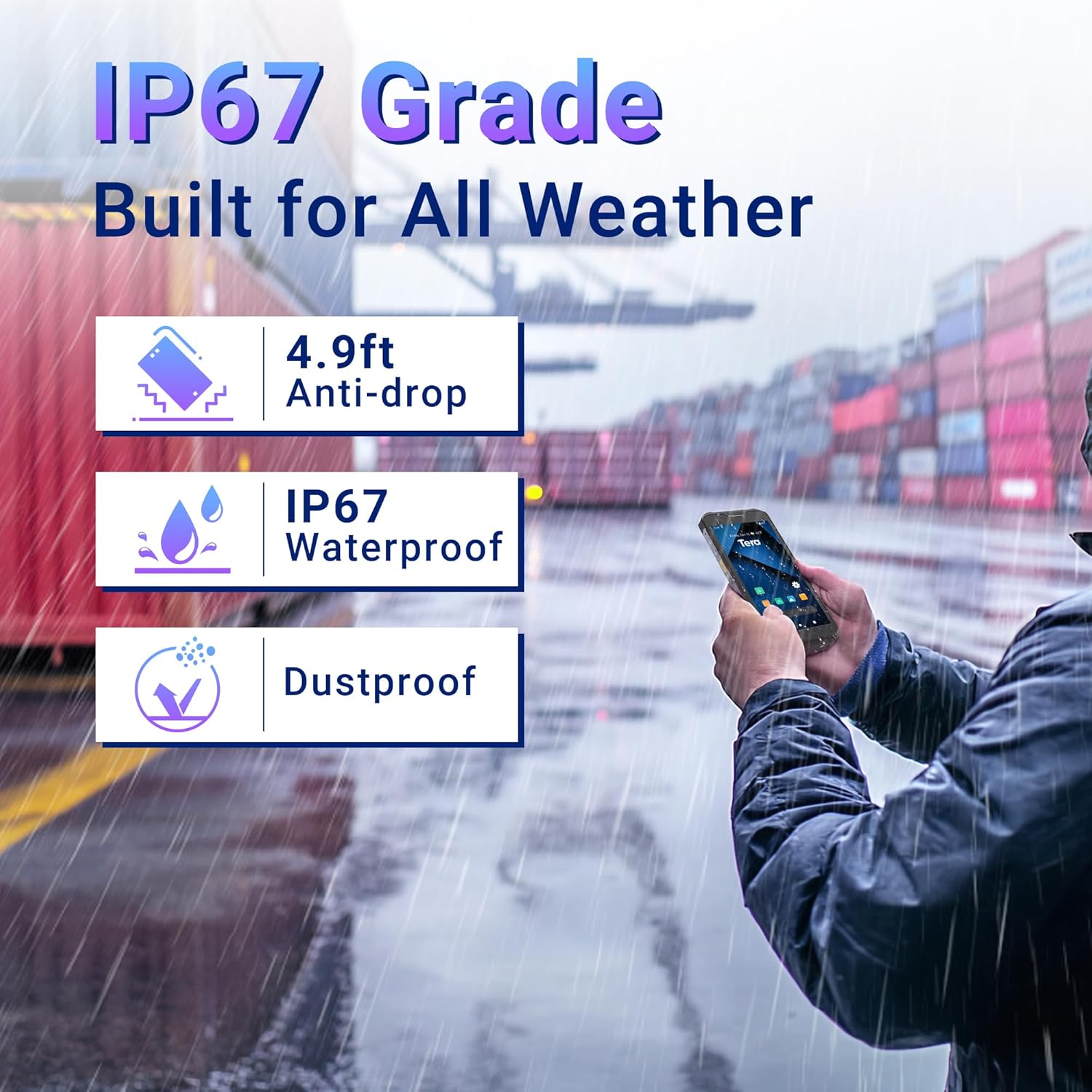
Image 4.1: Visual representation of the Tera P150's IP67 water and dust resistance, and its 4.9ft drop resistance.
Video 4.1: Demonstration of the Tera P150's IP67-rated protection, showcasing its durability against water and drops.
4.2 Skoonmaak
Gebruik 'n sagte, damp cloth to clean the device. Avoid harsh chemicals or abrasive materials that could damage the screen or casing.
5. Probleemoplossing
5.1 Toestel skakel nie aan nie
- Maak seker die battery is korrek geïnstalleer en ten volle gelaai.
- Connect the device to the charger and attempt to power on.
5.2 Skandeerprobleme
- Verify the barcode is clean and undamaged.
- Verseker voldoende ligtoestande.
- Check the scanning application settings.
5.3 Prestasievertraging
- Maak onnodige agtergrondtoepassings toe.
- Maak kas skoon en tydelik files.
- Herbegin die toestel.
6. Spesifikasies
| Kenmerk | Detail |
|---|---|
| Modelnommer | P150 |
| Bedryfstelsel | Android 12 |
| Verwerker | MTK CPU |
| RAM | 4 GB |
| ROM (berging) | 64 GB |
| Streepkodeskandeerder | Zebra SE4710 |
| Vertoon | 5.5-duim volskerm-aanraakskerm |
| Duursaamheidsgradering | IP67, 4.9 ft Drop Resistant |
| Battery | 5000 mAh Removable |
| Agterste kamera | 13.0 MP |
| Voorste kamera | 5.0 MP |
| Konnektiwiteit | 4G, GPS, USB |
| Item gewig | 1.3 pond |
| Pakket afmetings | 7.6 x 4.2 x 2.9 duim |
Video 6.1: 'n Oorview of the Tera P150's key features, including its IP67 rating, 4GB RAM, 64GB storage, Android 12 OS, and 5.5-inch touch screen.
7. Waarborginligting
Verwys asseblief na die waarborgkaart wat by u produk ingesluit is vir gedetailleerde waarborgbepalings en -voorwaardes. Bewaar u bewys van aankoop vir enige waarborgeise.
8. Ondersteuning
For technical assistance, troubleshooting, or further inquiries, please contact Tera customer support. Contact information can be found on the official Tera webwebwerf of in die vinnige begingids.