
1. Inleiding
Thank you for choosing the MageGee Light84 Transparent Mechanical Keyboard. This wired gaming keyboard features a unique transparent design, vibrant RGB backlighting, and crystal switches, offering a superior typing and gaming experience. This manual provides detailed instructions for setup, operation, maintenance, and troubleshooting to help you get the most out of your new keyboard.

Figure 1: MageGee Light84 Transparent Mechanical Keyboard
2. Sleutel kenmerke
- Transparent Keycaps and RGB Backlighting: Features blue transparent keycaps that are delicate and smooth to the touch, with clear, fade-resistant characters. Full RGB backlighting offers cool, eye-catching effects with adjustable light modes and brightness, enhancing the transparent design.
- Customizable Crystal Switches and Double Layer Sound Deadening Structure: Equipped with dust-proof transparent axles for fast, no-delay response and tactile feedback. The gasket structure and EVA sound deadening cotton effectively eliminate most cavity sound, optimizing typing feel and sound consistency.
- Hot-swappable Full-Key Replacement Design: Compatible with most three-legged and five-legged shafts, allowing for DIY customization. Supports simultaneous keystrokes without conflict for fast trigger continuous skills.
- Gasket Mount Mechanical Keyboard: Utilizes high-quality gasket material and silicone pad to absorb vibrations and eliminate noise. Includes Poron sandwich foam, Poron socket foam, and PET sound pads for a quieter and smoother typing experience.
- Simple Button to Switch WIN/MAC/Xbox Layouts: Easily switch between Mac and Windows operating systems. The 84-key, 70% layout saves desk space and offers maximum comfort, suitable for gamers, office workers, and writers.
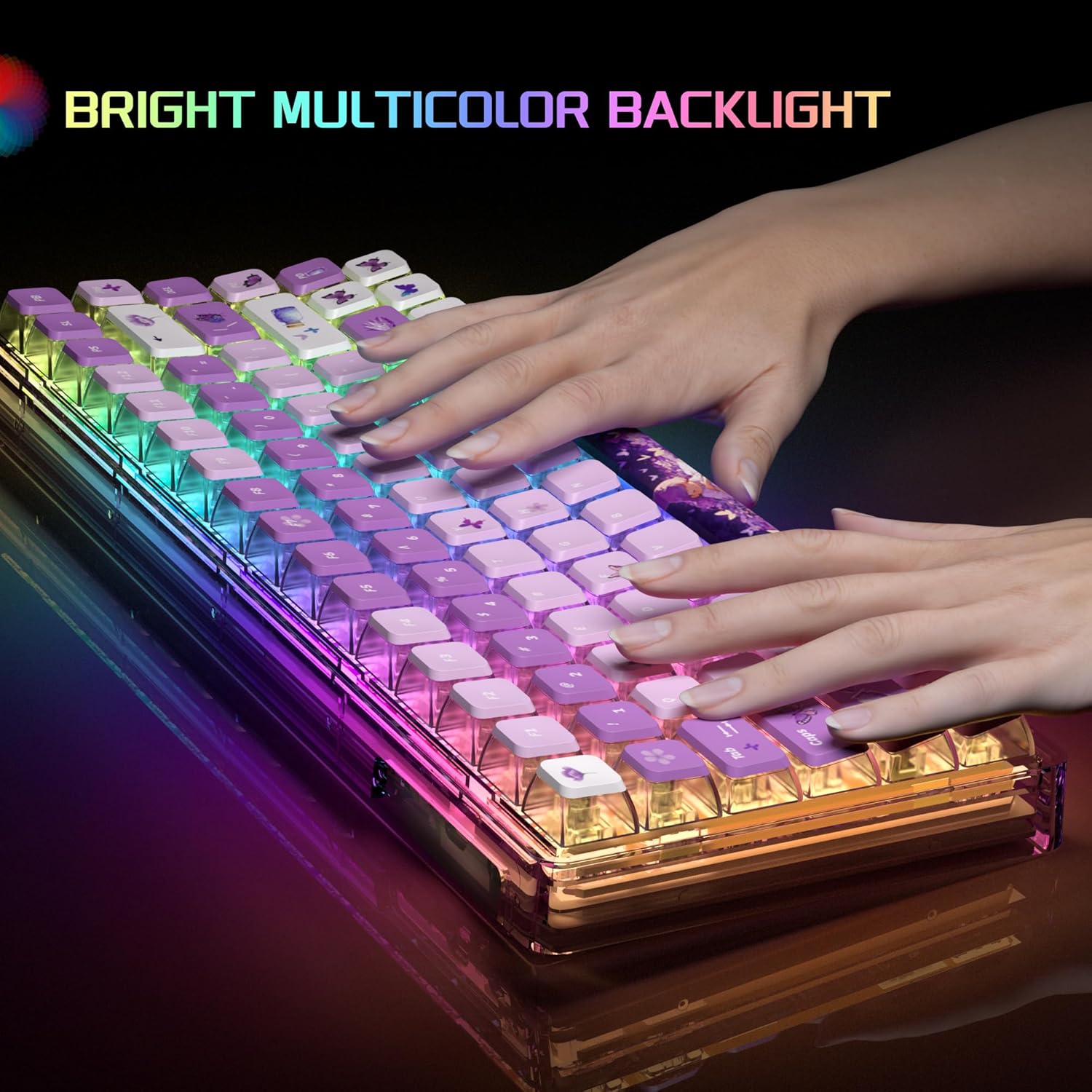
Figure 2: Bright Multicolor Backlight in action

Figure 3: Crystal Switch Components
Produk verbyview Video
Video 1: A short demonstration of the MageGee Transparent Keyboard, showcasing its RGB lighting effects and overall design.
3. Opstelgids
- Pak die sleutelbord uit: Verwyder die sleutelbord en enige bykomstighede versigtig uit die verpakking.
- Koppel aan toestel: Locate the USB cable provided with your keyboard. Plug the USB-C end into the keyboard's port and the USB-A end into an available USB port on your computer (PC, Laptop, Gaming Console) or Mac.
- Stelselherkenning: Your operating system (Windows, macOS) should automatically detect and install the necessary drivers. This process usually takes a few moments.
- Toetsfunksionaliteit: Open a text editor or browser and test typing to ensure all keys are functioning correctly.
4. Bedryfsinstruksies
4.1. RGB-agterligbeheer
The MageGee Light84 keyboard features customizable RGB backlighting. Specific key combinations are used to change lighting modes and brightness. Refer to the quick start guide included in your packaging for detailed key combinations, as these can vary.
- Verander beligtingmodusse: Typically, use Fn + [Sleutel] combinations to cycle through various lighting effects (e.g., wave, breathing, static).
- Verstel van helderheid: Gebruik Fn + Op/Af Pyltjie keys to increase or decrease backlight brightness.
- Verstel spoed: Gebruik Fn + Links/Regs Pyltjie keys to adjust the speed of dynamic lighting effects.
4.2. Switching WIN/MAC/Xbox Layouts
The keyboard allows for quick switching between different operating system layouts to optimize key functions.
- Switching Layout: Press the dedicated key button (often marked with a system icon or located near the function keys) to instantly change the keyboard's working system to Mac, Windows, or Xbox mode.
4.3. Hot-Swappable Key Replacement
The hot-swappable design allows you to easily change mechanical switches without soldering. This feature is ideal for customization and maintenance.
- Verwydering van 'n skakelaar: Gebruik die meegeleverde skakelaar-trekker om die skakelaar saggies vas te gryp en dit reguit op te trek.
- Installering van 'n skakelaar: Rig die penne van die nuwe skakelaar met die gate op die PCB. Druk stewig af totdat die skakelaar in plek klik. Maak seker dat die penne nie gebuig is nie.
4.4. Lock WIN Key Function
To prevent accidental presses of the Windows key during gaming, you can lock its functionality.
- Lock/Unlock WIN Key: Typically, press Fn + WIN key to toggle the Windows key lock on or off. An indicator light may show its status.
5. Onderhoud
Proper maintenance ensures the longevity and optimal performance of your MageGee Light84 keyboard.
- Algemene skoonmaak: Regularly use a soft brush or compressed air to remove dust and debris from between the keycaps.
- Skoonmaak van sleuteldop: For deeper cleaning, you can carefully remove the keycaps using a keycap puller. Clean them with a mild soap solution and a soft cloth, then ensure they are completely dry before reattaching. Avoid harsh chemicals that may damage the transparent material or legends.
- Oppervlakte skoonmaak: Wipe the keyboard surface with a slightly damp, lint-free cloth. Do not use excessive moisture.
- Vermy mors: Keep liquids away from the keyboard to prevent damage to internal components. In case of a spill, immediately unplug the keyboard, dry it thoroughly, and allow it to air dry completely before reconnecting.
6. Probleemoplossing
If you encounter issues with your keyboard, try the following troubleshooting steps:
| Probleem | Moontlike Oplossing |
|---|---|
| Sleutelbord reageer nie |
|
| Agterlig werk nie of flikker nie |
|
| Sekere sleutels werk nie |
|
| WIN key is locked |
|
If these steps do not resolve your issue, please contact MageGee customer support for further assistance.
7. Spesifikasies
- Handelsmerk: MageGee
- Model: Lig84
- Kleur: Purple Butterfly
- Verbindingstegnologie: Bedraad
- Skakelaar tipe: Tactile (Crystal Switches)
- Sleutelbord beskrywing: Ergonomic, 70% Layout (84-key)
- Versoenbare toestelle: Spelkonsole, Skootrekenaar, Rekenaar
- Compatible Operating System Family: Windows, Mac, Xbox
- Item gewig: 2.92 pond (ongeveer 1.32 kg)
- Pakket afmetings: 13.94 x 6.3 x 2.44 duim (ongeveer 35.4 x 16 x 6.2 cm)

Figuur 4: Sleutelbord Afmetings
8. Waarborg en Ondersteuning
MageGee products are designed and manufactured to the highest quality standards. For information regarding warranty coverage, please refer to the warranty card included with your product or visit the official MageGee webwebwerf.
For technical support, troubleshooting assistance, or any other inquiries, please contact MageGee customer service through their official channels. You can often find contact information on the product packaging or the brand's official webwebwerf.
MageGee Official Store: Visit the MageGee Store on Amazon