
1. Inleiding
This manual provides essential instructions for the setup, operation, and maintenance of your TMY Projector. Please read this manual thoroughly before using the product to ensure proper functionality and to maximize your viewondervinding. Bewaar hierdie handleiding vir toekomstige verwysing.
2. Produk verbyview
2.1 Pakketinhoud
Verifieer dat alle items in die pakket teenwoordig is:
- TMY Projector Unit
- Afstandbeheer
- HDMI kabel
- Kragkoord
- Waarborgkaart
2.2 Sleutelkenmerke
- Netflix Officially Licensed: Access streaming services directly without external devices.
- 1080P-resolusie: Lewer duidelike en gedetailleerde beelde.
- Electric Focus & Auto Keystone: Automatic image adjustment for optimal clarity and shape.
- 270° Draaibare Staanplek: Flexible projection angles, including ceiling projection.
- Upgraded WiFi 6 Connectivity: Ensures stable and fast wireless streaming.
- Dual-Mode Bluetooth 5.2: Connects to external speakers or functions as a standalone Bluetooth speaker.
- Veelvuldige verbindingsopsies: HDMI, USB, Phone/PC mirroring.
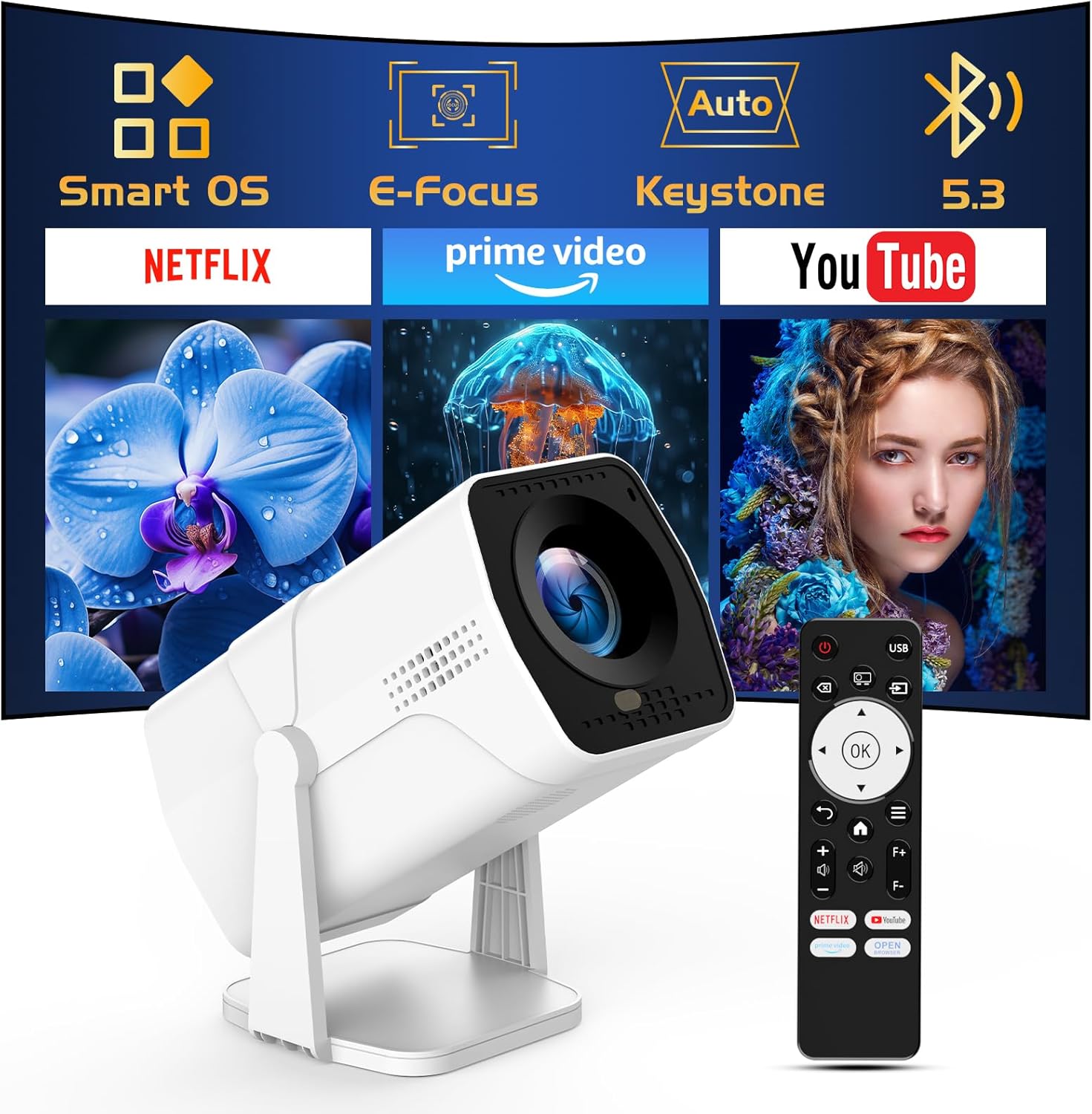
Image: The TMY Projector unit, its remote control, and a projected screen displaying logos for Smart OS, E-Focus, Auto Keystone, Bluetooth 5.3, Netflix, Prime Video, and YouTube.
3. Opstelling
3.1 Plasing
Position the projector on a stable, flat surface. The 270° rotatable stand allows for versatile placement, including projecting onto walls or ceilings. Ensure adequate ventilation around the projector.

Image: A TMY Projector positioned on a bedside table, projecting an image onto the ceiling, demonstrating its 270° rotatable stand for multi-angle viewing.
3.2 Kragverbinding
- Koppel die kragkabel aan die projektor se kragtoevoerpoort.
- Steek die ander kant van die kragkabel in 'n standaard elektriese aansluiting.
3.3 Aanvanklike aanskakeling en fokusaanpassing
- Druk die kragknoppie op die projektor of die afstandbeheerder om die toestel aan te skakel.
- Die projektor kenmerke Elektriese fokus en Outo sleutel correction. The image will automatically adjust for clarity and a rectangular shape within approximately 2 seconds.
- If further adjustment is needed, use the remote control to fine-tune the focus.

Image: A TMY Projector projecting a vibrant image onto a screen, with an overlay illustrating the 'FOCUS' function and icons for Auto Keystone and 50%-100% Zoom.
3.4 Netwerkverbinding (WiFi)
The projector supports WiFi 6 for a fast and stable internet connection.
- Navigate to the 'Settings' menu using the remote control.
- Kies 'Netwerk' of 'WiFi-instellings'.
- Choose your desired WiFi network from the list and enter the password.
- Bevestig die verbinding.

Image: A TMY Projector wirelessly connected to a tablet, smartphone, and laptop, illustrating its WiFi 6 connectivity for faster streaming with no lagging.
3.5 Bluetooth-verbinding
The projector features Dual-Mode Bluetooth 5.2 for audio connectivity.
- Projector Mode (Output): To connect to external Bluetooth speakers or soundbars: Navigate to 'Bluetooth Settings', enable Bluetooth, and pair with your audio device.
- Speaker Mode (Input): To use the projector's built-in speakers as a standalone Bluetooth speaker: Select 'Speaker Mode' in the Bluetooth settings. Your phone or other device can then connect to the projector to play audio.

Image: A TMY Projector illustrating its two-way Bluetooth 5.2 functionality, showing connections to a soundbar (Projector Mode) and a smartphone (Speaker Mode).
4. Operasie
4.1 Navigasie deur die Smart OS
The projector runs on a smart TV operating system. Use the provided remote control to navigate menus, select applications, and control playback.

Image: The TMY Projector unit with a projected screen showing a grid of built-in smart OS applications, including Netflix, YouTube, Prime Video, TikTok, and others.
4.2 Accessing Built-in Apps
The projector comes with pre-installed and officially licensed applications such as Netflix, Prime Video, and YouTube. Access these directly from the home screen or through the 'App Store' for additional content.

Image: A TMY Projector projecting a screen filled with content from officially licensed apps like Netflix, Prime Video, and YouTube, with the remote control in the foreground.
4.3 Eksterne Toestelle Koppel
The projector offers multiple ports for connecting external devices:
- HDMI: Connect TV sticks, TV boxes, PCs/Laptops, or gaming consoles (e.g., PS).
- USB: Speel media files directly from USB drives or connect other USB accessories.
- Phone/PC Mirroring: Wirelessly mirror content from your smartphone or PC (refer to the on-screen instructions for specific mirroring protocols).
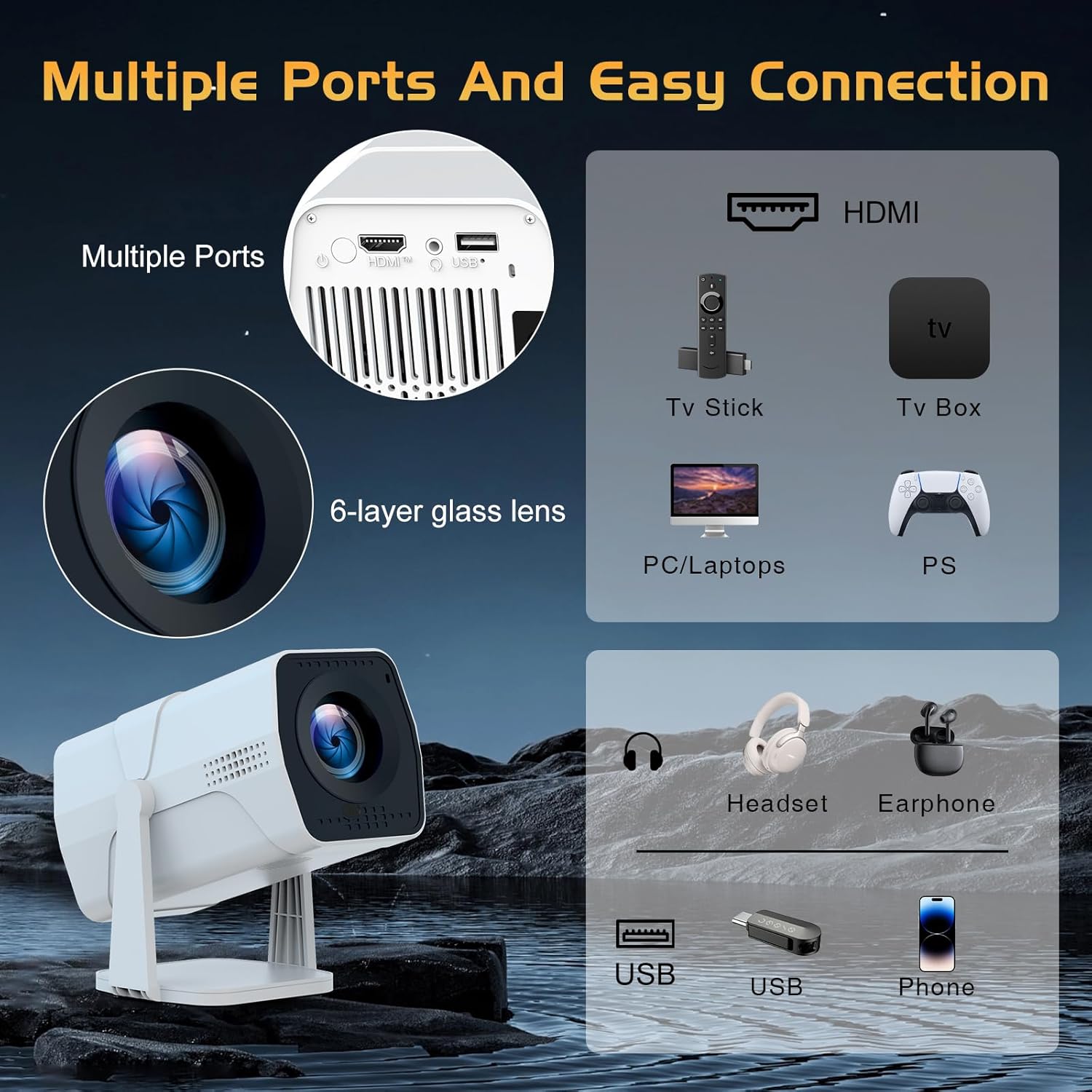
Image: A detailed diagram showing the multiple ports on the TMY Projector (HDMI, USB) and various connection possibilities, including TV sticks, PCs, gaming consoles, headsets, and phones.
4.4 Screen Zoom Function
The projector includes a 50%-100% zoom function, allowing you to adjust the screen size without moving the projector. This feature can be accessed via the remote control or settings menu.
5. Onderhoud
To ensure the longevity and optimal performance of your TMY Projector, follow these maintenance guidelines:
- Maak die lens skoon: Gebruik 'n sagte, pluisvrye lap wat spesifiek vir optiese lense ontwerp is. Vermy skuurmiddels of harde chemikalieë.
- Skoonmaak van die buitekant: Vee die buitekant van die projektor af met 'n sagte, droë lap. Moenie vloeibare skoonmaakmiddels direk op die toestel gebruik nie.
- Ventilasie: Maak seker dat die ventilasie-openinge nie geblokkeer is nie om oorverhitting te voorkom.
- Berging: When not in use for extended periods, store the projector in a cool, dry place, away from direct sunlight and dust.
6. Probleemoplossing
If you encounter issues with your TMY Projector, refer to the following common problems and solutions:
- Geen krag:
- Maak seker dat die kragkabel stewig aan beide die projektor en 'n werkende elektriese aansluiting gekoppel is.
- Kyk of die kragaansluiting funksioneel is.
- Geen Beeld / Vaag Beeld:
- Verify the projector is powered on and the lens cap is removed.
- Allow the automatic focus and keystone correction to complete. If still blurry, manually adjust focus using the remote.
- Ensure the projection surface is suitable and the projector is within the recommended distance.
- If using an external source (HDMI), ensure the correct input source is selected.
- Geen klank:
- Kontroleer die volumevlak op die projektor en enige gekoppelde eksterne klanktoestelle.
- If using Bluetooth speakers, ensure they are properly paired and connected.
- If using internal speakers, ensure external Bluetooth output is not selected.
- Afstandbeheer reageer nie:
- Ensure the batteries are correctly inserted and not depleted.
- Rig die afstandbeheerder direk op die projektor se IR-ontvanger.
- WiFi-verbindingskwessies:
- Ensure your WiFi network is active and within range.
- Dubbelkontroleer die WiFi-wagwoord.
- Restart the projector and your WiFi router.
- If the connection times out, try moving the projector closer to the router or reducing interference.
7. Spesifikasies
| Kenmerk | Spesifikasie |
|---|---|
| Handelsmerk | TMY |
| Model | B0DRFF5KMF |
| Item gewig | 2.79 pond |
| Produk afmetings | 5.35 x 4.84 x 7.09 duim |
| Kleur | Wit |
| Spesiale kenmerke | Speakers, Electric Focus, Auto Keystone, 270° Rotatable Stand |
| Verbindingstegnologie | HDMI, USB, WiFi 6, Bluetooth 5.2 |
| Vertoon resolusie | 1920 x 1080 (1080P Full HD) |
| Aanbevole gebruike | Binneshuise |

Image: A visual comparison showing the TMY Projector's 1080P Full HD image quality, emphasizing that it is recommended for use in dark environments for optimal viewing, contrasted with daytime or light-on conditions.
8. Waarborg en Ondersteuning
TMY is committed to providing excellent customer service and product support.
- Waarborg: Hierdie produk kom met 'n 3-jaar waarborg.
- Retourbeleid: Enjoy a 30-day return period.
- Tegniese ondersteuning: Lewenslange na-verkope diens en tegniese ondersteuning is beskikbaar.
- Reaksie Tyd: Expect a quick reply within 24 hours for support inquiries.
Vir verdere hulp, besoek asseblief die amptelike TMY Store on Amazon or contact customer support through the provided channels in your warranty card.