
Inleiding
This manual provides essential information for the proper setup, operation, maintenance, and troubleshooting of your KTC H27T27 27-inch WQHD IPS Flat Monitor. Please read this manual thoroughly before using the product to ensure optimal performance and safety.
The KTC H27T27 monitor features a 27-inch WQHD (2560x1440) IPS panel with a 100Hz refresh rate, designed to deliver clear and detailed images with smooth motion. It includes FreeSync technology for enhanced visual fluidity during dynamic content. The IPS panel ensures vivid colors and wide viewhoeke.

Figure 1: KTC H27T27 27-inch WQHD IPS Flat Monitor Front View
Opstelling
1. Uitpak
Carefully remove all components from the packaging. Ensure all items listed in the packing list are present and undamaged. Retain the original packaging for future transport or service needs.
2. Staansamestelling
- Plaas die monitor met die gesig na onder op 'n sagte, skoon oppervlak om skrape te voorkom.
- Attach the stand base to the stand neck using the provided screws.
- Align the assembled stand with the mounting slot on the back of the monitor and secure it firmly.
3. VESA-montering (opsioneel)
The monitor supports VESA 100x100mm mounting. If using a VESA mount, remove the stand and attach the VESA compatible bracket to the monitor's rear panel using appropriate screws.
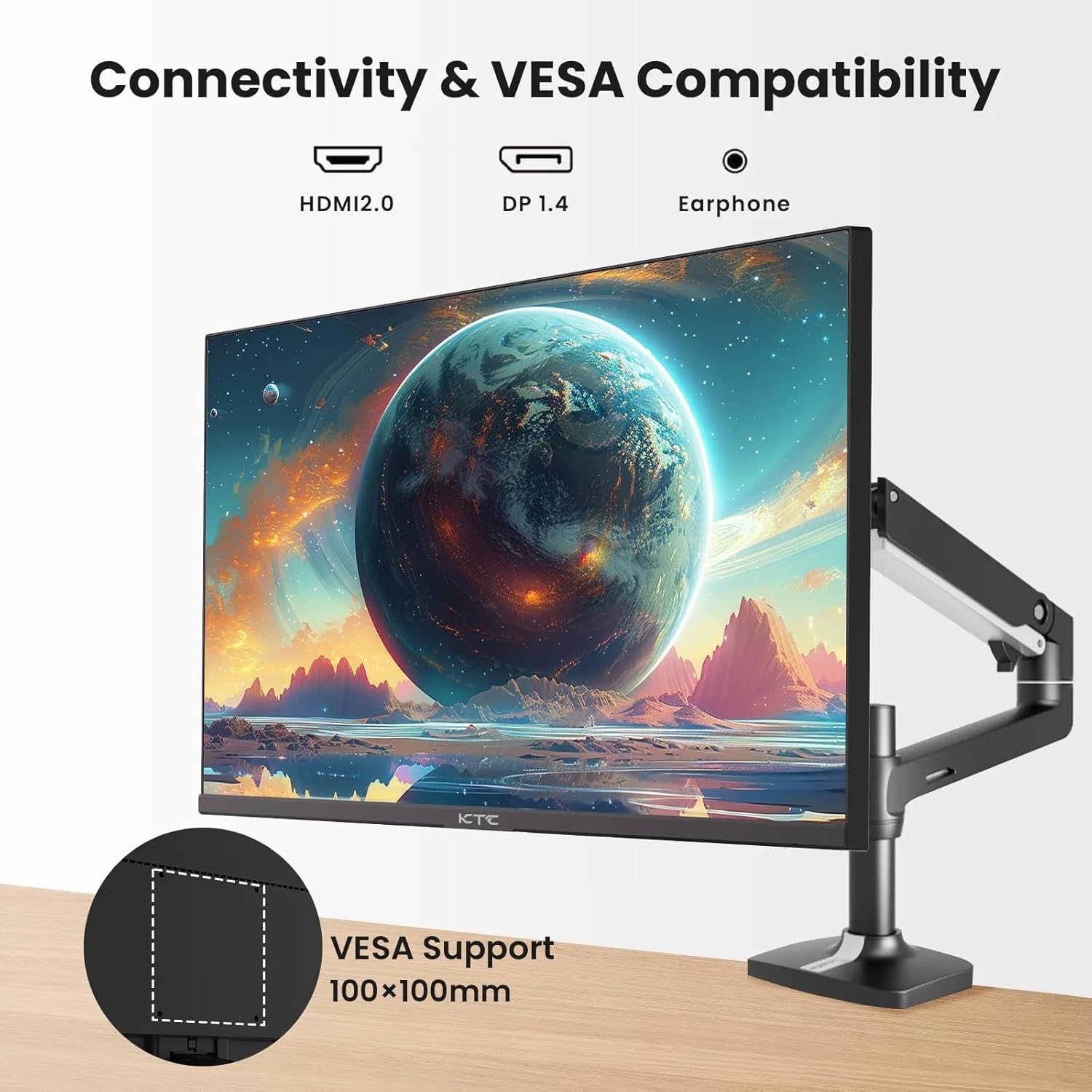
Figure 2: VESA Compatibility and Connectivity Ports
4. Aansluitkabels
Koppel die nodige kabels aan die monitor en jou rekenaar of ander toestelle. Maak seker dat alle verbindings stewig is.
- Krag kabel: Connect the power adapter to the monitor's DC input port, then plug the power cable into a power outlet.
- Video kabel: Connect either an HDMI cable (HDMI 2.0) or a DisplayPort cable (DP 1.4) from your computer's graphics card to the corresponding input port on the monitor.
- Oudio-uitvoer: If desired, connect headphones or external speakers to the 3.5mm audio output jack.

Figure 3: Monitor Input Ports
5. Aanvanklike Aanskakeling
Press the power button on the monitor. The power indicator light will illuminate. If no image appears, ensure your computer is powered on and the correct input source is selected on the monitor.
Bedryf
1. Skakel aan/af
Press the power button located on the monitor to turn it on or off. The power indicator will show the monitor's status.
2. On-Screen Display (OSD)-kieslys
Die OSD-kieslys laat jou toe om verskeie monitorinstellings aan te pas. Gebruik die beheerknoppies (gewoonlik agter of onder op die monitor) om deur die kieslys te navigeer.
- Druk 'n knoppie om die OSD-kieslys te aktiveer.
- Gebruik die navigasieknoppies om deur die kieslysopsies te beweeg.
- Press a selection button to enter a sub-menu or confirm a setting.
- Press an exit button to close the OSD menu.
3. Pas instellings aan
Algemene verstelbare instellings sluit in:
- Helderheid/kontras: Pas die algehele helderheid en die verskil tussen ligte en donker areas aan.
- Kleurinstellings: Modify color temperature, gamma, and individual RGB values.
- Invoerbron: Manually select between HDMI 1, HDMI 2, or DisplayPort inputs.
- Prentmodus: Select predefined display modes (e.g., Standard, Game, Movie).
4. Verversingstempo
The KTC H27T27 supports a 100Hz refresh rate, providing smoother motion compared to standard 60Hz displays. Ensure your graphics card and operating system are configured to output at 100Hz for the best experience.

Figure 4: 100Hz Refresh Rate Benefit
5. FreeSync Technology
This monitor is compatible with AMD FreeSync technology, which synchronizes the monitor's refresh rate with your graphics card's frame rate. This helps eliminate screen tearing and stuttering for a smoother gaming and video experience. Ensure FreeSync is enabled in both the monitor's OSD menu and your graphics card's control panel.
Figure 5: FreeSync Technology in Action
Onderhoud
1. Skoonmaak van die skerm
- Skakel die monitor af en trek die kragkabel uit.
- Vee die skerm liggies af met 'n sagte, pluisvrye lap.
- Vir hardnekkige merke, liggiesampMaak die lap skoon met water of 'n gespesialiseerde skermreiniger (moenie direk op die skerm spuit nie).
- Vermy die gebruik van skuurmiddels, alkohol of ammoniak-gebaseerde oplossings, aangesien dit die skermoppervlak kan beskadig.
2. Algemene Sorg
- Hou die monitor weg van direkte sonlig, oormatige hitte en humiditeit.
- Verseker voldoende ventilasie rondom die monitor om oorverhitting te voorkom.
- Vermy die plasing van swaar voorwerpe op die monitor of sy kabels.
Probleemoplossing
As jy probleme met jou monitor ondervind, raadpleeg die volgende algemene probleme en oplossings:
- Geen krag:
- Ensure the power cable is securely connected to both the monitor and the power outlet.
- Verify the power outlet is functional. - Geen sein:
- Check that the video cable (HDMI or DisplayPort) is securely connected to both the monitor and your computer.
- Ensure your computer is powered on and not in sleep mode.
- Select the correct input source via the monitor's OSD menu. - Flikkerende of Vervormde Beeld:
- Check the video cable for damage or loose connections.
- Adjust the refresh rate settings on your computer.
- Disable or enable FreeSync in the OSD menu and graphics card settings to test. - Verkeerde kleure:
- Reset color settings to factory defaults in the OSD menu.
- Adjust color temperature or individual RGB values.
Indien die probleem voortduur nadat u hierdie oplossings probeer het, kontak asseblief kliëntediens.
Spesifikasies
| Kenmerk | Spesifikasie |
|---|---|
| Handelsmerk | CTC |
| Modelnommer | H27T27 |
| Skerm grootte | 27 duim |
| Resolusie | 2560 1440 x XNUMX XNUMX (WQHD) |
| Herlaaitempo | 100 Hz |
| Tipe vertoon | IPS |
| Reaksie Tyd | 7 millisekondes |
| Aanpasbare sinkronisering | FreeSync |
| Konnektiwiteit | 2x HDMI 2.0, 1x DisplayPort 1.4, 1x 3.5mm Audio Out |
| Aspekverhouding | 1.78:1 |
| Skermoppervlak | Mat |
| Itemafmetings (D x B x H) | 1.85" D x 24.25" B x 14.33" H |
| Item gewig | 4 kilogram |
Waarborg en Ondersteuning
Waarborg inligting
This KTC monitor is covered by a manufacturer's warranty. Please refer to the warranty card included in your product packaging for specific terms, conditions, and duration of coverage. Keep your purchase receipt as proof of purchase for warranty claims.
Kliënte ondersteuning
For technical assistance, warranty service, or any product-related inquiries, please contact KTC customer support. Contact details can typically be found on the official KTC webwebwerf of op die waarborgkaart.
When contacting support, please have your monitor's model number (H27T27) and serial number ready.