
1. Inleiding
Thank you for choosing the MageGee MK-Box 60% Mechanical Gaming Keyboard. This compact 68-key keyboard is designed for both gaming and office use, offering a space-saving layout without compromising essential functionality. Featuring responsive red mechanical switches and customizable LED backlighting, the MK-Box provides a comfortable and efficient typing experience. This manual will guide you through the setup, operation, and maintenance of your new keyboard.
2. Produk verbyview
Sleutel kenmerke:
- Mini Draagbare 60% Kompakte Uitleg: The MK-Box features 68 keys, including separate arrow keys and Fn function keys, optimizing desk space while retaining necessary functions.
- Mechanical Red Switches: Characterized by a linear and smoother feel with minimal resistance, these switches offer fast action without a tactile bump, making typing and gaming effortless.
- Classic Charming Blue LED Backlit: Customize your experience with approximately 16 illuminated LED light effects. Adjust backlight modes, speed, and brightness using simple key combinations.
- Volledige Anti-Ghosting: All 68 keys are conflict-free, ensuring every keystroke is registered accurately during intense gaming sessions.
- Ergonomiese ontwerp: Features ergonomic suspension double-color injection keycaps, double kickstand feet for adjustable typing angles, and a detachable USB cable for convenience and durability.
- Uitgebreide verenigbaarheid: Compatible with Windows (2000, XP, ME, Vista, 7, 8), Linux, and Mac operating systems. Plug and play, no drivers or software required.
Wat is in die boks:
- MageGee MK-Box Mechanical Keyboard x 1
- Detachable USB-C to USB-A Cable x 1
- Extra Keycaps (e.g., 16 purple keycaps, red WASD keys) x 1 set
- Sleutelkaptrekker x 1
- Gebruikershandleiding x 1
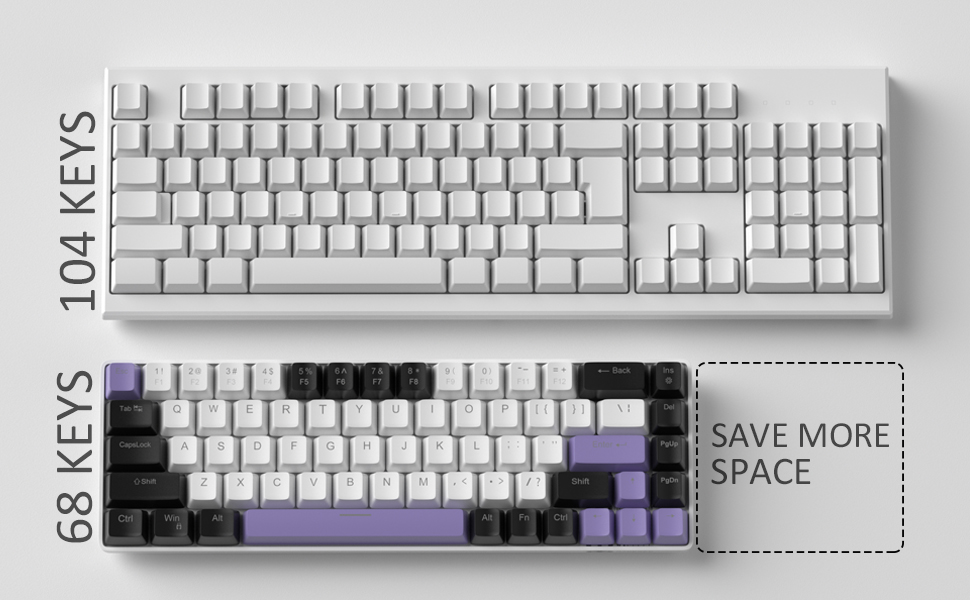
Image: Contents of the MageGee MK-Box packaging, including the keyboard, detachable USB-C cable, extra keycaps, keycap puller, and user manual.
3. Opstelling
- Koppel die sleutelbord: Locate the detachable USB-C cable. Plug the USB-C end into the port on the left side of the keyboard and the USB-A end into an available USB port on your computer (Laptop, PC, Mac).
Image: Close-up of the detachable USB-C port on the side of the MageGee MK-Box keyboard, with the cable being inserted.
- Pas tikhoek aan: Flip the keyboard over to reveal the double kickstand feet. Gently pull out the feet to adjust the keyboard to your preferred typing angle for ergonomic comfort. There are two levels of adjustment.
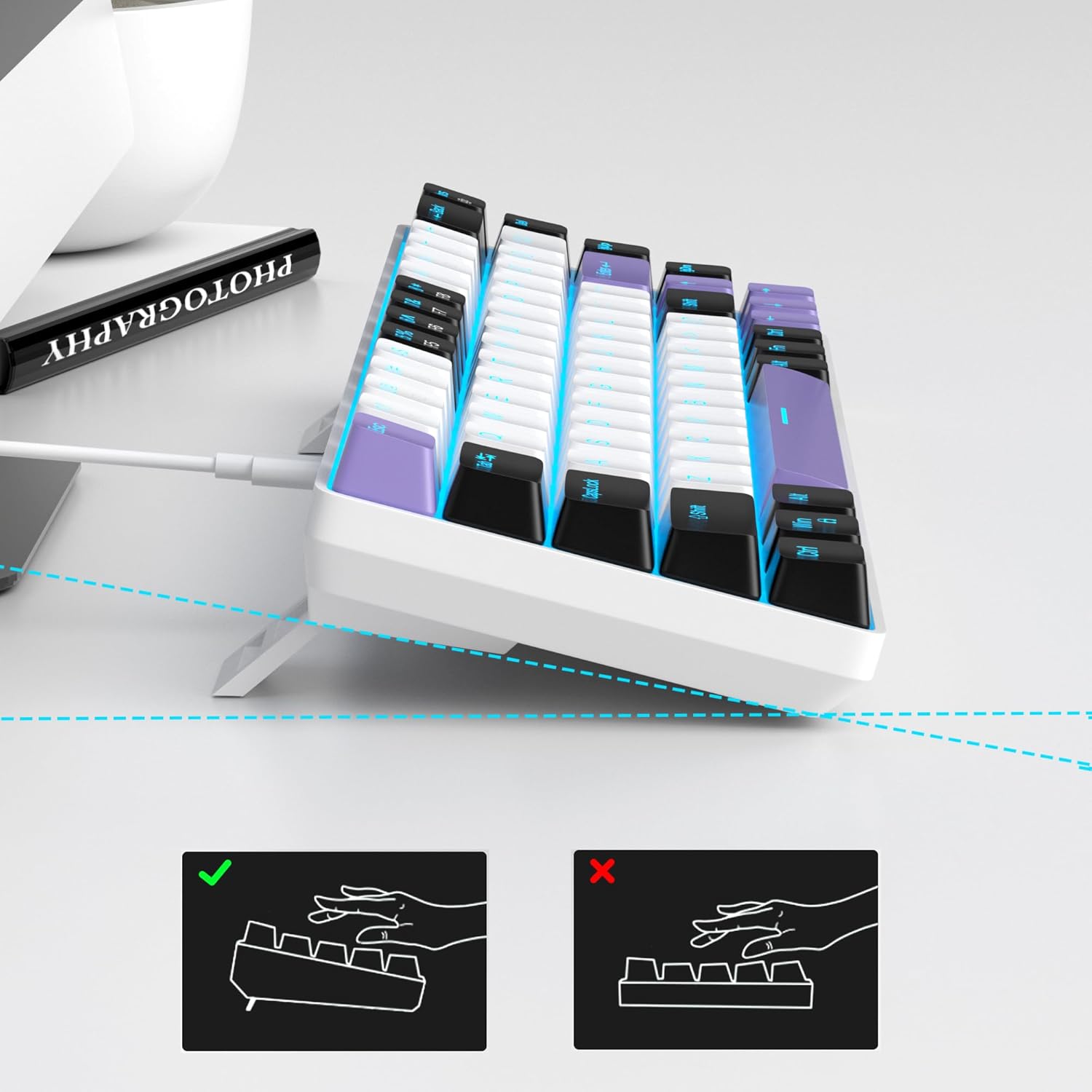
Image: The MageGee MK-Box keyboard shown from a side angle with its adjustable feet extended, illustrating the ergonomic tilt for comfortable typing.
- Stelselherkenning: Your computer should automatically recognize the keyboard. No additional drivers or software installation is required.
4. Bedryfsinstruksies
Basiese sleutelfunksies:
- The keyboard features a standard QWERTY layout with 68 keys.
- Dedicated arrow keys are located on the bottom right.
- Function keys (F1-F12) are accessed via the Fn key in combination with the number row keys.
Agterligbeheer:
The MageGee MK-Box features a classic blue LED backlight with multiple modes and adjustable settings.
- Verander agtergrondligmodus: Druk Fn + Ins to cycle through approximately 16 different backlight effects.
- Pas agtergrondligspoed aan: Druk Fn + ← (Pyltjie na links) to decrease speed or Fn + → (Pyltjie regs) om spoed te verhoog.
- Verstel die helderheid van die agtergrond: Druk Fn + ↓ (Pyltjie af) to decrease brightness or Fn + ↑ (Pyltjie op) helderheid te verhoog.

Image: A diagram illustrating the key combinations for controlling the backlight effects, speed, and brightness on the MageGee MK-Box keyboard.
5. Onderhoud
- Skoonmaak: Use a soft, dry cloth to wipe down the keyboard surface. For deeper cleaning, you can use a can of compressed air to remove dust and debris from between the keycaps.
- Verwydering van sleuteldop: To clean under the keycaps or replace them with the provided extra keycaps, use the included keycap puller. Gently attach the puller to a keycap and pull straight up. When reattaching, align the keycap with the switch stem and press down firmly until it clicks into place.
- Kabelversorging: The detachable USB-C cable should be handled with care. Avoid sharp bends or excessive pulling to prevent damage.

Image: A close-up of the keycap puller tool, used for safely removing and replacing keycaps on the mechanical keyboard.
6. Probleemoplossing
- Sleutelbord reageer nie:
- Maak seker dat die USB-kabel stewig aan beide die sleutelbord en jou rekenaar gekoppel is.
- Probeer om die sleutelbord in 'n ander USB-poort op jou rekenaar te koppel.
- Toets die sleutelbord op 'n ander rekenaar om 'n rekenaarspesifieke probleem uit te sluit.
- Backlight Not Working/Incorrect:
- Maak seker dat die sleutelbord behoorlik gekoppel is en krag ontvang.
- Druk Fn + Ins to cycle through backlight modes, as it might be set to an 'off' mode.
- Pas helderheid aan met behulp van Fn + ↑/↓.
- Keys Not Registering (Ghosting):
- The MK-Box features full anti-ghosting. If you experience issues, ensure no debris is lodged under the keycaps.
- Try reconnecting the keyboard or restarting your computer.
7. Spesifikasies
| Kenmerk | Detail |
|---|---|
| Handelsmerk | MageGee |
| Model Naam | MK-Box |
| Sleutelbordbeskrywing | Meganies |
| Aantal sleutels | 68 |
| Skakel Tipe | Linear (Red Switch) |
| Verbindingstegnologie | USB (bedraad) |
| Versoenbare toestelle | Skootrekenaar, rekenaar |
| Versoenbare bedryfstelselfamilie | Windows, Linux, Mac |
| Spesiale kenmerk | 60% Mechanical Design, LED Backlit, Anti-Ghosting |
| Sleutelborduitleg | QWERTY |
| Materiaal | Plastiek |
| Waterweerstandvlak | Nie waterbestand nie |
8. Waarborg en Ondersteuning
MageGee products are designed for durability and performance. For any product-related inquiries, technical support, or warranty claims, please refer to the contact information provided on the product packaging or visit the official MageGee webwebwerf. Bewaar asseblief u bewys van aankoop vir waarborgdiens.