
1. Produk verbyview
The NB ERGONOMIC G60-New Gaming Monitor Arm is designed to provide a stable and adjustable mounting solution for a wide range of monitors. This heavy-duty arm supports most curved, ultrawide, or flat monitors ranging from 32 to 60 inches in size and weighing between 2 to 20 kg. It is compatible with VESA patterns of 75x75mm and 100x100mm.
Key features include built-in RGB lighting for customizable ambiance, ergonomic adjustability to reduce discomfort during extended use, and a robust construction using premium-grade aluminum with Mechanical ProSpring Technology for easy tension adjustment. The arm also features an advanced gear locking system, tested for durability, and integrated cable management for a tidy workspace.

Image: The NB ERGONOMIC G60-New Gaming Monitor Arm in use, supporting a large curved monitor. The image highlights VESA compatibility (75x75, 100x100) and monitor size compatibility (32"-60" for flat and curved monitors).

Image: A close-up of the monitor arm, emphasizing its heavy-duty design and maximum load capacity of 20 kg.
2. Opstelling en installering
The G60-New monitor arm offers two installation methods: a double C-clamp or a grommet hole mount. The quick-release head design facilitates easy installation, often achievable by a single person.
2.1. Confirm Monitor Compatibility
Before installation, ensure your monitor meets the following criteria:
- Skermgrootte: 32 to 60 inches (curved, ultrawide, or flat).
- Gewig: 2 to 20 kg (4.4 to 44 lbs).
- VESA Patterns: 75x75mm or 100x100mm.
Locate the VESA mounting holes on the back of your monitor. If covered, remove the back cover to access them.
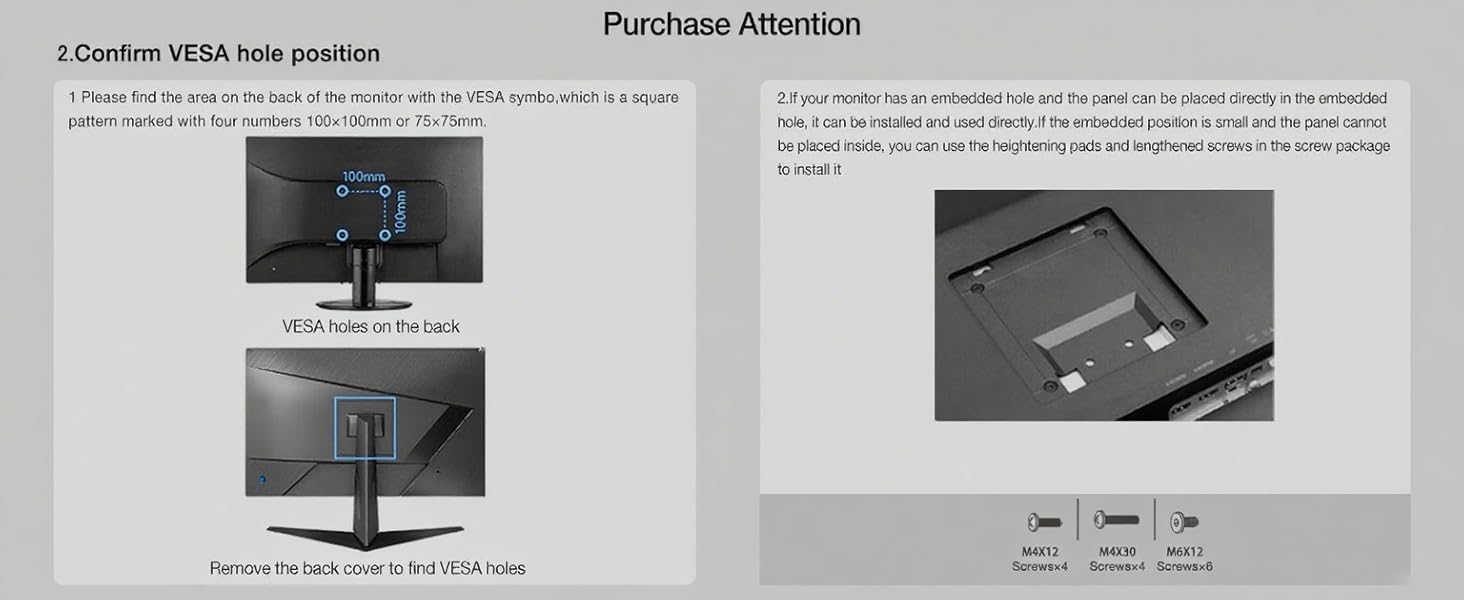
Image: Illustration detailing how to identify VESA mounting holes (75x75mm or 100x100mm) on the back of a monitor, including instructions to remove a back cover if necessary.
2.2. Monteer Opsies
Choose between C-clamp or grommet hole installation based on your desk type and preference.
- C-Clamp: Suitable for desk thickness between 0.8" - 3.5".
- Grommet Hole: Requires a hole diameter of 0.43" - 0.87".
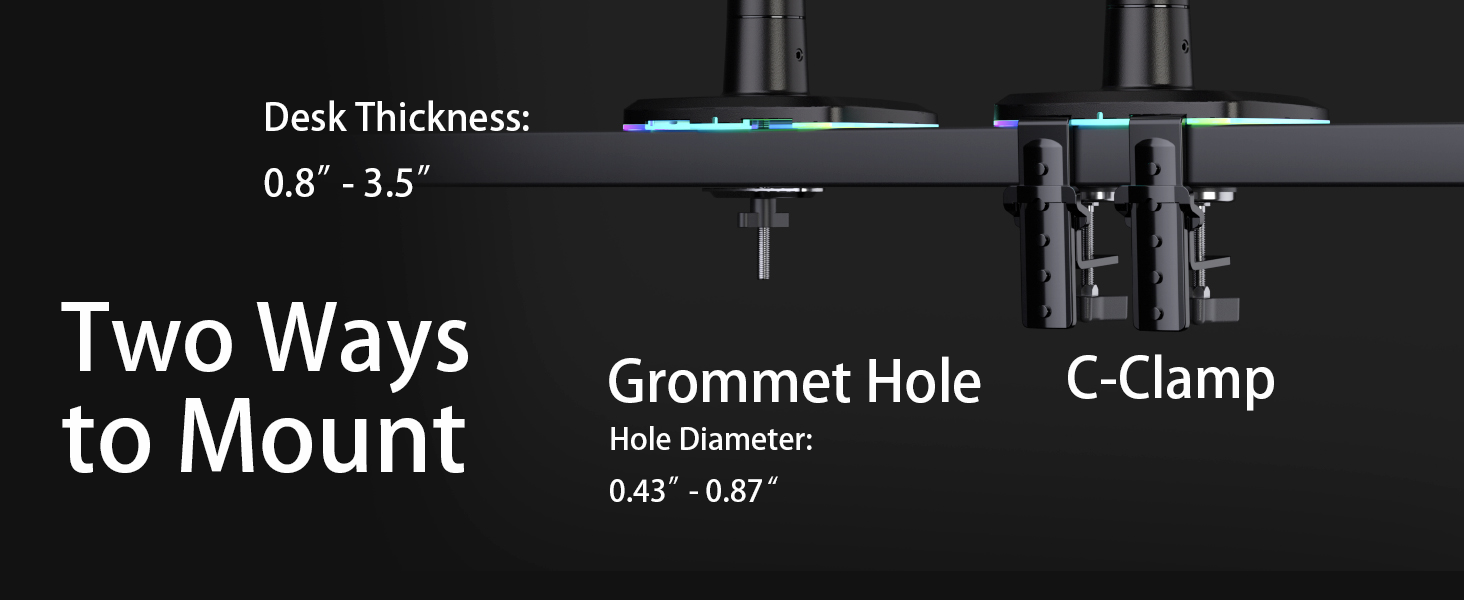
Image: Visual guide illustrating the C-Clamp and Grommet Hole mounting methods, along with compatible desk thickness and hole diameters.
2.3. Aanheg van die monitor
The monitor arm features a quick-release head for easy attachment. Secure the VESA plate to your monitor using the provided screws, then slide the monitor onto the arm's quick-release mechanism until it clicks into place.
For monitors with embedded VESA holes or recessed areas, use the included heightening pads and lengthened screws as needed to ensure a secure fit.
2.4. Kabelbestuur
Route your monitor cables through the integrated cable management channels on the arm to maintain a clean and organized workspace.
3. Bediening en Aanpassings
The G60-New monitor arm offers extensive adjustability to achieve optimal ergonomic positioning for your monitor.
3.1. Monitor Positioning
- Rotasie: 360° for landscape or portrait orientation.
- Kantel: -50° to +50° to adjust vertical viewing hoek.
- Draai: -90° to +90° to adjust horizontal viewing hoek.
- Arm Extension: Up to 25 inches (630mm) for optimal viewing afstand.
- Hoogte verstelling: Max 19.6 inches (500mm) lift for ergonomic eye-level viewing.

Image: An illustration demonstrating the full range of motion for the monitor arm, including 360° rotation, ±50° tilt, and ±90° swivel.

Image: The monitor arm fully extended, showing its maximum reach of 24.8 inches (630mm).
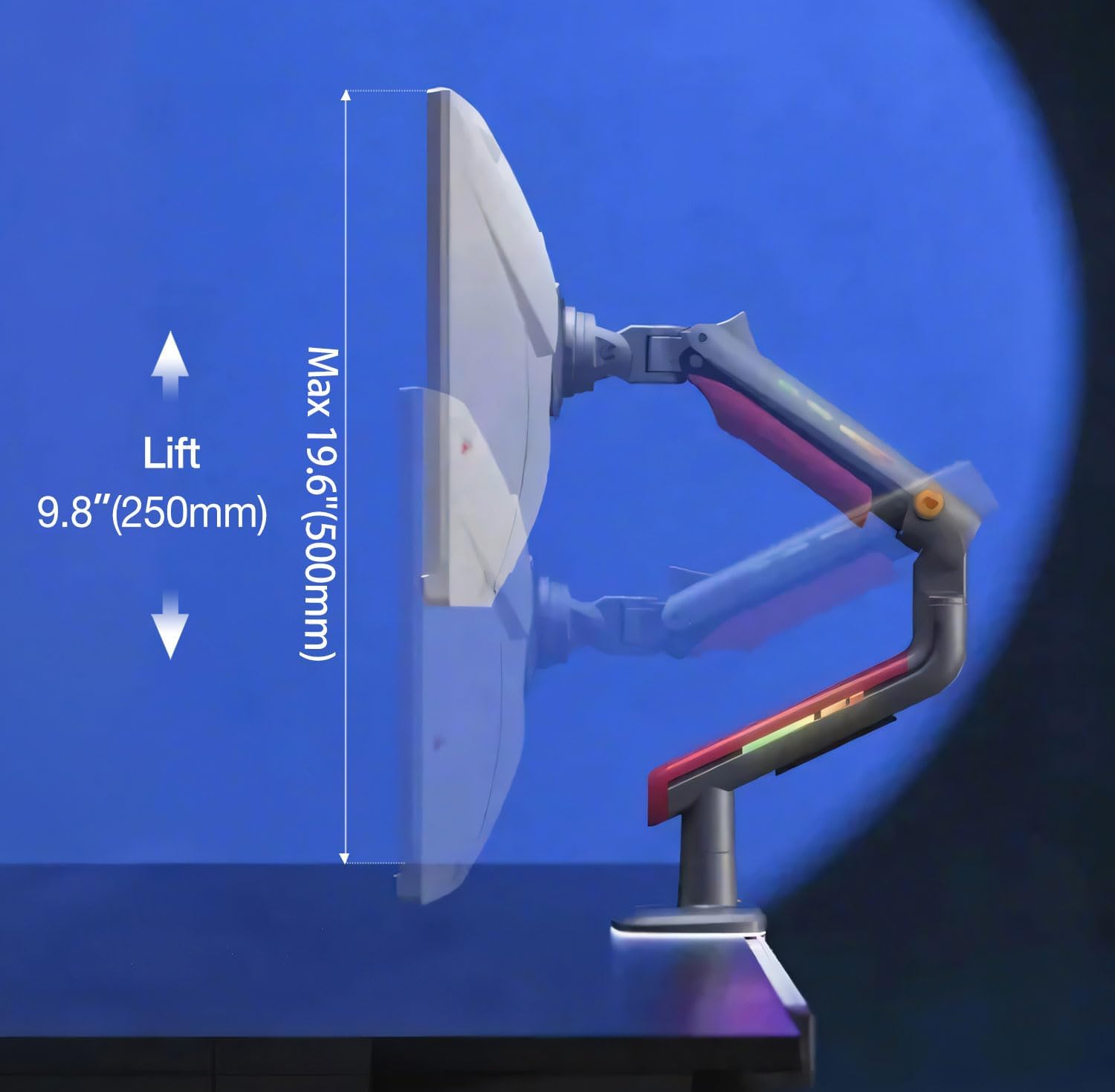
Image: The monitor arm illustrating its vertical adjustment range, with a maximum lift of 19.6 inches (500mm).
3.2. Spanningsaanpassing
The arm features Mechanical ProSpring Technology for easy tension adjustment. Use the provided Allen wrench to adjust the tension to match your monitor's weight, ensuring it holds its position securely. Adjust the tension for both the arm's vertical movement and the monitor's tilt.
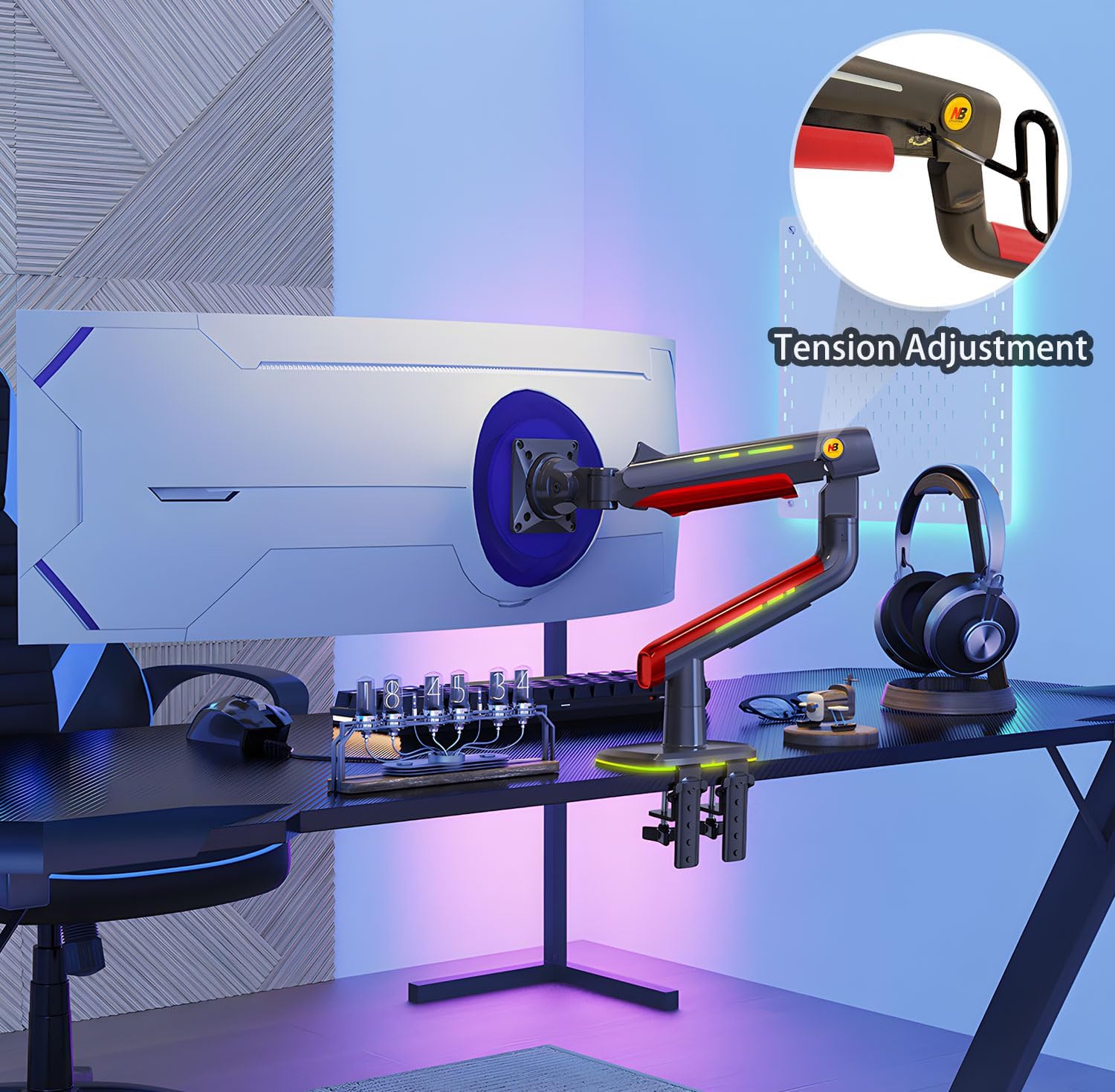
Beeld: 'n Gedetailleerde view of the tension adjustment mechanism on the monitor arm, indicating where to use the Allen wrench.
3.3. RGB-beligting
The monitor arm includes built-in RGB lighting. Use the dedicated button to switch between various color modes and effects, instantly enhancing your gaming or work environment.

Image: The monitor arm displaying its integrated RGB lighting, with an icon indicating a one-click adjustment feature.
3.4. Produkdemonstrasievideo
Video: An official product video from NB ERGONOMIC demonstrating the features and adjustability of the monitor arm.
4. Onderhoud
Gereelde onderhoud verseker die lang lewensduur en optimale werkverrigting van u monitorarm.
- Skoonmaak: Wipe the arm surfaces with a soft, damp lap. Vermy skuurmiddels of oplosmiddels wat die afwerking kan beskadig.
- Gaan verbindings na: Periodically inspect all screws and mounting points to ensure they remain tight and secure.
- Spanningstoets: If the monitor does not hold its position or feels too loose/stiff, re-adjust the tension using the provided Allen wrench as described in the Operating section.
- Kabelbestuur: Ensure cables are neatly routed and not pinched or strained within the cable management channels.
5. Probleemoplossing
If you encounter issues with your NB ERGONOMIC G60-New Gaming Monitor Arm, refer to the following common solutions:
| Probleem | Moontlike oorsaak | Oplossing |
|---|---|---|
| Monitor sags or does not stay in position. | Insufficient tension for monitor weight. | Increase the tension using the Allen wrench at the designated adjustment points until the monitor holds its position. |
| Arm is too stiff to move. | Oormatige spanning. | Decrease the tension using the Allen wrench until the arm moves smoothly. |
| Monitor wobbles or feels unstable. | Loose mounting screws or improper installation. | Ensure all mounting screws (VESA plate, clamp/grommet) are securely tightened. Verify the monitor is correctly seated on the quick-release head. |
| RGB-ligte werk nie. | Power connection issue or light mode selection. | Check if the RGB light power cable is properly connected. Press the RGB control button to cycle through modes or turn on the lights. |
6. Spesifikasies
| Handelsmerk | NB ERGONOMIES |
| Modelnommer | G60-New |
| Versoenbare skermgrootte | 32 tot 60 duim |
| Laai kapasiteit | 2 tot 20 kg (4.4 tot 44 lbs) |
| VESA-versoenbaarheid | 75x75mm, 100x100mm |
| Montage tipe | Tafelbladmontering (C-Clamp or Grommet Hole) |
| Beweging Tipe | Articulating (360° Rotation, ±50° Tilt, ±90° Swivel) |
| Maksimum Arm Uitbreiding | 25 duim (630 mm) |
| Max Height Lift | 19.6 duim (500 mm) |
| Materiaal | Aluminium |
| Spesiale kenmerke | Built-in RGB-Light, Mechanical ProSpring Technology, Advanced Gear Locking System, Cable Management |
| Item gewig | 14.52 pond |
| Pakket afmetings | 18.31 x 15.98 x 6.89 duim |
7. Waarborg en Ondersteuning
For detailed warranty information and customer support, please refer to the official NB ERGONOMIC webwebwerf of kontak hul kliëntediens direk. Bewaar u aankoopbewys vir waarborgeise.
Manufacturer: KUNSHAN HONGJIE ELECTRONICS CO., LTD