
1. Inleiding
Thank you for choosing the MESWAO 15.6 inch Android 14 Tablet Pro. This tablet is designed to provide a superior visual and performance experience with its large Full HD display, powerful octa-core processor, and extended battery life. This manual will guide you through the setup, operation, maintenance, and troubleshooting of your new device, ensuring you get the most out of its advanced features.
2. Wat is in die boks
Kontroleer asseblief die inhoud van u pakket. Indien enige items ontbreek of beskadig is, kontak kliëntediens.
- 1 x MESWAO 15.6 inch Android Tablet
- 1 x kragadapter
- 1 x Tipe C-kabel
- 1 x Gebruikershandleiding
- 1 x Tipe-C na USB-adapter
- 1 x Stuck pin (SIM ejector tool)

Image: Visual representation of the MESWAO tablet and its included accessories.
3. Produk verbyview
3.1 Sleutelkenmerke
- 15.6-inch 1080P FHD IPS Display: Large screen with 1920x1080p resolution, 16:9 aspect ratio, 85% screen-to-body ratio, and 350 nits adjustable brightness for clear visuals.
- Android 14 OS: Latest Android version for faster app launches, intuitive user interface, split-screen multitasking, and GMS certification for Google Play access.
- MediaTek Helio G99 CPU: Octa-core processor (6nm, up to 2.2GHz) and ARM Mali-G57 GPU for smooth performance in multitasking, streaming, and gaming.
- 12,000mAh Mega Battery & 30W Fast Charging: Provides up to 15 hours of video playback and 12+ hours of daily use, with 90% charge in 3 hours.
- 6GB RAM + 128GB ROM (Expandable to 1TB): Ample storage for apps, photos, and videos, with expandable memory via microSD card (FAT32 format).
- Dual-band Wi-Fi & Bluetooth 5.0: High-speed 2.4G/5G Wi-Fi and efficient Bluetooth connectivity for peripherals.
- 5MP Front + 32MP Rear Cameras: Capture moments and conduct clear video calls.
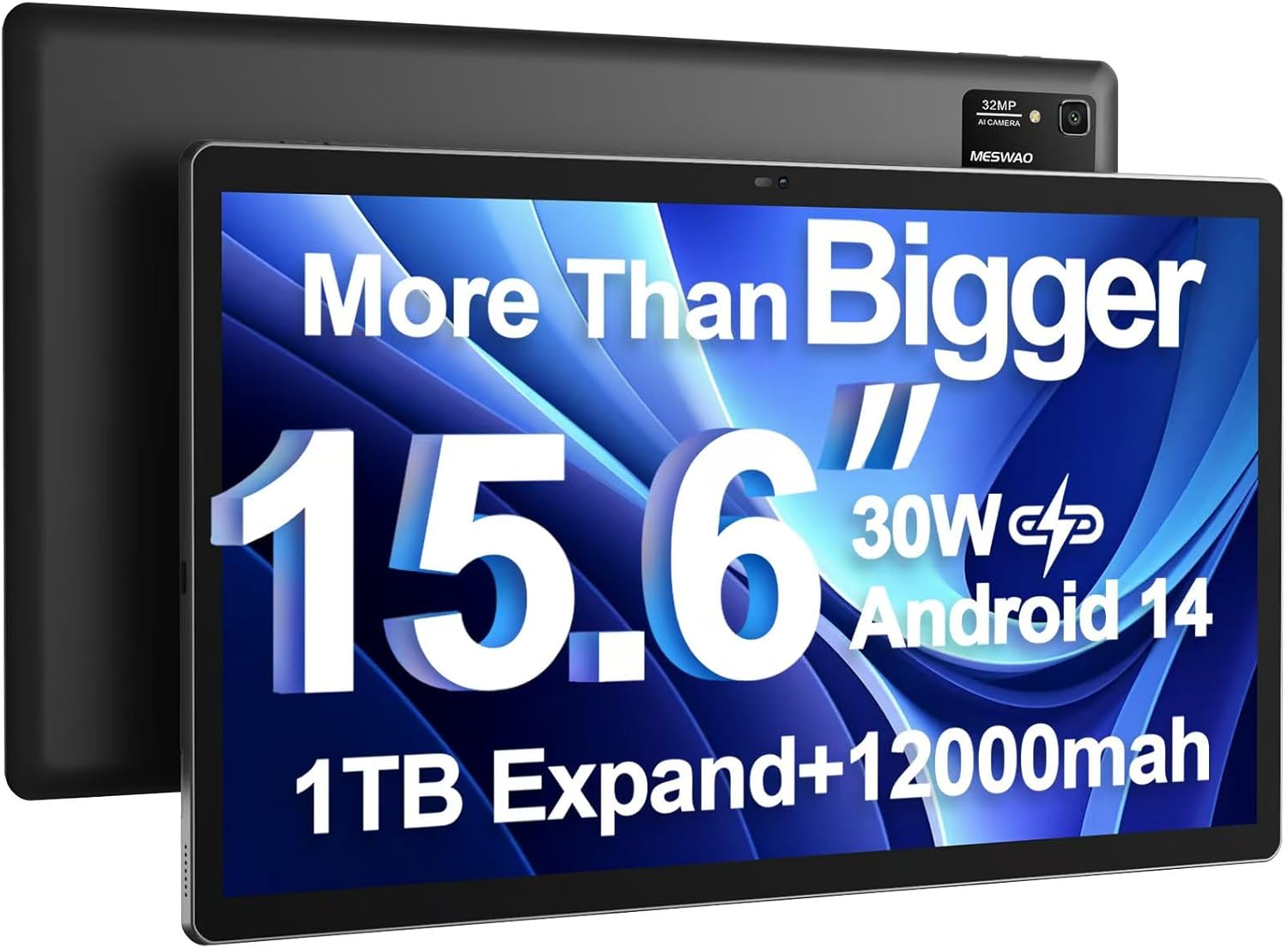
Image: The MESWAO 15.6 inch Android 14 Tablet Pro, showcasing its large display and rear camera module.

Image: Visual comparison highlighting the significantly larger screen area of the 15.6-inch tablet compared to a standard 10-inch tablet.

Image: Illustration of the tablet's 12,000mAh ultra-large capacity battery and 30W fast charging, indicating quick charge times and extended usage.
3.2 Tablet Components
Familiarize yourself with the physical components of your MESWAO tablet:
- Kragknoppie: Geleë aan die kant, word gebruik om die tablet aan/af te skakel of die skerm wakker te maak/slaap te maak.
- Volume knoppies: Pas oudio-uitvoervlakke aan.
- Voorste kamera: 5MP-kamera vir video-oproepe en selfies.
- Agterste kamera: 32MP camera with flash for high-resolution photos and videos.
- Tipe C-poort: Vir laai en data-oordrag.
- TF-kaartgleuf: For expanding storage with a microSD card.
- Stereo luidsprekers: Vierluidsprekers vir 'n verbeterde klankervaring.
- 3.5 mm koptelefoonaansluiting: For wired audio connection (requires included Type-C to 3.5mm adapter).
4. Opstelling
4.1 Aanvanklike aanskakeling
- Druk en hou die Kragknoppie until the MESWAO logo appears on the screen.
- Volg die aanwysings op die skerm om jou taal en streek te kies en aan 'n Wi-Fi-netwerk te koppel.
- Sign in with your Google account or create a new one to access Google Play Store and other services.
4.2 Laai die tablet
Before first use, fully charge the tablet. Use the provided power adapter and Type-C cable.
- Connect the Type-C cable to the tablet's Type-C port.
- Steek die kragadapter in 'n muuraansluiting.
- The charging indicator will appear on the screen. A full charge takes approximately 3 hours with the 30W fast charger.
4.3 Invoeging van 'n MicroSD-kaart
To expand storage, insert a microSD card (FAT32 format, up to 1TB, sold separately).
- Vind die TF-kaartgleuf aan die kant van die tablet.
- Use the provided stuck pin to gently press into the small hole next to the slot to eject the tray.
- Plaas die microSD-kaart in die laai met die goue kontakte na onder.
- Plaas die skinkbord versigtig terug in die gleuf totdat dit vasklik.
5. Bedryfsinstruksies
5.1 Basiese navigasie
- Tuisskerm: Veeg links of regs om tussen tuisskerms te navigeer.
- App-laai: Access all installed applications (if using a launcher with an app drawer, otherwise apps are on home screens).
- Kennisgewings en vinnige instellings: Vee van die bokant van die skerm af om toegang tot kennisgewings en vinnige instellings te kry (Wi-Fi, Bluetooth, Helderheid, ens.).
- Onlangse toepassings: Tap the square icon (or swipe up and hold from the bottom if using gesture navigation) to view en wissel tussen onlangs gebruikte toepassings.
5.2 Multitasking with Split Screen
The Android 14 OS supports split-screen functionality for enhanced productivity.
- Open the first app you want to use.
- Go to the Recent Apps view.
- Tap the app icon at the top of the first app's card and select 'Split screen'.
- Choose the second app from your recent apps or app drawer to open it in the other half of the screen.
- Adjust the size of each app by dragging the divider in the middle.

Beeld: Oorview of key features of the Android 14 operating system on the tablet, including multitasking capabilities.
5.3 Konnektiwiteit
- Wi-Fi: Gaan na Instellings > Netwerk en internet > Wi-Fi to connect to available networks. Supports 2.4Ghz and 5Ghz bands.
- Bluetooth: Gaan na Instellings> Gekoppelde toestelle> Verbindingsvoorkeure> Bluetooth to pair with Bluetooth headphones, keyboards, or other devices.
- Skermuitsending: The tablet supports wireless screen casting to compatible displays. Access this feature from Quick Settings or Instellings > Verbonde toestelle > Verbindingsvoorkeure > Saai uit.

Image: Depiction of the tablet's stable dual-band Wi-Fi and Bluetooth 5.0 capabilities, enabling seamless wireless connections.
6. Onderhoud
6.1 Batterysorg
- Vermy uiterste temperature (warm of koud) aangesien dit die batterylewe kan verminder.
- Do not let the battery completely drain frequently. Charge it before it reaches 0%.
- Use only the provided charger or a certified 30W PD fast charger.
6.2 Skoonmaak
- Gebruik 'n sagte, pluisvrye lap om die skerm en liggaam skoon te maak.
- Vir hardnekkige vlekke, effens dampMaak die lap skoon met water of 'n skermreiniger. Vermy harde chemikalieë.
- Moenie vloeistowwe direk op die tablet spuit nie.
6.3 Sagteware-opdaterings
Kontroleer gereeld vir stelselopdaterings en installeer dit om optimale werkverrigting en sekuriteit te verseker.
- Connect your tablet to a stable Wi-Fi network.
- Gaan na Instellings > Stelsel > Stelselopdatering.
- Volg die instruksies op die skerm om enige beskikbare opdaterings af te laai en te installeer.
7. Probleemoplossing
As jy probleme met jou tablet ondervind, raadpleeg die volgende algemene oplossings:
| Probleem | Moontlike oorsaak | Oplossing |
|---|---|---|
| Tablet wil nie aanskakel nie | Lae battery; Stelselongeluk | Charge the tablet for at least 30 minutes. Press and hold the Power button for 10-15 seconds to force restart. |
| Stadige werkverrigting/Vertraging | Te veel programme loop; Lae stoorplek; Verouderde sagteware | Close background apps. Clear cache. Free up storage. Check for system updates. |
| Wi-Fi-verbindingskwessies | Incorrect password; Router issue; Tablet Wi-Fi off | Ensure Wi-Fi is on. Re-enter password. Restart router. Forget and reconnect to network. |
| Battery raak vinnig leeg | High screen brightness; Background apps; Heavy usage | Reduce screen brightness. Close unused apps. Limit background data. Check battery usage in settings. |
| Touchscreen unresponsive/Phantom touches | Temporary software glitch; Defective unit | Restart the tablet. If the issue persists, contact MESWAO customer support for assistance. |
If the problem persists after trying these solutions, please contact MESWAO customer support for further assistance.
8. Spesifikasies
| Kenmerk | Detail |
|---|---|
| Model Naam | MES-B3 Pro |
| Bedryfstelsel | Android 14 |
| Skerm grootte | 15.6 duim |
| Skermresolusie | 1920 x 1080 piksels (Volle HD IPS) |
| Verwerker | MediaTek Helio G99 Agtkern (tot 2.2 GHz) |
| Grafiese medeverwerker | ARM Mali-G57 |
| RAM | 6 GB |
| Interne berging (ROM) | 128 GB |
| Uitbreidbare berging | Up to 1TB via MicroSD card (FAT32 format) |
| Battery kapasiteit | 12,000mAh |
| Batterylewe (gemiddeld) | 13 uur (tot 15 uur videoterugspeel) |
| Laai | 30W PD Vinnige Laai |
| Draadlose konneksie | 802.11a/b/ac/ax (2.4G/5G Dual-band Wi-Fi), Bluetooth 5.0 |
| Voorste kamera | 5MP |
| Agterste kamera | 32MP |
| Item gewig | 4.42 pond (ongeveer 2 kg) |
| Produk afmetings | 14.49 x 8.66 x 0.39 duim (36.8 x 22 x 1 cm) |
9. Waarborg en Ondersteuning
MESWAO products come with a standard manufacturer's warranty. Please refer to the warranty card included in your package for specific terms and conditions. For technical support, troubleshooting assistance, or warranty claims, please contact MESWAO customer service through the contact information provided on the official MESWAO webwebwerf of jou aankoopplatform.
Kontakinligting: Please visit the official MESWAO website or refer to the support card included in your product packaging for the most up-to-date contact details.