
Inleiding
This manual provides detailed instructions for the setup, operation, and maintenance of your IMPECCA 10.1” Wi-Fi Digital Picture Frame. Please read this manual thoroughly before using the device to ensure proper functionality and to maximize your user experience. Keep this manual for future reference.
Pakketinhoud
Verifieer dat al die items wat hieronder gelys word, in jou pakket ingesluit is:
- 10.1” Smart Digital Photo Frame
- Dubbel Voltage ETL Certified AC Power Adapter (100-240V)
- Versatile Mounting Stand (supports desktop and wall installation)
- Gebruikershandleiding
Produk verbyview
Familiarize yourself with the components and ports of your digital picture frame.

Beeld: Voorkant view of the IMPECCA 10.1” Wi-Fi Digital Picture Frame, showcasing its display and the Frameo app on a smartphone.

Beeld: Sykant view of the digital picture frame, indicating the various connectivity ports and buttons.
- GS-kragpoort: Connect the included AC power adapter here.
- Mikro-SD-gleuf: Insert a Micro-SD/SDHC card (up to 128GB) for expanded storage.
- microUSB 2.0 Port: For connecting to a computer or other devices (USB OTG compatible).
- Herstel-knoppie: Use a thin object to press for system reset.
- Aan/Af-knoppie: Press and hold to power the frame on or off.
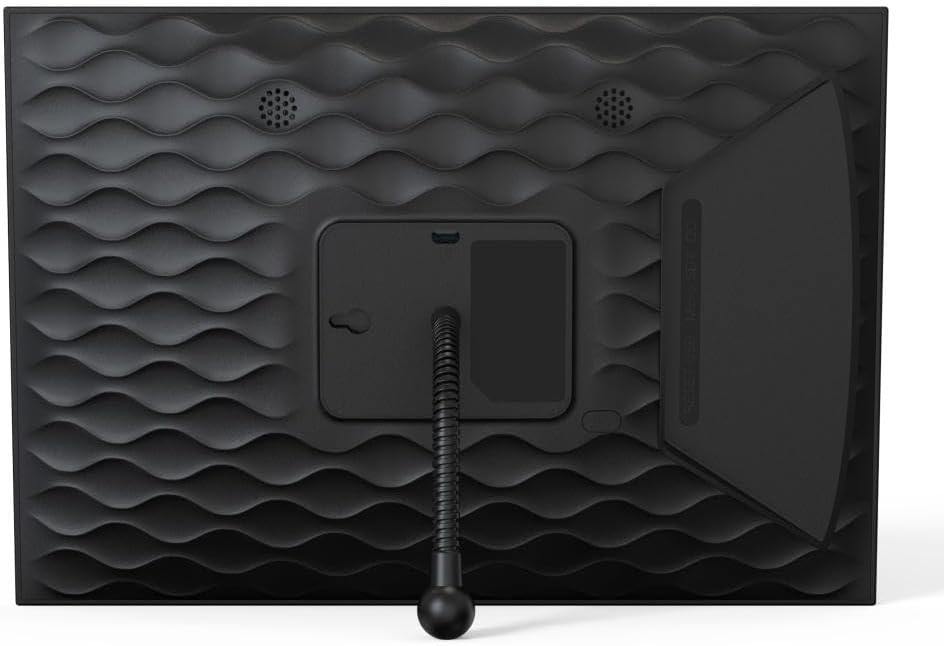
Beeld: Agter view of the digital picture frame, showing the stand and speaker placement.
Opstelling
- Krag aan: Connect the AC power adapter to the DC Power Port on the frame and plug it into a wall outlet. The frame will automatically power on.
- Aanvanklike konfigurasie: Follow the on-screen prompts to select your language, time zone, and connect to a Wi-Fi network. You will need your Wi-Fi network name (SSID) and password.
- Frameo App Installation: Download the 'Frameo' app from the Google Play Store (for Android) or the Apple App Store (for iOS) on your smartphone or tablet.
- Pairing with Frameo App: Once the frame is connected to Wi-Fi, it will display a unique Frame ID. Open the Frameo app on your device, create an account, and enter the Frame ID to pair your smartphone with the digital picture frame. This allows you to send photos and videos to the frame.
Bedryfsinstruksies
Stuur van foto's en video's
The primary method for sharing content with your frame is through the Frameo app.
- Open the Frameo app on your paired smartphone.
- Select the photos or short video clips you wish to send.
- Choose your digital picture frame as the recipient. You can also add captions, messages, and emoji reactions.
- The content will be wirelessly transmitted to your frame and appear shortly.

Image: Illustrates sharing photos from a smartphone via the Frameo app to the digital picture frame.

Image: Close-up of the Frameo app interface on a smartphone, emphasizing its sharing capabilities.
Photo and Video Management
The frame offers various options for managing your displayed content:
- Skyfievertoning: Photos and videos will automatically cycle through in a continuous slideshow.
- Preview: Tik die skerm om view 'n preview of all stored media.
- Hide/Display Images: You can select specific images to hide or display from the slideshow.
- Custom Photo Playing Order: Arrange your photos in a preferred sequence.
- Zoom and Rotate: Use touch gestures on the screen to zoom into photos or manually rotate them.
Instellings en kenmerke
Access the frame's settings menu by swiping down from the top of the screen or tapping the gear icon.
- Verstelbare helderheid: Modify the screen brightness to suit your environment.
- Slideshow Speed Control: Set the duration each photo is displayed during a slideshow.
- Outo-rotasie: The frame automatically adjusts its display orientation (portrait or landscape) based on how it is positioned.
- Weather Forecast and Clock: Wys huidige weerinligting en tyd op die skerm.

Image: The digital picture frame displaying a photo along with additional information like time, weather, and user reactions.

Image: Highlights key features of the frame including HD resolution, captioning, storage, multi-user connectivity, and touch screen.

Image: Demonstrates the frame's versatility with auto-rotation and options for desktop or wall mounting.
Onderhoud
- Skoonmaak van die skerm: Gebruik 'n sagte, pluisvrye lap om die skerm saggies af te vee. Vir hardnekkige vlekke, vee dit effens af.ampMaak die lap skoon met water of 'n skermskoonmaakoplossing. Vermy harde chemikalieë.
- Maak die raam skoon: Vee die buitekant van die raam af met 'n droë, sagte lap.
- Sagteware-opdaterings: The frame may periodically receive software updates. Ensure your frame is connected to Wi-Fi to receive these updates, which improve performance and add new features. Follow on-screen prompts for installation.
Probleemoplossing
- Raam word nie aangeskakel nie: Maak seker dat die kragadapter stewig aan beide die raam en 'n werkende kragpunt gekoppel is.
- Kan nie aan Wi-Fi koppel nie: Verify your Wi-Fi password is correct. Ensure the frame is within range of your Wi-Fi router. Try restarting your router and the frame.
- Photos not appearing: Check if your smartphone is successfully paired with the frame via the Frameo app. Ensure photos were sent correctly from the app. Verify the frame has sufficient storage space.
- Skerm reageer nie: Try restarting the frame by holding the On/Off button. If the issue persists, use a thin object to press the Reset Button.
- Images are blurry or distorted: Ensure the image resolution is appropriate for the frame's display (1280x800 HD).
Spesifikasies
| Kenmerk | Spesifikasie |
|---|---|
| Skerm grootte | 10.1 duim |
| Resolusie | 1280x800 HD IPS |
| Interne berging | 32GB (up to 50,000 photos via Frameo App) |
| RAM | 1 GB |
| Konnektiwiteit | Wi-Fi 802.11b/g/n, USB OTG, Micro-SD/SDHC (up to 128GB) |
| Versoenbare toestelle | Smartphone (Android & iOS via Frameo App) |
| Ondersteunde fotoformate | JPG, JPEG, BMP, PNG |
| Ondersteunde videoformate | MP4 |
| Produk afmetings | 7.2 x 10.36 x 0.99 duim |
| Item gewig | 1.99 pond |
Waarborg en Ondersteuning
Your IMPECCA 10.1” Wi-Fi Digital Picture Frame is covered by a manufacturer's warranty. For specific warranty details, please refer to the documentation included with your product or visit the official Impecca website. For technical support, troubleshooting assistance, or service inquiries, please contact Impecca customer support through their official channels.