
1. Produkversoenbaarheid
This FUWANG keyboard case is designed for specific iPad models. Please verify your iPad's model number on the back of the device to ensure compatibility.
- Versoenbaar met: iPad (A16) 11th Generation 11-inch 2025 (Models: A3354, A3355, A3356)
- Versoenbaar met: iPad 10th Generation 10.9 inch 2022 (Models: A2696, A2757, A2777, A3162)
- Nie versoenbaar met: iPad Air 10.9 (5th/4th Gen), iPad Pro 11 inch (Full Series 2016-2025), iPad 9/8/7th Gen.
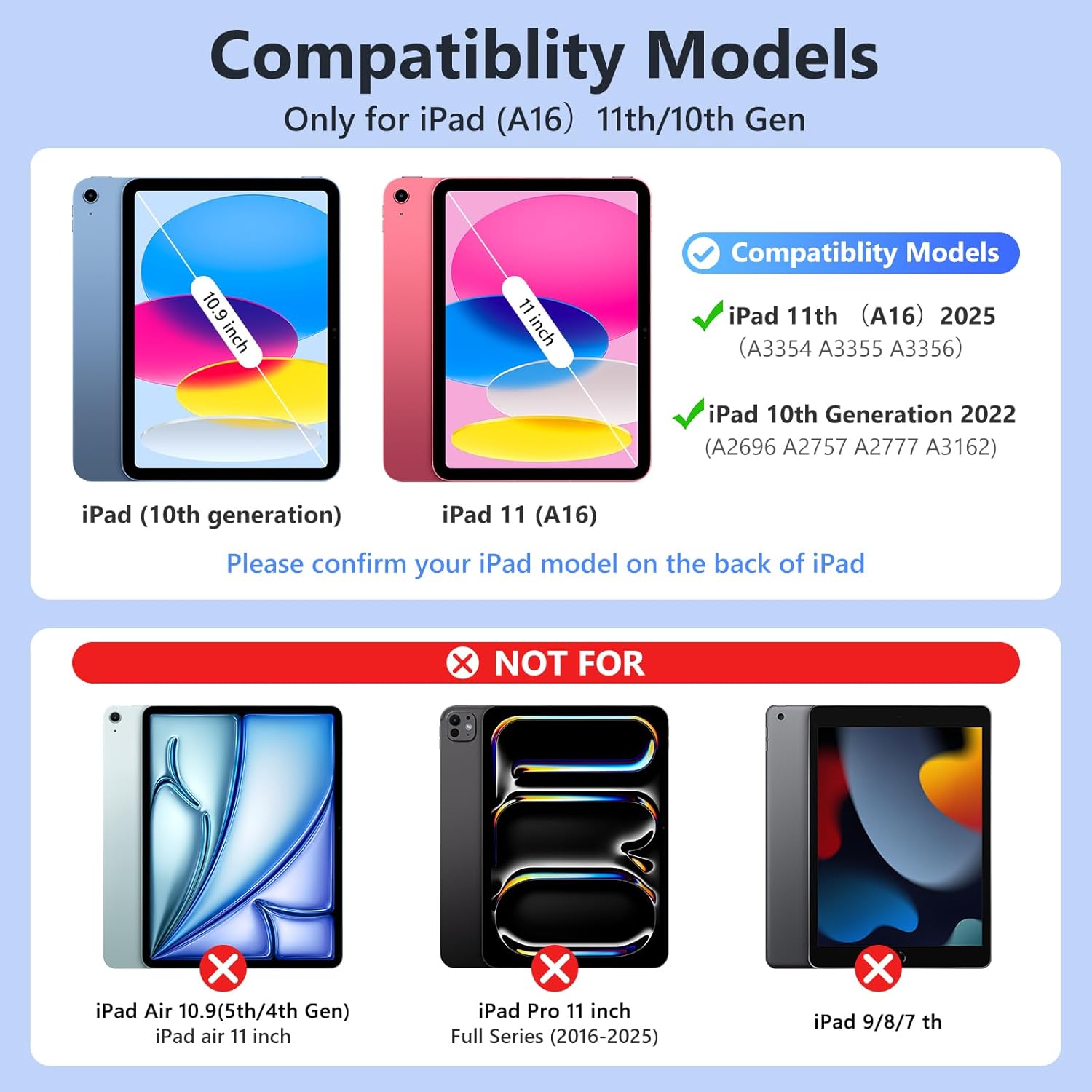
Image: Compatibility chart for FUWANG keyboard case.
2. Pakketinhoud
Kontroleer asseblief die pakket vir die volgende items:
- 1 x FUWANG Keyboard Case for iPad (A16) 11th/10th Generation
- 1 x Wireless Backlit Keyboard
- 1 x Tipe-C-laaikabel
- 1 x Gebruikershandleiding (hierdie dokument)
Let wel: Tablet and stylus pencil are not included.

Image: Contents of the FUWANG keyboard case package.
3. Opstelinstruksies
3.1. Laai die sleutelbord
Before initial use, fully charge the wireless keyboard.
- Locate the Type-C charging port on the keyboard.
- Connect the provided Type-C charging cable to the keyboard and a USB power source (e.g., wall adapter, computer USB port).
- The Charge LED (Red) will illuminate during charging. It will turn off when the keyboard is fully charged.
- Charging typically takes 2-3 hours. A full charge provides approximately 120 hours of working time and over 130 days of standby time.

Image: Keyboard connected to Type-C charging cable.

Image: Keyboard charging specifications.
3.2. Pairing the Keyboard with Your iPad
Follow these steps to connect the wireless keyboard via Bluetooth:
- Maak seker dat die sleutelbord gelaai is.
- Turn on the keyboard by sliding the POWER switch to the 'ON' position. The Power LED (Blue) will light up for 2 seconds and then turn off.
- Press the 'CONNECT' button on the keyboard. The BT LED (Blue) will start flashing, indicating it's in pairing mode.
- Op jou iPad, gaan na Instellings > Bluetooth.
- Skakel Bluetooth aan. Jou iPad sal soek na beskikbare toestelle.
- Select 'Bluetooth Keyboard' from the list of devices.
- Once paired, the BT LED on the keyboard will turn off automatically.

Image: Bluetooth pairing instructions and troubleshooting.
4. Bedryfsinstruksies
4.1. Attaching and Detaching Your iPad
The case features a flexible TPU inner shell designed to securely hold your iPad while allowing easy installation and removal.
- To install, gently push your iPad into the TPU shell, ensuring all corners are seated correctly.
- To remove, carefully peel back one corner of the TPU shell and lift the iPad out.

Image: FUWANG keyboard case with iPad.
4.2. Aanpassing Viewing Hoeke
The magnetic design allows for multiple stable viewing angles to suit various activities like typing, drawing, or watching videos.
- Position the iPad in the case and adjust the magnetic flap to achieve desired angles (e.g., 110°, 120°, 130°).
- The keyboard can be detached and positioned separately for optimal comfort.
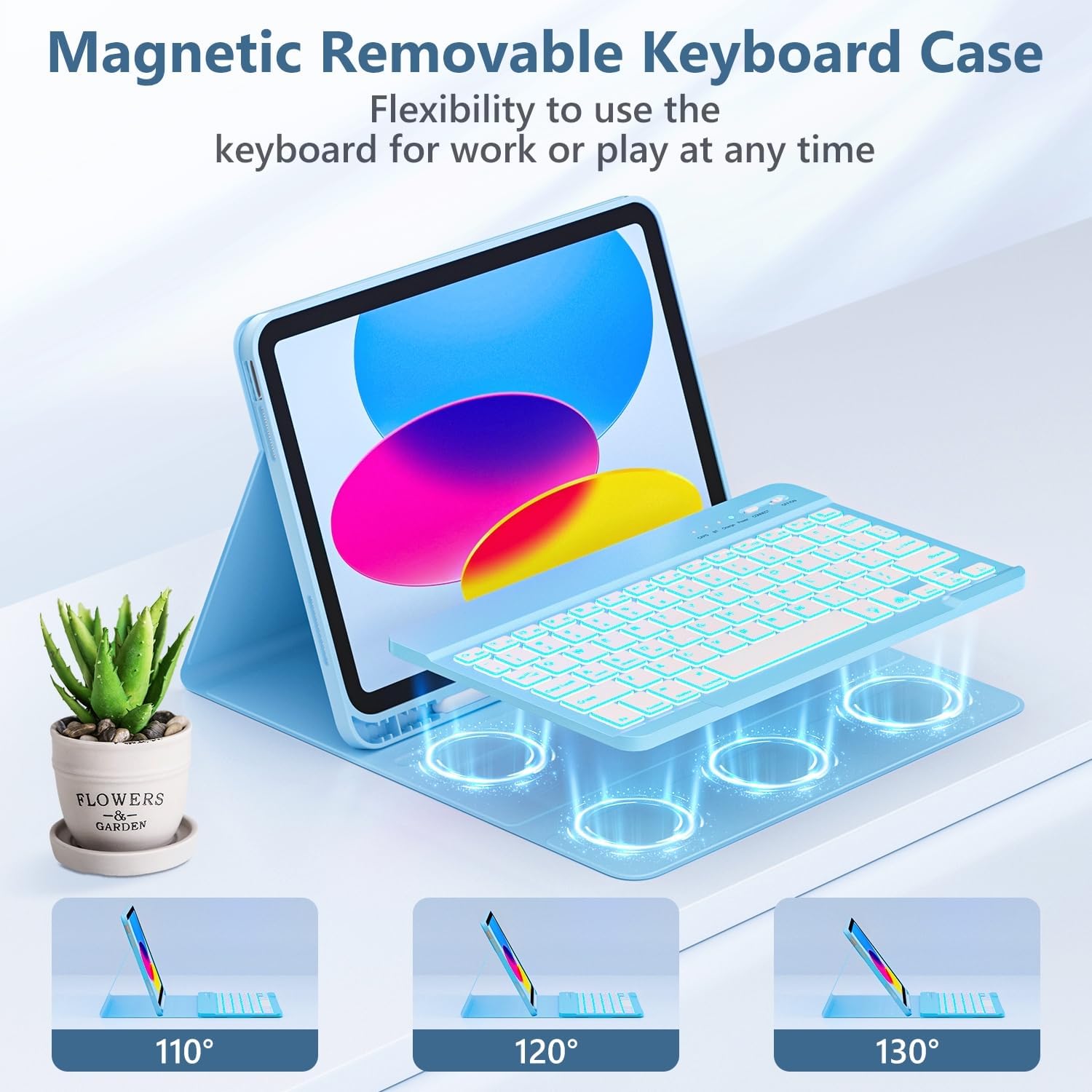
Beeld: Veelvuldige viewing angles for the keyboard case.

Image: Four placement modes for flexible use.
4.3. Gebruik van die agterbeligte sleutelbord
The keyboard features 7-color backlighting with 3 brightness levels for comfortable typing in various lighting conditions.
- To turn on/off the backlight, press the Gloeilamp key (usually next to the Spacebar or Function keys).
- To change backlight colors, press Fn + Gloeilamp sleutel.
- To adjust brightness levels, press Fn + Pyltjie op or Fn + Afpyltjie (or specific brightness keys if available, refer to keyboard layout).

Image: 7-color backlit keyboard in use.
4.4. Sleutelbordkortpaaie
The keyboard includes a row of dedicated shortcut keys for enhanced productivity:
- Esc: Ontsnap
- F1: Tuis
- F2: Soek
- F3: Virtuele sleutelbord
- F4: Skermskoot
- F5: Vorige Snit
- F6: Speel / Pouse
- F7: Volgende Snit
- F8: Demp
- F9: Volume af
- F10: Volume op
- F11: Sluit skerm
- F12: Helderheid af
- Vee uit: Helderheid op

Image: Keyboard shortcut keys.
4.5. Outomatiese Slaap/Wakker-funksie
The case supports the iPad's auto sleep/wake function, helping to conserve battery life.
- Closing the case will put your iPad into sleep mode.
- Opening the case will wake your iPad.
- Belangrike nota: For optimal auto sleep/wake functionality, remove the wireless Bluetooth keyboard from the case. The magnets within the keyboard can interfere with the case's magnetic sensors, preventing proper sleep/wake activation.

Image: Auto sleep/wake function explanation.
4.6. Integrated Pencil Holder
The case includes a dedicated holder for your stylus pencil, keeping it secure and accessible.

Image: Integrated pencil holder and other features.
5. Onderhoud
To ensure the longevity and appearance of your keyboard case, follow these maintenance guidelines:
- Maak die saak skoon: Vee die buitekant van die PU-leer af met 'n sagte, damp lap. Vermy harde chemikalieë of skuurmiddels.
- Maak die sleutelbord skoon: Use a soft, dry cloth to clean the keyboard keys. For stubborn dirt, a slightly damp 'n Lap kan gebruik word om te verseker dat geen vog die sleutelbord binnedring nie.
- Berging: When not in use for extended periods, store the case and keyboard in a cool, dry place.
- Vermy uiterstes: Do not expose the product to extreme temperatures, direct sunlight, or excessive moisture.
6. Probleemoplossing
If you encounter issues with your FUWANG keyboard case, refer to the following solutions:
- Sleutelbord verbind/koppel nie:
- Maak seker dat die sleutelbord volledig gelaai is.
- Make sure the keyboard's power switch is ON and the 'CONNECT' button has been pressed.
- On your iPad, go to Bluetooth settings. If 'Bluetooth Keyboard' is listed, try 'Forget This Device' and then re-pair.
- Restart your iPad and the keyboard, then attempt pairing again.
- Maak seker dat geen ander Bluetooth-toestelle met die verbinding inmeng nie.
- Agterlig werk nie:
- Maak seker dat die sleutelbord aangeskakel en gelaai is.
- Druk die Gloeilamp sleutel om die agtergrondlig aan te skakel.
- Pas helderheid aan met behulp van Fn + Op/Af Pyltjie.
- Auto Sleep/Wake Not Functioning Correctly:
- Maak seker dat die iPad korrek in die omhulsel geplaas is.
- Belangrik: Remove the detachable keyboard from the case. The keyboard's internal magnets can interfere with the iPad's sleep/wake sensors when placed directly on the case.
- Sleutels reageer nie:
- Check if the keyboard is charged and properly connected via Bluetooth.
- Herbegin die sleutelbord en iPad.
Image: Bluetooth connection troubleshooting guide.
7. Spesifikasies
| Kenmerk | Detail |
|---|---|
| Handelsmerk | FUWANG |
| Versoenbare toestelle | iPad (A16) 11th Gen 11-inch 2025 (A3354, A3355, A3356), iPad 10th Gen 10.9-inch 2022 (A2696, A2757, A2777, A3162) |
| Item Modelnommer | A3354 A3355 A3356 A2696 A2757 A2777 |
| Sleutelbordverbinding | Draadlose Bluetooth |
| sleutelbord Backlight | 7 Kleure, 3 Helderheidsvlakke |
| Battery kapasiteit | 500mAh Litiumioon (ingesluit) |
| Laaipoort | Tipe-C |
| Laai tyd | Ongeveer. 2-3 uur |
| Werkstyd | Ongeveer. 120 uur |
| Bystandtyd | Oor 130 dae |
| Materiaal | PU Leather exterior, Flexible TPU inner shell |
| Item gewig | 1.98 pond |
| Pakket afmetings | 11.14 x 8.19 x 1.3 duim |
8. Waarborg en Ondersteuning
FUWANG is committed to providing quality products and customer satisfaction.
- Waarborg: This product comes with a standard manufacturer's warranty. Please refer to the product packaging or purchase documentation for specific warranty terms and duration.
- Kliëntediens: If you have any questions, concerns, or require assistance with your FUWANG keyboard case, please do not hesitate to contact our customer service team. We offer 24-hour friendly customer service.
For support, please visit the FUWANG store on Amazon or contact us through the platform where you purchased the product.