
1. Inleiding
This manual provides detailed instructions for the installation, operation, and maintenance of the BAUDCOM BD-OLT-1000GZ GPON Optical Line Terminal (OLT) Router. This device is designed for business use, offering robust Ethernet connectivity and high-speed data transfer capabilities for up to 128 users.
2. Produk verbyview
2.1 Sleutelkenmerke
- Verbindingstegnologie: Gigabit Ethernet with 1 RJ45 port for stable and fast data transfer.
- Max Upstream Data Transfer Rate: 1000 megabits per second for smooth and efficient data transmission.
- Kontroleurstipe: Web Management and EMS (Element Management System) for easy and centralized control.
- Modelnommer: BD-OLT-1000GZ, specifically designed for GPON Optical Line Terminal applications.
- Gebruikerkapasiteit: Ondersteun tot 128 gebruikers.
- Uplink: 10G uplink capability.
2.2 Wat is in die boks
- BAUDCOM BD-OLT-1000GZ OLT Unit
2.3 Fisiese Beskrywing
The BD-OLT-1000GZ features a compact design with clearly labeled ports and indicators.
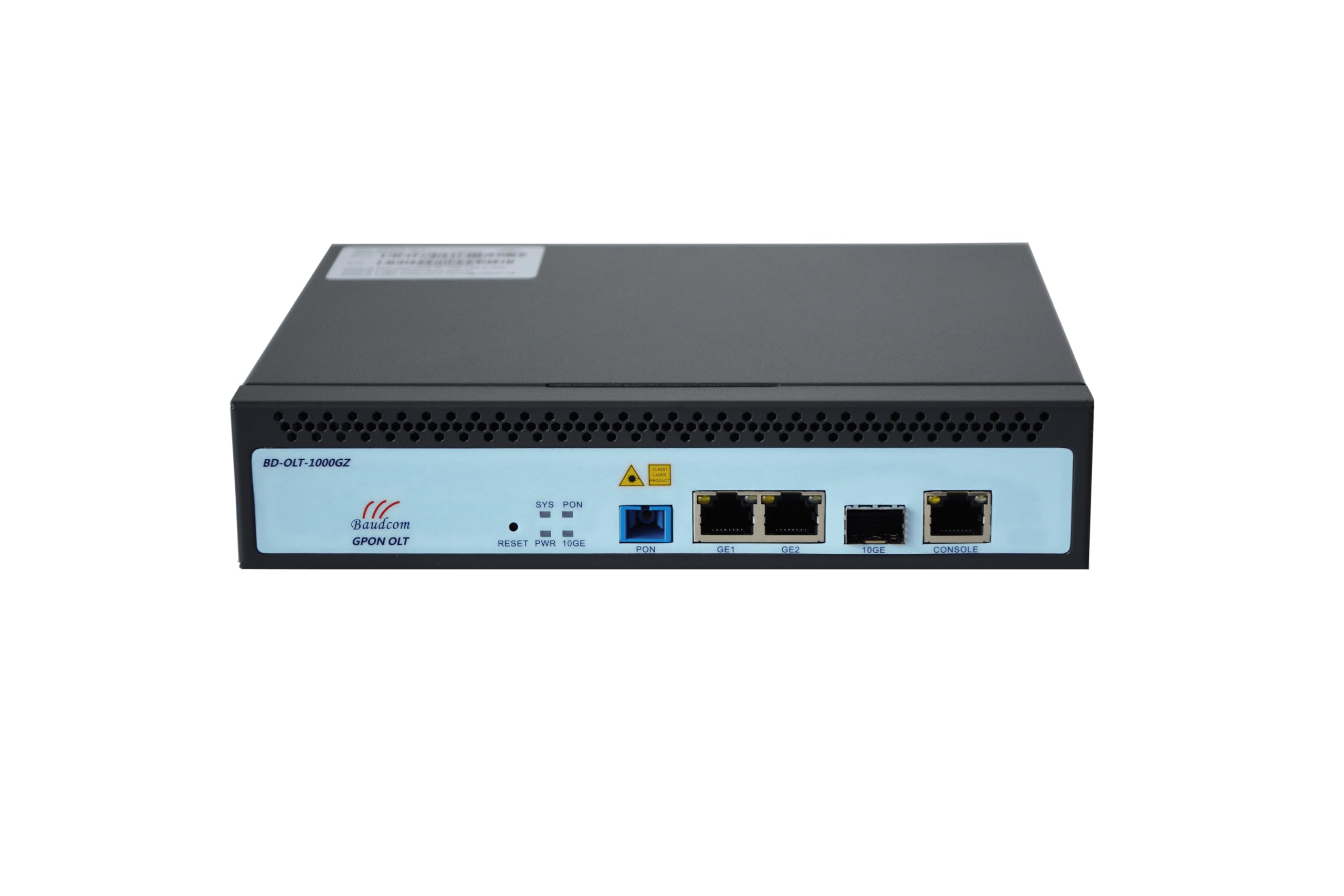
Figuur 1: Voorkant View of the OLT Unit. This image shows the front panel of the BAUDCOM BD-OLT-1000GZ OLT. Visible components include LED indicators for System (SYS), PON, and Power (PWR), a Reset button, a PON port, two GE (Gigabit Ethernet) ports, a 10GE SFP+ port, and a Console port.
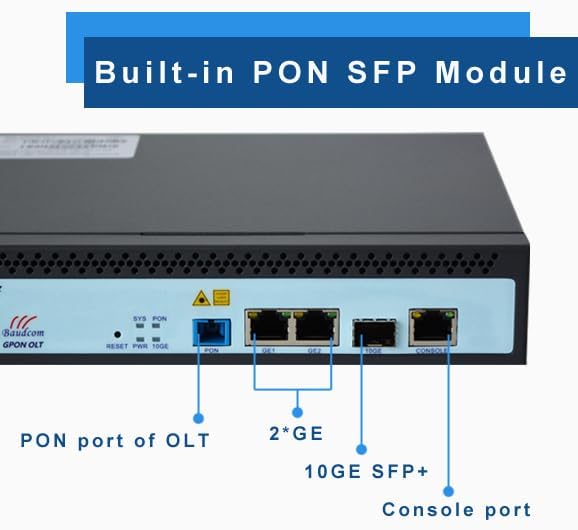
Figure 2: Front Panel Port Identification. This image provides a closer look at the front panel, clearly labeling the PON port, the two GE ports, the 10GE SFP+ port, and the Console port. It also highlights the built-in PON SFP Module.
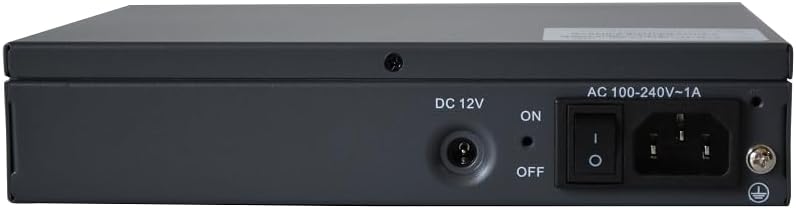
Figuur 3: Agter View of the OLT Unit. The rear panel includes the DC 12V power input, an ON/OFF power switch, and an AC 100-240V~1A power inlet, along with a grounding screw.

Figure 4: Pluggable Power Module. This image emphasizes the flexibility of the power input, allowing for both AC and DC power options.
3. Opstelling
3.1 Rakmontering (Opsioneel)
The OLT unit can be mounted in a standard equipment rack using the provided rack ears.

Figure 5: OLT Unit with Rack Ears. This image shows the OLT unit alongside its detachable rack mounting ears, ready for installation into a cabinet.
- Attach the rack ears to the sides of the OLT unit using the screws provided.
- Secure the OLT unit into the equipment rack using appropriate rack screws.
3.2 Kragverbinding
- Ensure the power switch on the rear panel is in the AF posisie.
- Connect the appropriate power cable (AC or DC, depending on your setup) to the power inlet on the rear panel.
- Plug the other end of the power cable into a suitable power source.
- For grounding, connect a grounding wire to the grounding screw on the rear panel and to a reliable ground source.
3.3 Netwerkverbindings
- PON Port: Connect your GPON fiber optic cable to the PON port.
- GE Ports (GE1, GE2): Connect Ethernet cables from your network devices (e.g., switches, routers) to the Gigabit Ethernet ports.
- 10GE SFP+ Port: Insert a 10G SFP+ module (if not already built-in) and connect a fiber optic cable for high-speed uplink.
- Konsolepoort: For initial configuration or direct management, connect a console cable to this port and to a computer.
4. Bedryfsinstruksies
4.1 Aan-/afskakel
- To power on the device, flip the power switch on the rear panel to the ON posisie.
- To power off the device, flip the power switch on the rear panel to the AF posisie.
4.2 LED-aanwysers
- SYS (Stelsel): Indicates the system status. A steady green light typically means the system is operating normally.
- PON: Indicates the status of the GPON link. A steady green light usually means the PON link is established.
- PWR (krag): Indicates power status. A steady green light means the device is receiving power.
4.3 Aanvanklike konfigurasie
Initial configuration is typically performed via the Console port or through Web Management. Refer to the detailed software configuration guide for specific steps on setting up IP addresses, VLANs, and GPON services.
5. Web Management and EMS
The BAUDCOM BD-OLT-1000GZ supports both Web Management and Element Management System (EMS) for comprehensive control and monitoring.
- Web Bestuur: Toegang tot die toestel s'n web-based interface by entering its IP address into a web browser. This provides a graphical user interface for configuration and monitoring.
- EBW: For larger deployments and centralized management, the OLT can be integrated into an Element Management System. Consult your network administrator or BAUDCOM support for EMS integration details.
6. Spesifikasies
| Kenmerk | Spesifikasie |
|---|---|
| Handelsmerk | BAUDCOM |
| Model Naam | OLT-1000GZ |
| Verbindingstegnologie | Ethernet |
| Aantal poorte | 1 (GPON PON port) + 2 (GE) + 1 (10GE SFP+) + 1 (Console) |
| Data-oordragtempo | 1000 Megabits Per Second (GE ports) |
| Maximum Upstream Data Transfer Rate | 1000 megabits per sekonde |
| LAN-poortbandwydte | 1000 Mbps |
| Tipe beheerder | Web Management, EMS (Element Management System) |
| Aanbevole gebruike | Besigheid |
| Spesiale kenmerk | LED aanwyser |
| Bedryfstelsel | RouterOS (as per product specifications, though typically OLTs run proprietary OS) |
| Krag Invoer | AC 100-240V~1A, DC 12V |
| UPC | 717018320494 |
7. Onderhoud
- Skoonmaak: Regularly clean the exterior of the device with a soft, dry cloth. Do not use liquid or aerosol cleaners.
- Ventilasie: Verseker behoorlike lugvloei rondom die toestel om oorverhitting te voorkom. Moenie ventilasie-openinge blokkeer nie.
- Omgewing: Operate the device in a cool, dry environment, away from direct sunlight, heat sources, and excessive dust or moisture.
- Firmware -opdaterings: Kontroleer die vervaardiger se gereeld webwebwerf vir firmware-opdaterings om optimale werkverrigting en sekuriteit te verseker.
8. Probleemoplossing
- Geen krag:
- Check if the power cable is securely connected to both the device and the power outlet.
- Ensure the power switch on the rear panel is in the ON posisie.
- Verifieer dat die kragaansluiting funksioneel is.
- Geen netwerkverbinding:
- Check all Ethernet and fiber optic cable connections.
- Verify that the link/activity LEDs for the connected ports are active.
- Ensure proper IP configuration and VLAN settings.
- PON Link Issues:
- Check the fiber optic cable for damage or improper connection.
- Ensure the PON module is correctly seated.
- Verify PON signal levels through the management interface.
- Toestel reageer nie:
- Attempt to access the device via the Console port.
- If necessary, perform a soft reset using the Reset button (refer to the software guide for reset procedures).
9. Waarborg en Ondersteuning
9.1 Waarborginligting
The BAUDCOM BD-OLT-1000GZ comes with a 1 jaar waarborg from the date of purchase. Please retain your proof of purchase for warranty claims. The warranty covers manufacturing defects but does not cover damage caused by misuse, accidents, unauthorized modifications, or improper installation.
9.2 Tegniese Ondersteuning
For technical assistance, troubleshooting, or warranty inquiries, please contact BAUDCOM support using the following information:

Figure 6: BAUDCOM Contact Information. This image provides various methods to contact BAUDCOM for support.
- E-pos: info@baudcom.com.cn
- Telefoon: +86 21 37709251
- Skype: robert.luo905
- WhatsApp: +8617317919235
- Adres: 519A, Building A, Lianming Road 389, Minhang District, Shanghai City, China
- Webwebwerf: www.baudcom.com.cn