
Inleiding
Thank you for choosing the LEMNOI 7-inch Digital Calendar Clock (Model SG9). This device is designed to assist individuals, particularly those with memory loss or dementia, by clearly displaying the time, date, and day of the week. It features multiple alarm and medication reminder functions, adjustable brightness, and can also serve as a digital photo frame. Please read this manual carefully to ensure proper setup and operation.
Pakketinhoud
- LEMNOI 7-inch Digital Calendar Clock (SG9)
- Kragadapter
- Gebruikershandleiding
- Stand (for tabletop use)

Produk verbyview
The LEMNOI SG9 features a clear 7-inch HD display and intuitive controls. The front panel includes navigation buttons for easy menu interaction.

Opstelling
1. Kragverbinding
- Connect the power adapter to the DC IN port on the back of the clock.
- Steek die kragadapter in 'n standaard elektriese aansluiting.
- The clock will power on automatically.
Let wel: The clock operates on AC power and does not use batteries for primary function. A built-in backup system saves settings during power outages.
2. Initial Language Selection
- Upon first power-on, the clock may display a language selection screen.
- Gebruik die Up en Af buttons to navigate through the language options (English, French, German, Italian, Spanish).
- Druk die OK knoppie om jou keuse te bevestig.

3. Stel tyd en datum in
- Druk die Menu / Terugkeer knoppie om toegang tot die hoofkieslys te kry.
- Navigate to "Date & Time" using the Up/Af knoppies en druk OK.
- Adjust the year, month, day, hour, and minute using the Up/Af knoppies. Gebruik Links/Reg to move between fields.
- Select 12-hour or 24-hour format as preferred.
- Druk OK to save changes and Menu / Terugkeer om uit te gaan.
Bedryfsinstruksies
1. Vertoonmodusse
The clock offers 6 distinct display modes, including a unique floral surface mode that changes weekly. You can cycle through these modes by pressing the Links or Reg buttons from the main display.

2. Brightness Adjustment and Auto-Dimming
The clock features 5 levels of adjustable brightness and an automatic dimming function to optimize visibility day and night.
- Manual Brightness: Access the "Brightness" setting in the menu to select a level from 1 to 5.
- Outomatiese verduistering: Enable "Auto Dimming" in the settings. You can customize the start and end times for dimming, and set the desired dimming brightness level (e.g., 0% for a completely dark screen at night).


3. Alarminstellings
The clock supports up to 15 daily alarms and 15 medication reminders, each with customizable labels and frequencies.
- Stel 'n alarm:
- From the main menu, select "Alarm" or "Take Medicine".
- Choose an alarm slot (e.g., Alarm 1, Medication 1).
- Set the desired time (hour and minute).
- Select the frequency: Daily, Weekdays (Mon-Fri), Weekends (Sat-Sun), or Specific Dates.
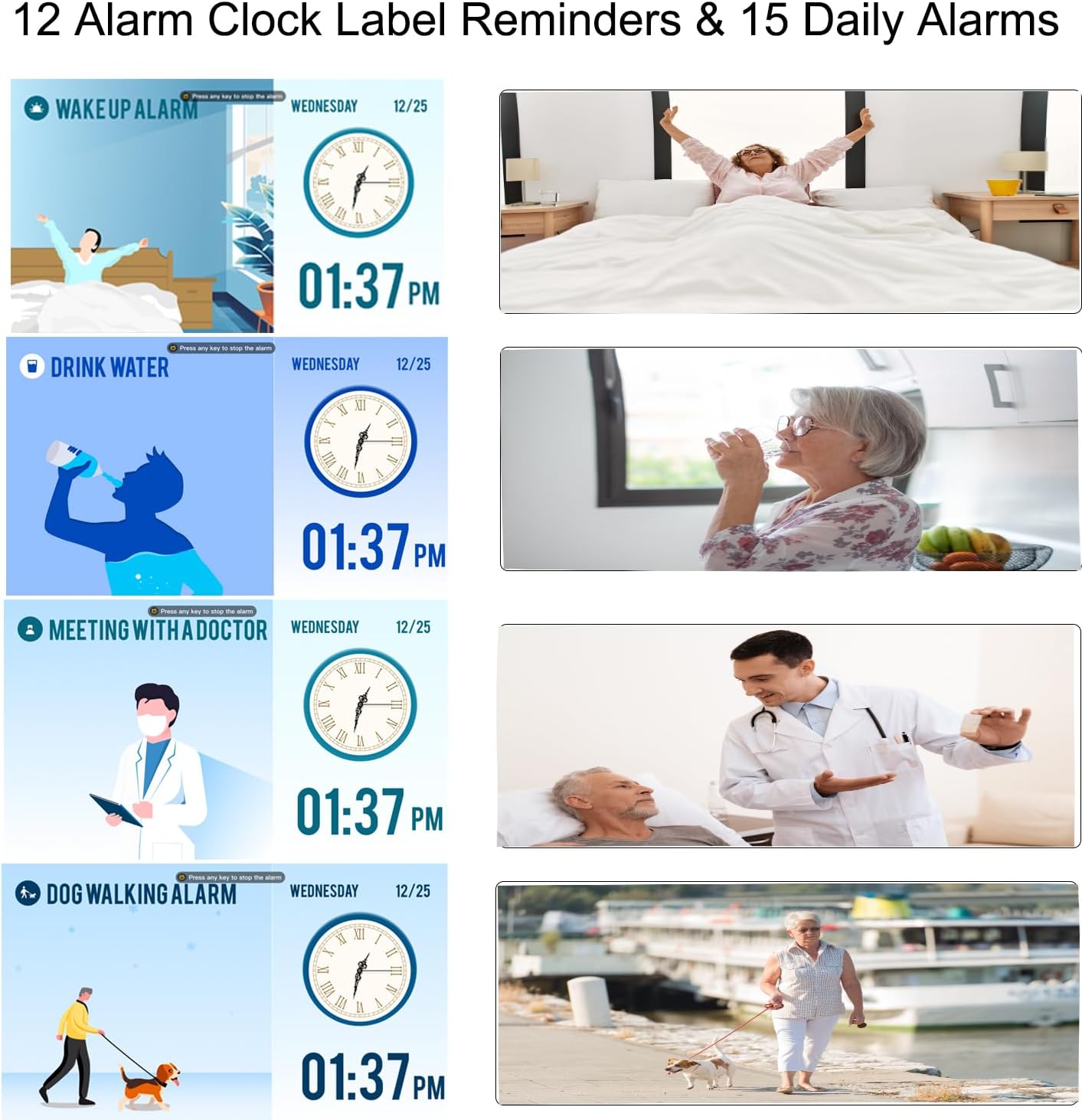
- Choose an alarm label from the 12 available options (e.g., Wake Up, Drink Water, Meeting with Doctor, Dog Walking). These labels are displayed with vivid color images for easy comprehension.
- Select an alarm sound.
- Druk OK te red.
- Medikasie-herinneringe: Specifically designed for morning, afternoon, and evening medication alerts.

4. Somertyd (DST)
The clock supports automatic adjustment for Daylight Saving Time. Ensure this feature is enabled in the "Date & Time" settings for accurate time display.

5. Using as a Digital Photo Frame
The clock can function as a high-resolution digital photo and video frame. Insert a USB flash drive (not included) into the USB port on the side of the clock. Navigate to the "Photo Frame" option in the menu to play your media.

Onderhoud
- Skoonmaak: Use a soft, dry cloth to clean the screen and body of the clock. Do not use liquid cleaners or abrasive materials.
- Plasing: Place the clock on a stable, flat surface or mount it securely on a wall. Avoid direct sunlight, high temperatures, or humid environments.
- Krag: Always use the provided power adapter. Disconnect power during thunderstorms or when not in use for extended periods.

Probleemoplossing
| Probleem | Moontlike oorsaak | Oplossing |
|---|---|---|
| Die horlosie skakel nie aan nie. | Geen kragverbinding nie. | Ensure the power adapter is securely connected to the clock and a working electrical outlet. |
| Die skerm is te dof of te helder. | Brightness settings are incorrect or auto-dimming is active. | Adjust manual brightness in settings or check auto-dimming schedule and brightness level. |
| Alarms are not sounding. | Alarm is disabled, volume is too low, or incorrect time/frequency set. | Verify alarm settings, ensure volume is audible, and check alarm time/frequency. |
| Tyd is verkeerd na kragonderbrekingtage. | Backup battery may be depleted or not functioning. | The clock has a backup system for settings. If time is incorrect, manually reset the time and date. |
| Cannot play photos/videos. | USB drive not inserted correctly or unsupported file formaat. | Ensure USB drive is fully inserted. Check that media files are in supported formats (e.g., JPEG for photos, common video formats). |
Spesifikasies
| Kenmerk | Detail |
|---|---|
| Handelsmerk | LEMNOI |
| Modelnommer | SG9 |
| Tipe vertoon | Digitaal |
| Skerm grootte | 7 duim |
| Resolusie | 1024 x 600 piksels |
| Produk Afmetings (B x H) | 19 cm x 16 cm |
| Item gewig | 290 gram |
| Materiaal | Akrielnitril Butadieen Styreen (ABS) |
| Kragbron | Elektriese kabel |
| Spesiale kenmerke | Auto-dimmable, Adjustable Brightness (5 levels), Temperature Indicator, 6 Display Modes, 15 Daily Alarms, 15 Medication Reminders, 12 Alarm Labels, Digital Photo Frame Function, Daylight Saving Time Auto-Adjust, Multi-language Support |
| Montage tipe | Tafelblad |
| Required Battery (Backup) | 1 CR123A (not included for primary operation) |
Waarborg en Ondersteuning
For warranty information or technical support, please refer to the contact details provided on the product packaging or the official LEMNOI webwebwerf. Bewaar u aankoopbewys as bewys van aankoop vir enige waarborgeise.