
1. Inleiding
The Ulefone Armor PAD 4 Ultra is a rugged 5G tablet PC designed for durability and high performance in challenging environments. It features a 10.36-inch 2K FHD+ display, a powerful MediaTek Dimensity 6300 processor, and a large 11800mAh battery. This manual provides essential information for setting up, operating, maintaining, and troubleshooting your device.

Image: The Ulefone Armor PAD 4 Ultra tablet showcasing its rugged design in an outdoor environment.
Key features include IP68/IP69K and MIL-STD-810H certifications for water, dust, and drop resistance, a 50MP rear camera, a 32MP front camera, and a versatile 1100 lumens LED light. The tablet runs on Android 14 and offers up to 16GB RAM and 256GB internal storage, expandable up to 2TB.
2. Opstelgids
2.1 Pakketinhoud
Maak seker dat alle items in die pakket teenwoordig is voordat u begin:
- Ulefone Armor PAD 4 Ultra Tablet PC
- Kragadapter
- USB-C-kabel
- SIM -uitwerperhulpmiddel
- Gebruikershandleiding (hierdie dokument)
2.2 SIM-/SD-kaart insit
- Vind die SIM-/SD-kaartlaai aan die kant van die tablet.
- Gebruik die meegeleverde SIM-uitwerpgereedskap om die skinkbord oop te maak.
- Carefully place your Nano SIM card(s) and/or SD card into the designated slots. The tablet supports dual Nano SIM cards or one Nano SIM card and one SD card.
- Druk die skinkbord versigtig terug in die tablet totdat dit in plek klik.

Beeld: Voorkant view of the Ulefone Armor PAD 4 Ultra tablet, showing its display and rugged frame.
2.3 Aanvanklike laai en aanskakeling
- Koppel die USB-C-kabel aan die tablet se laaipoort en die kragadapter.
- Plug the power adapter into a wall outlet. Allow the tablet to charge for at least 30 minutes before initial use, or until the battery indicator shows sufficient charge. The 11800mAh battery supports 33W fast charging.
- Press and hold the Power button (usually located on the side) until the Ulefone logo appears on the screen.
- Volg die aanwysings op die skerm om die aanvanklike opstelling te voltooi, insluitend taalkeuse, Wi-Fi-verbinding en Google-rekeningopstelling.
2.4 Netwerkkonnektiwiteit
The tablet supports 5G LTE dual SIM connectivity. Ensure your SIM card is active and your mobile data plan is configured. For Wi-Fi, navigate to Instellings > Netwerk en internet > Wi-Fi to connect to an available network.
3. Bedryfsinstruksies
3.1 Basiese Navigasie (Android 14)
The Ulefone Armor PAD 4 Ultra runs on Android 14. Navigate using gestures or the traditional three-button navigation bar (Back, Home, Recents). Swipe up from the bottom for the app drawer, swipe down from the top for notifications and quick settings.

Image: The tablet displaying the Android 14 interface, with an HDMI connection to an external display for presentations.
3.2 Kameragebruik
The tablet is equipped with a 50MP rear camera and a 32MP front camera. Open the Camera app to capture photos and videos. Tap to focus, pinch to zoom, and use the on-screen controls for various modes and settings.

Beeld: 'n Gedetailleerde view of the tablet's rear camera module, highlighting the 50MP sensor and the powerful LED light.
3.3 Versatile LED Light
The tablet features a powerful 1100 lumens LED light. This can be activated via a dedicated custom key or through the exclusive app. It functions as a flashlight, headlight, or portable camplig.
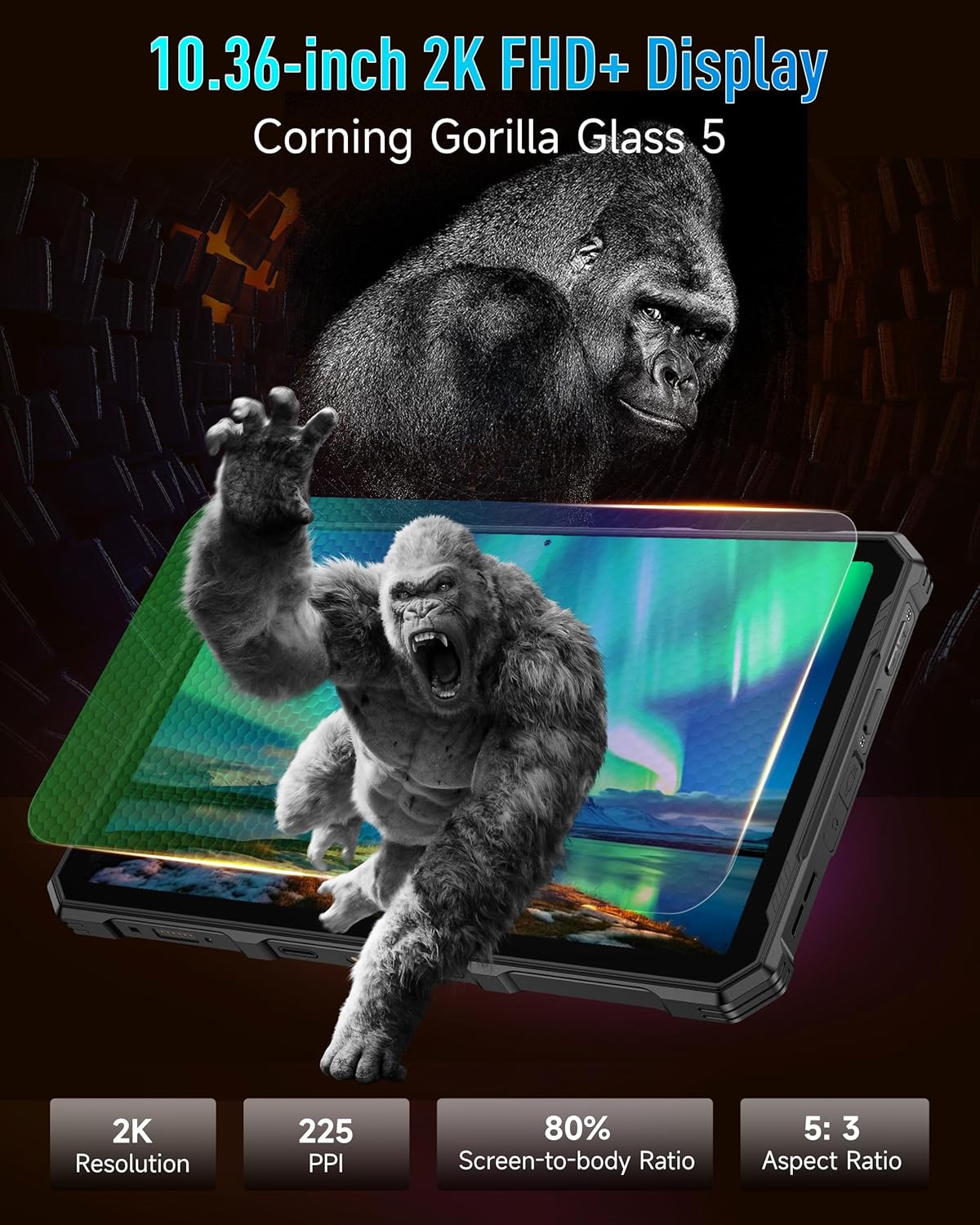
Image: The Ulefone Armor PAD 4 Ultra tablet illuminating a camping tent with its powerful LED light.
3.4 Custom Key Functionality
The tablet includes a customizable physical key. This key can be configured for single click, double click, or long press actions to quickly access specific functions or applications, such as activating the LED light or launching the camera.
3.5 Gloves Mode
For use in cold weather or industrial environments, activate Gloves Mode in Settings > Smart Assistant > Gloves Mode. This enhances touch sensitivity, allowing the screen to respond to gloved hands.
3.6 Face Unlock and Fingerprint ID
Enhance security and convenience by setting up Face Unlock or Fingerprint ID. Go to Instellings > Sekuriteit en privaatheid > Toestelontsluiting to configure these options.
3.7 Multi-use Digital Toolbox
The tablet comes with a suite of pre-installed tools in the Digital Toolbox, including a compass, sound meter, protractor, and more. These tools are designed to assist in various outdoor and professional tasks.

Image: A construction worker utilizing the Ulefone Armor PAD 4 Ultra tablet's digital toolbox for various measurements and utilities.
3.8 Headset-free FM Radio
Enjoy FM radio without needing to connect headphones. Simply open the FM Radio app and tune into your favorite stations.
3.9 HDMI-poort
The tablet features an HDMI port for connecting to external displays, such as monitors or projectors. This allows for screen mirroring or extended display functionality, useful for presentations or media consumption.
4. Onderhoud
4.1 Skoonmaak van jou toestel
Due to its rugged design, the Armor PAD 4 Ultra can be cleaned with water and mild soap. Ensure all port covers are securely closed before exposing the device to water. Wipe with a soft, lint-free cloth. Avoid using harsh chemicals or abrasive materials.
4.2 Batterysorg
Om die batterylewe te verleng:
- Vermy uiterste temperature.
- Gebruik die oorspronklike laaier en kabel vir optimale laai.
- Moenie die battery gereeld heeltemal ontlaai nie.
- If storing the device for an extended period, charge it to about 50% and power it off.
4.3 Sagteware-opdaterings
Kontroleer gereeld vir sagteware-opdaterings en installeer dit om optimale werkverrigting, sekuriteit en toegang tot nuwe funksies te verseker. Gaan na Instellings > Stelsel > Stelselopdatering.
4.4 Robuustheidskenmerke
The tablet is IP68/IP69K and MIL-STD-810H certified, meaning it is resistant to water, dust, and drops. While designed to be durable, avoid intentionally subjecting it to extreme conditions beyond its specifications. Ensure all port covers are sealed to maintain water and dust resistance.

Image: The Ulefone Armor PAD 4 Ultra tablet submerged in water, covered in dust, and dropped, demonstrating its IP68/IP69K and MIL-STD-810H certifications.
5. Probleemoplossing
5.1 Toestel skakel nie aan nie
- Ensure the battery is charged. Connect the tablet to its charger and wait a few minutes before attempting to power it on.
- Druk en hou die aan/af-knoppie vir ten minste 10-15 sekondes in om 'n geforseerde herbegin uit te voer.
5.2 Netwerkverbindingsprobleme
- Wi-Fi: Check if Wi-Fi is enabled in Settings. Restart your router. Forget the network and reconnect.
- Mobiele data: Ensure your SIM card is correctly inserted and activated. Check your data plan status with your carrier. Restart the tablet.
5.3 Skerm reageer nie
- Herbegin die toestel deur die aan/uit-knoppie in te hou.
- If the screen is frozen, perform a forced restart.
5.4 Programme wat vasval of vries
- Maak die kasgeheue en data van die problematiese toepassing skoon (Instellings > Programme > [Programnaam] > Berging en kasgeheue).
- Deïnstalleer en installeer die toepassing weer.
- Maak seker dat jou tablet se sagteware op datum is.
5.5 Fabrieksterugstelling
If issues persist, a factory reset may be necessary. This will erase all data on your tablet, so back up important information first. Go to Instellings > Stelsel > Herstel opsies > Vee alle data uit (fabriekterugstelling).
6. Spesifikasies
| Kenmerk | Detail |
|---|---|
| Handelsmerk | Ulefone |
| Modelnommer | Ulefone Armor Pad 4 Ultra |
| Skerm grootte | 10.36 duim |
| Inheemse resolusie | 2000x1200 pixels (2K FHD+) |
| Aspekverhouding | 5:3 |
| Verwerker | MediaTek Dimensity 6300 (2400 MHz) |
| RAM | Up to 16GB (8GB physical + 8GB virtual) |
| Interne berging | 256GB (2TB Expandable) |
| Bedryfstelsel | Android 14 |
| Agterste kamera | 50MP |
| Voorste kamera | 32MP |
| Battery kapasiteit | 11800mAh |
| Laai | 33W vinnig laai |
| Ruwheid | IP68/IP69K, MIL-STD-810H Certified |
| Konnektiwiteit | 5G LTE, Wi-Fi (2.4G/5G), Bluetooth 5.2, NFC, GPS |
| Spesiale kenmerke | 1100 Lumens LED Light, Custom Key, Gloves Mode, HDMI Port, Multi-use Digital Toolbox |
| Item gewig | 16 onse |
7. Waarborg en Ondersteuning
7.1 Waarborginligting
The Ulefone Armor PAD 4 Ultra comes with a 2-jaar globale waarborg. This warranty covers manufacturing defects and malfunctions under normal use. Please retain your proof of purchase for warranty claims. The warranty does not cover damage caused by misuse, accidents, unauthorized repairs, or normal wear and tear.
7.2 Kliëntediens
For technical assistance, warranty claims, or any other inquiries, please contact Ulefone customer support. Refer to the official Ulefone webwebwerf of u aankoopdokumentasie vir die mees onlangse kontakinligting.
Your satisfaction is a priority. Should you encounter any technical issues, the dedicated support team is available to assist you.