
myGEKOgear D111
myGEKOgear Orbit D111 Dash Cam User Manual
Model: D111
1. Inleiding
This manual provides detailed instructions for the installation, operation, and maintenance of your myGEKOgear Orbit D111 Full HD Dash Cam. Please read this manual thoroughly before using the device to ensure proper functionality and to maximize your user experience.
2. Wat is in die boks
Verifieer dat alle items in die pakket teenwoordig is:
- Orbit D111 Dashcam
- Kragkabel (Motorlaaier)
- Suigbeker-berg
- 32GB mikro SD kaart
- Gebruikershandleiding (hierdie dokument)
3. Produk verbyview
The myGEKOgear Orbit D111 is a compact dash camera designed to record your driving in Full HD 1080P resolution. It features a 3-inch display, a 140-degree wide-angle lens, G-Sensor for emergency recording, and supports loop recording.
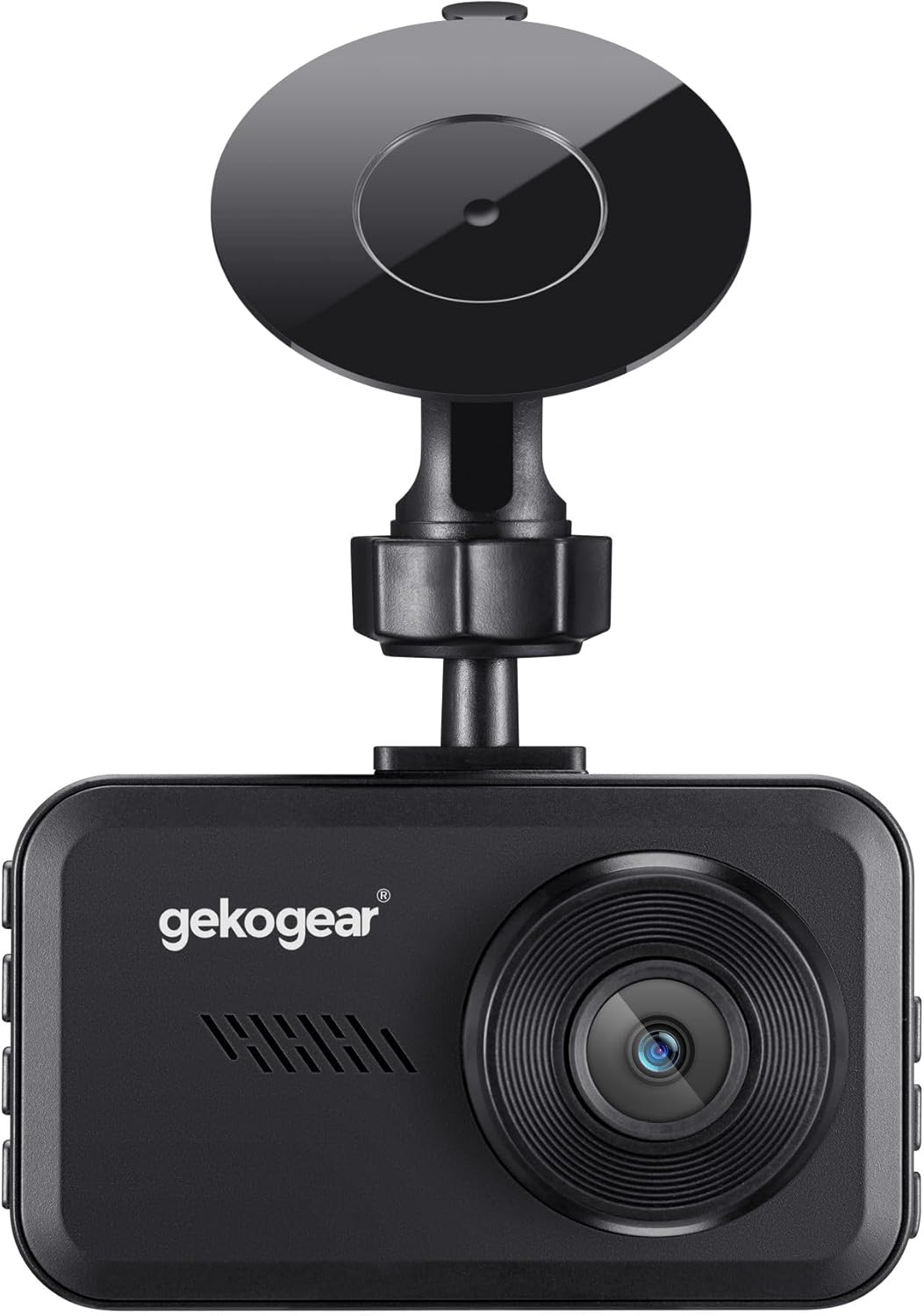
Figuur 3.1: Voorkant view of the Orbit D111 Dash Cam with its suction cup mount.
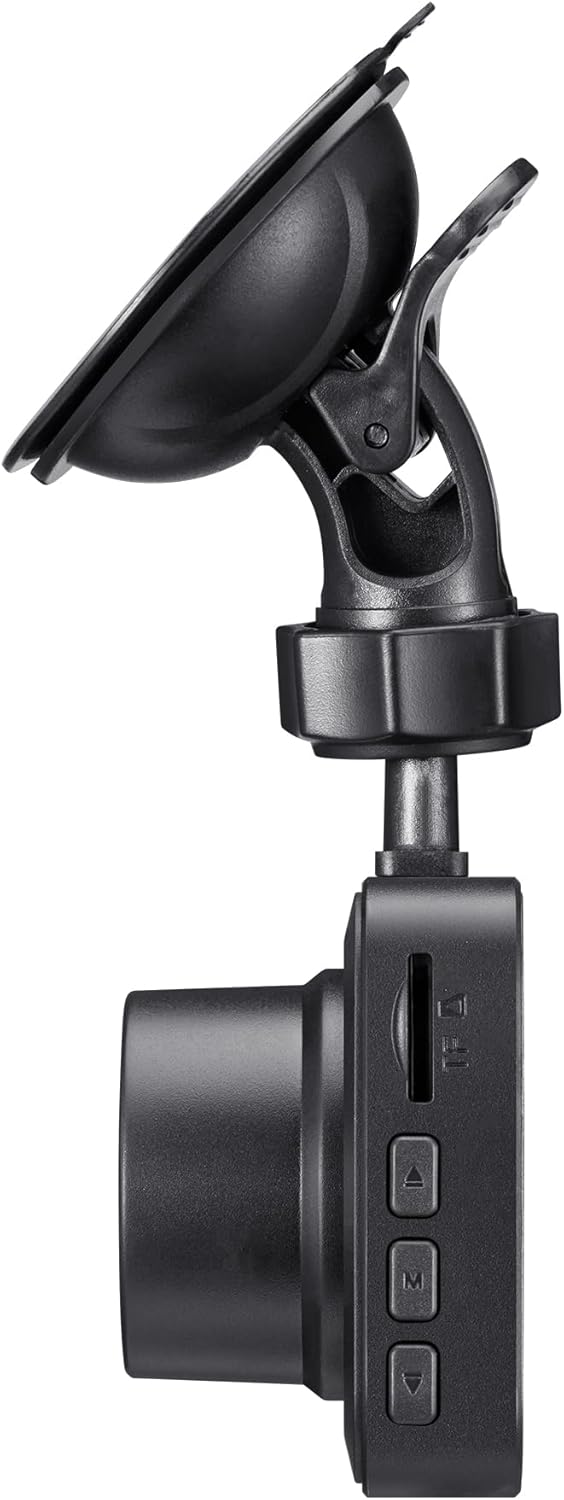
Figuur 3.2: Kant view illustrating the control buttons and ports on the Orbit D111 Dash Cam.
4. Opstelling
4.1. Installasie van MicroSD-kaart
The Orbit D111 supports MicroSD cards up to 64GB. A 32GB MicroSD card is included. Ensure the card is inserted correctly before use.
- Vind die MicroSD-kaartgleuf aan die kant van die paneelbordkamera.
- Plaas die MicroSD-kaart met die goue kontakte na die agterkant van die kamera totdat dit in plek klik.
- Om te verwyder, druk die kaart versigtig in totdat dit uitspring.

Figuur 4.1: MicroSD card and adapter, illustrating the type of storage supported.
4.2. Monteer die Dash Cam
Use the provided suction cup mount to secure the dash cam to your vehicle's windshield.
- Maak die area op jou voorruit skoon waar jy die paneelbordkamera wil monteer.
- Heg die suigdopbevestiging aan die paneelbordkamera vas.
- Druk die suigdop stewig teen die voorruit en draai die hefboom om dit vas te maak.
- Pas die kamerahoek aan om 'n duidelike view van die pad vorentoe.

Figuur 4.2: The Orbit D111 Dash Cam securely mounted on a vehicle's windshield, displaying its live recording view.
4.3. Kragverbinding
Connect the dash cam to your vehicle's power source using the included power cable.
- Plug the small end of the power cable into the dash cam's power port.
- Plug the other end (car charger) into your vehicle's 12V power outlet (cigarette lighter socket).
- The dash cam will typically power on and begin recording automatically when the vehicle's ignition is turned on.
5. Bedryfsinstruksies
5.1. Skakel aan/af
The dash cam is designed to power on and off automatically with your vehicle's ignition. You can also manually power it on or off by pressing and holding the power button.
5.2. Opnamemodusse
The Orbit D111 features continuous loop recording and emergency recording via its G-Sensor.
- Loop opname: The camera records video in segments (e.g., 1, 3, or 5 minutes). When the MicroSD card is full, the oldest unlocked files word oorskryf om plek te maak vir nuwe opnames.
- G-Sensor (Noodopname): The built-in G-Sensor detects sudden impacts or rapid deceleration. When triggered, it automatically locks the current video segment, preventing it from being overwritten by loop recording.

Figuur 5.1: Visual representation of the G-Sensor feature, which automatically saves critical footage tydens voorvalle.
5.3. Skerm en Menu Navigasie
The 3-inch IPS display provides a live view of the recording and allows access to settings.

Figuur 5.2: 'n Duidelike view of the 3-inch display, showing the live feed and recording indicators.
Use the physical buttons on the side of the dash cam to navigate through the menu options and adjust settings such as video resolution, loop recording duration, G-Sensor sensitivity, and date/time.
5.4. Wyehoeklens
The 140-degree wide-angle lens captures a broad view of the road, covering multiple lanes and reducing blind spots.

Figuur 5.3: Illustration of the 140-degree wide-angle lens coverage, showing an expansive view van die pad.
6. Onderhoud
- Skoonmaak: Use a soft, dry cloth to clean the camera lens and display. Avoid abrasive cleaners or solvents.
- MicroSD kaart: Periodically format the MicroSD card (at least once a month) within the camera's settings to ensure optimal performance and prevent data corruption. Back up any important files voor formatering.
- Firmware -opdaterings: Check the myGEKOgear website for available firmware updates. Keeping your dash cam's firmware updated can improve performance and add new features.

Figuur 6.1: A laptop screen displaying a firmware update interface, indicating the availability of ongoing software support.
7. Probleemoplossing
- Kamera skakel nie aan nie:
- Ensure the power cable is securely connected to both the dash cam and the vehicle's 12V outlet.
- Check if the vehicle's 12V outlet is functioning (e.g., by testing with another device).
- The dash cam may have a low battery; charge it for a few minutes. - Opname stop of vries:
- The MicroSD card may be full. Format the card (after backing up important files).
- The MicroSD card may be faulty or too slow. Use a high-speed (Class 10 or U1/U3) MicroSD card.
- Ensure the card is properly inserted. - Swak videokwaliteit:
- Maak die kameralens skoon.
- Ensure the protective film has been removed from the lens.
- Check the video resolution settings in the camera menu. - G-Sensor is too sensitive/not sensitive enough:
- Adjust the G-Sensor sensitivity setting in the camera menu. - Date/Time is incorrect:
- Set the correct date and time in the camera's settings menu.
8. Spesifikasies
| Kenmerk | Spesifikasie |
|---|---|
| Model Naam | D111 |
| Video-opname-resolusie | 1080p Full HD |
| Vertoon | 3-duim IPS-skerm |
| Veld van View | 140 grade |
| Spesiale kenmerke | Built-In Display, Compact Design, G-Sensor, Loop Recording |
| Berging Ondersteuning | Up to 64GB MicroSD (32GB included) |
| Verbindingstegnologie | USB |
| Montage tipe | Windshield Mount (Suction Cup) |
| Produk afmetings | 3.5 x 2 x 2 duim |
| Item gewig | 9.6 onse |
| Vervaardiger | Adesso |
9. Waarborg en Ondersteuning
For warranty information and technical support, please refer to the official myGEKOgear webwebwerf of kontak hul kliëntediens direk. Bewaar u aankoopbewys as bewys van aankoop.
Ask a question about this manual
Ask about setup, troubleshooting, compatibility, parts, safety, or missing instructions. Manuals+ will review the question and use this page’s manual context to help answer it.