
1. Inleiding
Thank you for choosing the Pomya Mechanical Gaming Keyboard. This 68-key wired keyboard is designed for a comfortable and responsive typing experience, suitable for both gaming and office use. It features an ergonomic design, ice blue backlighting with multiple modes, a detachable cable, and hot-swappable switches for customization.
This manual provides essential information for the proper installation, operation, and maintenance of your keyboard. Please read it thoroughly before use.

Image: The Pomya Mechanical Gaming Keyboard, featuring its compact 68-key layout, ice blue backlighting, and a close-up of a blue mechanical switch.
2. Pakketinhoud
Kontroleer asseblief die inhoud van die pakket om seker te maak dat alle items teenwoordig en in 'n goeie toestand is:
- 1 x 68-Key Mechanical Keyboard
- 1 x Sleutelkap-trekker
- 1 x Data Cable (USB-A to USB-C, 5.7ft)
- 1 x Gebruikershandleiding (hierdie dokument)
- 3 x Blue Switches (spare)

Image: All items included in the product package: the keyboard, detachable USB cable, keycap puller, and three spare blue switches.
3. Opstelling
- Pak die sleutelbord uit: Verwyder die sleutelbord en alle bykomstighede versigtig uit die verpakking.
- Koppel die datakabel:
- Locate the USB-C port on the back or side of the keyboard.
- Insert the USB-C end of the provided data cable into the keyboard's port.
- Insert the USB-A end of the data cable into an available USB port on your computer (desktop PC, laptop, etc.).
- Stelselherkenning: Your computer should automatically detect and install the necessary drivers for the keyboard. No additional software installation is typically required.
- Plasing: Position the keyboard on a stable, flat surface. Adjust the kickstands on the bottom of the keyboard for your preferred typing angle, if available.

Image: Detail of the USB-C port on the keyboard, illustrating where the detachable cable connects.
4. Bedryfsinstruksies
4.1 Basiese sleutelbordfunksies
The keyboard functions as a standard 68-key layout. All keys are anti-ghosting, ensuring accurate input even during rapid key presses.
4.2 Backlight Control (Ice Blue)
The keyboard features an ice blue backlight with over 19 different lighting modes. Use the following key combinations to control the backlight:
- Fn + \ |: Cycle through the 19+ different backlight modes.
- Fn + ↑: Verhoog die helderheid van die agterlig.
- Fn + ↓: Verminder die helderheid van die agterlig.
- Fn + ←: Decrease backlight speed (for dynamic modes).
- Fn + →: Increase backlight speed (for dynamic modes).

Beeld: Oorhoofse view of the keyboard, showing the key layout and compact design.
4.3 Multimedia- en Funksietoetse
Many keys have secondary functions accessible via the Fn key. Refer to the keycaps for specific icons indicating these functions (e.g., F1-F12, media controls).
| Kombinasie | Funksie |
|---|---|
| Fn+F1-F12 | Standard F-key functions (e.g., F1 for Help, F5 for Refresh). |
| Fn + Q/W/E/R/T/Y | Specific multimedia controls (check keycap legends). |
| Fn + Wen | Sluit/Ontsluit Windows-sleutel. |
4.4 Warm-omruilbare skakelaars
This keyboard features hot-swappable switches, allowing you to change the mechanical switches without soldering. This enables customization of typing feel and sound.
- Verwyder sleuteldop: Gebruik die meegeleverde sleuteldoptrekker om die verlangde sleuteldop versigtig te verwyder.
- Verwyder skakelaar: Use a switch puller (not included, but often comes with spare switches or can be purchased separately) to carefully pull the switch straight up from the PCB.
- Voeg nuwe skakelaar in: Align the pins of the new switch with the holes on the PCB. Press the switch firmly until it clicks into place. Ensure pins are not bent.
- Vervang sleuteldop: Plaas die sleuteldop terug op die nuwe skakelaar.
Let wel: The keyboard comes with blue switches installed and three spare blue switches. Ensure replacement switches are compatible with the keyboard's PCB (typically 3-pin or 5-pin MX-style switches).
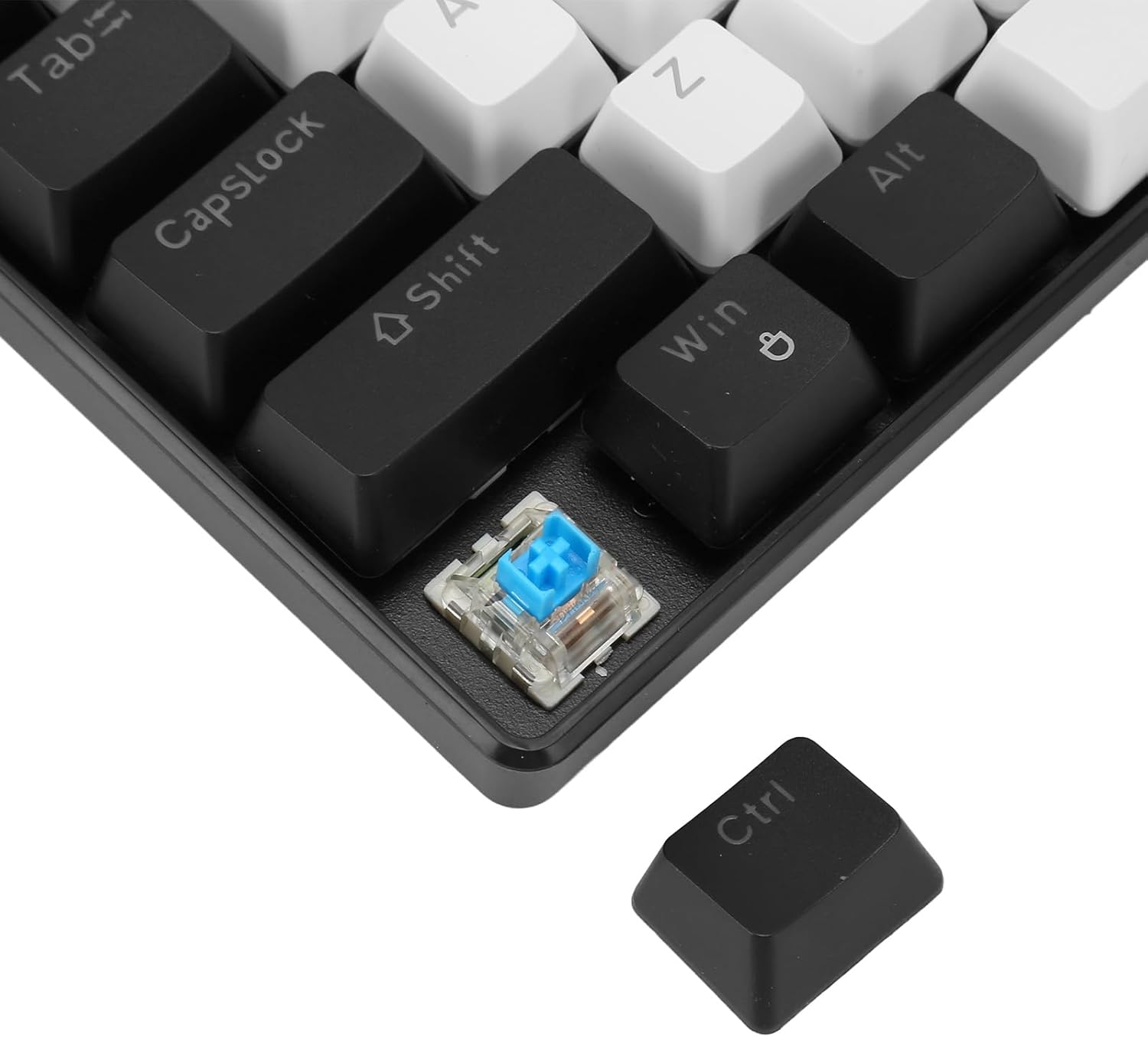
Beeld: 'n Gedetailleerde view showing a mechanical switch detached from the keyboard, alongside a keycap, illustrating the hot-swappable design.
5. Onderhoud
- Skoonmaak:
- Ontkoppel die sleutelbord van jou rekenaar voordat jy dit skoonmaak.
- Gebruik 'n sagte, droë lap om die oppervlak van die sleutelbord af te vee.
- For deeper cleaning, use a keycap puller to remove keycaps and compressed air to clear dust and debris from between the switches.
- Keycaps can be cleaned with mild soap and water, then thoroughly dried before reattaching.
- Kabelversorging: The detachable cable should be handled with care. Avoid sharp bends or excessive pulling to prevent damage.
- Berging: Bêre die sleutelbord in 'n skoon, droë omgewing weg van uiterste temperature en direkte sonlig wanneer dit nie vir lang tye gebruik word nie.
6. Probleemoplossing
| Probleem | Oplossing |
|---|---|
| Sleutelbord reageer nie. |
|
| Agterlig werk nie of sit vas. |
|
| Certain keys not registering input. |
|
7. Spesifikasies
| Kenmerk | Detail |
|---|---|
| Modelnommer | Pomya0f5gohme46-11 |
| Handelsmerk | Pomya |
| Tipe verbinding | Wired (USB-C detachable cable) |
| Aantal sleutels | 68 Keys (Full Anti-Ghosting) |
| Skakel Tipe | Blou Meganiese Skakelaars (Warm-uitruilbaar) |
| Toetsaanslag Lewe | 50 Million keystrokes |
| Agterlig | Ice Blue (19+ modes) |
| Keycap Process | Double Color Injection Molding |
| Kabellengte | 5.7 voet (ongeveer 1.74 m) |
| Materiaal | ABS (Akrilonitril Butadieen Styreen) |
| Verenigbaarheid | Windows, OS X, Linux |
| Afmetings (Pakket) | 13.39 x 5.12 x 1.97 duim |
| Item gewig | 1.52 pond |

Beeld: Bo en onder views of the keyboard, detailing its design and the information label on the base.
8. Waarborg en Ondersteuning
For warranty information and technical support, please refer to the documentation provided with your purchase or contact Pomya customer service through the retailer where the product was purchased. Keep your proof of purchase for warranty claims.
Aanlyn ondersteuning: Visit the official Pomya store page on Amazon for additional product information and support resources: Pomya Amazon Store