
MageGee LIGHT87
MageGee LIGHT87 Wireless Mechanical Keyboard User Manual
Model: LIGHT87
Omvattende gids vir opstelling, werking en onderhoud.
1. Produk verbyview
The MageGee LIGHT87 is a versatile 87-key wireless mechanical keyboard designed for gaming and productivity. It features a gasket-mounted structure for a creamy typing sound, hot-swappable switches, vibrant RGB backlighting, and multiple connectivity options including 2.4GHz wireless, Bluetooth 5.0, and USB-C wired mode. It is equipped with an 8000mAh battery and durable side-printed PBT keycaps.

Figuur 1: Bo-na-onder view of the MageGee LIGHT87 Wireless Mechanical Keyboard, showcasing sy 87-sleutel uitleg en RGB agterbeligting.

Figuur 2: oorview of the MageGee LIGHT87's key features, including 8000mAh battery, PBT keycaps, Win/Mac dual system support, gasket mount, 5 layers of silencing foams, 16.8 million RGB backlight, triple mode connection, custom hot-swappable switches, and 87-key anti-ghosting.
2. Pakketinhoud
Voordat jy begin, maak asseblief seker dat alle items in die pakket teenwoordig is:
- MageGee LIGHT87 Wireless Mechanical Keyboard
- USB-C na USB-A-kabel
- 2.4 GHz USB-ontvanger
- Sleutelkap trekker
- Skakeltrekker
- Gebruikershandleiding (hierdie dokument)

Figure 3: Contents of the MageGee LIGHT87 keyboard package, including the keyboard, USB cable, keycap puller, switch puller, and user manual.
3. Opstelling en konnektiwiteit
The MageGee LIGHT87 keyboard offers three connection modes: USB-C wired, 2.4GHz wireless, and Bluetooth 5.0.
3.1 Laai die sleutelbord
Before first use, it is recommended to fully charge the keyboard. Connect the provided USB-C cable to the keyboard's USB-C port and the other end to a USB power source (e.g., computer USB port, wall adapter). The keyboard features an 8000mAh large-capacity battery.

Figure 4: Illustration of the 8000mAh battery capacity, providing approximately 53 hours with RGB backlight on and 400 hours with RGB backlight off.

Figure 5: Detailed battery life estimates: 53 hours with backlight on, 400 hours with backlight off, and 450 hours of sleep standby time.
3.2 Verbindingsmodusse
The keyboard supports seamless switching between wired, 2.4GHz, and Bluetooth modes.
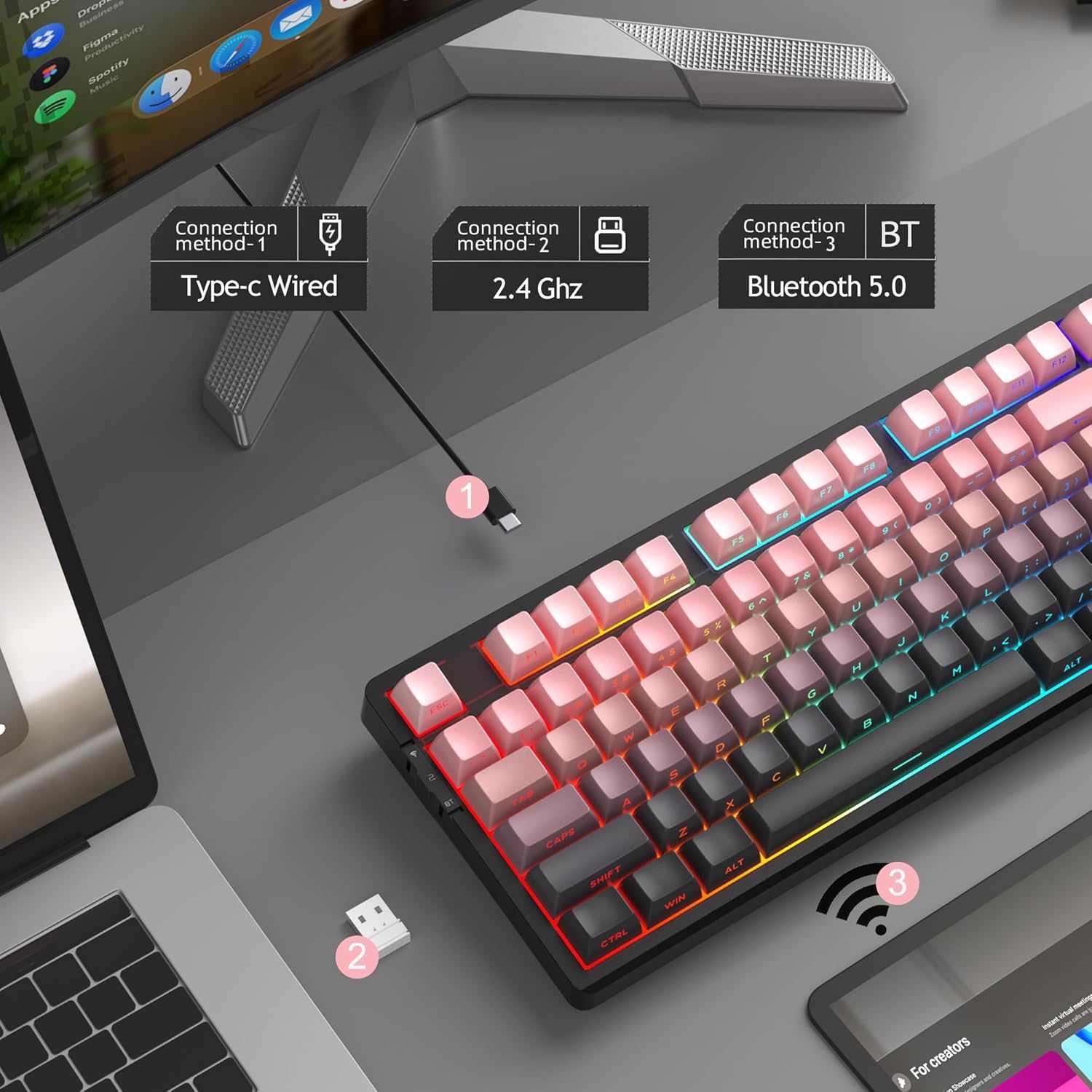
Figure 6: Visual representation of the three connection methods: Type-C Wired, 2.4 GHz Wireless, and Bluetooth 5.0.

Figure 7: Detailed instructions for switching between 2.4GHz, Bluetooth 5.0, and Type-C wired modes using the toggle switch and Fn key combinations.
3.2.1 USB-C Bedrade Modus
- Connect the USB-C cable to the keyboard and your computer's USB port.
- Toggle the switch on the keyboard to the "2" position (wired mode).
- Die sleutelbord sal outomaties deur jou stelsel herken word.
3.2.2 2.4GHz Draadlose Modus
- Vind die 2.4GHz USB-ontvanger (gewoonlik in 'n kompartement op die sleutelbord gebêre).
- Koppel die USB-ontvanger in 'n beskikbare USB-poort op jou rekenaar.
- Toggle the switch on the keyboard to the "wifi" icon position (2.4G wireless mode).
- Druk fn+4 to activate 2.4GHz mode. The keyboard should connect automatically.
3.2.3 Bluetooth 5.0-modus
Die sleutelbord kan aan tot drie Bluetooth-toestelle koppel.
- Toggle the switch on the keyboard to the "BT" position (Bluetooth mode).
- Druk en hou fn+1, fn+2, of fn+3 for 3-5 seconds to enter pairing mode for the desired channel. The indicator light will flash rapidly.
- On your device (PC, laptop, tablet, smartphone), enable Bluetooth and search for "MageGee LIGHT87".
- Kies die sleutelbord om te koppel. Sodra dit gekoppel is, sal die aanwyserliggie ophou flikker.
- Om tussen gepaarde Bluetooth-toestelle te wissel, druk eenvoudig fn+1, fn+2, of fn+3.
4. Bedryfsinstruksies
4.1 RGB-agterligbeheer
The MageGee LIGHT87 features 16.8 million cool RGB backlight options with various effects.
- Fn + Enter: Toggle between approximately 20 different backlight modes/effects.
- Fn + ←: Adjust light direction (for certain effects).
- Fn + →: Adjust light color (for static modes or color cycling).
- Fn + ↑Verhoog die helderheid van die agterlig.
- Fn + ↓: Verminder die helderheid van die agterlig.
- Fn + =+: Increase backlight speed (for dynamic effects).
- Fn + -_: Decrease backlight speed (for dynamic effects).
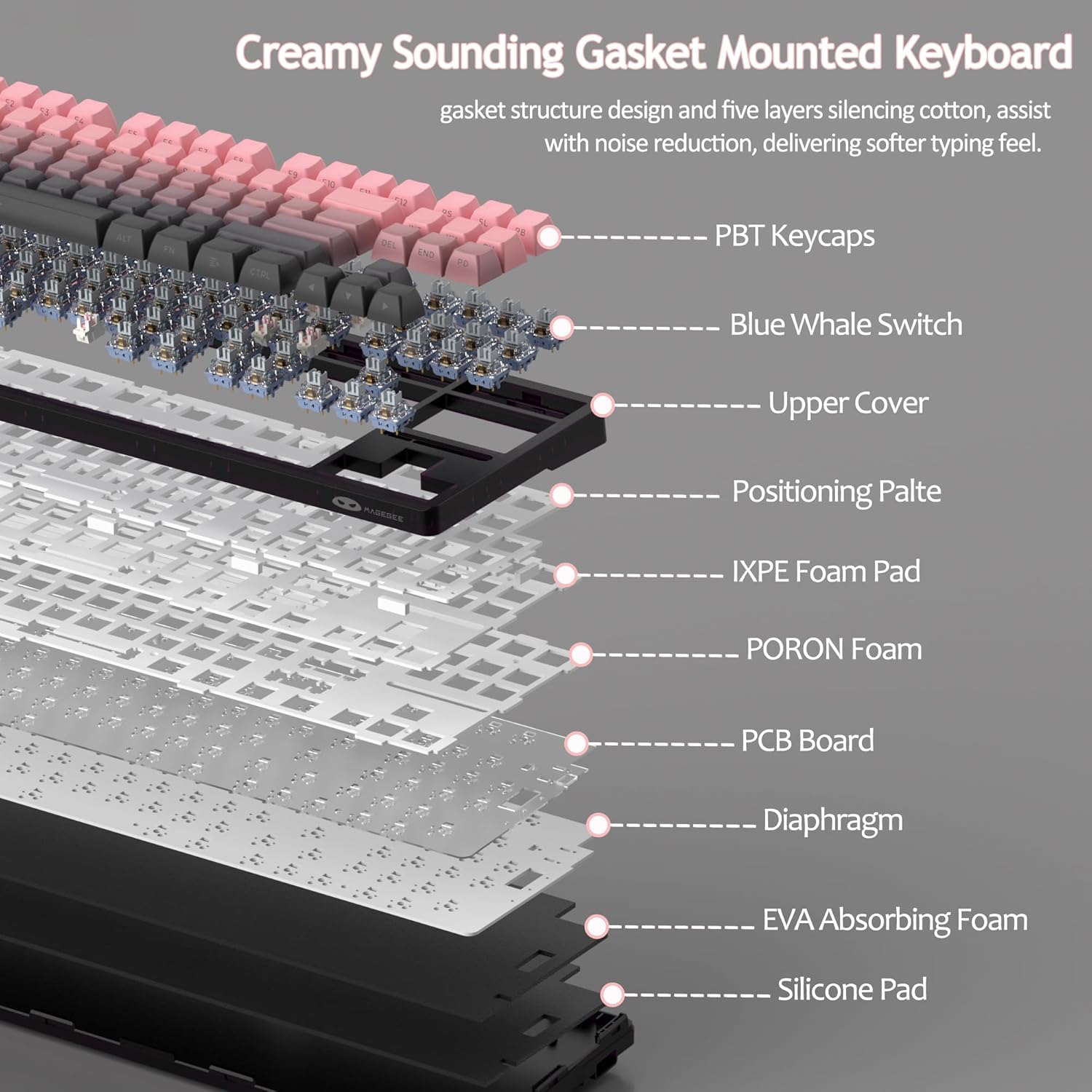
Figure 8: Visual guide to RGB backlight control key combinations.

Figure 9: Table summarizing RGB backlight functions and their corresponding Fn key combinations.
4.2 Warm-omruilbare skakelaars
The LIGHT87 keyboard features hot-swappable sockets, allowing you to change switches without soldering. It supports both 3-pin and 5-pin mechanical switches. The keyboard comes pre-installed with quiet linear Blue Whale switches.

Figure 10: Diagram illustrating the hot-swappable switch mechanism, showing compatibility with 3-pin and 5-pin switches and the pre-lubed Blue Whale switch.

Figure 11: Specifications of the Blue Whale Switch, including linear type, conduction stroke, total travel, operating force, material, and lifespan.
To Replace Switches:
- Verwyder die sleuteldop versigtig met die meegeleverde sleuteldop-trekker.
- Gebruik die skakelaartrekker om die boonste en onderste knippies van die skakelaar saggies vas te gryp.
- Trek die skakelaar reguit op om dit van die PCB te verwyder.
- Rig die penne van die nuwe skakelaar met die gate op die PCB.
- Press the new switch firmly into place until it clicks. Ensure it is seated properly and not bent.
- Vervang die sleuteldop.
4.3 Pakkingstruktuur en -klank Dampening
The LIGHT87 utilizes a gasket-mounted design, which provides a softer, more flexible typing feel and contributes to a "creamy thock" sound profile. Additionally, it incorporates five layers of sound-absorbing foams to effectively reduce noise and improve typing comfort.

Figuur 12: Ontplof view of the keyboard's internal components, highlighting the gasket structure and various foam layers (IXPE Foam Pad, PORON Foam, EVA Absorbing Foam, Silicone Pad) for sound dampening.
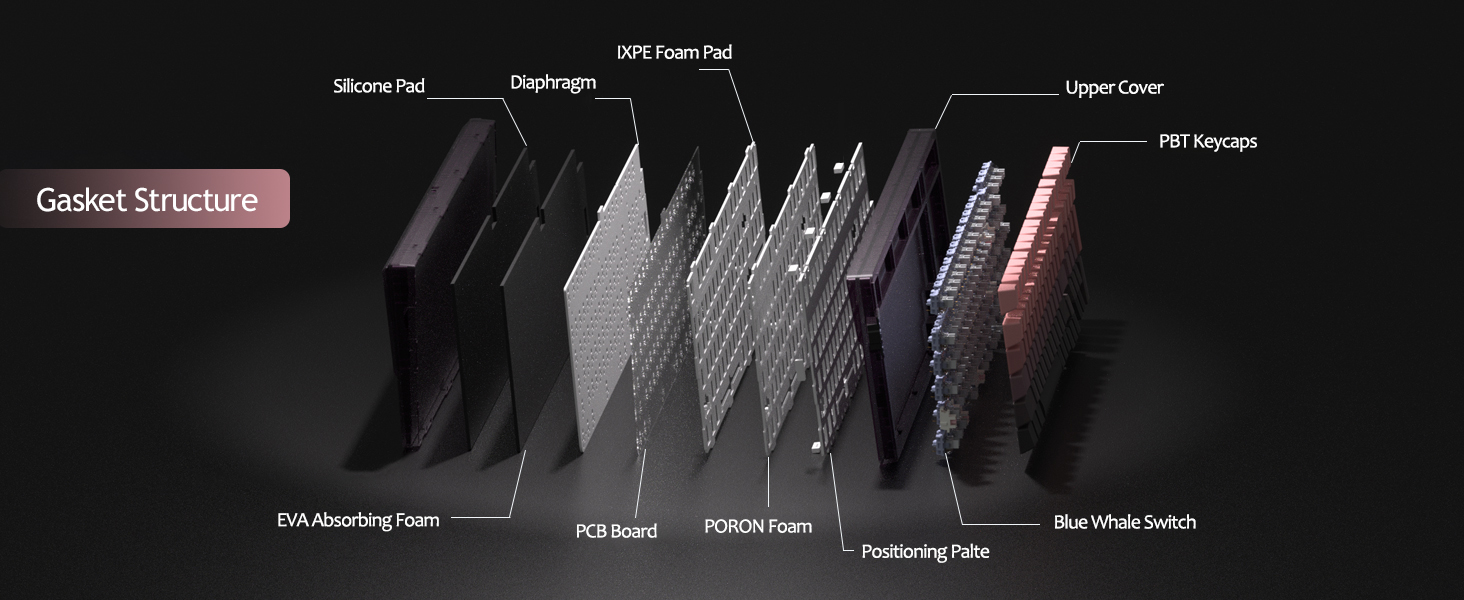
Figure 13: Detailed diagram of the gasket structure, showing how the plate is isolated from the case by gaskets, along with the various foam layers.
4.4 PBT-sleutelkappe
The keyboard is equipped with durable PBT keycaps, known for their resistance to shine and wear over time. The legends are side-printed for a clean top surface aesthetic.
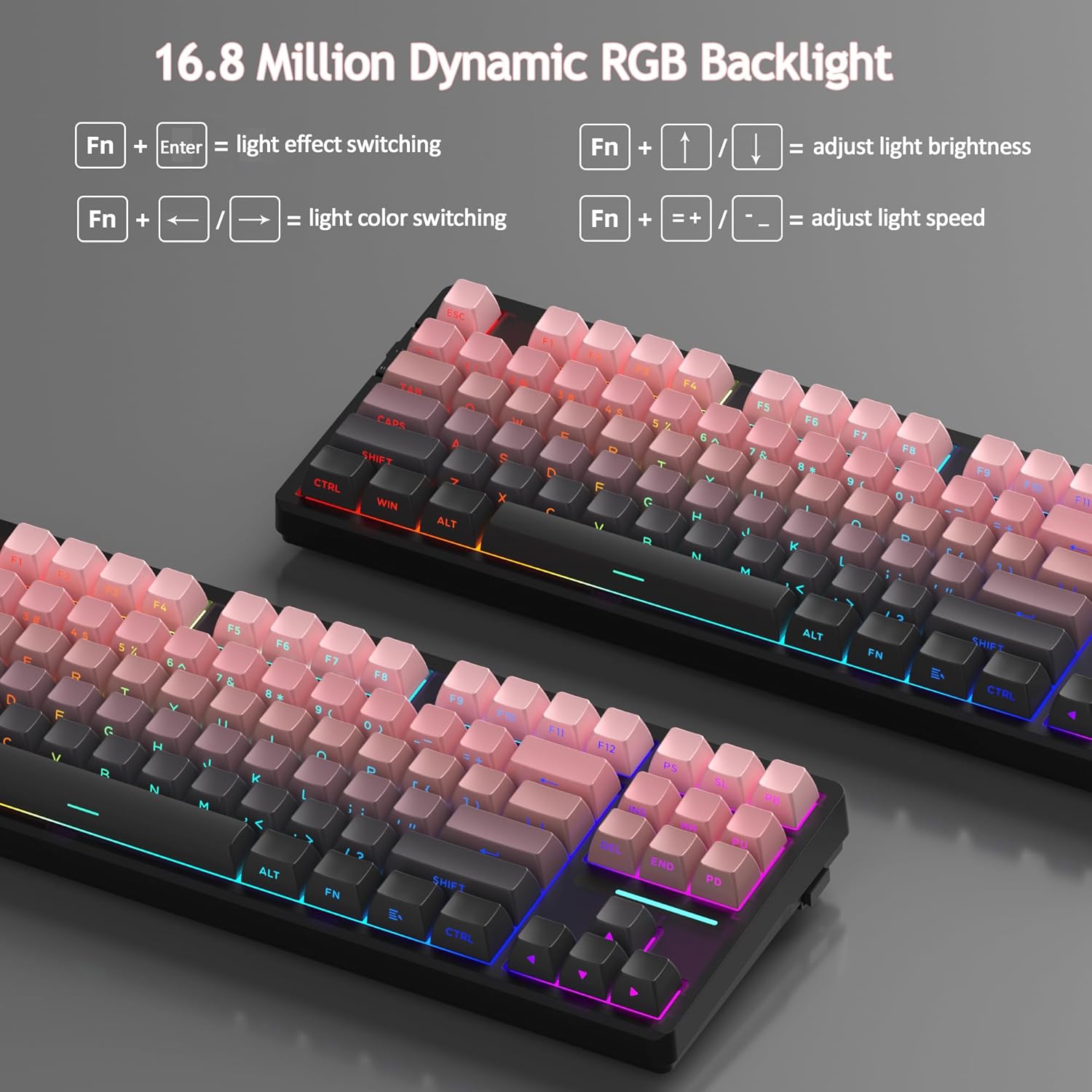
Figuur 14: Close-up view of the keyboard's side-printed PBT keycaps.
4.5 Layout and Compatibility
The LIGHT87 features a compact 80% (TKL) layout with 87 keys, saving desktop space while retaining essential function and arrow keys. It supports both Windows and Mac operating systems, and all 87 keys feature 100% anti-ghosting for accurate input during intense gaming or typing sessions.
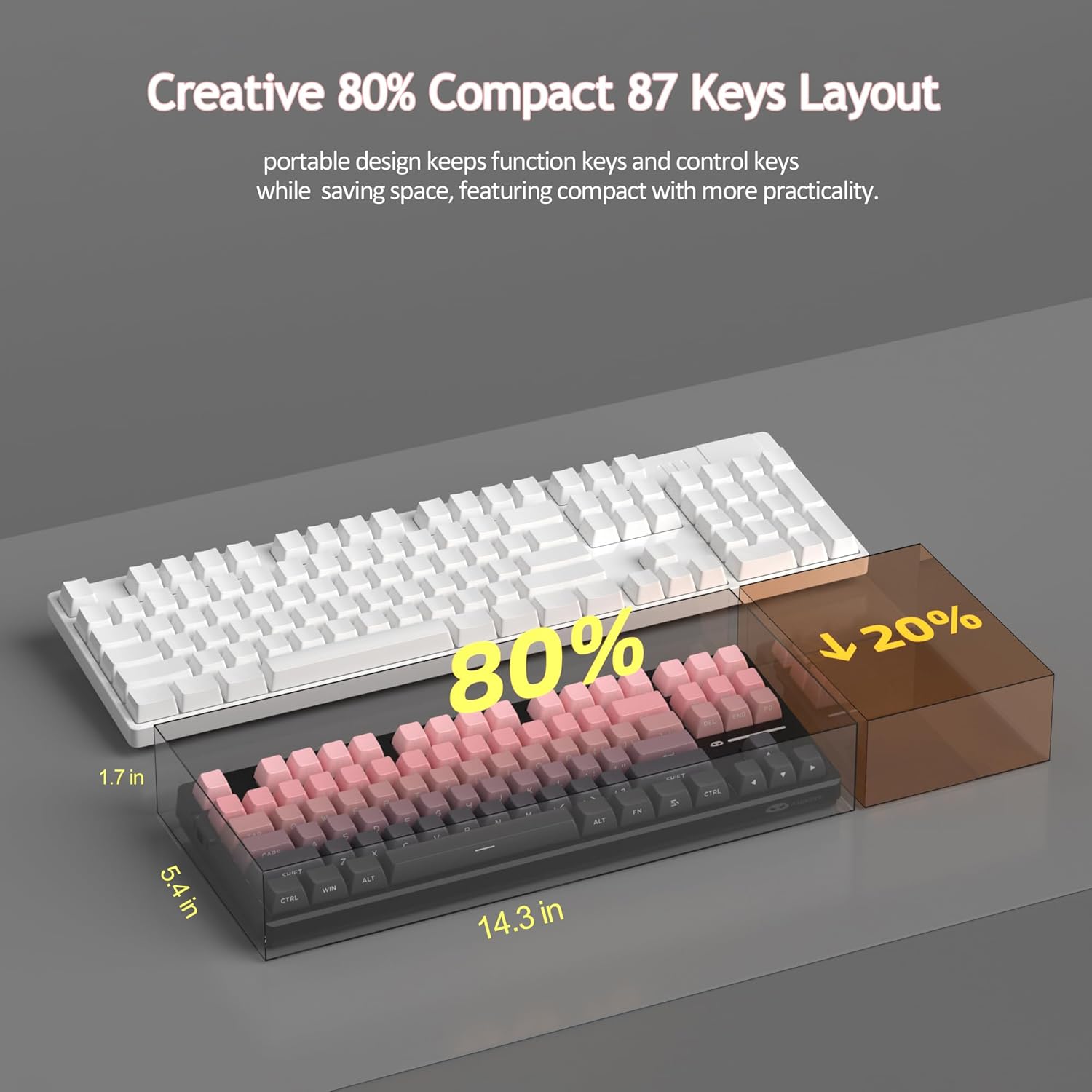
Figure 15: Comparison illustrating the compact 80% layout of the LIGHT87 keyboard compared to a full-size keyboard, highlighting space savings.

Figure 16: The MageGee LIGHT87 keyboard integrated into a desktop setup, demonstrating its use with a computer and monitor.
5. Onderhoud
5.1 Skoonmaak van die sleutelbord
To maintain the performance and appearance of your keyboard, regular cleaning is recommended.
- Ontkoppel die sleutelbord van jou rekenaar voordat jy dit skoonmaak.
- Gebruik 'n sagte borsel of saamgeperste lug om stof en puin tussen die sleutelkappe te verwyder.
- For stubborn dirt, you can carefully remove keycaps using the provided keycap puller and clean the surface underneath with a slightly damp, lint-free cloth. Ensure the cloth is not dripping wet.
- Wipe the keycaps and keyboard surface with a dry, soft cloth.
- Do not use harsh chemicals, abrasive cleaners, or immerse the keyboard in liquid.

Figure 17: Image showing keycaps being removed from the keyboard, useful for cleaning or switch replacement.
5.2 Aanpassing van sleutelbordhoek
The keyboard features adjustable feet to customize your typing angle for ergonomic comfort.

Figure 18: Image demonstrating the adjustable feet on the underside of the keyboard for tilt customization.

Figuur 19: Syprofile of the keyboard illustrating its ergonomic keycap profile vir gemaklike tikwerk.
6. Probleemoplossing
| Probleem | Moontlike oorsaak | Oplossing |
|---|---|---|
| Keyboard not responding in wired mode. | Loose cable connection, incorrect mode selected, faulty USB port. | Ensure USB-C cable is securely connected. Check if the keyboard switch is set to "2" (wired mode). Try a different USB port on your computer. |
| 2.4GHz wireless not connecting. | USB receiver not plugged in, incorrect mode, low battery. | Ensure the 2.4GHz USB receiver is plugged in. Set the keyboard switch to "wifi" icon and press fn+4. Charge the keyboard. |
| Bluetooth pairing failed or connection unstable. | Incorrect pairing procedure, interference, device Bluetooth issues, low battery. | Ensure keyboard switch is set to "BT". Press and hold Fn + 1/2/3 to re-enter pairing mode. Forget the device on your computer/device and re-pair. Move closer to the device. Charge the keyboard. Restart your device's Bluetooth. |
| Agterlig werk nie of sit vas. | Backlight turned off, low battery, software glitch. | Druk Fn + ↑ to increase brightness. Charge the keyboard. Try cycling through backlight modes with Fn + Enter. |
| Certain keys not responding. | Los of foutiewe skakelaar, puin onder sleuteldop. | Remove the keycap and check for debris. If hot-swappable, try reseating the switch or replacing it with a known working switch. |
7. Spesifikasies
| Kenmerk | Detail |
|---|---|
| Model | LIG87 |
| Handelsmerk | MageGee |
| Konnektiwiteit | 2.4GHz Draadloos, Bluetooth 5.0, USB-C Bedraad |
| Uitleg | 87-key (80% TKL) |
| Skakelaars | Hot-swappable (3-pin/5-pin compatible), Blue Whale Linear Switches |
| Sleutels | Side-printed PBT |
| Agterlig | 16.8 miljoen RGB |
| Battery kapasiteit | 8000mAh |
| Batterylewe (RGB AAN) | Ongeveer. 53 uur |
| Batterylewe (RGB AF) | Ongeveer. 400 uur |
| Versoenbare toestelle | Rekenaar, Skootrekenaar, Tablet, Slimfoon, Spelkonsole |
| Ondersteuning van bedryfstelsels | Windows, macOS |
| Anti-spookbeeld | All 87 keys |
| Afmetings (Pakket) | 15.91 x 7.17 x 2.6 duim |
| Item gewig | 2.72 pond |
8. Waarborg en Ondersteuning
MageGee products are designed for reliability and performance. For warranty information and customer support, please refer to the official MageGee webwebwerf of kontak die verkoper direk deur jou aankoopplatform.
You can visit the official MageGee store on Amazon for more information and product updates: MageGee Amazon Store
Ask a question about this manual
Ask about setup, troubleshooting, compatibility, parts, safety, or missing instructions. Manuals+ will review the question and use this page’s manual context to help answer it.