
1. Inleiding
This manual provides essential instructions for setting up, operating, and maintaining your CyberGeek Mini PC T1. Please read this manual thoroughly before using the device to ensure proper function and longevity.
The CyberGeek Mini PC T1 is a compact and powerful computer featuring an 11th Gen Intel Core i9-11900H processor, 64GB DDR4 RAM, and a 2TB PCIe SSD, designed for various computing tasks including multitasking, gaming, and demanding software applications. It comes pre-installed with Ubuntu Linux.
2. Pakketinhoud
Verifieer dat alle items in die pakket teenwoordig is:
- CyberGeek Mini PC T1
- Kragadapter
- Kragkoord
- HDMI kabel
- Gebruikershandleiding (hierdie dokument)
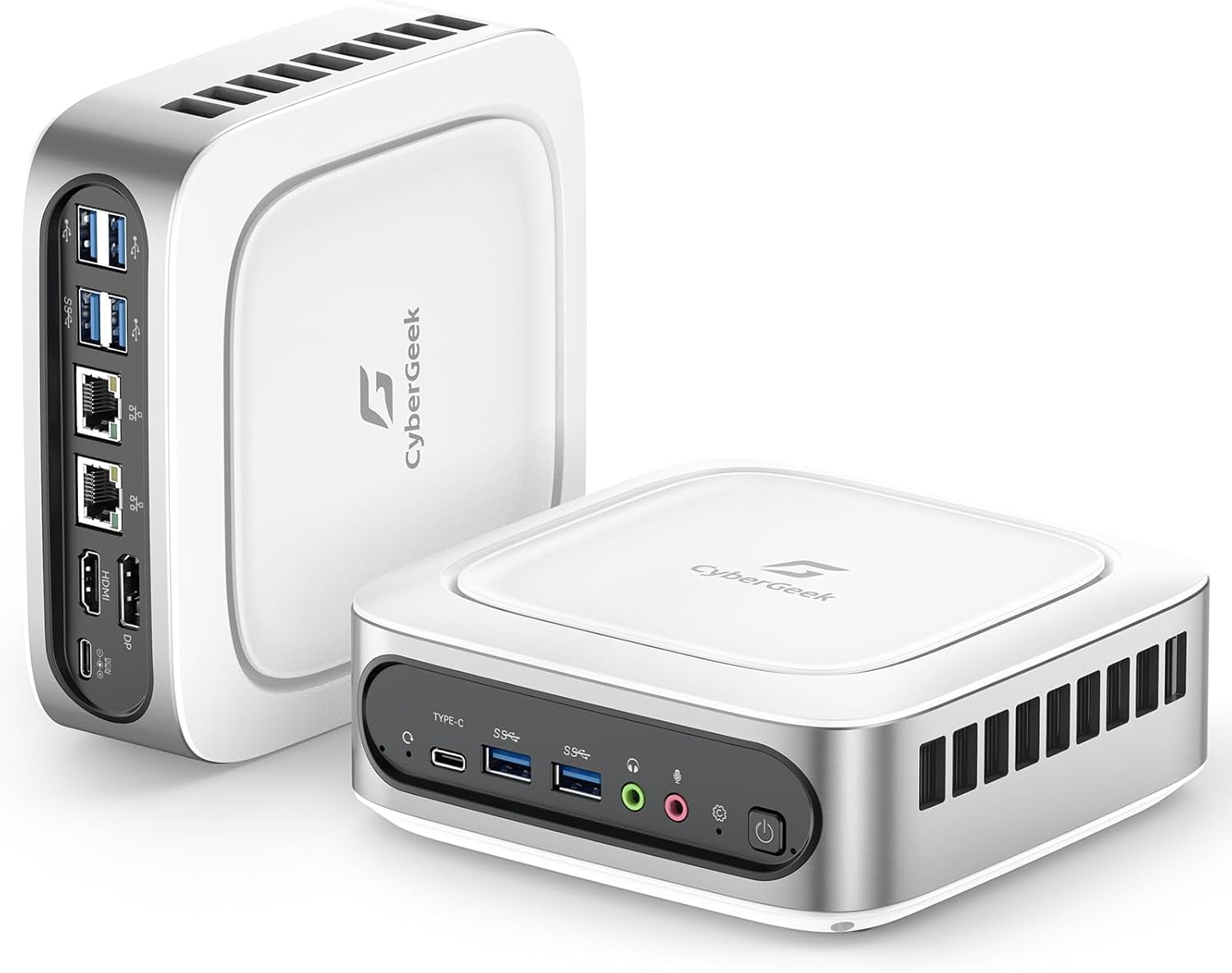
Image: CyberGeek Mini PC T1 with included accessories, including the power adapter, power cord, and HDMI cable.
3. Opstelinstruksies
3.1 Aansluiting van randapparatuur
- Verbind skerm: Use an HDMI, DisplayPort (DP), or USB-C cable to connect your monitor(s) to the corresponding ports on the Mini PC. The device supports up to three 4K displays simultaneously.
- Koppel sleutelbord en muis: Plug your USB keyboard and mouse into any of the available USB ports (USB 2.0 or USB 3.0).
- Verbind Netwerk (Opsioneel): For a wired internet connection, connect an Ethernet cable from your router or modem to one of the dual LAN ports on the Mini PC.
- Koppel krag: Plug the power adapter into the DC-in port on the Mini PC, then connect the power cord to an electrical outlet.

Beeld: Gedetailleerd view of the CyberGeek Mini PC T1's front and rear ports, including USB, LAN, HDMI, DisplayPort, and USB-C.
3.2 Aanskakel
Press the power button located on the front of the Mini PC. The power indicator light will illuminate. The system will boot into the pre-installed Ubuntu Linux operating system.
3.3 Initial Ubuntu Setup
Follow the on-screen prompts to complete the initial setup of Ubuntu Linux, which typically includes:
- Taalkeuse
- Sleutelbord uitleg
- Tydsone
- Creating a user account and password
- Connecting to Wi-Fi (if not using a wired connection)
4. Bedryfsinstruksies
4.1 Basiese werking
Your CyberGeek Mini PC T1 runs on Ubuntu Linux, a user-friendly operating system. Familiarize yourself with the desktop environment, applications, and system settings.
4.2 Netwerkkonnektiwiteit
- Wi-Fi: To connect to a wireless network, click the network icon in the top right corner of the screen, select your desired network, and enter the password if prompted. The Mini PC supports Wi-Fi 6 for faster speeds.
- Bluetooth: To pair Bluetooth devices (e.g., headphones, speakers), go to System Settings > Bluetooth, ensure Bluetooth is enabled, and select your device from the list to pair. The Mini PC supports Bluetooth 5.2.
- Bedrade LAN: If an Ethernet cable is connected, the system should automatically establish a wired network connection.

Image: Visual representation of the CyberGeek Mini PC T1's Wi-Fi 6 and Bluetooth 5.2 capabilities, showing improved network performance.
4.3 Multiple Display Setup
The Mini PC supports up to three 4K displays. After connecting your monitors, navigate to System Settings > Displays to configure their arrangement, resolution, and orientation.

Image: A CyberGeek Mini PC T1 powering a triple 4K monitor setup, demonstrating its multi-display capability for various work scenarios.
5. Onderhoud
5.1 Skoonmaak
To maintain optimal performance, regularly clean the exterior of the Mini PC with a soft, dry cloth. Ensure the ventilation openings are free from dust and obstructions. Do not use liquid cleaners directly on the device.
5.2 Sagteware-opdaterings
Regularly update your Ubuntu Linux operating system and installed applications to ensure security and access to the latest features. You can typically find update options in the system's Software Updater or through the terminal.
5.3 Bergingbestuur
Periodiek herview and manage your 2TB PCIe SSD storage. Delete unnecessary files, uninstall unused applications, and consider backing up important data to external storage.
6. Probleemoplossing
- Geen krag: Ensure the power adapter is securely connected to both the Mini PC and a working electrical outlet. Try a different outlet if necessary.
- Geen skerm: Verify that the monitor is powered on and the display cable (HDMI, DP, or USB-C) is securely connected to both the Mini PC and the monitor. Try a different display cable or port if available. If using DisplayPort with Ubuntu, some users have reported issues; ensure your Ubuntu installation is fully updated or consider using HDMI/USB-C.
- Geen internetverbinding nie: For wired connections, check the Ethernet cable and your router/modem. For Wi-Fi, ensure the correct network is selected and the password is entered accurately.
- Stelsel reageer nie: If the system becomes unresponsive, press and hold the power button for approximately 5-10 seconds to force a shutdown. Then, power it back on.
- Stadige prestasie: Close unnecessary applications, check for background processes, and ensure the system has sufficient free storage space.
7. Spesifikasies
| Kenmerk | Detail |
|---|---|
| Verwerker | 11th Gen Intel Core i9-11900H (8 Cores, 16 Threads, up to 4.9 GHz) |
| Grafika | Intel UHD-grafika |
| RAM | 64 GB DDR4 SODIMM (Max 64GB) |
| Berging | 2 TB PCIe NVMe SSD (M.2, Max 2TB) |
| Bedryfstelsel | Ubuntu Linux |
| Vertoon Uitset | HDMI x1, DisplayPort (DP) x1, USB-C x1 (Supports Triple 4K Display @ 60Hz) |
| USB-poorte | 4x USB 3.0, 2x USB 2.0, 1x USB-C |
| Netwerk | Dual LAN (RJ45 x2), Wi-Fi 6 (802.11ax), Bluetooth 5.2 |
| Oudio | Audio Jack x1, Mic Jack x1 |
| Afmetings (LxBxH) | 6.14 x 6.14 x 2.16 duim |
| Gewig | 3.66 pond |
| Kragbron | AC Adapter |
8. Waarborg en Ondersteuning
The CyberGeek Mini PC T1 comes with a manufacturer's warranty. For specific warranty terms and conditions, please refer to the documentation included with your purchase or visit the official CyberGeek webwebwerf.
For technical support, troubleshooting assistance, or warranty claims, please contact CyberGeek customer service through their official support channels. Ensure you have your product model (T1) and purchase details available when contacting support.