
Inleiding
This manual provides detailed instructions for the installation, operation, and maintenance of your DEXTER PP120 Smart Digital Handle Lock. Please read this guide carefully before attempting to install or operate the lock to ensure proper functionality and safety. Keep this manual for future reference.
Produk Kenmerke
The DEXTER PP120 Smart Digital Handle Lock offers multiple convenient and secure access methods:
- Programbeheer: Unlock and manage your lock remotely via a dedicated smartphone application.
- Vingerafdrukherkenning: Fast and secure access using registered fingerprints.
- Key Access: Traditional mechanical key override for emergency situations.
- Numeric Passcode: Keypad entry with a customizable numeric code.
- Unlock Card: Convenient access using RFID unlock cards.
- IP53 Waterbestandheid: Designed to withstand splashes and dust, suitable for various environments.
- Wi-Fi konneksie: Seamless integration with your home network for remote management and monitoring.
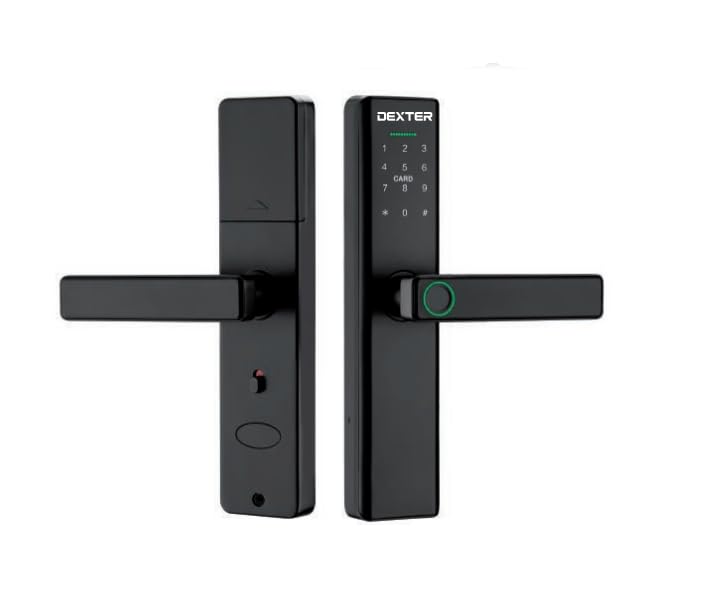
This image illustrates the DEXTER PP120 Smart Digital Handle Lock, highlighting its key features: App control, fingerprint recognition, key access, numeric passcode, unlock card functionality, IP53 water resistance, and Wi-Fi connectivity. The image also includes a table detailing model variations (PP120 and PP120 WIFI) with their article numbers, type (Embutir - Mortise), finish (Negro - Black), and master quantity.
Pakketinhoud
Voordat u met die installasie begin, maak asseblief seker dat al die volgende komponente in u pakket ingesluit is:
- Front Handle Assembly (with keypad and fingerprint sensor)
- Rear Handle Assembly (with battery compartment)
- Mortise Lock Body
- Slagplaat en Slagboks
- Monteer skroewe en bykomstighede
- Physical Keys (Emergency Override)
- Unlock Cards
- Gebruikershandleiding
Opstelling en installasie
Proper installation is crucial for the lock's performance. If you are unsure about any step, consult a professional locksmith.
- Voorbereiding deur: Ensure your door meets the lock's specifications regarding thickness and backset. Use the provided template to drill necessary holes if your door is not pre-drilled for a smart lock.
- Installasie van steekslot: Insert the mortise lock body into the edge of the door. Secure it with the provided screws.
- Handle Assembly Installation: Connect the cable from the front handle assembly to the rear handle assembly. Carefully align and insert the spindle and mounting posts through the mortise lock. Secure both handle assemblies to the door using the provided screws.
- Battery installasie: Open the battery cover on the rear handle assembly. Insert four (4) AA alkaline batteries, ensuring correct polarity. Close the battery cover.
- App aflaai en saambind:
- Download the DEXTER smart lock application from your device's app store.
- Skep 'n rekening en meld aan.
- Follow the in-app instructions to add your new lock. This typically involves activating Bluetooth on your phone and bringing it close to the lock.
- Once paired via Bluetooth, the app will guide you through connecting the lock to your home Wi-Fi network for remote access and advanced features.
- Aanvanklike opstelling: Set up an administrator passcode and fingerprint through the app immediately after pairing.
Bedryfsinstruksies
Ontsluit die Deur
- Gebruik die toepassing: Open the DEXTER app, select your lock, and tap the unlock icon.
- Gebruik van vingerafdruk: Place a registered finger flat on the fingerprint sensor located on the handle. The lock will unlock if the fingerprint is recognized.
- Using Numeric Passcode: Touch the keypad to activate it. Enter your registered 6-10 digit passcode, followed by the '#' key.
- Using Unlock Card: Present a registered unlock card to the card reader area on the front handle. The lock will unlock upon successful recognition.
- Using Physical Key: In case of battery depletion or electronic malfunction, insert the physical key into the emergency keyhole (usually hidden) and turn to unlock.
Sluit die deur
- Outomatiese sluiting: The lock is designed to automatically re-lock after a preset time (configurable in the app) once the door is closed.
- Handmatige sluiting (van binne): Lift the handle upwards from the inside to engage the deadbolt.
- Manual Locking (via App): Use the DEXTER app to remotely lock the door.
User Management (via DEXTER App)
The DEXTER app allows you to manage access for various users:
- Voeg gebruikers by: Grant access to family members or guests by adding their fingerprints, creating unique passcodes, or assigning unlock cards.
- Modifying Access: Change existing passcodes, update fingerprints, or set time-limited access for specific users.
- Vee gebruikers uit: Revoke access by deleting user profiles, fingerprints, passcodes, or unlock cards.
- Toegang logs: View a history of who entered and when (requires Wi-Fi connection).
Onderhoud
To ensure the longevity and optimal performance of your DEXTER PP120 lock, follow these maintenance guidelines:
- Battery vervanging: Replace all four AA batteries when the low battery warning is indicated by the lock or in the app. Always use new, high-quality alkaline batteries. Do not mix old and new batteries or different battery types.
- Skoonmaak: Vee die slot se oppervlak af met 'n sagte, droë lap. Vermy die gebruik van skuurmiddels, oplosmiddels of harde chemikalieë, aangesien dit die afwerking en elektroniese komponente kan beskadig.
- Firmware -opdaterings: Regularly check the DEXTER app for available firmware updates. Installing updates ensures your lock has the latest features, security enhancements, and bug fixes.
- Meganiese kontrole: Periodically check that all screws are tight and the handle operates smoothly. Do not force the handle if it feels stiff.
Probleemoplossing
If you encounter issues with your DEXTER PP120 lock, refer to the following common problems and solutions:
- Slot reageer nie:
- Gaan batteryvlakke na en vervang indien nodig.
- Ensure the lock is properly installed and all cables are connected.
- If using the app, ensure Bluetooth is enabled and you are within range.
- Vingerafdruk nie herken nie:
- Maak seker dat jou vinger skoon en droog is.
- Try placing your finger in different positions on the sensor.
- If issues persist, delete and re-register your fingerprint in the app.
- Numeric passcode not working:
- Ensure you are entering the correct passcode followed by the '#' key.
- Check if the passcode has expired or been disabled in the app.
- Wi-Fi-verbindingskwessies:
- Verify your home Wi-Fi network is active and stable.
- Ensure the lock is within range of your Wi-Fi router.
- Try reconnecting the lock to Wi-Fi through the DEXTER app settings.
- Lock is jammed or stiff:
- Do not force the handle.
- Check for any obstructions in the door frame or mortise.
- Ensure the lock is correctly aligned and installed.
Spesifikasies
| Spesifikasie | Detail |
|---|---|
| Handelsmerk | BESKERMER |
| Model Naam | Dexter Pp120 |
| Modelnommer | Dexter Pp120 |
| Tipe slot | Elektroniese slot |
| Beheer metode | Toepassing |
| Konnektiwiteit | Bluetooth, WiFi |
| Waterweerstand | IP53 |
| GTIN / UPC | 633349060758 |
Waarborg en Ondersteuning
For detailed warranty information, product registration, and technical support, please visit the official DEXTER website or contact DEXTER customer service directly. Keep your purchase receipt as proof of purchase for warranty claims.