
1. Inleiding
Thank you for choosing the Generic New T7 Full HD 4K Mirroring Projector. This projector is designed to provide a high-quality viewing experience with its Full HD 1920x1080 native resolution, 4000 lumens brightness, and versatile connectivity options. It supports wireless screen mirroring via Wi-Fi, allowing seamless integration with your mobile devices. With a flexible projection size from 40 to 200 inches, the T7 is ideal for home cinema, presentations, and educational settings.
Please read this manual carefully before operating the projector to ensure proper use and to maximize its performance and lifespan. Keep this manual for future reference.
2. Pakketinhoud
Verifieer dat al die items wat hieronder gelys word, in jou pakket ingesluit is:
- 1x Generic New T7 Projector
- 1x kragkabel
- 1x AV-kabel
- 1 x afstandbeheer
- 1x Gebruikershandleiding (Engels)
3. Produk verbyview
Maak jouself vertroud met die projektor se komponente en koppelvlakke.
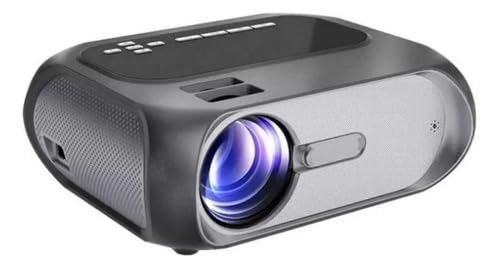
Prent 3.1: Generic New T7 Projector. This image shows the projector from an angled view, highlighting its compact design and key features such as Miracast, Airplay, Wi-Fi, 4000 lumens, and 1080p resolution. Dimensions are also indicated: 25.5cm length, 20.5cm width, and 9cm height.

Prent 3.2: Voorkant view of the T7 Projector. This image provides a clear view of the projector's lens and front panel, showcasing sy slanke ontwerp.
3.1 Koppelvlakke
- 1 x AV Port: For connecting older devices with AV output.
- 1 x HDMI Port: For high-definition audio and video input from modern devices.
- 2 x USB 2.0-poorte: Vir die koppeling van USB-geheuestokkies om media te speel files.
- 1 x Headphone Port: Vir die koppeling van eksterne oudiotoestelle of oorfone.
- 2 x IR Receivers: Vir die ontvangs van afstandbeheerseine.
- 1 x Power Port: Om die kragkabel aan te sluit.
4. Opstelling
4.1 Plasing
Place the projector on a stable, flat surface. Ensure there is adequate ventilation around the projector. The optimal projection distance is between 1 to 4 meters, allowing for a screen size of 40 to 200 inches.

Prent 4.1: Projection Size Guide. This image illustrates various projection sizes (40, 60, 80, 100, 140 inches) and their corresponding distances from the projector to the screen, ranging from 118cm to 390cm.
4.2 Kragverbinding
- Connect the power cable to the projector's power port.
- Plug the other end of the power cable into a suitable electrical outlet (Bivolt compatible).
4.3 Aanvanklike aanskakeling
- Druk die kragknoppie op die projektor of die afstandbeheerder om die toestel aan te skakel.
- Adjust the focus ring on the projector lens until the image appears clear and sharp on the screen.
5. Bedryfsinstruksies
5.1 Basiese werking
- Use the remote control to navigate the projector's menu and select input sources.
- The projector features powerful built-in speakers, eliminating the need for external audio in many cases.
- For enhanced audio, connect external speakers, home theater systems, or headphones to the headphone port.
5.2 Konnektiwiteitsopsies
The T7 projector supports a wide range of devices:

Prent 5.1: Device Compatibility. This chart illustrates the wide range of devices compatible with the T7 projector, including smartphones, iPads, Smart TVs, laptops, PCs, gaming consoles, DVD players, and USB flash drives.
5.2.1 HDMI-verbinding
Connect your laptop, gaming console, or other HDMI-enabled devices to the projector using an HDMI cable for high-quality video and audio transmission.
5.2.2 USB-terugspeel
Insert a USB flash drive into one of the USB 2.0 ports. Use the projector's menu to browse and play movies, series, or other media files direk vanaf die ry.
5.2.3 AV-verbinding
For older devices, connect them to the AV port using the provided AV cable.
5.3 Wi-Fi Screen Mirroring (Miracast & Airplay)
The T7 projector supports wireless screen mirroring from compatible smartphones and tablets via Wi-Fi.

Prent 5.2: Projector User Interface. This image displays the projector's main menu, including options for network settings, which are crucial for Wi-Fi connectivity and screen mirroring.

Prent 5.3: Wi-Fi Screen Mirroring in Action. This image demonstrates a smartphone wirelessly mirroring its screen content, in this case, a football match, onto a large projected display via the T7 projector.
- Ensure your projector is connected to a Wi-Fi network. Navigate to the 'Network Settings' in the projector's menu to connect.
- Connect your mobile device (smartphone or tablet) to the same Wi-Fi network as the projector.
- On your mobile device, activate the screen mirroring function (e.g., Miracast for Android, Airplay for iOS).
- Select the projector from the list of available devices on your mobile device.
- The mobile device's screen content will now be displayed on the projector.
6. Spesifikasies
| Kenmerk | Spesifikasie |
|---|---|
| Handelsmerk | Generies |
| Model Naam | T7 |
| Vertoon tegnologie | LED |
| Helderheid | 4000 Lumen (180 ANSI Lumen) |
| Inheemse resolusie | 1920x1080 Full HD |
| Maksimum skermresolusie | 1920 x 1080 |
| Kontrasverhouding | 3000:1 |
| LED Lamp Krag | 51 W |
| Projeksie afstand | 1 - 4 meter |
| Projeksie grootte | 40 - 200 duim |
| Verbindingstegnologie | Wi-Fi (Miracast, Airplay) |
| Krag Invoer | Bivolt (110-240V compatible) |
| Koppelvlakke | 1x AV, 1x HDMI, 2x USB 2.0, 1x Headphone, 2x IR, 1x Power |
| Afmetings (H x L x B) | 9 cm x 20 cm x 24 cm |
| Gewig | 1.62 kg |
| Spesiale kenmerke | Portable, Built-in Speakers, Multi-language support |
| Versoenbare toestelle | Laptop, Smartphone, Gaming Console, PC, Smart TV, iPad, Flash Drive, DVD |
7. Onderhoud
7.1 Skoonmaak van die lens
Use a soft, lint-free cloth specifically designed for optical lenses. Gently wipe the lens in a circular motion. Avoid using abrasive cleaners or excessive force, as this can scratch the lens.
7.2 Skoonmaak van die buitekant
Wipe the projector's exterior with a soft, dry cloth. For stubborn dirt, slightly dampen the cloth with water. Do not use chemical cleaners, as they may damage the finish.
7.3 Ventilasie
Ensure that the projector's ventilation openings are not blocked. Proper airflow is essential to prevent overheating and maintain optimal performance.
7.4 Berging
Wanneer dit nie vir lang tye gebruik word nie, bêre die projektor op 'n koel, droë plek, weg van direkte sonlig en oormatige stof. Gebruik die oorspronklike verpakking of 'n beskermende omhulsel indien beskikbaar.
8. Probleemoplossing
Indien u probleme met u projektor ondervind, raadpleeg die volgende algemene probleme en oplossings:
8.1 Geen krag
- Check if the power cable is securely connected to both the projector and the electrical outlet.
- Maak seker dat die kragaansluiting funksioneel is deur dit met 'n ander toestel te toets.
- Druk die aan / uit -knoppie op die projektor of afstandbeheer.
8.2 Geen beeld of "Geen sein"-boodskap
- Verify that the correct input source (HDMI, AV, USB) is selected in the projector's menu.
- Ensure all cables (HDMI, AV) are securely connected to both the projector and the source device.
- If using Wi-Fi mirroring, confirm both devices are on the same network and mirroring is activated.
- Try restarting both the projector and the source device.
8.3 Swak beeldkwaliteit
- Adjust the focus ring on the projector lens to sharpen the image.
- Maak seker dat die projeksie-oppervlak plat en glad is.
- Check the resolution settings on your source device to match the projector's native resolution (1920x1080).
- Reduce ambient light in the room for better contrast and brightness.
8.4 Geen klank nie
- Verhoog die volume op beide die projektor en die brontoestel.
- Kontroleer of die projektor gedemp is.
- Indien eksterne luidsprekers gebruik word, maak seker dat hulle behoorlik gekoppel en aangeskakel is.
- As jy HDMI gebruik, maak seker dat die brontoestel klank deur HDMI stuur.
8.5 Wi-Fi Mirroring Issues
- Confirm both the projector and your mobile device are connected to the same Wi-Fi network.
- Ensure your mobile device supports Miracast (Android) or Airplay (iOS).
- Restart your Wi-Fi router, projector, and mobile device.
- Check for any software updates for your mobile device or projector.
9. Waarborg en Ondersteuning
9.1 Waarborginligting
Hierdie produk kom met 'n 30-dae verkoperwaarborg vanaf die aankoopdatum. Behou asseblief u bewys van aankoop vir enige waarborg eise.
9.2 Kliëntediens
For further assistance, technical support, or warranty inquiries, please contact your seller or refer to the contact information provided at the point of purchase.