
1. Inleiding
This manual provides essential information for the proper setup, operation, and maintenance of your Azeyou 10.1-inch Android 14 Tablet, model AT1016U5. Please read this manual thoroughly before using your device to ensure optimal performance and safety.

Beeld 1.1: Voor en agter view of the Azeyou 10.1-inch Android 14 Tablet.
2. Veiligheidsinligting
To prevent damage to your device or injury to yourself and others, observe the following precautions:
- Moenie die tablet blootstel aan uiterste temperature, direkte sonlig of hoë humiditeit nie.
- Vermy om die tablet te laat val of aan harde impakte bloot te stel.
- Use only the charger and accessories provided or approved by Azeyou.
- Hou die tablet weg van water en ander vloeistowwe.
- Do not attempt to disassemble or repair the tablet yourself. Contact customer support for assistance.
- Gooi die tablet en sy battery verantwoordelik weg volgens plaaslike regulasies.
3. Pakketinhoud
Verifieer dat alle items in die pakket teenwoordig is:
- 1x Azeyou Android 14 Tablet
- 1x TYPE C Cable
- 1x Tablet Adaptor
- 1x Gebruikershandleiding

Image 3.1: Contents included in the Azeyou Tablet package.
4. Produk verbyview
Familiarize yourself with the physical components and controls of your Azeyou Tablet.
4.1. Physical Layout

Image 4.1: Diagram showing the location of ports and buttons on the Azeyou Tablet.
- Krag/Slot-knoppie: Press to turn on/off the tablet or to lock/unlock the screen.
- Volume knoppies: Pas die klankvolume aan.
- Stel Pinhole terug: Use a thin pin to reset the device if it becomes unresponsive.
- USB Tipe C-poort: Vir laai en data-oordrag.
- Micro SD -kaartgleuf: Insert a Micro SD card for expandable storage (up to 1TB, not included).
- Kamera: Front (5MP) and Rear (8MP) cameras for photos and video calls.
- Luidsprekers: Dual multimedia box speakers for audio output.
4.2. Sleutel kenmerke
- Bedryfstelsel: Android 14
- Verwerker: 2.0 GHz Octa-Core Processor (Allwinner A523)
- Vertoon: 10.1-inch IPS Touch Screen, 1280x800 resolution
- Geheue: 8GB RAM (4GB physical + 4GB virtual)
- Berging: 128GB ROM, expandable up to 1TB via TF card
- Battery: 6000 mAh litium polimeer
- Verbinding: Wi-Fi 6 (802.11a/b/g/n/ac), Bluetooth 5.0
- Kameras: 5MP voor, 8MP agter
- Bykomende: GMS certified, Widevine L1 support

Image 4.2: Visual representation of the tablet's core features including OS, memory, cameras, and connectivity.
5. Opstelling
5.1. Laai die battery
Before first use, fully charge the tablet. Connect the provided USB Type-C cable to the tablet's charging port and the other end to the tablet adaptor. Plug the adaptor into a power outlet. The charging indicator will show the charging status. A full charge typically takes approximately 1.5 hours.
5.2. Skakel aan/af
- Om aan te skakel: Press and hold the Power/Lock button until the Azeyou logo appears on the screen.
- Om af te skakel: Druk en hou die Aan/Sluit-knoppie in totdat die kragopsies-kieslys verskyn. Kies "Skakel af" en bevestig.
- Om weer te begin: From the power options menu, select "Restart."
5.3. Aanvanklike Opstelling
Nadat u dit vir die eerste keer aangeskakel het, volg die aanwysings op die skerm om u tablet te konfigureer:
- Kies jou taal.
- Koppel aan 'n Wi-Fi-netwerk.
- Meld aan met jou Google-rekening of skep 'n nuwe een. Dit is nodig om programme van die Google Play Winkel af te laai.
- Review en aanvaar die bepalings en voorwaardes.
- Stel skermslot (PIN, patroon of wagwoord) op vir sekuriteit.
5.4. Plaas 'n Mikro SD-kaart
To expand storage, insert a Micro SD card (not included) into the Micro SD card slot. Gently push the card until it clicks into place. Ensure the tablet is powered off before inserting or removing the card.
6. Bedryfsinstruksies
6.1. Navigating Android 14
Your tablet runs on Android 14, offering enhanced privacy controls and a user-friendly interface. Use touch gestures to navigate:
- Tik: Kies 'n item.
- Swiep: Blaai deur skerms of lyste.
- Knyp: Zoem in of uit op beelde en web bladsye.
- Lang pers: Kry toegang tot kontekstuele spyskaarte of skuif ikone.
6.2. Wi-Fi- en Bluetooth-konnektiwiteit
Access the Quick Settings panel by swiping down from the top of the screen to enable or disable Wi-Fi and Bluetooth. For detailed settings, go to Instellings > Netwerk en internet or Instellings > Gekoppelde toestelle.
6.3. Installering van Toepassings
The Google Play Store is pre-installed. Tap the Play Store icon to browse and download applications. A Google account is required for this process.
6.4. Kameragebruik
Open the Camera app to take photos or record videos. The tablet features a 5MP front camera and an 8MP rear camera. Tap the screen to focus and press the shutter button to capture.

Beeld 6.1: Voorbeeldamples of camera usage and dual camera setup on the Azeyou Tablet.
6.5. Display and Eye Protection
The 10.1-inch IPS display offers a 1280x800 resolution. It includes low blue light technology to reduce eye strain. Adjust display settings under Instellings > Vertoon.

Image 6.2: The 10.1-inch IPS display of the Azeyou Tablet.
6.6. Batterybestuur
The 6000mAh battery provides approximately 6 hours of mixed usage. To optimize battery life, reduce screen brightness, disable Wi-Fi/Bluetooth when not in use, and close unused applications.

Image 6.3: Battery capacity and estimated usage times for the Azeyou Tablet.
7. Onderhoud
7.1. Skoonmaak van die tablet
Use a soft, lint-free cloth to clean the screen and body of the tablet. Do not use abrasive cleaners or solvents, as they may damage the surfaces.
7.2. Sagteware-opdaterings
Kontroleer gereeld vir stelselopdaterings om te verseker dat jou tablet die nuutste kenmerke en sekuriteitsopdaterings het. Gaan na Instellings > Stelsel > Stelselopdatering.
7.3. Bergingbestuur
Maak gereeld onnodige dinge skoon files and uninstall unused apps to maintain optimal performance. You can manage storage under Instellings > Berging.
8. Probleemoplossing
As jy probleme met jou tablet ondervind, raadpleeg die volgende algemene oplossings:
| Probleem | Oplossing |
|---|---|
| Tablet skakel nie aan nie | Ensure the battery is charged. Connect the charger and wait a few minutes before attempting to power on again. If unresponsive, use a thin pin to press the Reset pinhole. |
| Skerm reageer nie | Restart the tablet by holding the Power/Lock button. If unresponsive, use the Reset pinhole. |
| Kan nie aan Wi-Fi koppel nie | Ensure Wi-Fi is enabled in settings. Check if the router is working correctly. Try forgetting the network and reconnecting. |
| Programme val vas of is stadig | Close background applications. Clear app cache (Settings > Apps > [App Name] > Storage & cache). Ensure sufficient storage space. Restart the tablet. |
| Battery raak vinnig leeg | Reduce screen brightness. Disable Wi-Fi, Bluetooth, and GPS when not in use. Close unused apps. Check battery usage in Settings > Battery. |
If the problem persists, please contact Azeyou customer support for further assistance.
9. Spesifikasies
Detailed technical specifications for the Azeyou 10.1-inch Android 14 Tablet (Model AT1016U5).
| Kenmerk | Spesifikasie |
|---|---|
| Modelnommer | AT1016U5 |
| Bedryfstelsel | Android 14 |
| Verwerker | Octa-Core (Allwinner A523), 2 GHz |
| RAM | 8 GB (4 GB fisies + 4 GB virtueel) |
| Interne berging | 128 GB |
| Uitbreidbare berging | Up to 1 TB via Micro SD card (not included) |
| Skerm grootte | 10.1 duim |
| Skermresolusie | 1280x800 IPS |
| Agterste kamera | 8 MP |
| Voorste kamera | 5 MP |
| Battery kapasiteit | 6000 mAh litiumpolimeer |
| Gemiddelde batterylewe | 6 Hours (mixed usage) |
| Draadlose konneksie | Wi-Fi 6 (802.11a/b/g/n/ac) |
| Bluetooth | Bluetooth 5.0 |
| Afmetings (LxBxH) | 9.5 x 6.3 x 0.32 duim |
| Item gewig | 1.68 pond |
| Kleur | Grys |
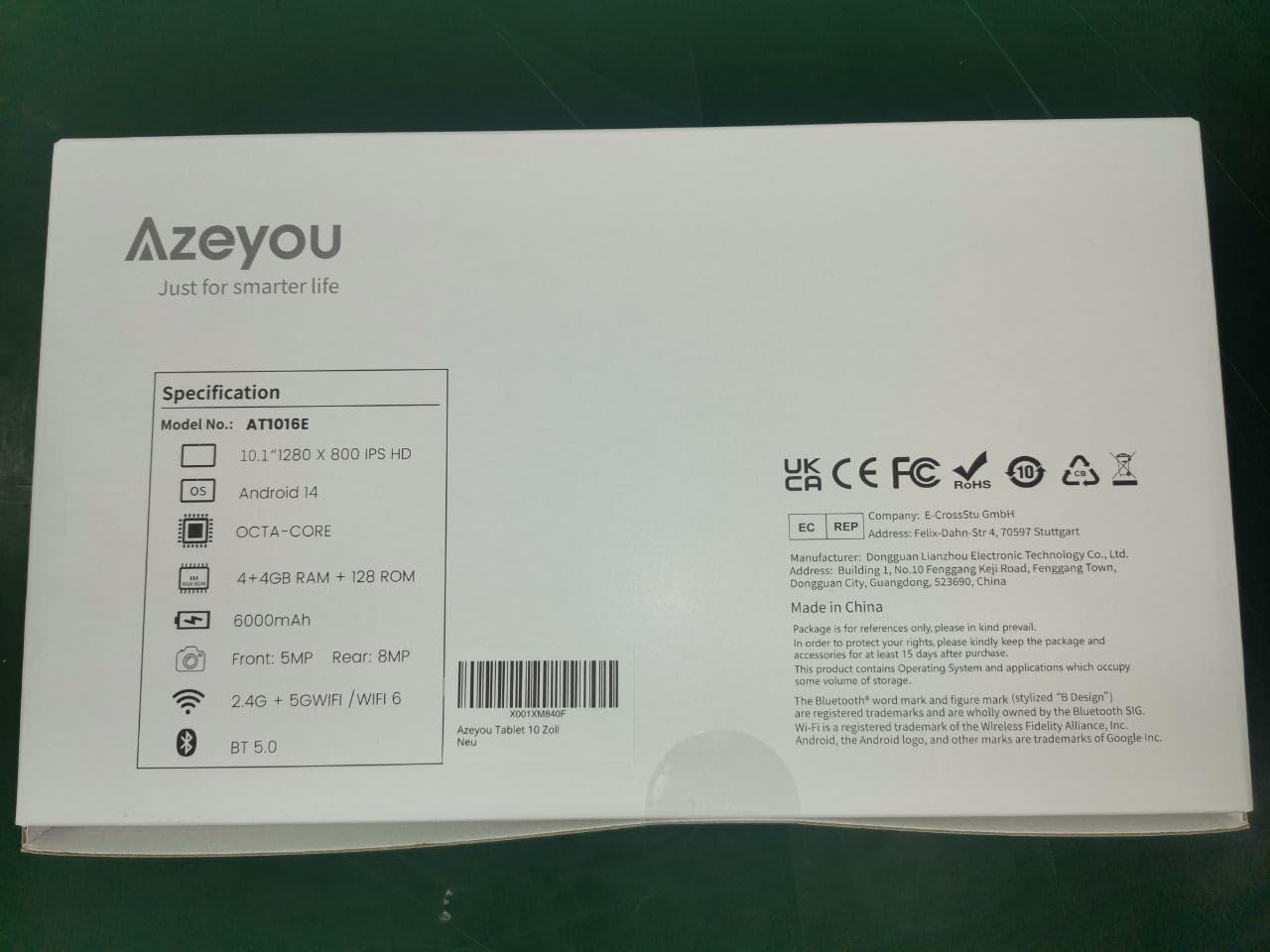
Image 9.1: Back of the product packaging displaying key specifications.
10. Waarborg en Ondersteuning
Your Azeyou Tablet is covered by a manufacturer's warranty. For specific warranty terms and conditions, please refer to the documentation included with your purchase or visit the official Azeyou website. For technical support, troubleshooting assistance, or warranty claims, please contact Azeyou customer service.
Jy kan meer inligting en ondersteuning vind op die Azeyou Brand Store.