
Inleiding
The Logitech Zone 305 is a wireless Bluetooth headset designed for business professionals. It offers clear audio and reliable connectivity for calls and video meetings, certified for platforms like Google Meet, Google Voice, and Zoom. This manual provides essential information for setting up, operating, and maintaining your headset.

Image: The Logitech Zone 305 wireless headset shown alongside its retail packaging.
Wat is in die boks
Verifieer dat alle komponente in die pakket teenwoordig is:
- Logitech Zone 305 Wireless Headset
- USB-C-ontvanger
- USB-C na USB-A-adapter
- USB-C-laaikabel
- Reissak
- Gebruikershandleiding (hierdie dokument)
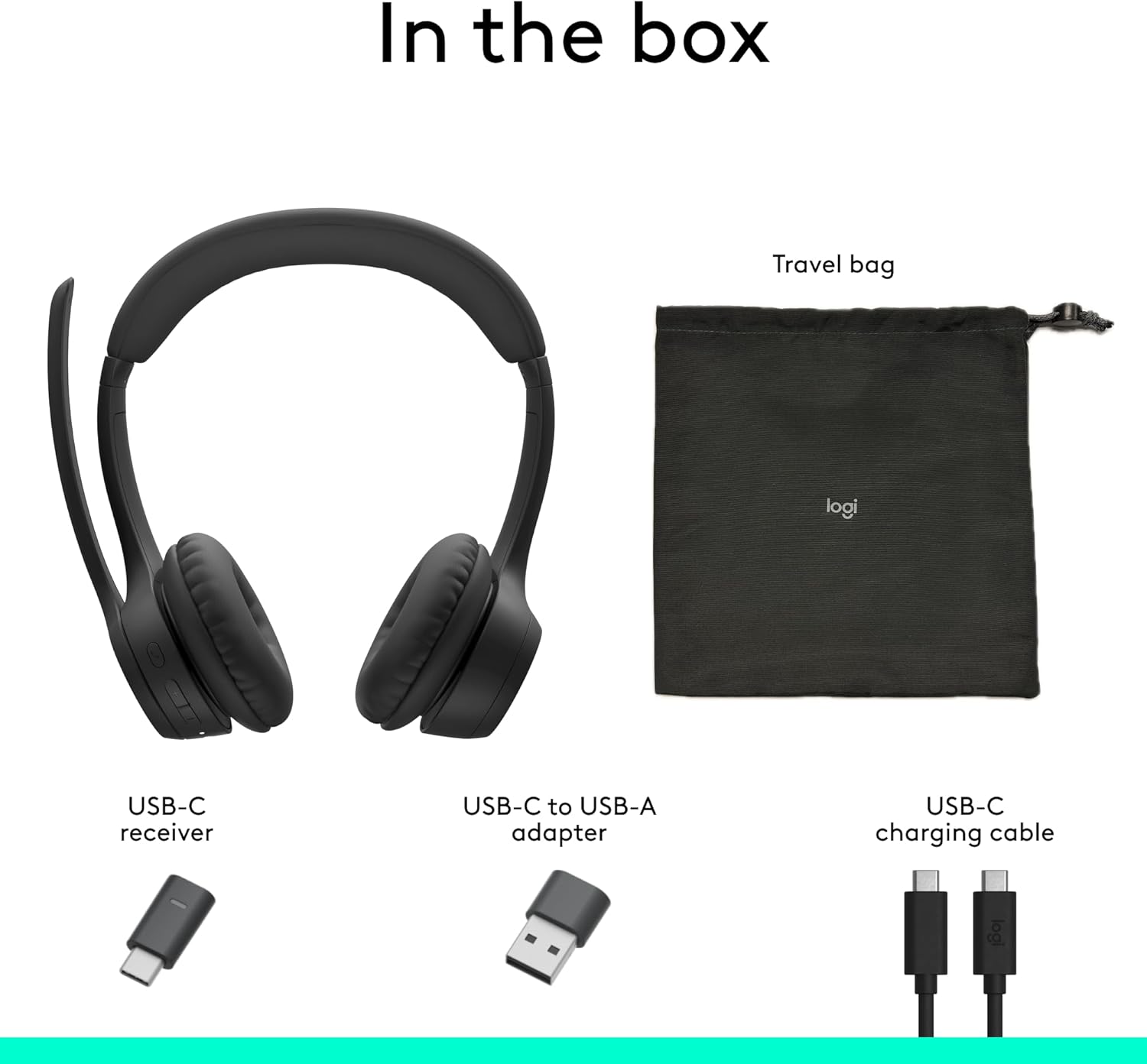
Image: A visual representation of all items included in the Logitech Zone 305 product box, including the headset, cables, and travel bag.
Opstelling
Laai die headset
Before first use, fully charge your Zone 305 headset. Connect the USB-C charging cable to the headset's USB-C port and the other end to a power source (e.g., computer USB port, wall adapter). The LED indicator on the headset will show charging status.

Image: A detailed diagram highlighting various features of the Logitech Zone 305 headset, including the USB-C charging port.
Verbind via USB-ontvanger
- Insert the USB-C receiver into an available USB-C port on your computer. If your computer only has USB-A ports, use the provided USB-C to USB-A adapter.
- Power on your Zone 305 headset.
- The headset should automatically connect to the receiver. A solid LED indicator on the headset confirms a successful connection.
Verbind via Bluetooth
- Power on your Zone 305 headset.
- Press and hold the Bluetooth pairing button on the headset until the LED indicator flashes rapidly, indicating pairing mode.
- On your device (computer, smartphone, tablet), navigate to Bluetooth settings and select "Logitech Zone 305" from the list of available devices.
- Once connected, the LED indicator on the headset will turn solid.
The headset can maintain a reliable connection to two devices simultaneously with a wireless range of up to 30 meters.
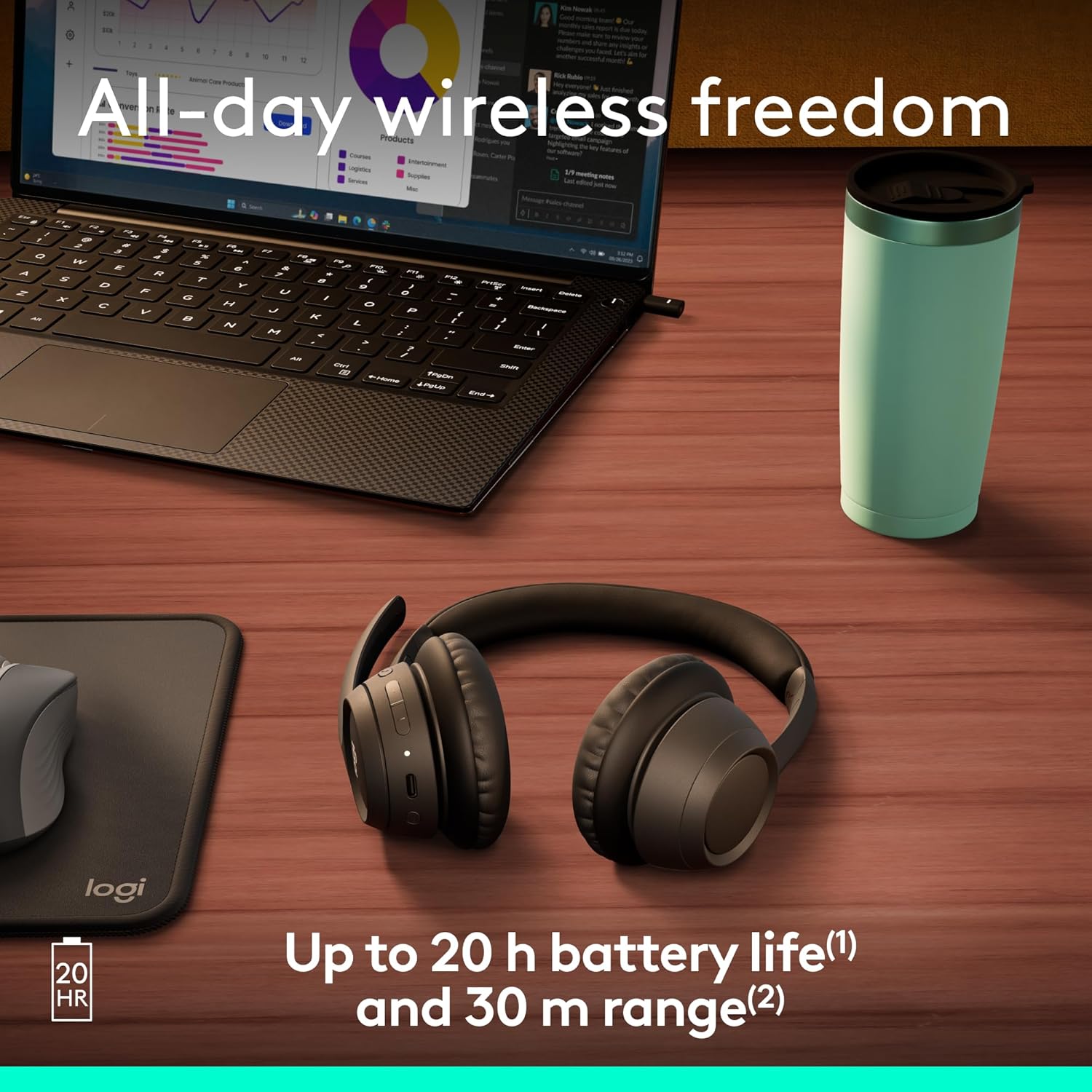
Image: The Logitech Zone 305 headset positioned on a wooden desk, illustrating its wireless capability next to a laptop.
Bedryfsinstruksies
Basiese kontroles
- Krag aan/af: Druk en hou die kragknoppie in.
- Volumebeheer: Gebruik die volume op (+) en volume af (-) knoppies wat op die oorstukkie geleë is.
- Speel/pouse: Druk die multifunksionele knoppie een keer.
- Beantwoord/beëindig oproep: Druk die multifunksieknoppie een keer tydens 'n inkomende oproep of aktiewe oproep.
- Verwerp oproep: Druk en hou die multifunksieknoppie in tydens 'n inkomende oproep.
Mikrofoongebruik
The Zone 305 features a flip-to-mute boom microphone with dual noise-canceling mics for clear voice capture.
- Demp/Ontdemp: Flip the microphone boom arm up to mute, and flip it down to unmute.
- Posisionering: Vir optimale stemhelderheid, plaas die mikrofoon ongeveer twee vingerbreedte van jou mond af.

Beeld: 'n Nabyskoot view of the microphone boom on the Logitech Zone 305 headset, highlighting the dual noise-canceling microphone elements.
Compatibility and Certifications
The Zone 305 is certified for use with Google Meet, Google Voice, and Zoom, ensuring seamless integration and optimal performance with these communication platforms. It is also compatible with Windows, Mac, Chrome, Linux, iOS, iPadOS, and Android operating systems.

Image: A person wearing the Logitech Zone 305 headset, with logos indicating certification for Zoom, Google Meet, Google Voice, and Works With Chromebook.
Onderhoud
Skoonmaak
- Vee die oorfone af met 'n sagte, damp lap.
- Moenie skuur skoonmaakmiddels of oplosmiddels gebruik nie.
- Ensure the USB-C charging port is free of dust and debris.
Earpad Replacement
The earpads on the Zone 305 are replaceable to extend the product's life. Contact Logitech support for replacement parts and instructions.
Berging
When not in use, store the headset in the provided travel bag to protect it from dust and damage.

Image: The Logitech Zone 305 headset resting on a minimalist white stand, demonstrating its lightweight design.
Probleemoplossing
- Geen oudio nie:
- Ensure the headset is powered on and connected to your device.
- Check your device's volume settings and ensure the headset is selected as the audio output.
- Verify the headset is not muted.
- Mikrofoon werk nie:
- Maak seker dat die mikrofoon se arm afgeklap is en nie gedemp is nie.
- Gaan jou toestel se klankinstellings na om te verseker dat die headset se mikrofoon as die invoertoestel gekies is.
- Restart your communication application (e.g., Zoom, Google Meet).
- Verbindingskwessies:
- Ensure the headset is within the 30-meter wireless range of your device.
- Try re-pairing the headset via Bluetooth or re-inserting the USB receiver.
- Ensure there are no strong interfering signals (e.g., other wireless devices) nearby.
- Kort batterylewe:
- Ensure the headset is fully charged before use. Battery life is up to 20 hours listening time and 16 hours talk time.
- A 5-minute quick charge provides up to 1 hour of talk time.
Spesifikasies
| Kenmerk | Detail |
|---|---|
| Model Naam | Sone 305 |
| Item Modelnommer | 981-001452 |
| Verbindingstegnologie | Draadloos (Bluetooth) |
| Wireless Range | Tot 30 meter (100 voet) |
| Batterylewe (luister) | Tot 20 uur |
| Batterylewe (Gesprekstyd) | Tot 16 uur |
| Vinnige laai | 5 minutes charge for 1 hour talk time |
| Mikrofoon tipe | Dual noise-canceling mics on flip-to-mute boom |
| Gewig | 122 gram (4.3 onse) |
| Materiaal | Plastic (55% Post-Consumer Recycled Plastic) |
| Verenigbaarheid | Windows, Mac, Chrome, Linux, iOS, iPadOS, Android |
| Sertifiserings | Google Meet, Google Voice, Zoom, Works With Chromebook |
Waarborg en Ondersteuning
Logitech products are designed for reliability and performance. For warranty information, please refer to the warranty card included with your product or visit the official Logitech support webwebwerf.
For technical assistance, frequently asked questions, and driver downloads, please visit the Logitech Ondersteuning Webwebwerf. You can also manage device usage and firmware updates via Logitech Sync.

Image: Two individuals working in an office setting, one utilizing the Logitech Zone 305 headset, illustrating its use in a business environment and manageability with Logitech Sync.