
1. Inleiding
This manual provides essential instructions for the safe and efficient use of your Meizu Note 21 Pro smartphone. Please read this manual thoroughly before operating the device and retain it for future reference.
2. Wat is in die boks
- Meizu Note 21 Pro Smartphone
- Kragadapter
- (Other accessories such as USB cable, SIM ejector tool, and documentation may vary by region.)
3. Toesteluitleg
Familiarize yourself with the physical components of your Meizu Note 21 Pro.
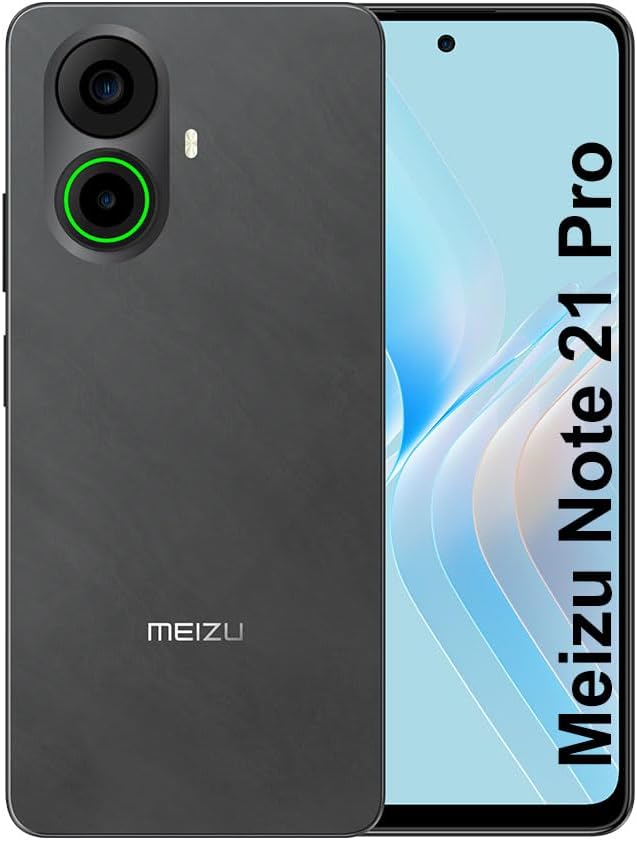
Prent 3.1: Voor en agter view of the Meizu Note 21 Pro. The front displays the screen with a punch-hole camera. The rear shows the dual camera module with a green accent ring on one lens, a flash, and the "MEIZU" logo at the bottom.
- Voorskerm: 6.78-inch FHD+ screen with a 120Hz refresh rate.
- Voorste kamera: Geleë in die boonste middel van die skerm.
- Agterste kameras: Dual camera system, including a 64MP main camera.
- Syvingerafdruksensor: Integrated for secure access.
- USB-poort: Vir laai en data-oordrag.
- 3.5 mm oudio-aansluiting: Vir oorfone.
- SIM/MikroSD-kaartlaai: Supports Dual Nano SIM and MicroSD cards.
4. Opstelling
4.1. SIM- en MicroSD-kaarte insit
- Vind die SIM-kaartlaai aan die kant van jou toestel.
- Plaas die SIM-uitwerpgereedskap in die klein gaatjie langs die laai en druk liggies totdat die laai uitspring.
- Plaas jou Nano SIM-kaart(e) en/of MicroSD-kaart in die aangewese gleuwe op die laai. Maak seker dat die goue kontakte na onder wys.
- Plaas die skinkbord versigtig terug in die toestel totdat dit vasklik.
4.2. Aanvanklike aanskakeling en opstelling
- Press and hold the Power button until the Meizu logo appears.
- Volg die aanwysings op die skerm om jou taal te kies, aan 'n Wi-Fi-netwerk te koppel en jou Google-rekening op te stel.
- During setup, you will be guided to configure security features such as a PIN, pattern, or password.
4.3. Fingerprint Recognition Setup
- Navigeer na Instellings > Sekuriteit en privaatheid > Vingerafdruk ontsluit.
- Follow the on-screen instructions to register your fingerprint by repeatedly touching the side-mounted sensor.
- Ensure your finger covers the entire sensor area during registration for optimal performance.
5. Bedien jou toestel
5.1. Vertoon en Navigasie
- The 6.78-inch FHD+ display operates at a 120Hz refresh rate for smooth visuals.
- Navigate the Android 14 operating system using touch gestures: tap, swipe, pinch-to-zoom.
- Kry toegang tot kitsinstellings deur van die bokant van die skerm af te swiep.
5.2. Kamerafunksies
- Maak die Kamera-toepassing oop vanaf die tuisskerm of toepassinglaai.
- The rear camera system features a 64MP main sensor for high-resolution photos and a 2MP depth-of-field camera for portrait effects.
- The 13MP front-facing camera is suitable for selfies and video calls.
- Tap on the screen to focus, and use the on-screen shutter button to capture images. Explore various modes like Portrait, Night, and Pro within the camera app.
5.3. Werkverrigting en berging
- The MediaTek G99 Octa Core processor ensures efficient performance for applications and multitasking.
- The device comes with 256GB of internal storage and 8GB of RAM.
- Storage can be expanded using a MicroSD card (sold separately).
5.4. Battery en Laai
- The Meizu Note 21 Pro is equipped with a 5000mAh battery.
- Use the provided Power Adapter for 30W fast charging.
- To charge, connect the USB cable to the phone's USB port and the power adapter, then plug the adapter into a wall outlet.
5.5. Konnektiwiteit
- 4G LTE: Supports various LTE FDD and TDD bands for cellular data. Note: This international version works on T-Mobile in the USA and globally with other carriers.
- Wi-Fi 5: Koppel aan draadlose netwerke vir internettoegang.
- Bluetooth: Koppel met draadlose bykomstighede soos oorfone en luidsprekers.
- NFC: Vir kontaklose betalings en vinnige paring met versoenbare toestelle.
- GPS: Vir liggingsdienste en navigasie.
6. Onderhoud
- Skoonmaak: Gebruik 'n sagte, pluisvrye lap om die skerm en die toestel se liggaam skoon te maak. Vermy harde chemikalieë of skuurmiddels.
- Batterysorg: Avoid extreme temperatures. Do not fully discharge the battery frequently. For optimal battery longevity, keep the charge between 20% and 80%.
- Sagteware-opdaterings: Kontroleer gereeld vir stelselopdaterings en installeer dit om optimale werkverrigting en sekuriteit te verseker. Gaan na Instellings > Stelsel > Stelselopdatering.
7. Probleemoplossing
| Kwessie | Moontlike Oplossing |
|---|---|
| Toestel skakel nie aan nie | Ensure the battery is charged. Connect the device to the power adapter and try again. If unresponsive, press and hold the Power button for 10-15 seconds to force a restart. |
| Swak netwerk sein | Check if the SIM card is correctly inserted. Move to an area with better network coverage. Restart the device. Verify with your carrier that your plan is active. |
| Programme is stadig of stort vas | Close background applications. Clear app cache (Instellings > Toepassings > kies toepassing > Berging en kasgeheue > Vee kas uit). Restart the device. Ensure sufficient storage space. |
| Vingerafdruksensor werk nie | Ensure your finger and the sensor are clean and dry. Re-register your fingerprint in settings. |
8. Spesifikasies
- Model: Meizu Note 21 Pro
- Bedryfstelsel: Android 14
- Verwerker: MediaTek G99 Octa Core (2.2GHz)
- Vertoon: 6.78 inches FHD+ (1080 x 2160 resolution), 120Hz Refresh Rate
- RAM: 8 GB
- Interne berging: 256 GB
- Agterste kamera: 64MP Hoof + 2MP Diepte
- Voorste kamera: 13MP
- Battery: 5000mAh, 30W Fast Charging
- Verbinding: 4G LTE (FDD:1,2,3,4,5,7,8,12,17,18,19,20,26,28,66; TDD:38,40,41), 3G WCDMA, 2G Quad Band, Wi-Fi 5, Bluetooth, NFC, GPS
- Oudio-aansluiting: 3.5 mm
- Afmetings: 6.64 x 2.96 x 0.33 duim
- Gewig: 1.1 pond
9. Waarborg en Ondersteuning
For warranty information and technical support, please refer to the warranty card included with your product or visit the official Meizu webwebwerf. Bewaar u bewys van aankoop vir waarborgeise.
For further assistance, you may contact Meizu customer service through their official channels.