
1. Inleiding
This manual provides detailed instructions for the installation, operation, and maintenance of your Reobiux D20-1P 2K Outdoor Surveillance Camera. Please read this manual thoroughly before using the product to ensure proper functionality and safety.
2. Pakketinhoud
Verifieer dat al die items wat hieronder gelys word in u pakket ingesluit is. Indien enige items ontbreek of beskadig is, kontak asseblief kliëntediens.
- 1x Reobiux D20-1P Solar PTZ Camera
- 1x Solar Collector
- 1x Gebruikershandleiding
- 1x Monteerbasis
- 1x Power Supply (for initial charging)
- 1x Screws Bag (for installation)
- 1x Type-C Charging Line
3. Produk verbyview
The Reobiux D20-1P is a 2K outdoor surveillance camera designed for comprehensive home security. It features dual lenses, 360° Pan-Tilt-Zoom (PTZ) capabilities, and operates wirelessly via Wi-Fi. Key features include PIR motion detection, color night vision, two-way audio, and an IP66 weatherproof rating, powered by a solar panel and rechargeable battery.
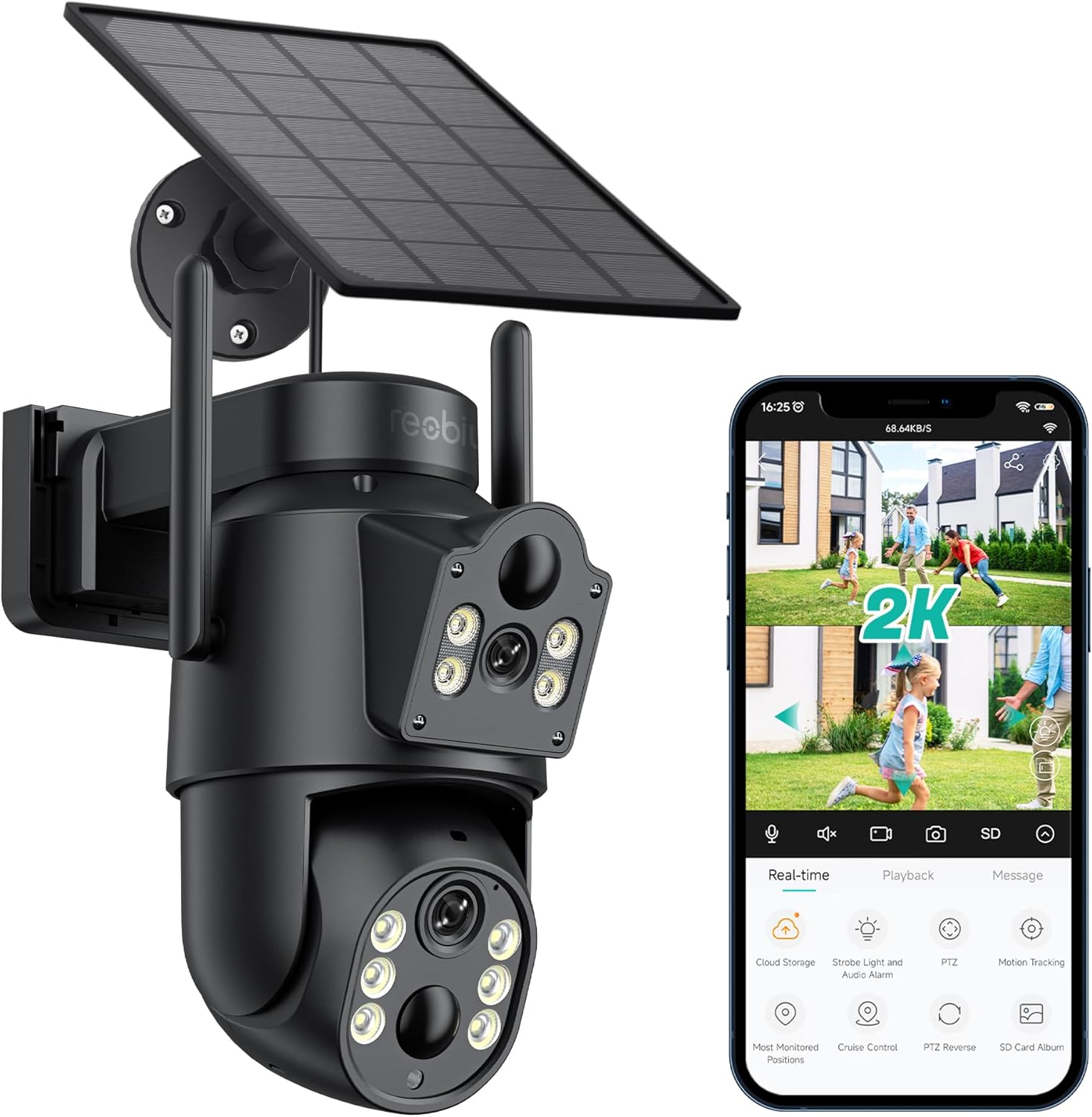
Figuur 3.1: Reobiux D20-1P Solar PTZ Camera and its mobile application interface showing real-time monitoring, playback, and various control options.
Sleutel kenmerke:
- 2K QHD High Resolution: Verskaf duidelike en gedetailleerde video footage.
- Dubbellensontwerp: Combines a fixed lens with a rotating lens for comprehensive coverage.
- 360° PTZ Functionality: Allows remote control of pan, tilt, and zoom for flexible viewhoeke.
- Solar Powered with Rechargeable Battery: Ensures continuous operation with minimal manual charging.
- PIR Bewegingsopsporing: Intelligently detects human movement to reduce false alarms.
- Kleur Nag Visie: Offers full-color video even in low-light conditions, alongside infrared night vision.
- Tweerigting-klank: Enables communication with visitors or deterrence of intruders.
- IP66 Weerbestand: Ontwerp om verskeie buitelugweerstoestande te weerstaan.
- Wireless Wi-Fi Connectivity: Easy setup and remote access via smartphone.
4. Opstelgids
4.1 Aanvanklike laai
Before first use, fully charge the camera's internal battery using the provided Type-C charging line and power supply. This ensures the camera has sufficient power for initial setup and operation, especially if solar charging conditions are not optimal immediately after installation.
4.2 App-installasie en rekeningskepping
- Laai die af iCSien toepassing vanaf jou slimfoon se toepassingswinkel (iOS App Store of Google Play Store).
- Installeer die toepassing en maak dit oop.
- Follow the on-screen instructions to create a new account or log in if you already have one.
4.3 Camera Connection to Wi-Fi
- Ensure your camera is powered on.
- Tik die "+"-ikoon in die iCSee-app om 'n nuwe toestel by te voeg.
- Select the option for "Wi-Fi Camera" or "Add Device by AP Hotspot" (refer to app for exact wording).
- Follow the app's instructions to connect the camera to your 2.4GHz Wi-Fi network. You may need to scan a QR code displayed on your phone with the camera, or listen for a sound prompt.
- Sodra jy gekoppel is, kan jy jou kamera 'n naam gee en begin monitor.
4.4 Montering van die kamera
Choose a location that provides optimal surveillance coverage and receives direct sunlight for the solar panel. Ensure the camera is within range of your Wi-Fi network.
- Kies ligging: Identify a suitable wall or surface for mounting. Consider the camera's viewing angle (355° pan, 90° tilt) and the solar panel's exposure to sunlight.
- Merk boorpunte: Use the mounting base as a template to mark the screw holes on the wall.
- Boorgate: Boor vlieëniergate op die gemerkte posisies. Plaas muurankers indien nodig.
- Heg monteringsbasis aan: Bevestig die monteringsbasis aan die muur met die meegeleverde skroewe.
- Heg kamera aan: Mount the camera onto the secured base.
- Pas sonpaneel aan: Plaas die sonpaneel om sonligblootstelling dwarsdeur die dag te maksimeer.

Figuur 4.1: Illustration of the camera mounted with its solar panel, highlighting the fixed and rotating lenses and the benefit of continuous solar power.
5. Bedryfsinstruksies
5.1 Lewendig View en Terugspeel
Open the iCSee app and select your camera to access the live view. From here, you can:
- Intydse monitering: View regstreekse video-voer.
- PTZ-beheer: Use the on-screen joystick to pan (355°) and tilt (90°) the camera.
- Digitale zoom: Pinch to zoom on the live feed.
- Terugspeel: Toegang opgeneem footage stored on the SD card or cloud storage.

Figuur 5.1: Demonstrates the superior clarity of 2K QHD resolution compared to 1080P, providing more details for monitoring.
5.2 Bewegingsopsporing en waarskuwings
The camera utilizes PIR (Passive Infrared) intelligent detection to identify human movement, minimizing false alarms from pets or swaying branches.
- Aktiveer/Deaktiveer: Aktiveer of deaktiveer bewegingsopsporing in die toepassinginstellings.
- Sensitiwiteit aanpassing: Adjust the PIR sensor's sensitivity to suit your environment.
- Alarmkennisgewings: Ontvang onmiddellike stootkennisgewings op jou slimfoon wanneer beweging bespeur word.
- Klank- en Ligalarm: Configure the camera to trigger a strobe light and audible alarm upon detection.

Figuur 5.2: The camera's PIR intelligent detection distinguishes human movement from other objects, reducing unnecessary alerts.

Figuur 5.3: When motion is detected, the camera can send real-time push notifications and activate a sound and light alarm to deter intruders.
5.3 Nagsigmodusse
The camera offers two night vision modes for clear visibility in the dark:
- Spotlight Full Color Night Vision: Utilizes built-in spotlights to provide full-color video in low-light conditions.
- Spotlight Infrared Night Vision: Uses infrared LEDs for black-and-white video in complete darkness, with a range of up to 30 meters.
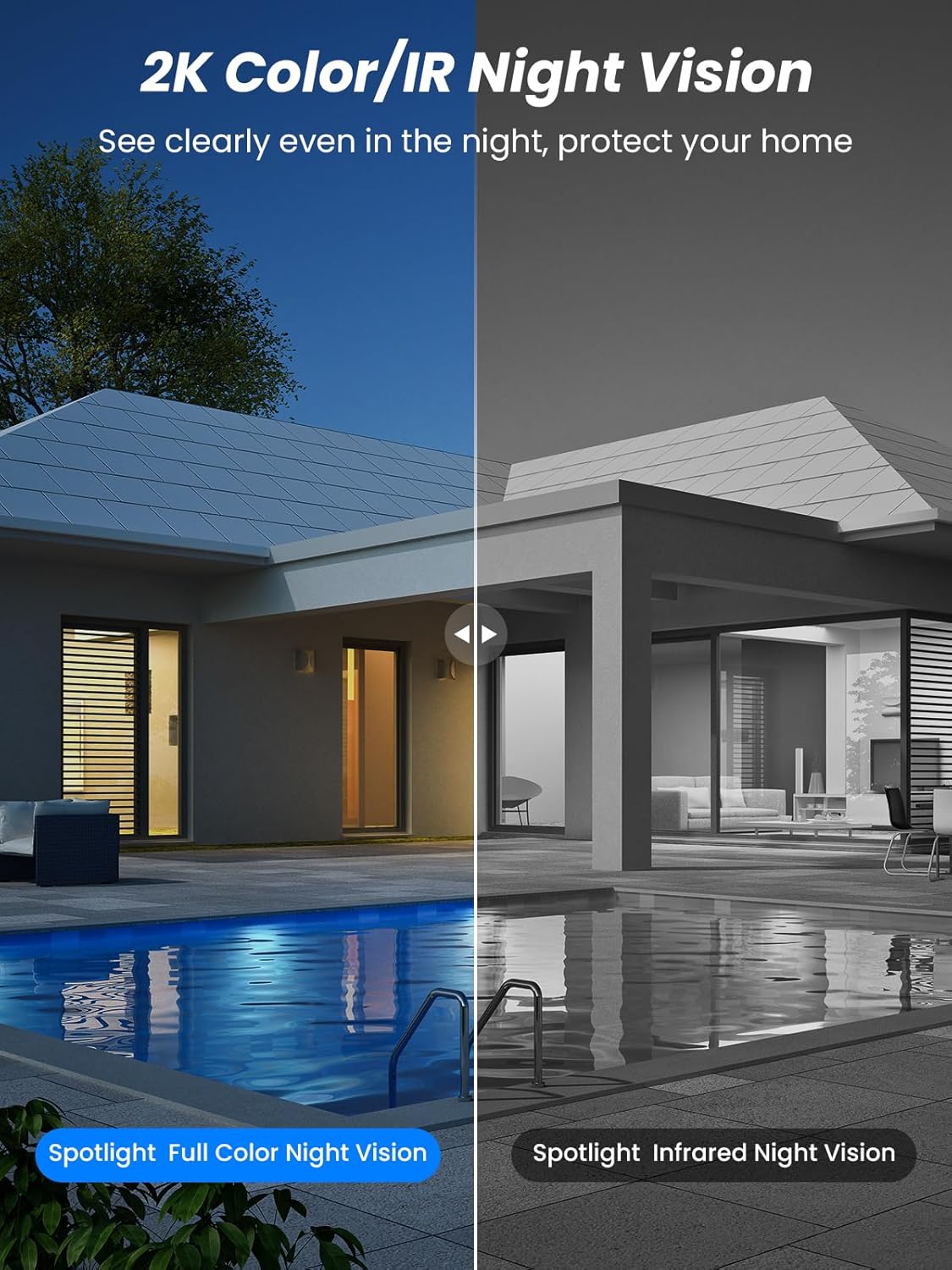
Figuur 5.4: Illustrates the difference between full-color night vision, enabled by spotlights, and traditional infrared night vision.
5.4 Tweerigting-klank
The integrated microphone and speaker allow for two-way communication.
- Praat: Tap the microphone icon in the app to speak through the camera's speaker.
- Luister: The camera's microphone captures audio from its surroundings.

Figuur 5.5: The two-way audio function allows for direct communication through the camera, useful for interacting with visitors or delivery personnel.
6. Onderhoud
- Skoonmaak: Maak die kameralens en sonpaneel gereeld skoon met 'n sagte, damp cloth to ensure optimal performance and clear image quality. Avoid abrasive cleaners.
- Battery gesondheid: While solar-powered, extreme weather or prolonged periods of low sunlight may require manual charging. Monitor battery levels via the app.
- Firmware -opdaterings: Check the iCSee app regularly for available firmware updates to ensure your camera has the latest features and security enhancements.
- Weerbeskerming: The camera is IP66 weatherproof, designed to withstand rain, snow, and sun. However, ensure all connections are secure to maintain water resistance.

Figuur 6.1: The IP66 rating ensures the camera's durability and functionality in various outdoor weather conditions, including snow, rain, and direct sunlight.
7. Probleemoplossing
- Kamera koppel nie aan Wi-Fi nie:
- Ensure the camera is within range of your 2.4GHz Wi-Fi network. 5GHz networks are not supported.
- Verifieer dat jou Wi-Fi-wagwoord korrek is.
- Herbegin jou router en die kamera.
- If issues persist, try resetting the camera (refer to app or product for reset button location).
- Battery not charging or draining quickly:
- Ensure the solar panel is clean and receives direct sunlight for several hours daily.
- Kontroleer die verbinding tussen die sonpaneel en die kamera.
- If in a low-light environment, manually charge the camera using the Type-C cable.
- Gereelde bewegingsopsporingsgebeurtenisse of regstreekse view streaming can consume battery faster. Adjust settings if needed.
- False motion detection alarms:
- Adjust the PIR motion detection sensitivity in the iCSee app.
- Ensure the camera is not pointed at areas with constant movement (e.g., busy roads, swaying trees) if not intended for monitoring.
- Swak beeldkwaliteit:
- Maak die kameralens skoon.
- Ensure sufficient lighting for optimal image capture, especially at night.
- Check your Wi-Fi signal strength; a weak signal can affect video streaming quality.
8. Spesifikasies
| Kenmerk | Detail |
|---|---|
| Model Naam | D20-1P |
| Video-opname-resolusie | 2.5K |
| Effektiewe video-resolusie | 2K QHD |
| Draadlose kommunikasietegnologie | Wi-Fi (2.4GHz) |
| Vormfaktor | Koepel |
| Viewing Hoek | 355 grade (Pan), 90 grade (Kantel) |
| Installasie tipe | Muur gemonteer |
| Nagsigreeks | 30 meter |
| Raamtempo | 25 fps |
| Materiaal | Plastiek |
| Voltage | 12 Volt (DC) |
| Wattage | 5 watt |
| Kragbron | Battery-aangedrewe, Sonkrag-aangedrewe |
| Batterye | 3 Litium-ioon batterye (ingesluit) |
| Verbindingsprotokol | Wi-Fi |
| Tipe beheerder | iCSee-toepassing |
| Spesiale kenmerke | Night Vision (Color/IR), PIR Motion Detection, Two-Way Audio, IP66 Weatherproof |
| Item gewig | 1.06 kg |
| Pakkie Dimensies | 21.7 x 19.5 x 13.8 cm |
9. Waarborg en Ondersteuning
Reobiux offers a 1 jaar waarborg for this product. For any issues or inquiries, please do not hesitate to reach out to our customer service. We provide 20 hours of online service to assist you.
For support, please refer to the contact information provided with your purchase or within the iCSee application.