1. Inleiding
This manual provides detailed instructions for the installation, operation, and maintenance of your Hikity Android Carplay Wireless Autoradio. This multimedia system is specifically designed for the Seat Leon MK3 (Left-Hand Drive) models from 2013 to 2019, offering a 9-inch touchscreen display with advanced features such as wireless CarPlay, Android Auto, GPS navigation, Bluetooth, and support for a reversing camera.
Please read this manual thoroughly before installation and use to ensure proper functionality and to maximize your user experience.
2. Veiligheidsinligting
- Professionele installasie word aanbeveel: As gevolg van die kompleksiteit van motor-elektriese stelsels, word professionele installasie sterk aanbeveel om skade aan die eenheid of jou voertuig te voorkom.
- Bestuur veiligheid: Do not operate the system in a way that distracts you from driving. Always prioritize road safety.
- Kragtoevoer: Ensure the unit is connected to a 12V DC power supply with a negative ground. Incorrect wiring can cause damage or fire.
- Vermy vog: Moenie die eenheid aan water of oormatige vog blootstel nie.
- Temperatuur: Avoid extreme temperatures. The operating temperature range is typically -20°C to +70°C.
- Ventilasie: Verseker voldoende ventilasie rondom die eenheid om oorverhitting te voorkom.
3. Pakketinhoud
Verify that all items are present in your package before proceeding with installation:
- Hikity Android Autoradio Unit (9-inch touchscreen)
- Kragkabel
- RCA-kabel
- USB Cables (x2)
- Kamera-invoerkabel
- GPS-antenne
- Radio Antenne
- Canbus-dekodeerder
- AHD Rear Camera (optional, if included in your package)
- Mikrofoon
- Installasie Gereedskap
- Omgekeerde lyn

4. Opstelling en installering
This autoradio is designed for direct fitment in Seat Leon MK3 (2013-2019) Left-Hand Drive vehicles. Ensure your vehicle's dashboard matches the 'Before' image for compatibility.

4.1 Bedradingsverbindings
Refer to the wiring diagram provided with your unit and the image below for connecting the various cables. Incorrect wiring can lead to malfunction or damage.

- Krag kabel: Connect the main power harness to your vehicle's wiring. Ensure correct positive (B+) and accessory (ACC) connections, and a secure ground (GND). The Canbus decoder should be integrated as per the vehicle's specific wiring.
- RCA-kabels: Vir eksterne amplifiers, subwoofers, or auxiliary audio/video input/output.
- USB kabels: Connect the two provided USB cables for media playback, phone charging, or wired CarPlay/Android Auto connections.
- Kamera-invoer: Connect the AHD rear camera cable here.
- GPS-antenna: Monteer die GPS-antenna op 'n plek met 'n duidelike view van die lug, tipies op die paneelbord of onder die voorruit.
- Radio antenna: Connect your vehicle's radio antenna.
- Mikrofoon: Connect the external microphone for improved call quality and voice commands.
Note: Some users have reported that the provided connection harness may not be a direct 'plug and play' for all Seat Leon FR models, requiring modifications or extensions for certain cables (e.g., the cable from the glove compartment CD unit). Please verify your vehicle's specific wiring before installation.
5. Bedryfsinstruksies
5.1 Stelsel verbyview
The unit runs on Android 13 with a Quad Core processor, 2GB RAM, and 64GB ROM, providing a responsive user experience on its 9-inch Ultra HD touchscreen with a resolution of 1024*600 pixels.


5.2 Draadlose CarPlay en Android Auto
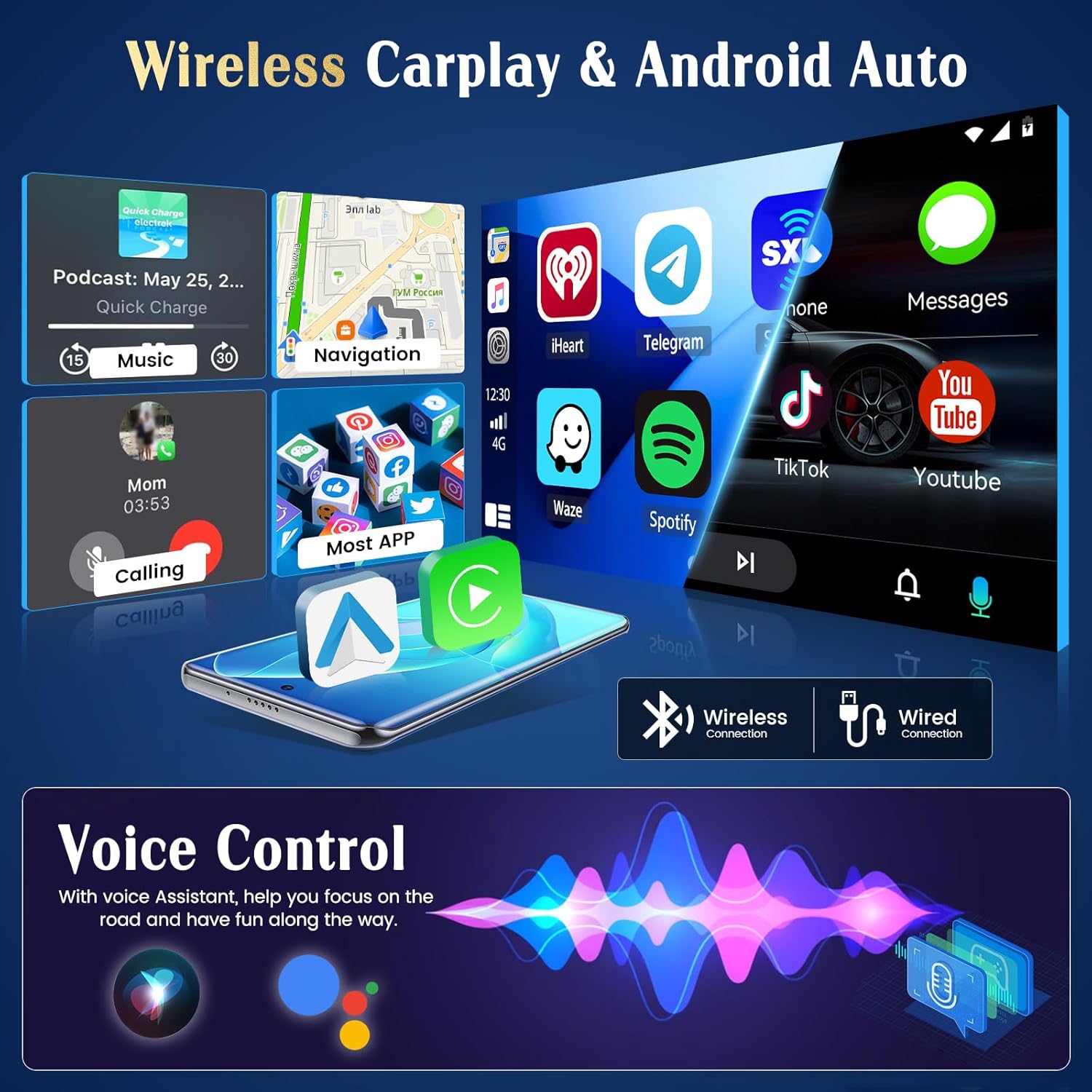
The unit supports both wireless and wired CarPlay and Android Auto. This feature integrates your smartphone's interface directly onto the car's display, allowing access to navigation, music, messages, and calls safely while driving.
- Verbinding: Connect your iPhone via Bluetooth for wireless CarPlay or a USB cable for wired CarPlay. For Android phones, connect via Bluetooth for wireless Android Auto or a USB cable for wired Android Auto.
- Funksionaliteit: Once connected, your phone's compatible apps will appear on the autoradio screen.

5.3 GPS-navigasie
The autoradio has an integrated GPS receiver and supports both online and offline maps. The pre-installed Herewego app allows you to download free offline maps for global navigation.
- Online Maps: Requires a WiFi connection to access real-time traffic and map updates.
- Vanlyn kaarte: Download maps in advance to navigate without an internet connection.


5.4 WiFi-verbinding
Connect the autoradio to a WiFi network (e.g., your phone's hotspot) to access online features.
- App-aflaaie: Access the Google Play Store to download various applications.
- Online Browsing: Blaai deur die web, stream content, and use online services.

5.5 FM/RDS-radio
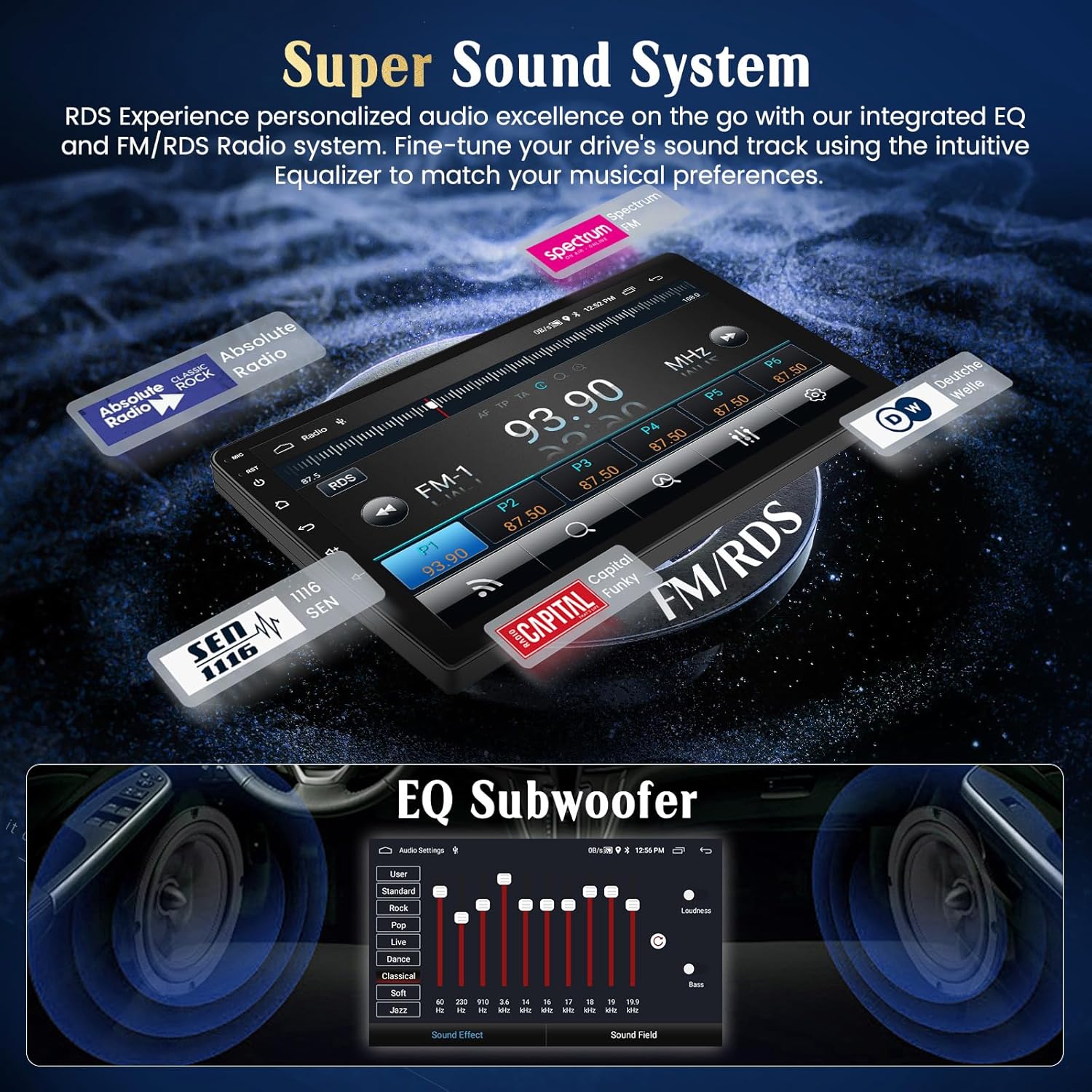
Tune into your favorite FM radio stations and enjoy real-time broadcast information via RDS (Radio Data System).
- Outomatiese skandering: Use the auto-scan function to find and save available stations.
- Handmatige instelling: Manually adjust the frequency to specific stations.
5.6 Bluetooth-funksionaliteit
Connect your smartphone via Bluetooth for hands-free calling and audio streaming.
- Saambinding: Enable Bluetooth on your phone and search for the autoradio unit. Select it to pair.
- Handvrye oproepe: Make and receive calls directly from the touchscreen.
- Klankstroom: Play music from your phone through the car's speakers.
5.7 Stuurwielbeheer
The unit supports your vehicle's original steering wheel controls, allowing you to manage audio and other functions without taking your hands off the wheel.
- Opstelling: Access the 'Steering Wheel Control' settings in the system menu to map your vehicle's buttons to the desired functions (e.g., volume up/down, track skip, mode).

5.8 AHD Reversing Input (Backup Camera)
When your vehicle is shifted into reverse gear, the system automatically switches to the rear camera view, providing a clear image to assist with parking and maneuvering.
- Kenmerke: The supported AHD camera offers HD image quality, waterproof design, night vision, and a wide-angle view met parkeerriglyne.


5.9 Klankstelsel
Customize your audio experience with the integrated equalizer (EQ) and subwoofer output.
- Gelykmaker: Adjust various frequency bands to tailor the sound to your preferences.
- Subwoofer -uitvoer: Connect an external subwoofer for enhanced bass.
5.10 Phone Mirror Link
Mirror your Android or iOS smartphone screen directly onto the autoradio display.
- Android: Connect via USB or WiFi.
- iOS: Connect via USB or WiFi.

5.11 Slim stembeheer
Utilize voice commands through Siri (for CarPlay) or Google Assistant (for Android Auto) to control various functions, keeping your hands on the wheel and eyes on the road.
- Aktivering: Activate voice control through your connected smartphone's interface.
- Opdragte: Use commands for navigation, music playback, calls, and messages.

5.12 UI Themes
Personalize your user interface with a selection of 28 different UI themes.
- Veranderende temas: Long-press on an empty space on the desktop to access theme options and switch between different designs.

6. Onderhoud
- Skoonmaak van die skerm: Use a soft, lint-free cloth to clean the touchscreen. For stubborn smudges, lightly dampMaak die lap skoon met water of 'n skermveilige skoonmaakmiddel. Vermy harde chemikalieë.
- Sagteware-opdaterings: Kontroleer gereeld vir sagteware-opdaterings deur die stelselinstellings of die vervaardiger se webwebwerf om optimale werkverrigting en toegang tot nuwe funksies te verseker.
- Algemene sorg: Avoid placing heavy objects on the unit or exposing it to direct sunlight for extended periods when parked.
7. Probleemoplossing
If you encounter issues with your Hikity Autoradio, refer to the following common problems and solutions:
| Probleem | Moontlike oorsaak | Oplossing |
|---|---|---|
| Eenheid skakel nie aan nie. | Los kragverbinding, geblaasde sekering, verkeerde bedrading. | Check all power cables (B+, ACC, GND) for secure connection. Inspect vehicle fuses and the unit's fuse. Ensure correct 12V DC connection. |
| Geen klank nie. | Volume te laag, stilte geaktiveer, verkeerde luidsprekerbedrading, ampverligter kwessie. | Increase volume. Check if mute is active. Verify speaker connections. If using an external ampversterker, kontroleer die krag en verbindings daarvan. |
| GPS-sein verlore of onakkuraat. | GPS antenna obstructed or improperly placed, antenna faulty. | Maak seker dat die GPS-antenna 'n duidelike view of the sky. Check antenna connection. Try repositioning the antenna. |
| CarPlay/Android Auto koppel nie. | Bluetooth/USB connection issue, phone compatibility, app not updated. | Ensure Bluetooth is on and paired. Try a different USB cable. Update phone OS and CarPlay/Android Auto apps. Restart both phone and autoradio. |
| Agterkamera wys nie. | Camera not powered, incorrect camera input connection, reverse trigger wire issue. | Check camera power supply. Verify camera input cable is securely connected. Ensure the reverse trigger wire is correctly connected to the vehicle's reverse light circuit. |
| Stuurwielkontroles werk nie. | Canbus connection issue, incorrect configuration. | Ensure Canbus decoder is correctly installed and connected. Re-enter the steering wheel control learning interface and re-map buttons. |
If the problem persists after trying these solutions, please contact Hikity customer support.
8. Spesifikasies
| Kenmerk | Detail |
|---|---|
| Handelsmerk | Hikity |
| Modelnommer | ManJu-A7195A3195A4MI2 |
| Skerm grootte | 9 duim |
| Skermresolusie | 1024*600 |
| Bedryfstelsel | Android 13 |
| Verwerker | Vierkern |
| RAM | 2 GB |
| ROM (Interne Berging) | 64 GB |
| CarPlay/Android Auto | Draadloos en bedraad |
| GPS-navigasie | Integrated receiver, supports online/offline maps |
| WiFi-konneksie | Ja |
| Bluetooth | Hands-free calls, audio streaming |
| Radio | FM with RDS |
| USB-poorte | 2 |
| Versoenbare toestelle | Slimfoon |
| Spesiale kenmerke | EQ settings, Subwoofer output, Steering Wheel Control, AHD Reversing Input, Phone Mirror Link, Voice Control, 28 UI Themes |
9. Waarborg en Ondersteuning
9.1 Waarborginligting
This Hikity Autoradio comes with a 2 jaar vervaardiger se waarborg. Please retain your proof of purchase for warranty claims. The warranty covers manufacturing defects and malfunctions under normal use. It does not cover damage caused by improper installation, misuse, accidents, or unauthorized modifications.
9.2 Kliëntediens
For technical assistance, troubleshooting, or warranty inquiries, please contact Hikity customer support:
- E-pos: hikityservices@163.com
- Aanlyn hulpbronne: Visit the official Hikity webwebwerf vir algemene vrae, opgedateerde handleidings en sagteware-aflaaie.