
1. Inleiding
This manual provides essential instructions for the safe and efficient use of your Brother DCP-L2605DW Auto Duplex Laser Printer. This multifunction device offers print, scan, and copy capabilities, designed for home and small office environments. Please read this manual thoroughly before operating the printer and keep it for future reference.

Image: The Brother DCP-L2605DW multifunction laser printer, a compact device for printing, scanning, and copying.
2. Wat is in die boks
Verifieer dat alle komponente in die verpakking teenwoordig is:
- Brother DCP-L2605DW Laser Printer Unit
- Kragkabel
- USB kabel
- Installasie-CD (vir drywers en sagteware)
- Inbox Toner Cartridge (TN-2570XL, approximately 3000 pages yield)
3. Opstelling
3.1 Uitpak en Aanvanklike Plasing
Carefully remove the printer from its packaging. Place the printer on a stable, flat surface with adequate ventilation. Ensure sufficient space around the printer for paper trays and cable connections.
3.2 Installasie van tonerpatroon
- Maak die voorblad van die drukker oop.
- Remove the drum unit and toner cartridge assembly from its protective bag.
- Skud die tonerpatroon liggies 'n paar keer horisontaal om die toner eweredig te versprei.
- Insert the toner cartridge firmly into the drum unit until it locks into place.
- Slide the drum unit and toner cartridge assembly back into the printer.
- Maak die voorblad toe.
3.3 Laai papier
- Trek die papierbak heeltemal uit die drukker.
- Adjust the paper guides to fit the size of the paper you are loading.
- Load up to 250 sheets of paper (up to 163 GSM) into the tray. Ensure the paper is flat and not curled.
- Druk die papierbakkie versigtig terug in die drukker totdat dit in plek klik.
3.4 Kragverbinding
Connect the power cable to the printer and then to a grounded electrical outlet. Turn on the printer using the power button.
3.5 Konnektiwiteitsopsies
Your printer supports multiple connectivity methods:
- USB 2.0: Connect the printer directly to your computer using the provided USB cable.
- Ethernet (LAN): Connect the printer to your network router or switch using an Ethernet cable for wired network access.
- Wi-Fi (Draadlose LAN): Connect the printer to your wireless network. Follow the on-screen instructions on the printer's LCD display to configure Wi-Fi settings.
- Wi-Fi Direk: Allows direct connection from mobile devices without a router. Refer to the printer's LCD menu for Wi-Fi Direct setup.
3.6 Drywer- en sagteware-installasie
Insert the included Installation CD into your computer's CD-ROM drive and follow the on-screen instructions to install the necessary drivers and software. Alternatively, download the latest drivers from the official Brother support webwebwerf.
Video: 'n Kort oorsigview of the Brother DCP-L2605DW printer, highlighting its features and specifications. This video provides a visual summary of the product's capabilities and design.
4. Bedryfsinstruksies
4.1 Dokumente druk
Om vanaf jou rekenaar of mobiele toestel te druk:
- Maak seker dat die drukker aangeskakel is en aan jou toestel of netwerk gekoppel is.
- Maak die dokument of beeld oop wat jy wil druk.
- Kies Druk vanaf die toepassing se spyskaart.
- Kies Brother DCP-L2605DW as jou drukker.
- Adjust print settings such as paper size, orientation, and number of copies.
- Vir Automatic Duplex Printing (2-sided printing), select the duplex option in your printer settings.
- Klik Druk.

Image: Icon representing automatic duplex printing, a feature that allows printing on both sides of the paper automatically.
4.2 Skandeer van dokumente
You can scan documents using the flatbed scanner:
- Plaas die dokument met die gesig na onder op die skandeerderglas.
- From your computer, open the Brother ControlCenter software or a compatible scanning application.
- Kies Skandeer and choose your desired scan settings (e.g., resolution, color mode, destination).
- Initiate the scan. The scanned image will be saved to your specified location.
4.3 Dokumente Kopiëer
To make copies directly from the printer:
- Plaas die dokument met die gesig na onder op die skandeerderglas.
- Use the control panel on the printer to select Kopieer.
- Adjust settings such as number of copies, enlarge/reduce, and quality.
- Druk die Begin knoppie om te begin kopieer.
4.3.1 2-in-1 (ID) Copy Function
This feature allows you to copy both sides of an ID card onto a single sheet of paper.
- Place the ID card on the scanner glass, aligning it with the indicated marks.
- Druk die 2 in 1 (ID) kopie knoppie op die beheerpaneel.
- Follow the prompts on the LCD display to scan the first side, then flip the card and scan the second side.
- The printer will print both sides onto one page.

Image: Close-up of the printer's control panel, highlighting the '2 in 1 (ID) Copy' button for convenient ID card copying.
5. Onderhoud
5.1 Vervanging van die tonerpatroon
When the 'Toner Low' or 'Replace Toner' message appears on the LCD, it's time to replace the toner cartridge.
- Maak die voorblad van die drukker oop.
- Remove the drum unit and old toner cartridge assembly.
- Press the release lever on the drum unit and remove the old toner cartridge.
- Unpack the new TN-2570XL toner cartridge and gently shake it.
- Insert the new toner cartridge into the drum unit until it clicks.
- Slide the drum unit and new toner cartridge assembly back into the printer.
- Maak die voorblad toe.
5.2 Maak die drukker skoon
Gereelde skoonmaak help om die drukkwaliteit te handhaaf en die drukker se lewensduur te verleng.
- Buitekant: Vee die buitekant van die drukker af met 'n sagte, pluisvrye lap.
- Skandeerderglas: Clean the scanner glass with a soft, dry cloth. For stubborn marks, use a small amount of glass cleaner applied to the cloth (not directly to the glass).
- Corona Wire: Periodically clean the corona wire inside the drum unit by sliding the green tab from left to right several times. Return the tab to its home position.
5.3 Papierstorings opklaar
If a paper jam occurs, the printer's LCD will display an error message. Follow the on-screen instructions or refer to the full user guide for detailed steps to clear the jam from various locations (e.g., paper tray, fuser unit, back cover).
6. Probleemoplossing
This section addresses common issues you might encounter. For more detailed troubleshooting, refer to the comprehensive user manual or Brother's support webwebwerf.
- Drukker reageer nie: Check power connections, USB/Ethernet cables, and Wi-Fi status. Restart the printer and computer.
- Swak drukgehalte: Check toner levels. Clean the corona wire. Ensure correct paper type and quality settings.
- Papierstoppe: Follow the instructions in Section 5.3 to clear any jammed paper. Ensure paper is loaded correctly and not overfilled.
- Netwerkverbindingsprobleme: Verify Wi-Fi password, network cable connection, and router status. Try restarting your router and printer.
- Bestuurder kwessies: Reinstall printer drivers from the installation CD or Brother's webwebwerf.
7. Spesifikasies
| Kenmerk | Beskrywing |
|---|---|
| Drukker Tipe | Monochroom laser |
| Funksies | Druk, skandeer, kopieer |
| Drukspoed (Monochroom) | Tot 30 dpm (bladsye per minuut) |
| Druk resolusie | Tot 1200 x 1200 dpi |
| Dupleks druk | Outomaties (tweesydig) |
| Konnektiwiteit | Hi-Speed USB 2.0, Ethernet, Wi-Fi (IEEE 802.11a/b/g/n), Wi-Fi Direct |
| Geheue | 256 MB |
| Papierinvoerkapasiteit | 250 velle (standaardbak) |
| Mediatipes | Gewone papier |
| Media groottes | A4, Letter, B5 (JIS), B5 (ISO), A5, A6, Executive, Legal, Folio, etc. |
| Soort skandeerder | Platbed |
| Copy Speed (Monochrome) | Up to 30 cpm (copies per minute) |
| Afmetings (D x B x H) | 39.9D x 41B x 27.2H Sentimeter |
| Gewig | 10.1 kilogram |
| Versoenbare bedryfstelsel | Windows, Mac, Linux |
| Mobiele verenigbaarheid | Android, iOS |
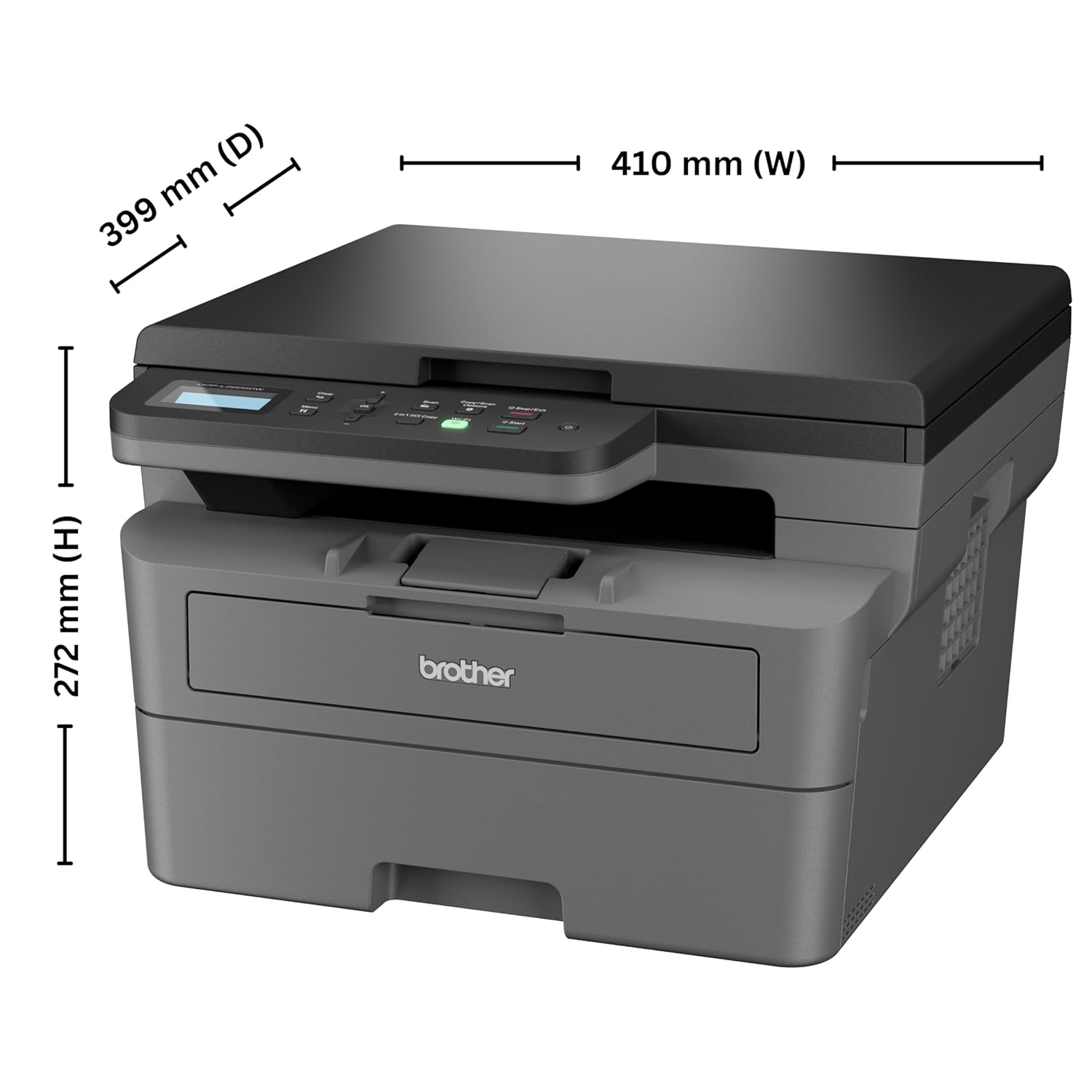
Image: Diagram showing the dimensions of the Brother DCP-L2605DW printer: 399 mm (D), 410 mm (W), 272 mm (H).
8. Waarborginligting
Your Brother DCP-L2605DW printer comes with a 1 Jaar Vervaardigerswaarborg. Please retain your purchase receipt as proof of purchase for warranty claims. For detailed terms and conditions, refer to the warranty card included with your product or visit the official Brother webwebwerf.
9. Ondersteuning en Kontak
For technical assistance, product inquiries, or service requests, please contact Brother support:
- Tolvrye Nommers:
- 1-800-222-422 (For MTNL and BSNL users)
- 1-800-209-8904 (For Others and all Mobiles)
Operating Hours: Monday to Friday - 8:30 AM - 6:30 PM | Saturday - 9:00 AM - 6:00 PM
- E-pos ondersteuning: customercare@brother.in
- WhatsApp Ondersteuning: 7045 450 450
- Amptelik Webwebwerf: www.broer.in

Image: Graphic displaying Brother's customer support contact details, including toll-free numbers, email, WhatsApp, and webwebwerf.


