
1. Inleiding
This manual provides detailed instructions for the setup, operation, maintenance, and troubleshooting of your NIIMBOT B1 Portable Thermal Label Printer. Please read this manual thoroughly before using the device to ensure proper function and longevity.

Image 1.1: The NIIMBOT B1 Label Maker shown with examples of printed labels for various applications.
2. Produk verbyview
2.1 Pakketinhoud
Verifieer dat alle items in jou pakket teenwoordig is:
- NIIMBOT B1 Label Maker x1
- Tipe-C-kabel x1
- Gebruikershandleiding x1
- Roll label tape (50x30mm) x1 (pre-installed in some models)

Image 2.1: The NIIMBOT B1 Label Maker and its included accessories.
2.2 Sleutelkenmerke
- 2-Inch Label Printing: Supports label widths from 20mm to 50mm (1-2 inches).
- Termiese drukwerk: No ink or toner required, reducing operational costs.
- Outomatiese etiketidentifikasie: For faster and easier printing.
- Verbinding: Compatible with iOS & Android smartphones via Bluetooth, and PC via USB.
- NIIMBOT App: Offers 10+ fonts/languages, 100+ borders, 1500+ symbols, barcodes, QR codes, icons, time stamps, pictures, photos, and OCR print functions.
- Draagbare ontwerp: Compact and lightweight for easy transport and use.
- Outo-afskakeling: Customizable auto-off settings (15min, 30min, 60min, never) to conserve battery.
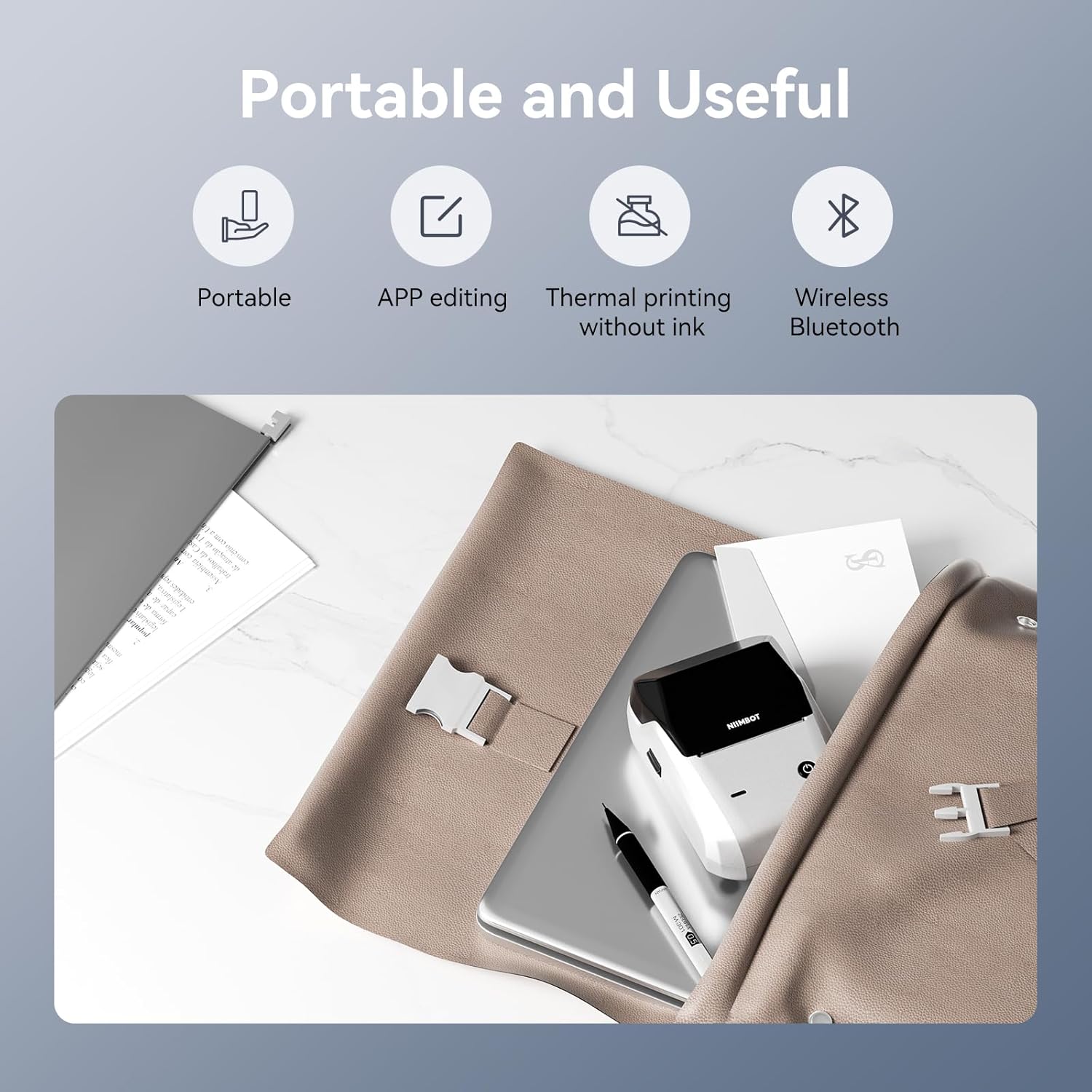
Beeld 2.2: verbyview of the NIIMBOT B1's portable and useful features.
3. Opstelling
3.1 Laai van etiketband
- Rotate the side latch to open the tape slot.
- Load the label tape into the slot, ensuring the label side faces upwards.
- Adjust the guide plate to fit the label roll snugly.
- Close the tape slot, leaving a small portion of the label tape extending for smooth feeding.

Image 3.1: Proper installation of label tape in the NIIMBOT B1.
3.2 App-installasie en -verbinding
The NIIMBOT B1 requires the NIIMBOT app for smartphone operation.
- Download the NIIMBOT app from the App Store (iOS) or Google Play Store (Android). Soek vir "NIIMBOT".
- Maak seker dat jou foon se Bluetooth geaktiveer is.
- Open the NIIMBOT app and click "Connect" to search for nearby devices.
- Select your B1 printer from the list (e.g., B1-XXXXXX) to pair. If prompted for a pairing code, enter 0000 or 1234.
- Once connected, the app will automatically identify the label tape in the printer.

Image 3.2: NIIMBOT App download and connection process.
3.3 PC Connection (Windows)
For PC connectivity, you will need to download the driver from the official NIIMBOT webwebwerf.
- Besoek die amptelike NIIMBOT website and download the B1 printer driver for Windows 7/10.
- Install the driver on your PC.
- Connect the NIIMBOT B1 printer to your PC using the provided USB Type-C cable.
- Open the NIIMBOT desktop software to begin printing.

Image 3.3: Connecting the NIIMBOT B1 to a PC via USB.
3.4 Quick Start Video Guide
Watch this video for a quick visual guide on setting up and using your B1 Label Maker.
Video 3.4: A quick start guide demonstrating the initial setup and basic operation of the NIIMBOT B1 Label Maker.
4. Bedryfsinstruksies
4.1 Skep en wysig etikette
- In the NIIMBOT app, select a template or create a new label.
- Use the various editing tools to add text, images, icons, barcodes, QR codes, and other elements.
- Customize font styles, sizes, alignment, and other layout options.
- The app supports features like OCR (Optical Character Recognition) for converting images to text.

Image 4.1: The NIIMBOT App interface for creating and editing labels.
4.2 Druk van etikette
- After designing your label, click the "Print" button in the app.
- Adjust the number of copies and print density as needed.
- Bevestig die drukinstellings en begin drukwerk.
- The printer will automatically feed and print the labels. Gently tear off the printed labels.

Image 4.2: Smartphone printing process with the NIIMBOT B1.
4.3 Aanwyser Lig Betekenis
Understand the status of your printer through its indicator light:
- Flits blou: Firmware-opgradering is tans aan die gang.
- Bestendige Blou: Printer is in standby mode.
- Flits groen: Printer is actively printing.
- Vaste groen: Bluetooth is successfully connected.
- Flits rooi: Printer is charging.
- Vaste rooi: Cover is open, out of paper, or low battery.

Image 4.3: Guide to the NIIMBOT B1 indicator light statuses.
4.4 Gebruik Bvamples
The NIIMBOT B1 is versatile for various labeling needs:
- Tuisgebruik: Kitchen labels, gift labels, kids' item labels, trip item labels.
- Business Use: Beauty & personal care, DIY item labels, mail labels, perfume labels, bakery food labels.

Beeld 4.4: Voorbeeldamples of NIIMBOT B1 usage for home organization.

Beeld 4.5: Voorbeeldamples of NIIMBOT B1 usage for small businesses.

Beeld 4.6: Voorbeeldamples of labels for bakery and food products.
Video 4.7: Demonstration of the NIIMBOT B1 Label Maker's ease of use for various labeling tasks.
Video 4.8: Vertoningasing the multipurpose capabilities of the NIIMBOT B1 Label Maker for different applications.
5. Onderhoud
5.1 Skoonmaak van die drukkop
Regular cleaning of the print head ensures optimal print quality.
- Skakel die drukker af en ontkoppel die kragkabel.
- Maak die etiketkompartement oop.
- Vee die drukkop liggies met 'n wattestokkie af.ampgeëindig met isopropylalkohol.
- Allow the print head to dry completely before closing the compartment and turning on the printer.
5.2 Batterysorg
- Laai die drukker gereeld, selfs al word dit nie gereeld gebruik nie, om die battery se gesondheid te handhaaf.
- Vermy die blootstelling van die drukker aan uiterste temperature.
- Gebruik slegs die meegeleverde Tipe-C-kabel vir laai.
6. Probleemoplossing
6.1 Algemene kwessies en oplossings
| Kwessie | Moontlike oorsaak | Oplossing |
|---|---|---|
| Drukker skakel nie aan nie | Lae battery; Aan/af-knoppie nie lank genoeg gedruk nie | Charge the printer; Press and hold the power button for 3 seconds. |
| Kan nie via Bluetooth koppel nie | Bluetooth off on phone; Printer not in pairing mode; App permissions | Ensure Bluetooth is on; Restart printer; Check app permissions for nearby devices. |
| Swak drukkwaliteit | Dirty print head; Incorrect print density; Low battery | Clean the print head (see 5.1); Adjust print density in the app; Charge the printer. |
| Etikette word nie korrek ingevoer nie | Incorrect label installation; Guide plate not adjusted | Reinstall label tape correctly (see 3.1); Adjust the guide plate to fit the label roll. |
| Printer not recognized by PC | Driver not installed; Faulty USB cable | Install the correct PC driver (see 3.3); Try a different USB cable. |
7. Spesifikasies
| Kenmerk | Detail |
|---|---|
| Model Naam | B1 |
| Druk tegnologie | Termies |
| Konnektiwiteit | Bluetooth, USB |
| Maksimum drukresolusie | 203 dpi |
| Maksimum drukspoed (monochroom) | 15 mm/s |
| Maksimum mediagrootte | 2 duim (50 mm) |
| Versoenbare toestelle | Smartphone (Android & iOS), PC (Windows 7/10) |
| Item gewig | 1.1 pond (499 gram) |
| Produk afmetings | 5.5" D x 3.5" B x 2.5" H |
| Battery | 1 A-battery benodig (ingesluit) |
| Spesifieke gebruike | Labeling for Small Business Product Price/Address, School and Office Files Classification, Home Supplies Organization, Personal Item Identification, Name Tags and Warehouse |
8. Waarborg en Ondersteuning
8.1 Waarborginligting
The NIIMBOT B1 Label Printer comes with a 1-year warranty coverage. Please retain your proof of purchase for warranty claims.
8.2 Kliëntediens
For further assistance, technical support, or warranty inquiries, please contact NIIMBOT customer service through their official webwebwerf of die kontakinligting wat saam met u produkverpakking verskaf word.