
Inleiding
This manual provides detailed instructions for the KZZI K75 Lite Wireless Mechanical Keyboard. It covers setup, operation, maintenance, and troubleshooting to ensure optimal performance and user experience. Please read this manual thoroughly before using your new keyboard.
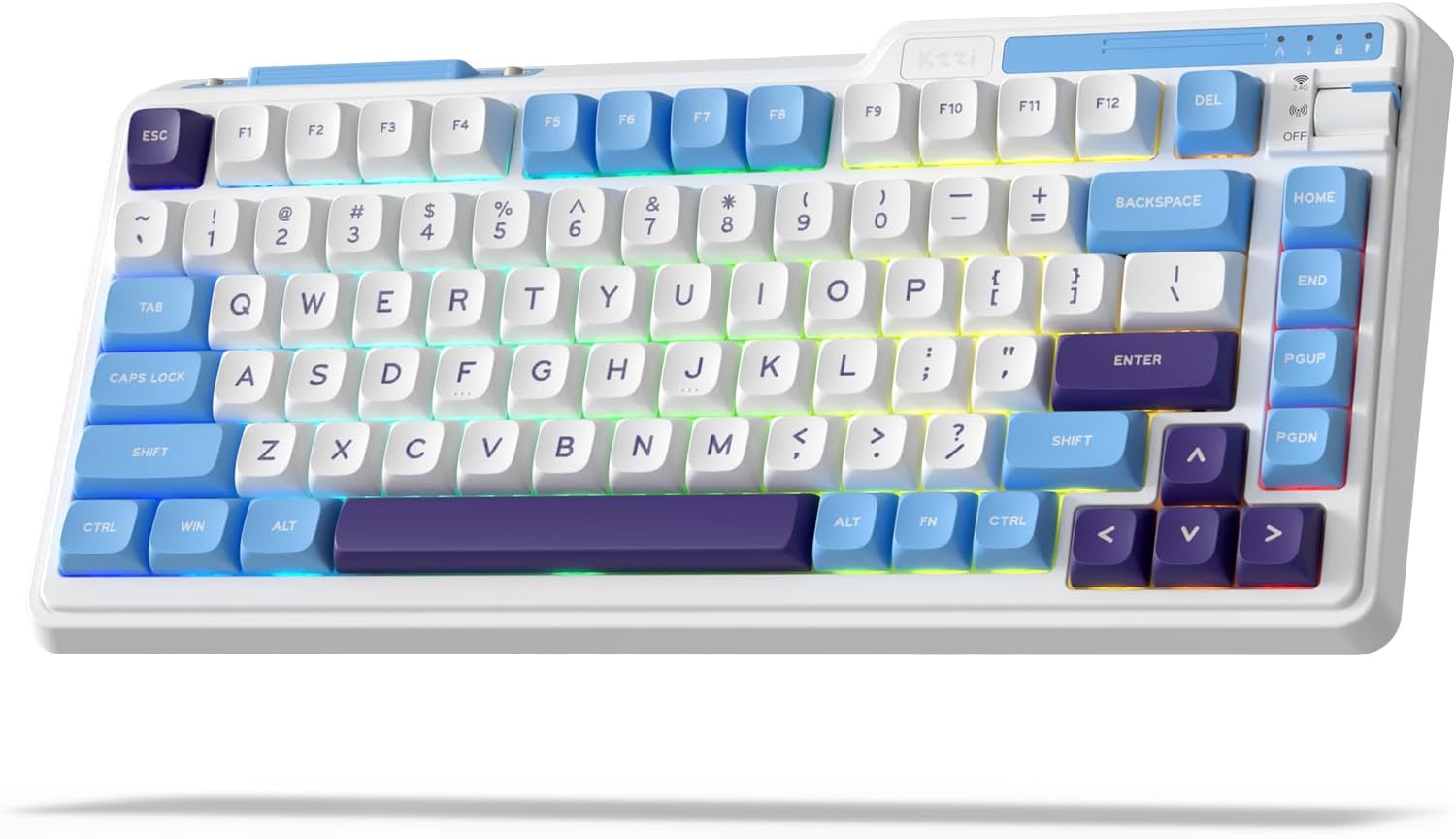
Image: The KZZI K75 Lite Wireless Mechanical Keyboard, showcasing its 75% layout and Grand Sea Blue color scheme with RGB backlighting.
Pakketinhoud
Verifieer asseblief dat alle items in die pakket teenwoordig is:
- 1 x KZZI K75 Lite Keyboard
- 1 x USB-C-kabel
- 1 x 2-in-1 Keycap & Switch Puller
- 4 x Backup Switches
- 1 x Gebruikershandleiding (hierdie dokument)

Beeld: 'n Oorhoofse view of the KZZI K75 Lite keyboard and its included accessories: USB-C cable, 2-in-1 keycap and switch puller, and four backup switches.
Opstelling
1. Laai die sleutelbord
Before first use, it is recommended to fully charge the keyboard. Connect the provided USB-C cable to the keyboard's Type-C charging port and the other end to a USB power source (e.g., computer USB port, wall adapter).
2. Konnektiwiteitsmodusse
The K75 Lite supports three connectivity modes: USB-C Wired, 2.4GHz Wireless, and Bluetooth 5.0. Use the toggle switch located on the top right of the keyboard to select your desired mode.

Image: An illustration demonstrating the 3-mode toggle switch on the K75 Lite keyboard, allowing users to easily switch between Bluetooth 5.0, 2.4GHz wireless, and USB-C wired modes for connecting to multiple devices like laptops, monitors, and tablets.
2.1. USB-C Bedrade Modus
- Set the toggle switch to the 'Wired' position.
- Connect the keyboard to your device using the provided USB-C cable.
- The keyboard will be recognized automatically.
2.2. 2.4GHz Draadlose Modus
- Locate the 2.4G USB dongle, usually stored in a magnetic slot on the keyboard.
- Set the toggle switch to the '2.4G' position.
- Steek die 2.4G USB-dongle in 'n beskikbare USB-poort op jou rekenaar.
- Die sleutelbord behoort outomaties te koppel.
2.3. Bluetooth 5.0-modus
- Set the toggle switch to the 'BT' position.
- Aktiveer Bluetooth op jou toestel (rekenaar, skootrekenaar, tablet, foon) en soek vir nuwe toestelle.
- Op die sleutelbord, druk en hou FN + V, FN + W., of FN + E for 3-5 seconds to enter pairing mode for BT1, BT2, or BT3 respectively. The corresponding key will flash rapidly.
- Select 'K75 Lite' from the list of available Bluetooth devices on your device to pair.
- Sodra dit gekoppel is, sal die sleutel ophou flikker en vir 'n paar sekondes konstant brand.
- You can pair up to three Bluetooth devices and switch between them by pressing VN + V/W/E.

Image: A composite image highlighting various physical features of the K75 Lite keyboard, including the Type-C charging port, the magnetic storage for the 2.4G dongle, and the two-level adjustable feet for ergonomic positioning.
Bedryfsinstruksies
1. Kontroleer batteryvlak
Om die huidige batteryvlak na te gaan, druk FN + ENTER. The number keys (1-0) will light up to indicate the approximate battery percentage.

Image: An illustration demonstrating the battery level check function (FN + ENTER) on the K75 Lite keyboard, indicating a 3750mAh battery capacity, with up to 200 hours of use with RGB off and 30 hours with RGB on.
2. RGB Backlight Controls
The K75 Lite features dynamic RGB backlighting with 18 available modes. Use the following FN key combinations to control the lighting:
- FN + \|: Switch Backlight Mode
- FN +: Switch Backlight Color
- FN + ↑: Increase Backlight Brightness
- FN + ↓: Decrease Backlight Brightness
- FN +>: Adjust Breathing Speed (Increase)
- FN +: Adjust Breathing Speed (Decrease)

Beeld: 'n Oorhoofse view of the K75 Lite keyboard illustrating the FN key combinations used to control the 18 brilliant RGB effects, including switching modes, colors, brightness, and adjusting breathing speed.
3. Sagteware-aanpassing
The KZZI K75 Lite keyboard supports powerful software for advanced customization. This software allows you to:
- Redefine keys and create custom keyboard shortcuts.
- Set up macros for complex command sequences.
- Customize the full RGB backlight with dynamic effects.
Please visit the official KZZI website to download the latest software for your K75 Lite keyboard.

Image: Screenshots of the KZZI software, illustrating its capabilities for redefining keys, managing macros, and customizing the full RGB backlight settings for the keyboard.
Onderhoud
1. Warm-omruilbare skakelaars
The K75 Lite features a hot-swappable design, allowing you to change switches without soldering. It supports most 3-pin/5-pin mechanical switches.
- Using the provided 2-in-1 keycap & switch puller, carefully remove the keycap from the desired switch.
- Insert the switch puller's prongs into the two small tabs on the top and bottom of the switch.
- Gently squeeze the tabs and pull the switch straight up to remove it from the PCB.
- Rig die penne van die nuwe skakelaar met die gate op die PCB. Maak seker dat die penne reguit is.
- Druk die nuwe skakelaar stewig vas totdat dit klik. Moenie dit forseer as weerstand ondervind word nie; kontroleer die penbelyning.
- Vervang die sleuteldop.
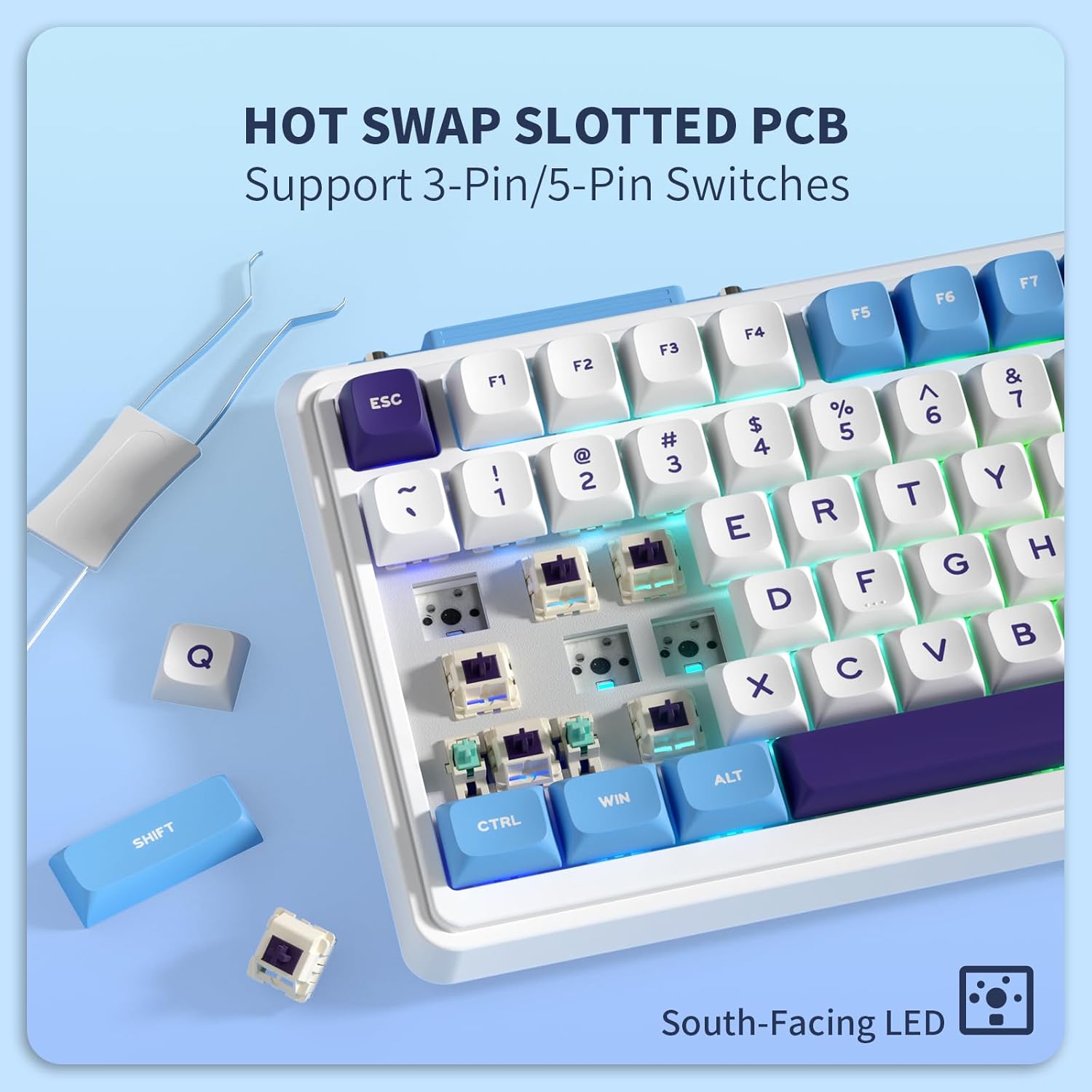
Beeld: 'n Nabyskoot view of the K75 Lite keyboard's hot-swappable PCB, illustrating how switches can be easily removed and replaced using a switch puller, supporting both 3-pin and 5-pin switches.
2. Skoonmaak van die sleutelbord
Gereelde skoonmaak help om die sleutelbord se voorkoms en funksionaliteit te behou.
- Ontkoppel die sleutelbord van alle toestelle voordat u dit skoonmaak.
- Gebruik 'n sagte, pluisvrye lap dampened with a small amount of water or a mild cleaning solution to wipe down the keycaps and casing.
- Vir stof en puin tussen die sleutelbordkappe, gebruik saamgeperste lug of 'n klein borseltjie.
- Vermy die gebruik van harde chemikalieë of skuurmateriaal.
Probleemoplossing
If you encounter issues with your KZZI K75 Lite keyboard, please refer to the following common solutions:
- Sleutelbord reageer nie:
- Maak seker dat die sleutelbord gelaai is.
- Check the connectivity mode switch (Wired, 2.4G, BT) and ensure it matches your connection method.
- Vir 2.4G, maak seker dat die dongle stewig ingeprop is.
- For Bluetooth, re-pair the device or try a different Bluetooth channel (FN+Q/W/E).
- Probeer om via 'n USB-C-kabel te koppel om draadlose probleme uit te sluit.
- Sleutels registreer nie of dubbeltik nie:
- This could indicate a faulty switch. Use the switch puller to replace the problematic switch with one of the backup switches provided.
- Maak seker dat die skakelaar volledig in die PCB geplaas is.
- RGB-agtergrond werk nie of is inkonsekwent:
- Check battery level; low battery can affect backlight performance.
- Cycle through backlight modes (FN + \|) and brightness levels (FN + ↑/↓).
- If using software, ensure settings are correctly applied.
- Bluetooth-verbinding onstabiel:
- Maak seker dat geen ander toestelle met die Bluetooth-sein inmeng nie.
- Beweeg nader aan die gekoppelde toestel.
- Try re-pairing the keyboard.
Spesifikasies
Key technical specifications for the KZZI K75 Lite Wireless Mechanical Keyboard:
| Kenmerk | Detail |
|---|---|
| Model | K75 Lite |
| Afmetings (L x B x H) | 13.22 x 6.12 x 1.68 duim (335.8 x 155.5 x 42.7 mm) |
| Item gewig | 1.78 pond |
| Konnektiwiteit | Bluetooth 5.0, 2.4GHz draadloos, USB-C bedraad |
| Battery | 3750mAh Litiumpolimeer (ingesluit) |
| Batterylewe | Tot 200 uur (RGB af), 30 uur (RGB aan) |
| Tipe sleutelbord | Gasket gemonteerde meganiese sleutelbord |
| Skakelaars | Custom POM Linear Switches (Pre-lubed, Hot-Swappable 3/5-pin) |
| Sleutels | MDA Double-Shot PBT |
| Spesiale kenmerke | RGB Backlit, Hot-Swappable, Rechargeable, 5-Layer Sound Padding |
| Versoenbare toestelle | Skootrekenaar, rekenaar, tablet |

Image: A comprehensive diagram detailing various features of the K75 Lite keyboard, such as its 2-stage adjustable feet, MDA Double-Shot PBT keycaps, hot-swappable slotted PCB, south-facing RGB LEDs, well-tuned stabilizers, and pre-lubed switches, alongside its precise dimensions.

Image: An exploded diagram illustrating the internal construction of the K75 Lite keyboard, highlighting its gasket-mounted structure and the five layers of sound-dampening materials (Poron foam, IXPE switch pad, PET film, sound dampening foam, silicone dampener pad) designed for a soft typing feel and HIFI sound.
Waarborg en Ondersteuning
Waarborg inligting
KZZI products are typically covered by a limited warranty against manufacturing defects. Please refer to the warranty card included in your package or visit the official KZZI webwebwerf vir spesifieke waarborgbepalings en -voorwaardes wat op u streek van toepassing is.
Kliënte ondersteuning
For technical assistance, troubleshooting not covered in this manual, or warranty claims, please contact KZZI customer support through their official website or the contact information provided with your product. When contacting support, please have your product model (K75 Lite) and purchase details ready.