
1. Inleiding
This manual provides detailed instructions for the Headwolf WPad5 Android 14 Tablet. Please read this guide thoroughly before using your device to ensure proper operation and to maximize its features. Keep this manual for future reference.
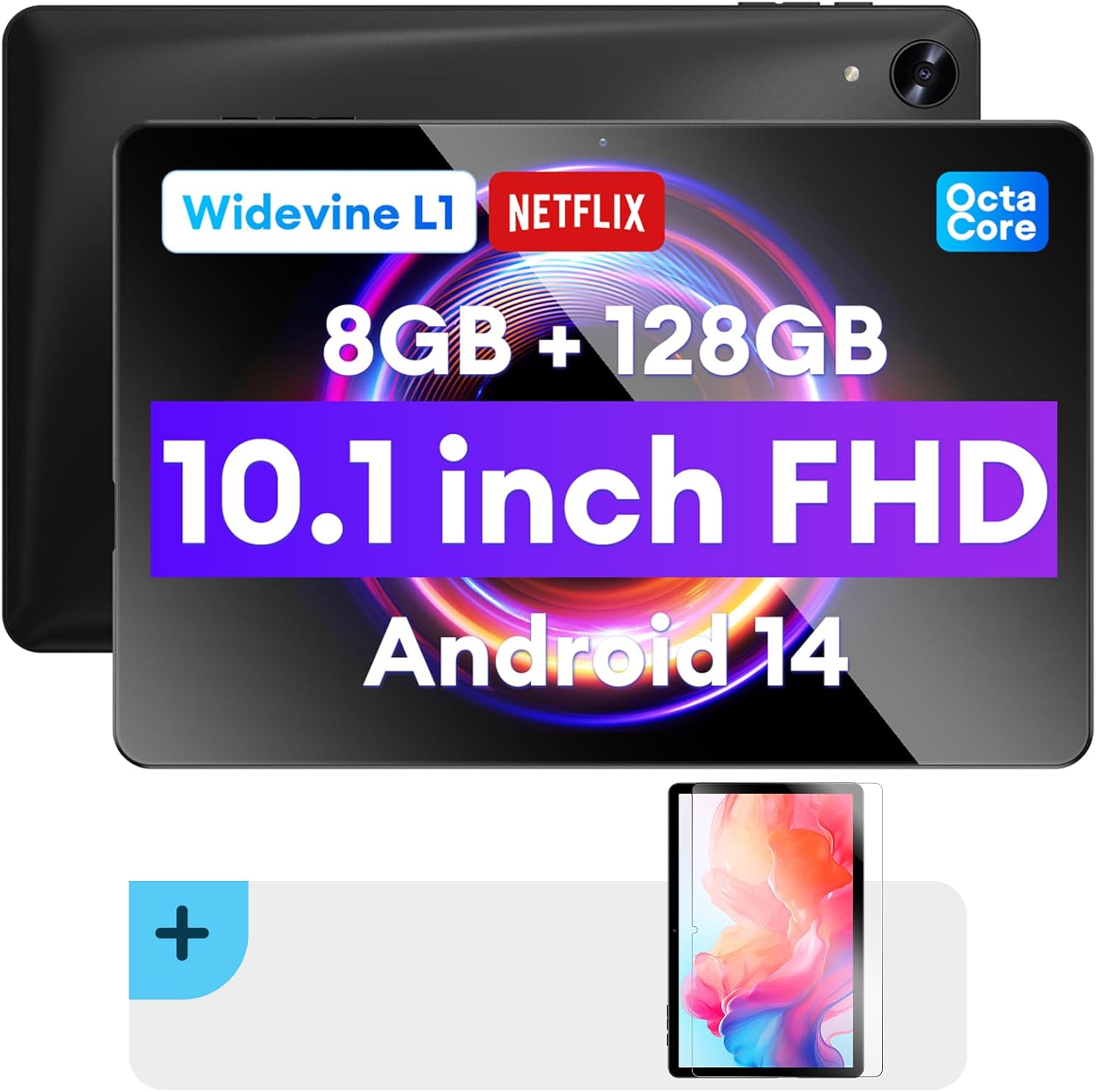
Beeld: Voor en agter view of the Headwolf WPad5 tablet, showcasing its 10.1-inch FHD display, 8GB RAM + 128GB ROM, Widevine L1 support, Octa-Core processor, and Android 14 operating system.

Beeld: 'n Oorview of the Headwolf WPad5 tablet's main features, including its 10.1-inch 1920x1200 IPS FHD display, Unisoc T606 Octa-Core CPU, 8GB RAM + 128GB ROM, 5500mAh battery, 2.4G/5G WiFi, Android 14, dual stereo speakers, dual camera, and Widevine L1 support for Netflix.
2. Opstelling
2.1 Wat is in die boks
Upon unboxing your Headwolf WPad5 tablet, please verify that all the following items are included:
- Headwolf WPad5 Tablet
- Tipe C-kabel
- AC Adapter
- Gebruikershandleiding
- 2-pack Screen Protector

Image: A visual representation of the Headwolf WPad5 tablet and its accessories (manual, Type-C cable, AC adapter). It also highlights the tablet's physical features such as the 3.5mm headphone jack, rear camera, power button, volume buttons, TF card slot, and Type-C port.
2.2 Laai die tablet
Before initial use, fully charge your tablet. Connect the Type-C cable to the tablet's Type-C port and the other end to the AC adapter. Plug the AC adapter into a power outlet. The battery indicator on the screen will show charging status.
2.3 Aan-/afskakel
- Om aan te skakel: Press and hold the Power button located on the side of the tablet until the Headwolf logo appears on the screen.
- Om af te skakel: Druk en hou die aan/af-knoppie in totdat 'n aan/af-kieslys verskyn. Kies "Skakel af" uit die opsies.
- Om weer te begin: Kies "Herbegin" in die kragkieslys.
2.4 Installasie van skermbeskermer
Your tablet comes with two screen protectors. Follow these steps for installation:
- Clean the tablet screen thoroughly with a microfiber cloth to remove dust and smudges.
- Peel off the protective film from the adhesive side of the screen protector.
- Carefully align the screen protector with the tablet's screen, ensuring the cutouts for the camera and sensors match.
- Gently lay the protector onto the screen, starting from one edge and slowly lowering it.
- Use a soft card (e.g., a credit card wrapped in cloth) to smooth out any air bubbles, pushing them towards the edges.
- Remove the top protective film (if present).

Image: The Headwolf WPad5 tablet with an "Ultra Clear" advanced HD clarity tempered glass screen protector being shown, indicating its protective function and clear display.
3. Bediening van u tablet
3.1 Android 14-bedryfstelsel
The Headwolf WPad5 runs on the latest Android 14 operating system, offering enhanced performance, improved privacy features, and a customizable user interface.
- GMS Free App Download: Kry toegang tot miljoene toepassings deur die Google Play Winkel.
- Gesplete skermfunksie: Enhance productivity by using two apps simultaneously.
- UI Customization: Personalize your interface with various themes, widgets, and settings.
- Privaatheidbeskerming: Advanced features to ensure your personal data remains secure and confidential.
- Personalized Screen Settings: Empower all users with enhanced usability options.

Image: A graphic illustrating the key features of the Android 14 system on the Headwolf WPad5, such as GMS free app download, UI customization, personalized screen settings, and privacy protection, enhancing user experience.
3.2 Display and Widevine L1 Certification
The tablet features a 10.1-inch FHD 1920x1200 IPS display, providing clear and vibrant visuals. With Widevine L1 certification, you can stream high-definition content from popular platforms like Netflix, Amazon Prime Video, Disney+, and YouTube without interruptions or quality degradation.

Image: A visual demonstrating the Widevine L1 certification on the Headwolf WPad5 tablet, showing high-quality streaming from services like YouTube, Netflix, Amazon Prime Video, Disney+, and Hulu, ensuring a premium viewondervinding.
3.3 Werkverrigting en berging
Powered by an octa-core Unisoc T606 CPU, the WPad5 ensures smooth multitasking and gaming. It comes with 8GB RAM (achieved via 4GB physical RAM + 4GB expansion) and 128GB of internal storage. The storage can be expanded up to 2TB using a microSD card (not included).

Image: A diagram detailing the Unisoc T606 Octa-Core CPU with 2.0 GHz peak frequency and Mali-G57 GPU, highlighting its high performance, efficient processing, and low heat generation for gaming and high-quality display.

Image: A graphic illustrating the generous storage capacity of the Headwolf WPad5, featuring 8GB RAM (4+4GB) and 128GB ROM, expandable up to 2TB via TF card, suitable for storing software, photos, music, videos, and e-books.
3.4 Konnektiwiteit
The WPad5 offers versatile connectivity options:
- Wi-Fi: Dual-band (2.4GHz/5GHz) 802.11ac for fast and stable internet connection.
- Bluetooth: Weergawe 5.0 vir die koppeling van draadlose bykomstighede.
- 3.5 mm koptelefoonaansluiting: Vir bedrade klankuitvoer.
- GPS: 4-mode satellite positioning for precise location services. For offline navigation, download maps via Wi-Fi before traveling to areas without internet access.

Image: The Headwolf WPad5 tablet displaying a navigation map, illustrating its 4-mode satellite positioning capability for precise location services and route guidance.
3.5 Kameras
Die tablet is toegerus met dubbele kameras:
- Agterste kamera: 8MP vir die neem van foto's en video's.
- Voorste kamera: 5MP, ideal for video calls and online meetings.

Beeld: 'n Collage-uitstallingasing the capabilities of the Headwolf WPad5's 8MP rear camera for capturing landscapes and moments, and the 5MP front camera for video conferencing and meetings, demonstrating its versatility.
3.6 Batterylewe
The WPad5 is powered by a 5500mAh battery, providing approximately 6-8 hours of playtime per charge, depending on usage.
3.7 Bykomende kenmerke
- Verdeel skerm: Run two applications side-by-side for enhanced productivity.
- Gesigslot: Securely unlock your tablet using facial recognition.
- Skermspieëling: Cast your tablet's display to a larger screen wirelessly.
- Dual Box Stereo Speakers: Enjoy immersive audio with enhanced sound quality.
Beeld: 'n Grafiese vertoningasing various features of the Headwolf WPad5 tablet, including Split Screen functionality for multitasking, 2.4G/5G Dual Band WiFi for connectivity, Face Unlock for security, and Screen Mirroring for casting content to external displays.
4. Onderhoud
4.1 Batterysorg
- Vermy om die battery gereeld heeltemal te dreineer.
- Moenie die tablet aan uiterste temperature blootstel nie.
- Gebruik slegs die meegeleverde laaier of 'n gesertifiseerde versoenbare laaier.
- The 5500mAh battery includes overcurrent, short circuit, over-discharge, and output protection for safety.

Image: A visual highlighting the 5500mAh battery of the Headwolf WPad5 and its built-in protection features: overcurrent protection, short circuit protection, over-discharge protection, and output protection, ensuring safe and reliable power.
4.2 Maak jou tablet skoon
- Gebruik 'n sagte, pluisvrye lap om die skerm en liggaam van die tablet skoon te maak.
- Vir hardnekkige vlekke, effens dampMaak die lap skoon met water of 'n skermreiniger wat spesifiek vir elektronika ontwerp is.
- Vermy die gebruik van harde chemikalieë, skuurmiddels of aërosolspuitmiddels.
4.3 Sagteware-opdaterings
Regularly check for and install software updates to ensure your tablet has the latest features, security patches, and performance improvements. You can usually find this option in the tablet's Settings menu under "System" or "About tablet".
5. Probleemoplossing
5.1 Algemene kwessies en oplossings
| Kwessie | Moontlike Oplossing |
|---|---|
| Tablet skakel nie aan nie | Maak seker dat die battery gelaai is. Koppel die laaier aan en wag 'n paar minute voordat jy weer probeer aanskakel. Indien nie reageer nie, druk en hou die aan/af-knoppie vir 10-15 sekondes in om 'n herbegin te forseer. |
| Wi-Fi-verbindingskwessies | Restart your Wi-Fi router and the tablet. Forget the Wi-Fi network on your tablet and reconnect. Ensure you are within range of the Wi-Fi signal. |
| Programme stort vas of vries | Clear the app's cache and data in Settings > Apps. Update the app to its latest version. If the issue persists, uninstall and reinstall the app. |
| Stadige prestasie | Close unnecessary background apps. Clear cache data regularly. Consider uninstalling unused apps. Ensure sufficient free storage space. |
| Skerm reageer nie | Herbegin die tablet. Indien die probleem voortduur, voer 'n fabrieksherstel uit (data sal verlore gaan). |
5.2 Fabrieksterugstelling
’n Fabrieksherstel sal alle data van jou tablet uitvee en dit na sy oorspronklike fabrieksinstellings herstel. Rugsteun alle belangrike data voordat u voortgaan.
- Gaan na Instellings.
- Navigeer na Stelsel > Stel opsies terug.
- Kies Vee alle data uit (fabriekterugstelling).
- Bevestig jou keuse en volg die aanwysings op die skerm.
6. Spesifikasies
| Kenmerk | Detail |
|---|---|
| Model Naam | WPad5 |
| Bedryfstelsel | Android 14 |
| Skerm grootte | 10.1 duim |
| Skermresolusie | 1920 1200 x XNUMX XNUMX (FHD) |
| Verwerker | Unisoc T606 Agtkern |
| RAM | 8GB (4GB + 4GB Expansion) |
| Interne berging | 128 GB |
| Uitbreidbare berging | Tot 2 TB via microSD-kaart |
| Agterste kamera | 8 MP |
| Voorste kamera | 5 MP |
| Battery kapasiteit | 5500mAh |
| Draadlose konneksie | 802.11ac (Dual-band 2.4GHz/5GHz) |
| Bluetooth | Bluetooth 5.0 |
| Hawens | Tipe-C, 3.5 mm-koptelefoonaansluiting |
| Kleur | Swart |
| Spesiale kenmerke | Widevine L1, GPS, Face Unlock, Dual Stereo Speakers, Split Screen, Screen Mirroring |
7. Waarborg en Ondersteuning
Headwolf provides a one-year repair and replacement warranty for your WPad5 tablet. For any technical assistance, product inquiries, or warranty claims, please contact our dedicated customer service and technical support team.
- Kliëntediens: Available 24 hours. Please refer to the contact information provided with your purchase or on the official Headwolf webwebwerf.
- Tegniese ondersteuning: Available for assistance with setup, troubleshooting, and feature usage.
- Aanlyn hulpbronne: Besoek die Headwolf Store on Amazon vir bykomende produkinligting en ondersteuning.