
1. Opstelling en installering
1.1 Pakketinhoud
Voordat u voortgaan, maak seker dat alle komponente teenwoordig is:
- CONTINENTAL EDISON CELED50SQLDV24B6 50-inch QLED TV
- Afstandbeheer
- Kragkabel
- TV-staander (2 stukke)
- Skroewe vir TV-staander
- Gebruikershandleiding (hierdie dokument)
1.2 Bevestig die TV-staander
Om die staander aan jou televisie te heg:
- Plaas die TV-skerm versigtig met die skerm na onder op 'n sagte, plat oppervlak om skade te voorkom.
- Rig elke staanderstuk met die ooreenstemmende gleuwe aan die onderkant van die TV.
- Maak elke staanderstuk vas met die meegeleverde skroewe. Maak seker dat hulle stewig vasgedraai is.
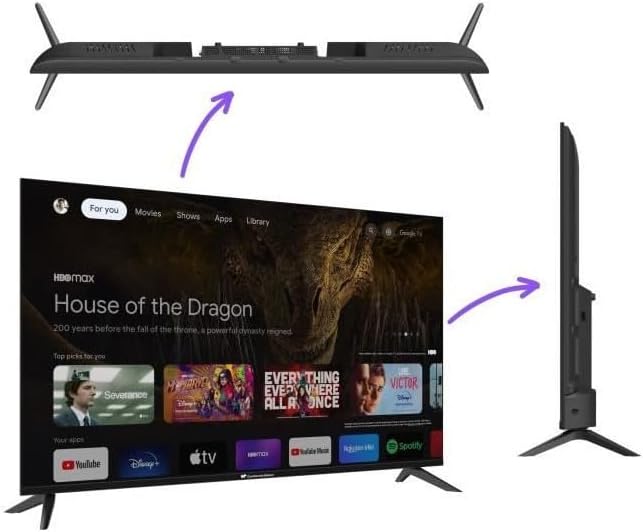
Beeld: Ontplof view illustrating the attachment of the TV stand feet to the television base.
1.3 Muurbevestiging (Opsioneel)
This TV is compatible with VESA standard wall mounts. For wall mounting, please refer to the instructions provided with your specific wall mount kit. Ensure the wall mount is suitable for the TV's weight and size. The rear of the TV features mounting points for this purpose.
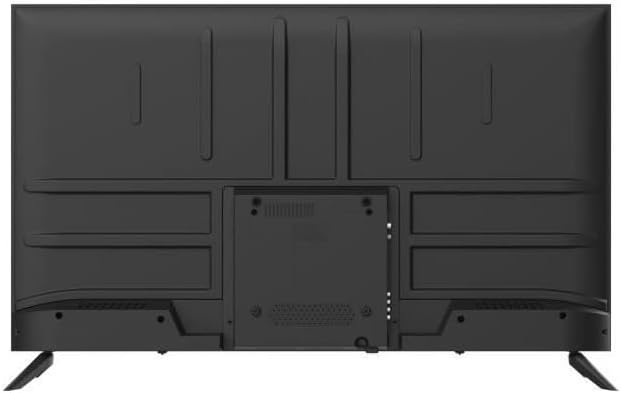
Image: Rear panel of the TV, highlighting the various input ports and VESA mounting screw locations.
1.4 Aansluiting van randapparatuur
Koppel jou eksterne toestelle aan die TV deur die toepaslike poorte te gebruik:
- HDMI: For high-definition video and audio devices (e.g., Blu-ray players, game consoles, set-top boxes). This TV features 4 HDMI ports.
- USB: Vir die koppeling van USB-bergingstoestelle om media te speel files. This TV features 2 USB ports.
- Krag: Koppel die kragkabel aan die TV se kragtoevoer en dan aan 'n muursok.
1.5 First Power On and Google TV Setup
After connecting all cables, plug in the TV. Press the power button on the remote control or the TV itself. The TV will guide you through the initial setup process for Google TV, which includes:
- Taalkeuse
- Netwerkverbinding (Wi-Fi)
- Google-rekening aanmelding
- Installering van noodsaaklike toepassings

Image: The TV screen showing the Google TV home interface with content recommendations and app icons.
2. Gebruik u TV
2.1 Afstandbeheer oorview
The remote control allows you to navigate the TV's features. Key functions typically include:
- Kragknoppie: Skakel die TV aan of af.
- Navigasie-knoppie (Op/Af/Links/Regs/OK): Vir menu-navigasie en -keuse.
- Terug/Tuisknoppies: To return to the previous screen or the Google TV home screen.
- Volume op/af: Pas die klankvlak aan.
- Invoer/bron: Kies die invoerbron (HDMI 1, HDMI 2, ens.).
- Google Assistent-knoppie: Aktiveer stemopdragte.
2.2 Navigasie deur Google TV
Google TV organizes your content from various streaming services and apps into a unified interface. Use the remote's navigation pad to browse recommendations, access your installed applications, and manage settings.
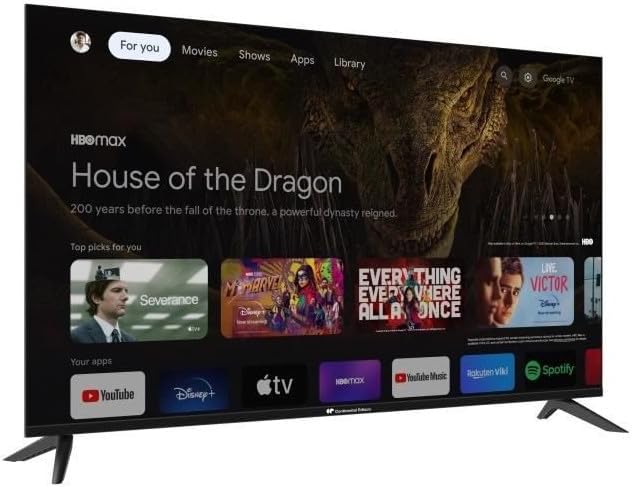
Image: The TV screen from an angle, showing the Google TV interface with various streaming content options.
2.3 Verbinding met Wi-Fi en Bluetooth
Your TV supports both Wi-Fi for internet connectivity and Bluetooth for connecting wireless accessories like headphones or game controllers. These settings can be configured in the TV's main settings menu under 'Network & Internet' and 'Remotes & Accessories' respectively.
2.4 Gebruik van slim funksies
With Google TV, you can:
- Stream movies and TV shows from popular services.
- Download and use a wide range of applications from the Google Play Store.
- Cast content from your mobile devices using Chromecast built-in.
- Control smart home devices via Google Assistant.
3. Sorg en Onderhoud
3.1 Skoonmaak van die skerm
Om die TV-skerm skoon te maak:
- Skakel die TV af en trek dit uit die kragaansluiting.
- Gently wipe the screen with a soft, dry, lint-free cloth.
- Vir hardnekkige merke, liggiesampMaak die lap skoon met water of 'n skermskoonmaakoplossing wat spesifiek vir elektronika ontwerp is. Moenie vloeistof direk op die skerm spuit nie.
3.2 Algemene sorg
- Vermy blootstelling van die TV aan direkte sonlig of uiterste temperature.
- Moenie die ventilasie-openinge aan die agterkant van die TV blokkeer nie.
- Keep the TV away from sources of moisture.
4. Probleemoplossing
As jy probleme met jou TV ondervind, raadpleeg die volgende algemene oplossings:
- Geen krag: Maak seker dat die kragkabel stewig aan beide die TV en die muursok gekoppel is. Probeer 'n ander sok.
- Geen Beeld/Klank: Verify the correct input source is selected. Check all cable connections (HDMI, etc.). Restart the TV.
- Afstandbeheer werk nie: Check the batteries and replace them if necessary. Ensure there are no obstructions between the remote and the TV's IR sensor.
- Wi-Fi-verbindingskwessies: Restart your router and modem. Reconnect the TV to the Wi-Fi network in the settings menu. Ensure the TV is within range of your Wi-Fi signal.
- Programme laai nie: Check your internet connection. Try clearing the app's cache or reinstalling the app. Ensure the TV's software is up to date.
For persistent issues, consult the official CONTINENTAL EDISON support resources.
5. Tegniese spesifikasies
| Model | CELED50SQLDV24B6 |
| Skerm grootte | 50 duim (127 cm) |
| Tipe vertoon | QLED, LED |
| Resolusie | 4K UHD (3840 2160 x XNUMX XNUMX) |
| Bedryfstelsel | Google TV |
| Konnektiwiteit | Wi-Fi, Bluetooth, 4x HDMI, 2x USB |
| Aspekverhouding | 16:9 |
| Klankuitvoermodus | Stereo |
| Montageversoenbaarheid | Wall Mount, Tabletop Stand |
| Produk Gewig | 11.1 kg |
| Afmetings (D x B x H) | 12.6 cm x 121 cm x 73.5 cm |
5.1 Energie-doeltreffendheid

Image: EU Energy Label for the CELED50SQLDV24B6 model, indicating energy efficiency class E for both SDR and HDR content, with consumption of 53 kWh/1000h for SDR and 54 kWh/1000h for HDR.
For detailed energy information, please visit the EPREL-databasis.
6. Waarborg en Ondersteuning
6.1 Waarborginligting
Your CONTINENTAL EDISON TV is covered by a manufacturer's warranty. Please refer to the warranty card included with your product or visit the official CONTINENTAL EDISON webwebwerf vir gedetailleerde bepalings en voorwaardes rakende waarborgdekking, duur en eisprosedures.
6.2 Kliëntediens
Should you require technical assistance, have questions about your product, or need to report a fault, please contact CONTINENTAL EDISON customer support. Contact details can typically be found on the manufacturer's official webwebwerf of in die produkverpakking.