
SPC Zeus 4G Pro
SPC Zeus 4G Pro Gebruikershandleiding
Model: Zeus 4G Pro (2352464N)
1. Produk verbyview
The SPC Zeus 4G Pro is a smartphone designed for ease of use, particularly for seniors. It features a simplified interface with large icons, physical buttons for common actions, and an integrated SOS function for emergencies. The device runs on Android 11 and includes a charging base for convenient power management.

Image: The SPC Zeus 4G Pro smartphone positioned in its charging base. The screen shows a simplified interface with large, easy-to-read icons for essential applications like WhatsApp, Phone, Camera, and Contacts, designed for user accessibility.
2. Wat is in die boks
Upon unboxing your SPC Zeus 4G Pro, please ensure all the following items are present:
- SPC Zeus 4G Pro Smartphone
- Laaibasis
- USB kabel
- Skermbeskermer
- Gebruikershandleiding (hierdie dokument)
3. Sleutel kenmerke
3.1. Easy Mode with XXL Icons
The SPC Zeus 4G Pro features an intuitive 'Easy Mode' interface with extra-large icons for applications, making navigation straightforward. This mode also provides direct access to frequently used contacts and a shortcuts section for essential settings.

Image: The SPC Zeus 4G Pro displaying its Easy Mode interface, characterized by oversized icons for applications, enhancing visibility and ease of selection.
3.2. Physical Buttons and SOS Function
The device includes convenient physical buttons for answering and ending calls, returning to the home screen, and navigating back. On the rear, an SOS button allows users to quickly request help by initiating calls and sending SMS messages with geolocation to up to three pre-defined contacts.

Beeld: 'n Gedetailleerde view highlighting the physical call answer/end buttons at the bottom front of the phone, and the prominent SOS button located on the rear, near the camera.
3.3. Convenient Charging Base
The SPC Zeus 4G Pro comes with a charging base, simplifying the charging process. Alternatively, the phone can be charged via its reversible USB-C port, allowing for easy connection in any orientation.

Image: The SPC Zeus 4G Pro smartphone securely placed in its charging base on a clean desk surface, alongside a notebook and reading glasses, illustrating its convenient charging solution.
3.4. Android 11-bedryfstelsel
Running on Android 11, the SPC Zeus 4G Pro provides access to the Google Play Store, enabling users to download a wide range of popular applications. Users can choose between the adapted Easy Mode interface or the native Android interface.
3.5. Video Calls and Expanded Memory
With its 5.5-inch IPS display and 4G connectivity, the smartphone is well-suited for video calls, including those made via WhatsApp. It features 4GB of RAM for smooth performance and 64GB of internal memory, expandable by an additional 512GB via a microSD card, for storing photos and videos from its 13MP camera. It also includes an FM radio.

Image: The SPC Zeus 4G Pro screen showing a contact list where each entry is accompanied by a photo, facilitating easy identification and selection for users.
3.6. Smart Help Remote Assistance
The Smart Help function allows authorized family members or caregivers to remotely configure phone settings via SMS, such as adding contacts, adjusting volume, or activating the SOS function. It can also send alerts for low battery or missed calls and automatically increase volume if calls are not answered.
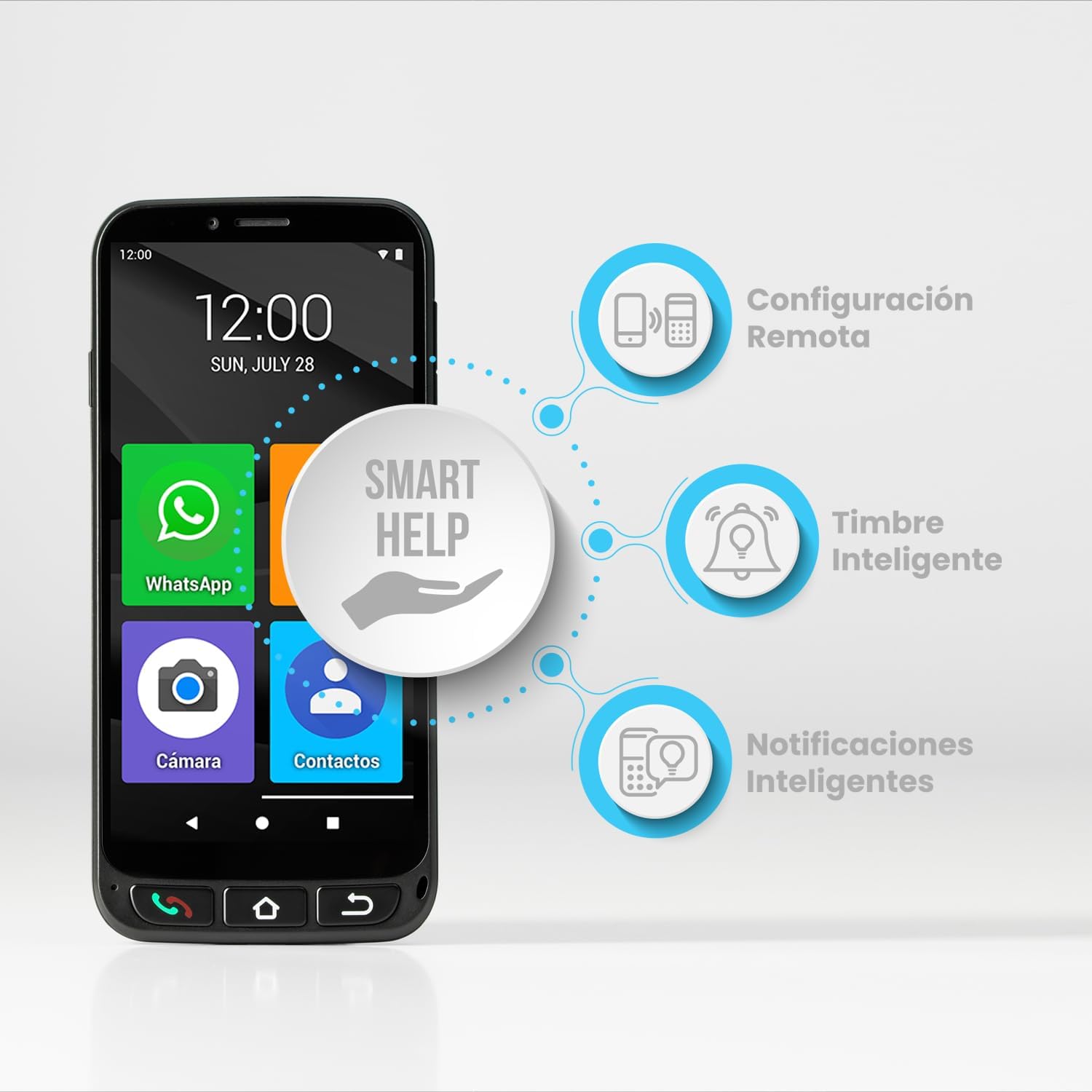
Image: A visual representation of the Smart Help system, showing its three main components: Remote Configuration, Smart Ringer (automatic volume adjustment), and Smart Notifications (alerts for low battery or missed calls).
4. Opstelgids
4.1. SIM-kaart en MicroSD-kaart insit
- Locate the SIM/MicroSD card tray on the side of the phone.
- Gebruik die meegeleverde SIM-uitwerpgereedskap om die skinkbord oop te maak.
- Carefully place your NanoSIM and MicroSIM cards (if applicable) and MicroSD card into their respective slots.
- Druk die laai saggies terug in die foon totdat dit in plek klik.
4.2. Aanvanklike laai
Before first use, fully charge your SPC Zeus 4G Pro. You can use either the included charging base or the USB-C cable.
- Gebruik van die laaibasis: Place the phone vertically into the charging base, ensuring the charging contacts align. The phone will indicate charging.
- Gebruik USB-C-kabel: Connect the USB-C cable to the phone's charging port and the other end to a compatible USB power adapter.
4.3. Aanskakel en aanvanklike konfigurasie
- Press and hold the Power button (usually on the side) until the SPC logo appears.
- Volg die aanwysings op die skerm om jou taal te kies, aan Wi-Fi te koppel en jou Google-rekening op te stel.
- Choose between 'Easy Mode' (recommended for simplified use) or the standard Android interface during setup.
- Configure your emergency contacts for the SOS function.
5. Bedryfsinstruksies
5.1. Maak en Ontvang Oproepe
- Om 'n oproep te maak: In Easy Mode, tap the large 'Phone' icon. You can dial a number directly or select a contact from your favorites or contact list. Press the green physical call button to initiate the call.
- Om 'n oproep te ontvang: When a call comes in, press the green physical call button or swipe the green icon on the screen to answer.
- Om 'n oproep te beëindig: Press the red physical call button or tap the red icon on the screen.
5.2. Gebruik van die SOS-knoppie
In an emergency, press and hold the SOS button located on the back of the phone for approximately 3 seconds. The phone will automatically:
- Initiate calls to your pre-defined emergency contacts in sequence until one answers.
- Emit an audible alarm to attract attention.
- Send an SMS message with your current geolocation to all emergency contacts.
5.3. Navigating Easy Mode
- Tuisskerm: Displays large icons for frequently used apps and favorite contacts.
- Kortpaaie: Swipe left or right (or tap the 'Shortcuts' icon) to access quick settings like Wi-Fi, Bluetooth, and font size.
- Physical Navigation Buttons:
- Groen knoppie: Answer call / Initiate call.
- Home Button (middle): Keer terug na die hooftuisskerm.
- Back Button (right): Gaan terug na die vorige skerm.
- Rooi knoppie: Beëindig oproep.
6. Onderhoud
6.1. Batteryversorging
- Om batterylewe te verleng, vermy uiterste temperature.
- Charge the phone regularly, ideally before the battery completely drains.
- Use only the provided charging base or USB-C cable and a compatible power adapter.
6.2. Skoonmaak van jou toestel
- Vee die skerm en liggaam liggies af met 'n sagte, pluisvrye lap.
- Vermy die gebruik van harde chemikalieë, skuurmiddels of aërosolspuitmiddels.
- Maak seker dat geen vloeistof die poorte of openinge binnedring nie.
6.3. Sagteware-opdaterings
Periodically check for software updates to ensure optimal performance and security. You can usually find this option in the phone's settings under "System" or "About phone."
7. Probleemoplossing
| Probleem | Moontlike oorsaak | Oplossing |
|---|---|---|
| Foon skakel nie aan nie. | Battery is heeltemal leeg. | Connect to charger and allow to charge for at least 15 minutes before attempting to power on. |
| Kan nie oproepe maak of ontvang nie. | No SIM card inserted, SIM card not properly seated, or no network signal. | Ensure SIM card is correctly inserted. Check network signal strength. Contact your service provider if issues persist. |
| Skerm reageer nie. | Tydelike sagtewarefout. | Restart the phone by pressing and holding the Power button until it reboots. |
| Charging base does not charge phone with case on. | Case interferes with charging contacts. | Remove the protective case before placing the phone in the charging base. Charge via USB-C cable if case is preferred. |
| SOS-knoppie werk nie. | Emergency contacts not set up or incorrect. | Verify and configure emergency contacts in the phone's settings. Ensure sufficient balance/plan for calls/SMS. |
8. Spesifikasies
| Model Naam | Zeus 4G Pro |
| Modelnommer | 2352464N |
| Bedryfstelsel | Android 11.0 |
| Vertoon grootte | 5.5 duim |
| Vertoon resolusie | 1440 x 720 piksels |
| RAM | 4 GB |
| Interne berging | 64 GB (Expandable up to 512GB via MicroSD) |
| Kamera | 13MP (Rear), Frontal |
| Battery kapasiteit | 2400 mAh |
| Praat Tyd | 6 ure |
| Konnektiwiteit | Bluetooth, USB, Wi-Fi, 4G |
| Spesiale kenmerke | Dual SIM, Wi-Fi Hotspot, Integrated GPS, Expandable Memory, SOS Button, Easy Mode, Smart Help |
| Produk Gewig | 620 g |
| Kleur | Swart |
9. Waarborg en Ondersteuning
The SPC Zeus 4G Pro comes with a standard manufacturer's warranty. For detailed warranty terms and conditions, please refer to the warranty card included in your product packaging or visit the official SPC website. For technical support, troubleshooting assistance, or service inquiries, please contact SPC customer support through their official channels.
Jy kan meer inligting en ondersteuningsbronne vind op die SPC Brand Store on Amazon of die vervaardiger se amptelike webwebwerf.
Ask a question about this manual
Ask about setup, troubleshooting, compatibility, parts, safety, or missing instructions. Manuals+ will review the question and use this page’s manual context to help answer it.